This feature lets you access your domain: ***http://www.your-domain.com*** while the actual content is hosted at: ***http://www.your-internet-service-provider.com/your Account***
By default, the redirection is of the type '**HTTP/1.1 301 Moved Permanently**'. This can be changed in the options of the DNS editor ("Type of redirection"). '**TLS**' can also be activated in the options - this enables **encrypted access via https** to your forwarding. A suitable SSL certificate is then automatically generated the first time it is called up, which takes a few seconds. You have the option to use a standard redirection or a **"frame-based"** redirection that keeps the **original domain name visible** in your browser's location bar. Moreover, you can customize your URL forwards with your own special title, meta, or HTTP header tags.**Please note:** only HTTP(S) requests can be forwarded using URL Forwarding
### To configure your URL forwarding, follow these steps: ##### 1. Switch to our Nameservers Check [this article](https://joker.com/faq/books/jokercom-faq-en/page/adding-name-servers-to-your-domain) on how to do this. ##### 2. Once you've switched, the DNS button will become active (blue) on your [dashboard](https://joker.com/faq/books/jokercom-faq-en/page/understanding-your-dashboard) next to the domain name. Click it: 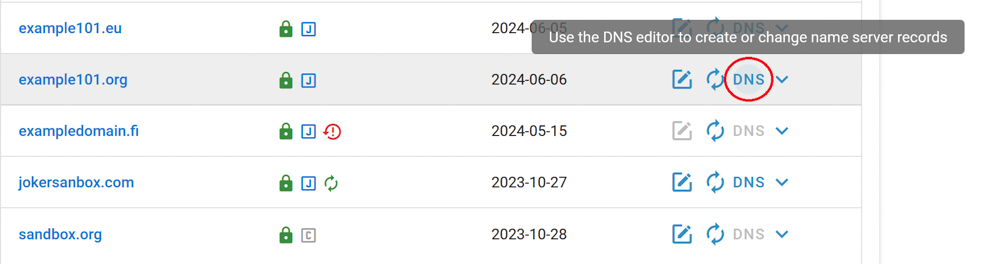 ##### 3. In the DNS configuration section, choose URL Forward as record type: 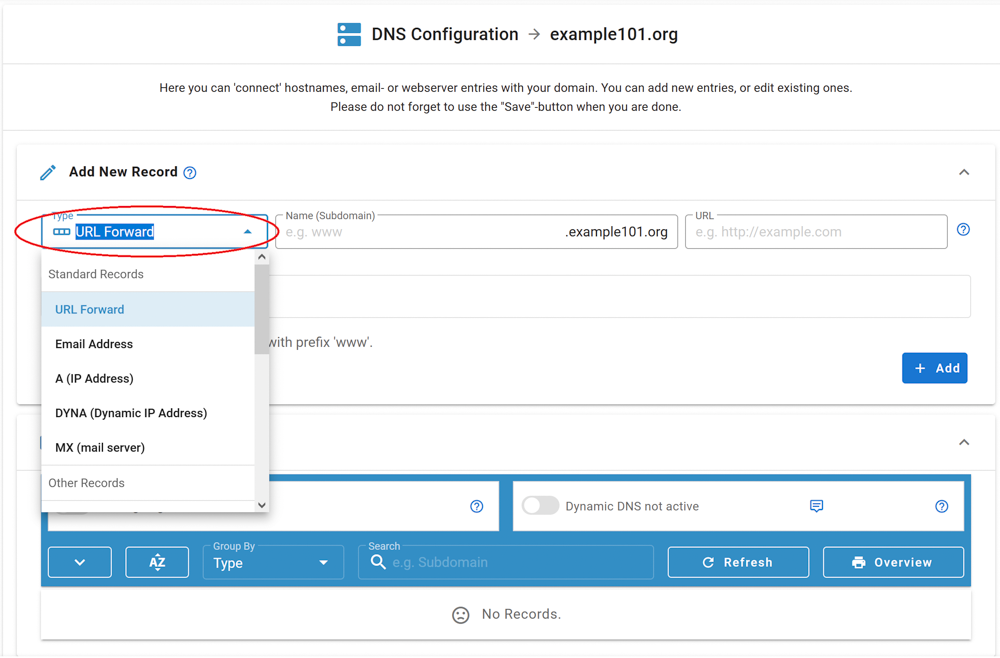 ##### 4. Let's create a URL forwarding for a subdomain "www..." for our domain. Click "add":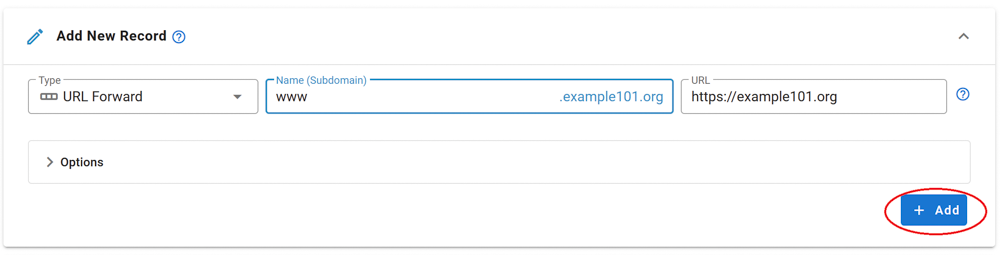 ##### 5. Scroll down to view the newly added record, check its correctness, and click the "Save changes" button: 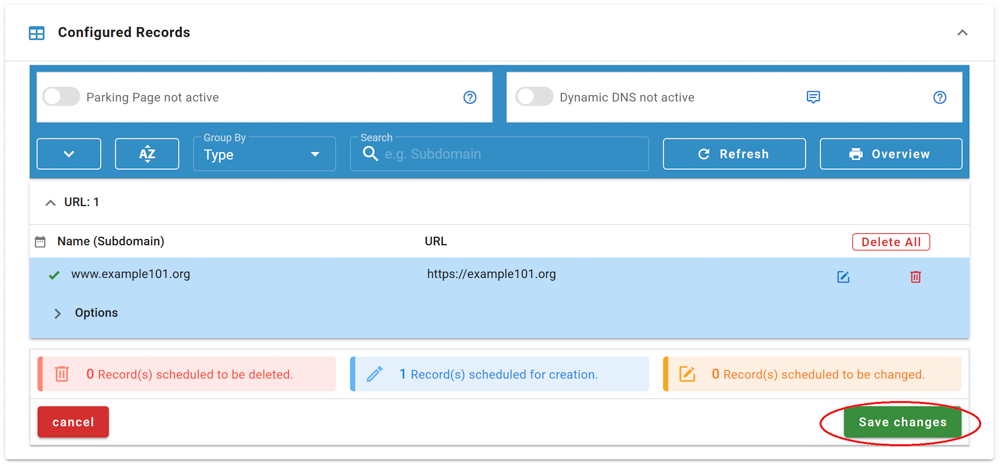 You are done! ## Email Forwarding --- Email Forwarding is a service provided by Joker.com that enables you to create email addresses for a domain and forward incoming emails for those addresses to an external mail account. This means you can have email addresses such as: - info@yourdomain.com - john@yourdomain.com - \*@yourdomain.com These addresses can be forwarded to your email account at your ISP or email provider, such as Gmail, Yahoo, or others.If you create an **Email Forwarding** at Joker.com, an SPF record is **not** created automatically. It is strongly recommended to [**create**](https://joker.com/faq/books/jokercom-faq-en/page/dns-records-supported-by-jokercom-nameservice#bkmrk-how-to-define-spf-re) and [**set up an SPF record**](https://joker.com/faq/books/jokercom-faq-en/page/jokercom-name-service-adding-dns-records#bkmrk-spf-record) for forwards - especially if you forward emails to providers such as Gmail - to ensure proper email delivery.
**Please note the following:** - Email forwarding, similar to URL forwarding, requires that the domain uses the free Joker.com nameservice (which is the default). If you have a domain with a third-party nameservice, you cannot use Joker.com email forwarding. You can easily switch to Joker nameservice, [here you will find the instructions](https://joker.com/faq/books/jokercom-faq-en/page/adding-name-servers-to-your-domain). - To add or modify email addresses for your domains, visit the DNS configuration section by clicking the "DNS" button next to your domain on your [dashboard](https://joker.com/faq/books/jokercom-faq-en/page/understanding-your-dashboard). - Enabling **Email Forwarding will automatically delete current MX records**. This is unavoidable for technical reasons, so you can either let Joker.com handle your email or use a third-party mail server. - **The reverse is also true** - creating an MX record for a (sub-)domain for which an e-mail forwarding already exists **will deactivate it** (a corresponding warning will be displayed beforehand). - For security reasons, we advise against using email forwarding as the "main" email address for your Joker.com account. If this is inadvertently deactivated, you will no longer receive account-related notices. It is also possible to create catch-all addresses. By entering '**\***' instead of *'your\_name'* as the *Email Address:* *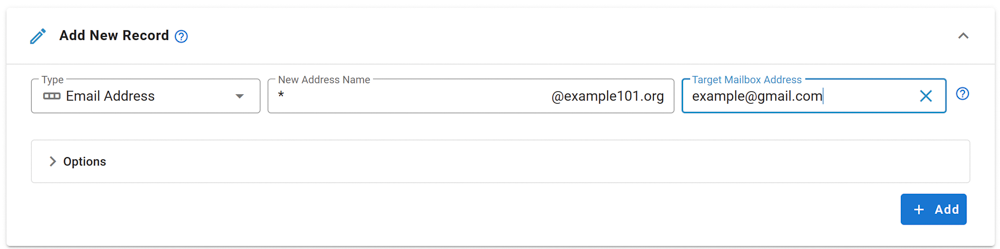* Any emails that **do not match any other address you created** will be directed to the '**\***' entry. **Additionally:** - There is a special account called **'postmaster'** that can be modified but **not deleted.** - You have the option to "**block" specific addresses.** When activated, all incoming emails to the blocked address will be **deleted.** Regarding the number of email addresses per domain, we do not impose strict limits. Instead, we follow a **fair-use policy**. As long as there are no significant *system impacts* caused by an *excessive* number of emails sent or addresses created, there will be no restrictions. *Excessive* in this context refers to significantly above average, and *system impact* refers to significant interference with the general system and/or other users. The current limits are as follows: - Maximum size of a single email: **25MB** - Maximum number of emails per day per address: **400****Important:** When creating a new email address or changing the target address, you need to activate it by responding to the activation email sent to the **Target Email Address**. Simply click on the link provided within the email.
##### What about SPAM?