# Joker.com FAQ (EN)

All you need to know about domains at Joker.com

# Domain Name Fundamentals

Set of articles, covering the basics, domain life cycle, and a glossary of essential terms.

# What is a Domain Name?

<article id="bkmrk-what-is-a-domain-nam">A domain name is a unique, human-readable string of characters that represents the address of a website or web-based service on the internet. It serves as a memorable and convenient way for users to access websites without needing to remember the numerical IP addresses that computers use to locate each other on the internet.

Think of a **domain name** as the online **equivalent of a street address**. Just as a street address helps you locate a specific physical location, a domain name helps users find and access a particular website or web service on the internet.

Domain names are registered and managed by domain [Registrars](https://joker.com/faq/books/jokercom-faq-en/page/what-is-a-domain-name-registrar), which are organizations accredited by the Internet Corporation for Assigned Names and Numbers ([ICANN](https://www.icann.org/resources/pages/educational-2012-02-25-en)) to sell and administer domain names. When you register a domain name, you are essentially leasing the right to use that domain name for a specific period of time, usually ranging from one to ten years, and you need to renew the registration periodically to maintain ownership of the domain name.

**In summary:**

- a domain name is a **unique**, human-readable address
- it represents a **website** or web service on the internet
- it plays a crucial role in helping users **locate and access websites**
- users don't need to remember numerical **IP addresses**
- domain names are registered and managed by domain [Registrars](https://joker.com/faq/books/jokercom-faq-en/page/what-is-a-domain-name-registrar)
- domain names are registered for a **specific period of time**
- you need to[ **renew** ](https://joker.com/faq/books/jokercom-faq-en/page/domain-renewal)the registration periodically to maintain [ownership](https://joker.com/faq/books/jokercom-faq-en/page/who-is-a-domain-registrant) of the domain name.

</article>

# Life Cycle of a Domain

When you register a domain name, you are not actually buying it but rather paying for the right to use it for a certain period of time. When this time is up, the registration will expire. Of course, before it happens, you will be notified and given the chance to renew it for a further period.  
  
Different types of domains have different life cycles, depending on how they are managed by the registry. The graphic below shows a typical life cycle for a generic top-level domain, but specific domains may have different time periods, so it's always important to check our [Terms and Conditions](https://joker.com/index.joker?mode=page&page=terms_cond)

#### Life Cycle of a Typical <abbr class="glossary" title="generic Top Level Domain">gTLD</abbr> Domain Name![LifeCycle](https://joker.com/faq/uploads/images/gallery/FAQ_media/Basics/lifecycle.png "LifeCycle")

##### Registration (1-10 years)

When you register a domain, you choose how long you want to use it, typically 1-10 years.

#####   
Auto-Renew Grace Period (1-90 Days)

  
When your registration period ends, your domain enters the auto-renew grace period, where you can still renew your domain name for a regular renewal fee. This period usually lasts between 1-45 days but varies depending on the registrar and registry.

#####   
Redemption Grace Period (up to 90 days)

If you don't renew your domain during the auto-renew grace period, it enters the redemption grace period, which can last up to 90 days. During this time, you can still renew your domain, but there may be an additional redemption fee.

#####   
Pending Delete

If you don't renew your domain during the redemption grace period, it enters the pending delete stage. This lasts for about 5 days, during which time the registrar requests that the registry delete the domain.

#####   
Released/Available to All

After the pending delete stage, the domain becomes available for anyone to register.

##### Examples of the approximate Joker.com TLDs Life-Cycle Periods \*:

<table border="0" id="bkmrk-%C2%A0tld-%C2%A0auto-renew%2Fexp" rules="all" style="width: 851px; height: 179px;"><tbody><tr><td style="width: 209.85px;"> **<abbr class="glossary" title="Top Level Domain">TLD</abbr>**</td><td style="width: 209.85px;"> **Auto-Renew/Expired Grace Period (days)** </td><td style="width: 209.85px;"> **Redemption Grace Period (days)** </td><td style="width: 209.85px;">  **Pending Delete (days)** </td></tr><tr><td style="width: 209.85px;"> DE</td><td style="width: 209.85px;"> 25</td><td style="width: 209.85px;"> 40 </td><td style="width: 209.85px;"> 0 </td></tr><tr><td style="width: 209.85px;"> EU</td><td style="width: 209.85px;"> 20</td><td style="width: 209.85px;"> 40 </td><td style="width: 209.85px;"> 0 </td></tr><tr><td style="width: 209.85px;"> AT</td><td style="width: 209.85px;"> 0 </td><td style="width: 209.85px;"> 59 </td><td style="width: 209.85px;"> 0 </td></tr><tr><td style="width: 209.85px;"> NL</td><td style="width: 209.85px;"> 0</td><td style="width: 209.85px;"> 40</td><td style="width: 209.85px;"> 0 </td></tr><tr><td style="width: 209.85px;"> UK</td><td style="width: 209.85px;"> 89</td><td style="width: 209.85px;"> 90 </td><td style="width: 209.85px;"> 90 </td></tr><tr><td style="width: 209.85px;">CH, LI</td><td style="width: 209.85px;"> 0 </td><td style="width: 209.85px;"> 27 </td><td style="width: 209.85px;"> 40 </td></tr><tr><td style="width: 209.85px;"> all other</td><td style="width: 209.85px;"> 29</td><td style="width: 209.85px;"> 30 </td><td style="width: 209.85px;"> 5 </td></tr></tbody></table>

\* While the above-mentioned time periods are generally accurate, it's important to note that they are provided as estimates and may vary depending on the registry. Additionally, there may be technical requirements that necessitate processing within a specific time frame, which could result in a shorter time period for certain stages.

As a result, it's recommended that you **don't wait until the last possible moment**, such as the "expired grace period," before renewing your domain. Doing so could result in unexpected issues and potentially losing the domain altogether.

# What is a Domain Name Registrar?

<article id="bkmrk-joker.com-is-an-ican">**Joker.com is an ICANN-accredited domain registrar**

What does it mean?

A domain **registrar is a company** or service that allows individuals or organizations **to register and purchase domain names** for their websites.

Domain registrars are accredited by the Internet Corporation for Assigned Names and Numbers ([ICANN](https://www.icann.org/resources/pages/educational-2012-02-25-en)), the organization responsible for managing domain names and IP addresses on the Internet. They also provide other services related to domain names, such as domain name transfers, [<abbr class="glossary" title="Domain Name Server">DNS</abbr>](https://joker.com/faq/books/jokercom-faq-en/page/what-is-domain-name-service-dns) management, and domain name renewal. It's important to choose a reputable and reliable domain registrar to ensure that your domain name is properly registered and managed.

**When you want to register a domain name, you:**

- go through a domain Registrar
- the Registrar helps you search for available domain names
- if the one you want is available, you can purchase it for a specified period of time
- registration period usually ranges from one to ten years
- the Registrar then **maintains a record of your domain name registration**, including your contact information and technical details, in a database called the domain name system [(<abbr class="glossary" title="Domain Name Server">DNS</abbr>)](https://joker.com/faq/books/jokercom-faq-en/page/what-is-domain-name-service-dns).

</article>

# Who is a Domain Registrant?

<article id="bkmrk-who-is-a-domain-regi">A domain Registrant, also known as a **domain owner**, is an **individual or organization** that has registered and **legally owns** a specific domain name. The domain Registrant is the entity that has the right to use and control the domain name for a specified period of time, typically through a contract with a domain Registrar.

When registering a domain name, the domain Registrant provides their **contact information**, including their name, address, phone number, and email address, to the domain Registrar. This information is stored in the domain name system ([<abbr class="glossary" title="Domain Name Server">DNS</abbr>](https://joker.com/faq/books/jokercom-faq-en/page/what-is-domain-name-service-dns)) and is fully or partially accessible through a WHOIS lookup, which is a database containing information about registered domain names.

**The domain Registrant has certain responsibilities and rights associated with their domain name.**

This includes the ability to:

- configure the domain's [<abbr class="glossary" title="Domain Name Server">DNS</abbr>](https://joker.com/faq/books/jokercom-faq-en/page/what-is-domain-name-service-dns) settings
- associate the domain with a website or email service
- manage domain name [renewal](https://joker.com/faq/books/jokercom-faq-en/page/domain-renewal "Domain Renewal") and expiration.

The domain Registrants are **responsible** for:

- adhering to the **terms and conditions** of the domain Registrar and relevant domain name **registration policies**, such as those set by [ICANN](https://www.icann.org/resources/pages/educational-2012-02-25-en), the organization that oversees domain name registrations globally.
- keeping their **[contact information](https://joker.com/faq/books/jokercom-faq-en/page/whois-data-accuracy) up-to-date** with their domain Registrar to ensure that they receive important notifications related to their domain name registration, such as renewal reminders or updates about changes to registration policies.

</article>

# What are Domain Contacts?

<article id="bkmrk-domain-contacts%2C-als">Domain contacts, also known as domain name contacts or WHOIS contacts, are the individuals or entities associated with a registered domain name who are designated as points of contact for administrative, technical, and/or billing purposes. Domain contacts are typically specified during the domain registration process and are stored in the domain name system ([<abbr class="glossary" title="Domain Name Server">DNS</abbr>](https://joker.com/faq/books/jokercom-faq-en/page/what-is-domain-name-service-dns)) as part of the domain's registration information.</article><article id="bkmrk-%C2%A0-there-are-several-">There are several types of domain contacts that may be associated with a domain name, including:

<div class="flex flex-grow flex-col gap-3"><div class="flex flex-grow flex-col gap-3"><div class="min-h-[20px] flex flex-col items-start gap-4 whitespace-pre-wrap break-words"><div class="markdown prose w-full break-words dark:prose-invert dark">1. **Registrant:** The domain registrant is the legal owner of the domain name. The registrant contact typically provides their name, address, phone number, and email address during the domain registration process.
2. **Administrative Contact:** The administrative contact is responsible for managing administrative tasks related to the domain name, such as updates to registration information, domain name transfers, and other administrative matters.
3. **Technical Contact:** The technical contact is responsible for managing technical aspects of the domain name, such as domain name server ([<abbr class="glossary" title="Domain Name Server">DNS</abbr>](https://joker.com/faq/books/jokercom-faq-en/page/what-is-domain-name-service-dns)) settings, [<abbr class="glossary" title="Domain Name Server">DNS</abbr>](https://joker.com/faq/books/jokercom-faq-en/page/what-is-domain-name-service-dns) zone configuration, and other technical matters related to the domain's operation.
4. **Billing Contact:** The billing contact is responsible for managing billing and payment-related matters for the domain name, such as domain name renewal, payment updates, and other billing inquiries.

</div></div></div></div>Domain contacts are an important aspect of domain name management, as they serve as points of contact for communication and administration related to the domain name. It's important for domain registrants to keep their domain contact information up-to-date with their domain registrar to ensure that they receive important notifications and can be reached for domain-related matters.

<p class="callout info">For a complete list of contact handle prefixes used across all TLDs, please refer to the [**Contact Prefix Reference Table**](https://joker.com/faq/books/reseller-documentation-en/page/tld-list-and-assosiated-contact-prefixes)</p>


</article>

# What is TLD or Top-Level Domain?

<abbr class="glossary" title="Top Level Domain">TLD</abbr> stands for Top-Level Domain. It refers to the highest level of the domain name system ([<abbr class="glossary" title="Domain Name Server">DNS</abbr>](https://joker.com/faq/books/jokercom-faq-en/page/what-is-domain-name-service-dns)) hierarchy, which is the rightmost portion of a domain name. TLDs are the last part of a domain name that comes after the last dot (e.g., .com, .org, .net).

At Joker.com, you can register a big variety of TLDs, including:

- **Generic Top-Level Domains (gTLDs):** These are the most common type of TLDs and are not tied to any specific country or region. Some examples of gTLDs include .com (for commercial purposes), .org (for organizations), .net (for network-related purposes), and .info (for informational websites).
- **Country Code Top-Level Domains (ccTLDs):** These are TLDs that are tied to specific countries or regions and are based on the two-letter country codes defined by the ISO 3166-1 standard. Examples of ccTLDs include .us (United States), .uk (United Kingdom), .ca (Canada), .au (Australia), .de (Germany), and many more. ccTLDs are often used by businesses, organizations, or individuals with a local presence in a specific country or region.
- **New TLDs (<span style="font-family: Arial,Helvetica;">ngTLDs</span>):** These represent a broader range of domain extensions that became available from 2014 onwards. Some examples of ngTLDs include .guru, .photography, .shop, .blog, .app, and .xyz. These new extensions offer individuals and organizations the opportunity to create memorable and meaningful domain names that align with their specific interests, industries, or branding. For example, a company named "ABC Corporation" could register the domain abc.corp instead of abc.com, emphasizing their corporate identity.

<div class="markdown prose w-full break-words dark:prose-invert dark" id="bkmrk-"></div>It's worth noting that different TLDs may have varying policies and regulations depending on the registry that manages them. Registries are the organizations responsible for managing and maintaining TLDs, and they may have their own rules and requirements for domain name registration, renewal, transfer, and usage.

For example, some TLDs may have specific eligibility criteria, such as requiring registrants to be located in a certain country or belong to a particular industry or community. Others may have different pricing structures, registration periods, or renewal policies. Additionally, some TLDs may have stricter regulations on content, usage, or trademark protections, while others may have more relaxed policies.

# What is the Domain Status?

Domain status refers to the current condition or state of a registered domain name in the [Domain Name System (<abbr class="glossary" title="Domain Name Server">DNS</abbr>)](https://joker.com/faq/books/jokercom-faq-en/page/what-is-domain-name-service-dns). It typically reflects whether a domain name is active, inactive, expired, or undergoing some other type of special status.  
  
If you query the WHOIS ('Whois query') at Joker.com for a domain, you will get one of the following domain statuses:

- **Lock:** The domain is secured against unauthorized transfer attempts. To transfer the domain to another registrar, it must be unlocked under [Domain Management](https://joker.com/faq/books/jokercom-faq-en/page/domain-management-section "Domain Management Section") section first, after which it will be in "production" status.
- **Production:** The domain is unlocked, and Joker.com will allow transfer requests to another registrar. To lock and secure a domain, it must be locked under [Domain Management](https://joker.com/faq/books/jokercom-faq-en/page/domain-management-section "Domain Management Section") section.
- **Hold:** The domain will not be served by nameservers and cannot be used normally. This indicates that the domain name has been suspended or put on hold by the registrar or registry due to various reasons, such as non-payment, violation of terms of service, or legal disputes. Newly registered domains may have this status until billing is completed successfully.
- **Expired:** The domain has not been renewed and has passed its term, but it is not yet deleted and can still be renewed normally or using "[simple renewal](https://joker.com/domain/renew/simple)".
- **Transfer-prohibited-cor:** After a change of registrant (COR) or change of owner, the domain cannot be transferred for security reasons for a period of 60 days.
- **[Invalid-address](https://joker.com/faq/books/jokercom-faq-en/page/whois-data-accuracy#bkmrk-you-received-a-warni):** The WHOIS data validation has indicated incorrect registrant's data, and a process to correct it has been initiated. Please visit [Ownership/Permissions](https://joker.com/?mode=ownerchange&do_next=step1) under "Domains" menu to address this request.

  
To ensure optimal security, domains registered with Joker.com are typically set to **"lock"** status by default. This recommended status ensures that your domain is safeguarded against any unauthorized transfer or modification attempts, effectively preventing any fraudulent activities.

# What is Domain Name Service (DNS)?

**<abbr class="glossary" title="Domain Name Server">DNS</abbr>** stands for **Domain Name System**. It is a system used to translate human-readable domain names (like www.example.com) into machine-readable IP addresses (like 192.0.2.1).

When you **type a domain name** into your web browser, your computer sends a **request to a <abbr class="glossary" title="Domain Name Server">DNS</abbr> server** asking for the **IP address** associated with that domain name. The <abbr class="glossary" title="Domain Name Server">DNS</abbr> server then looks up the IP address in its database and sends it back to your computer. Your computer can then use that IP address to connect to the website you requested.

**<abbr class="glossary" title="Domain Name Server">DNS</abbr>** is an essential part of the internet infrastructure, as it allows users to **access websites** and other resources using easy-to-remember domain names, rather than having to remember complex IP addresses.

**<span style="font-family: Arial,Helvetica;">Our free name service is included with all Joker.com domains.</span>**

# What are IDN Domains?

**<abbr class="glossary" title="Internationalized Domain Names">IDN</abbr>** stands for **Internationalized Domain Name**. <abbr class="glossary" title="Internationalized Domain Names">IDN</abbr> domains allow for domain names to be registered using **non-Latin characters.**  
  
Before the introduction of <abbr class="glossary" title="Internationalized Domain Names">IDN</abbr> domains, domain names were limited to the 26 letters of the Latin alphabet, along with the numbers 0-9 and the hyphen (-) character. This made it difficult for people who use non-Latin scripts to register domain names that accurately reflected their online identity or the content of their website.  
  
With <abbr class="glossary" title="Internationalized Domain Names">IDN</abbr> domains, users can register **domain names** using a wider range of characters from different scripts, making it easier for people to use domain names **in their native language** or script.

For example:

- a **German user** can now register a domain name using characters with **umlauts (such as ä, ö, ü)** or the eszett *(ß)* character, which was previously not allowed in domain names
- a **Finnish user** can now register a domain name using characters with **diacritical marks (such as ä and ö)** that are specific to the Finnish language
- and **many more international users** can use language-specific characters in their domain names

With <abbr class="glossary" title="Internationalized Domain Names">IDN</abbr> domains, they can now **register domain names** using their native language characters, making it easier for them to represent their **online identity** and connect with their **target audience in their own language.**

Enabling <abbr class="glossary" title="Internationalized Domain Names">IDN</abbr> domains requires a technical process that involves converting non-Latin characters into ASCII characters, which is a standardized encoding system used by the existing internet infrastructure. This conversion is known as PUNYCODE, and it allows <abbr class="glossary" title="Internationalized Domain Names">IDN</abbr> domains to be processed and managed by existing systems that are designed to work with ASCII characters.

To simplify the registration process for <abbr class="glossary" title="Internationalized Domain Names">IDN</abbr> domains, we provide a PUNYCODE presentation of the domain name during the registration procedure. This allows users to easily see how their domain name will be encoded in ASCII characters and how it will be displayed in different contexts.

<div align="justify" id="bkmrk-web-sites-where-you-"><span style="font-family: Arial,Helvetica;">Web sites where you can verify PUNYCODES are (<abbr class="glossary" title="Internationalized Domain Names"><abbr class="glossary" title="Internationalized Domain Names">IDN</abbr></abbr>-specific knowledge is required):</span></div><div align="justify" id="bkmrk-wikipedia-http%3A%2F%2Fjos">- <span style="font-family: Arial,Helvetica;">[Wikipedia](http://en.wikipedia.org/wiki/Internationalized_domain_name)  
    </span>
- <span style="font-family: Arial,Helvetica;">[https://puny.codes/](https://puny.codes/)</span>

</div>

# What is a Premium Domain Name?

Premium domains are domain names that have been previously registered and are considered **more valuable** than regular domain names due to their length, keyword relevance, or memorability. These domain names are often **shorter, more brandable, and more memorable** than regular domain names, making them highly desirable for businesses or individuals who want to establish a **strong online presence.**  
  
Premium domains are usually not available at the normal/fixed rate, and their **prices can vary** widely depending on factors such as the domain name's length, its relevance to a specific industry or niche, and the demand for the domain name.

<p class="callout info">*Some premium domain names have sold for **millions of dollars**, such as "business.com," "insurance.com," and "vacationrentals.com."*</p>

Premium domains can be classified into three major types:

1. **registered domains** offered by global networks, run by companies, with individual prices; have to be purchased by transferring the domain
2. domains **offered by the registries at special rates**, which can be registered
3. **expired domains** that are currently at the end of the [<abbr class="glossary" title="Redemption Grace Period">RGP</abbr>](https://joker.com/faq/books/jokercom-faq-en/page/the-redemption-grace-period-rgp) phase.

Joker.com offers **all three types** of premium domains, with most of them available through the regular order process. However, for <abbr class="glossary" title="Redemption Grace Period">RGP</abbr> expired domains, there is a [separate section for ordering.](https://joker.com/goto/premium)  
  
For domains of the first type, a transfer is required during the order process. The transfer usually occurs in real time as these domains are already prepared for fast transfers.

If you need an exciting domain name for your new business, [you probably will find it here](https://joker.com/goto/premium "Joker.com Premium Domains").

# Account

This section provides articles and step-by-step instructions to help users create and manage their Joker.com accounts.

# Setting up Your Joker.com Account

### First Steps

To be able to register and manage your domains, the first thing you need is to create a user account at joker.com.

This can be done in a few easy steps:

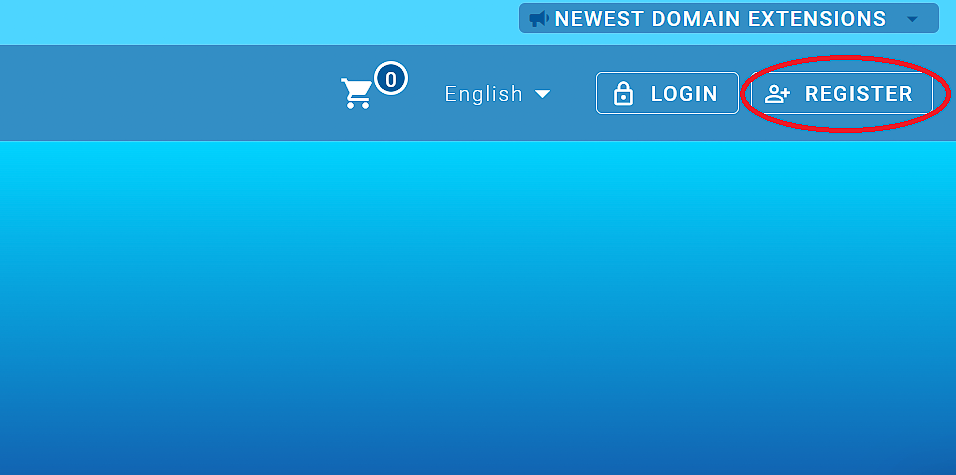
##### 1. Click on "Register" at the top right corner:
![](https://joker.com/faq/uploads/images/gallery/FAQ_media/Account/registering_account-1.png)


#####  

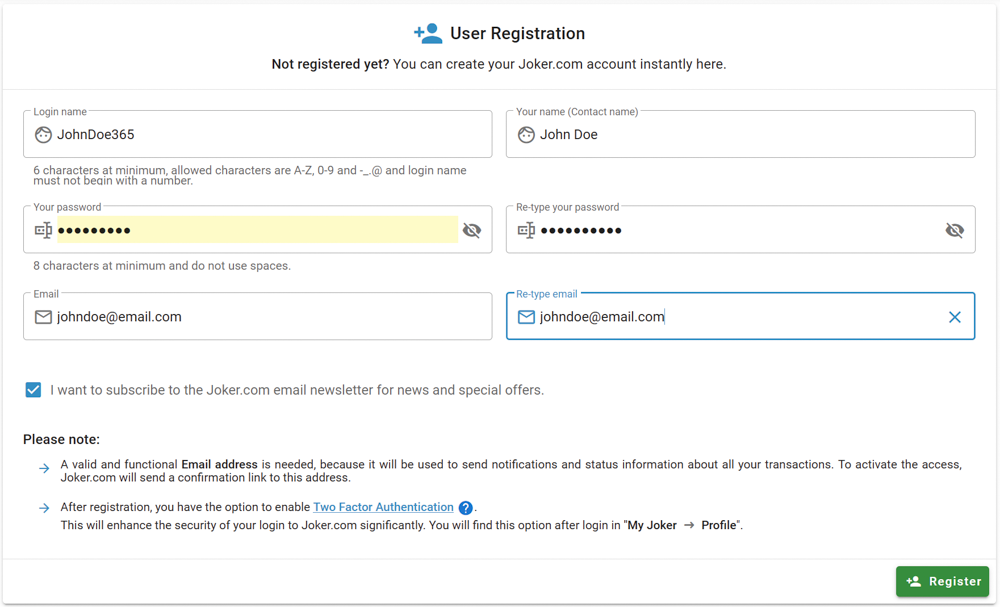
##### 2. Fill out the form, and click the "Register" button:
![](https://joker.com/faq/uploads/images/gallery/FAQ_media/Account/registering_account-2.png)


#####  

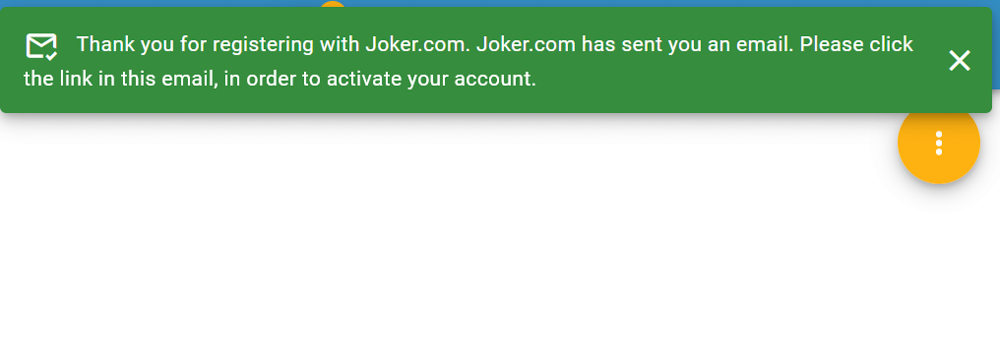
##### 3. After successful registration, you will see the notification in the top right corner:
![](https://joker.com/faq/uploads/images/gallery/FAQ_media/Account/registering_account-3.png)

#####  

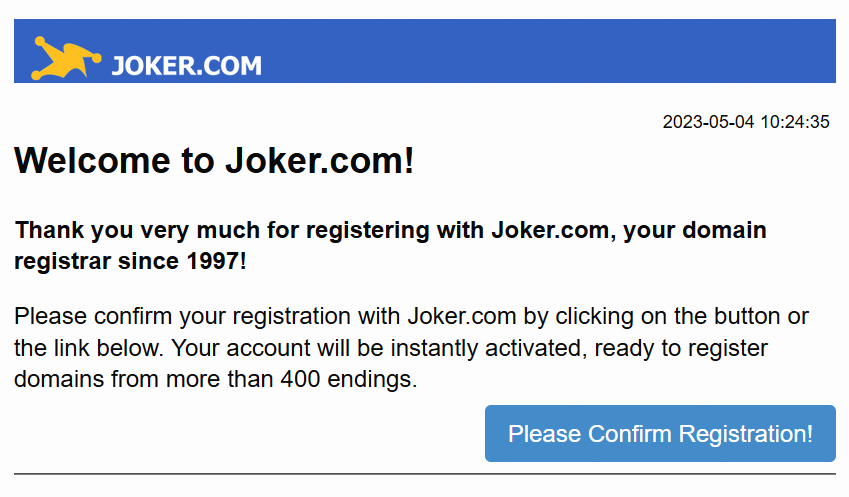
##### 4. Last step is activating your account, by clicking on the link in the verification email:
![](https://joker.com/faq/uploads/images/gallery/FAQ_media/Account/registering_account-4.png)

That's it! Your account is ready and you can start ordering and managing your domains.

# What is Two Factor Authentication?

### Two Factor Authentication (2FA)  


To **enhance the security** of your Joker.com account, we highly recommend enabling the optional two-factor authentication feature. This feature adds an extra layer of protection by requiring a six-digit security code, in addition to your password, whenever you log in to your account.

To generate these security codes, you will need a device or password manager that supports 2FA, such as your smartphone. The combination of your password and your smartphone adds an additional layer of security against theft of your credentials or dictionary attacks.

Using a mobile app for your smartphone is a practical and popular option for generating these security codes. Many of these apps are free, but any device or app that supports the [**TOTP protocol**](https://en.wikipedia.org/wiki/Time-based_One-time_Password_algorithm "Wikipedia") should work. Here is a list of some recommended apps (though not exhaustive):

- [Google Authenticator ](https://support.google.com/accounts/answer/1066447?hl=en)(Android, iOS, Blackberry)
- [Microsoft Authenticator](https://www.microsoft.com/de-de/account/authenticator) (Android, IOS)
- [Amazon AWS Virtual MFA](https://aws.amazon.com/de/iam/features/mfa/) (Android)
- [Authentikator](https://chrome.google.com/webstore/detail/authentikator/jgbgbfmcojcfkpmblnbadaomjmpdooac) (Chrome Browser – do not use on the same computer)

<p class="callout info">Note: The user settings for Joker,.com always automatically apply to the reseller portal **RPanel.io** as well, also with regard to the activation of the 2FA.</p>

### Setting up 2FA

To set up 2FA, you need to do the following:

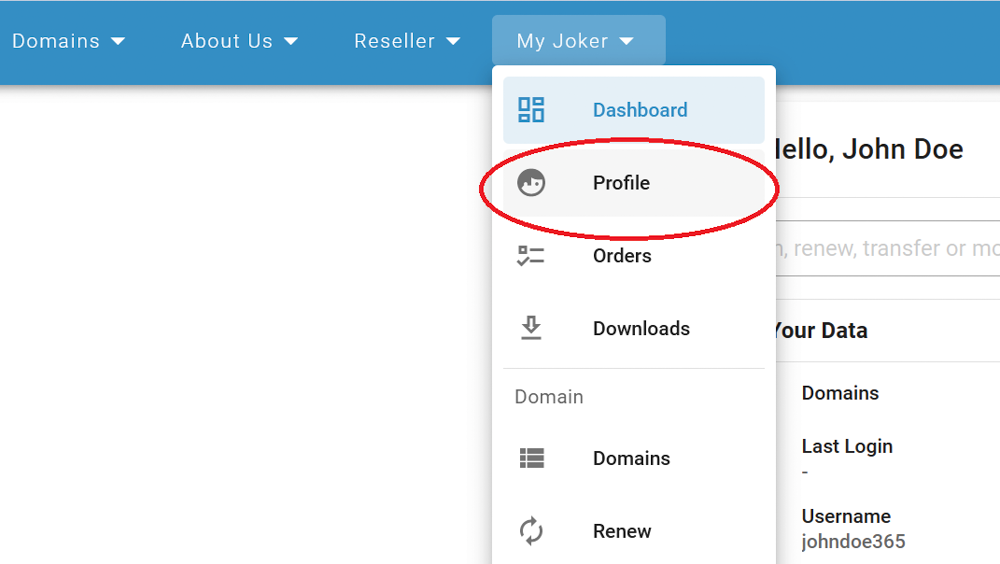
##### 1. Log in to your Joker account and choose "Profile" from the "My Joker" menu on the left side of your dashboard:
![](https://joker.com/faq/uploads/images/gallery/FAQ_media/Account/setting_2FA-1.png)


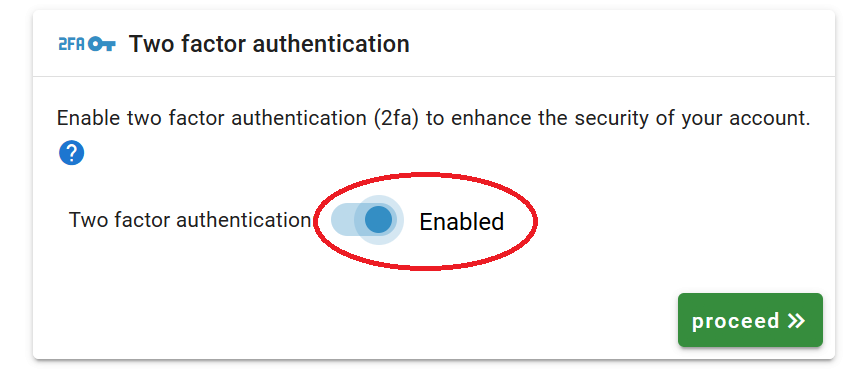
##### 2. On the next screen, in the bottom-left corner switch the 2FA slider to the "Enabled" position, and click the "Proceed" button:![](https://joker.com/faq/uploads/images/gallery/FAQ_media/Account/setting_2FA-2.png)

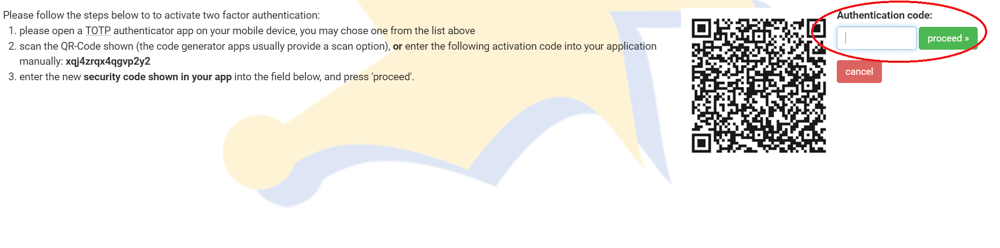
##### 3. Following the instructions, scan the QR code and enter the Authentication-code into the corresponding field. Click "proceed":![](https://joker.com/faq/uploads/images/gallery/FAQ_media/Account/setting_2FA-3.png)

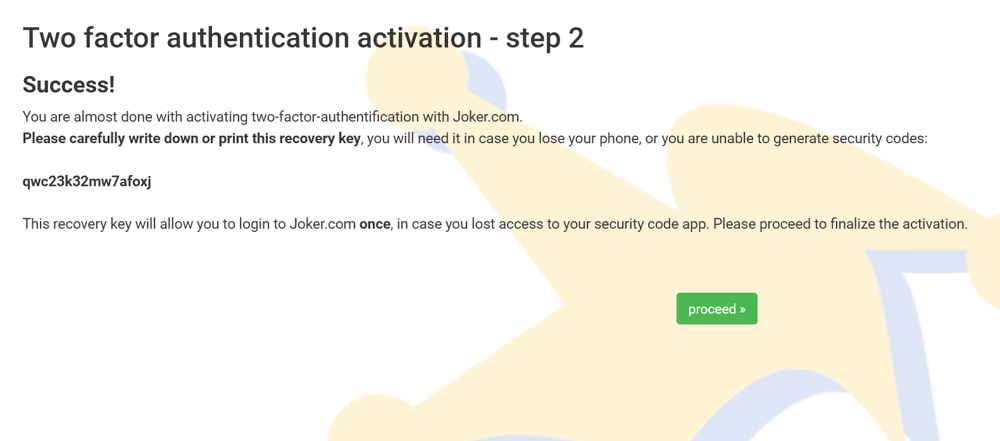
##### 4. Save the recovery key. It is very **important** that you **write this key down** and store it in a safe place! Then click "proceed":
![](https://joker.com/faq/uploads/images/gallery/FAQ_media/Account/setting_2FA-4.png)


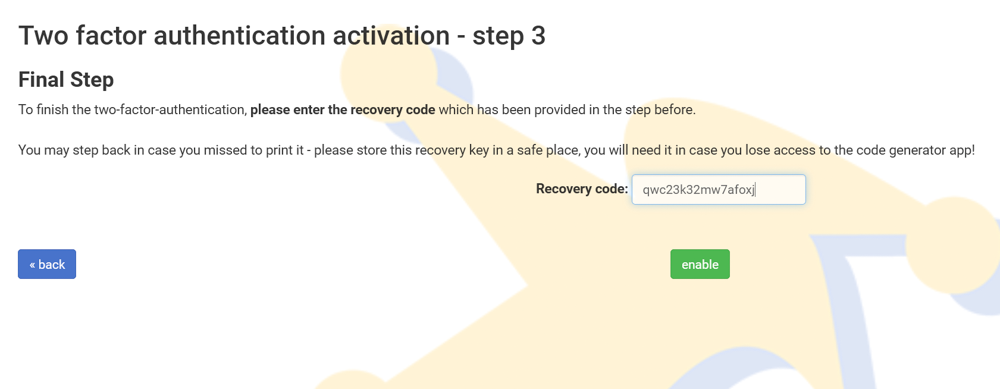
##### 5. Enter the recovery code from the previous step, and click the "enable" button:
![](https://joker.com/faq/uploads/images/gallery/FAQ_media/Account/setting_2FA-5.png)


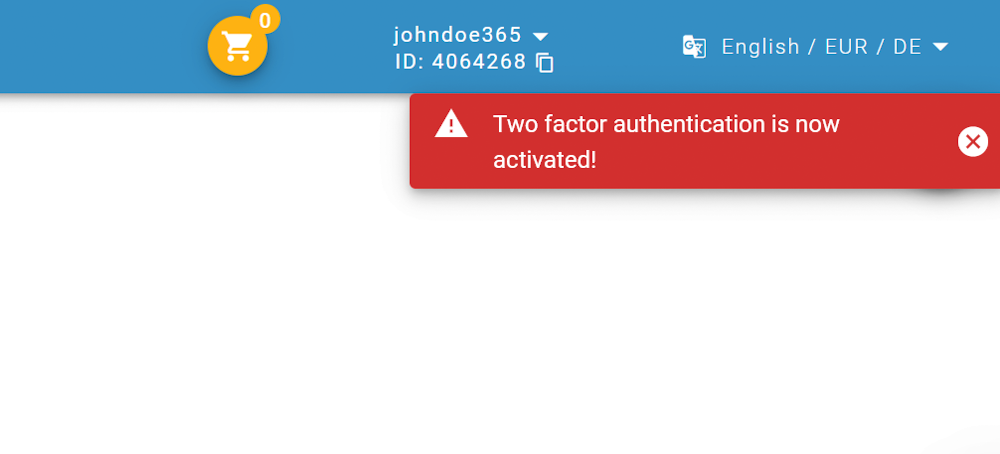
##### 6. You are done! In the top right corner you will see the notification:
![](https://joker.com/faq/uploads/images/gallery/FAQ_media/Account/setting_2FA-6.png)

<p class="callout warning">**If you ever lose your phone, or can't receive or generate a security code, you will need the recovery code shown in step 4 for emergency access to Joker.com!**</p>

If you have **lost** your 2FA access device or recovery code, please contact our [support](https://joker.com/goto/support "contact our support").

Later, you can easily activate or deactivate two-factor authentication in your **[Joker.com Profile](https://joker.com/goto/myjoker)** as described in step 2.

# Change and Recover Your Password

### Password Change

You can easily change your password in a few steps:

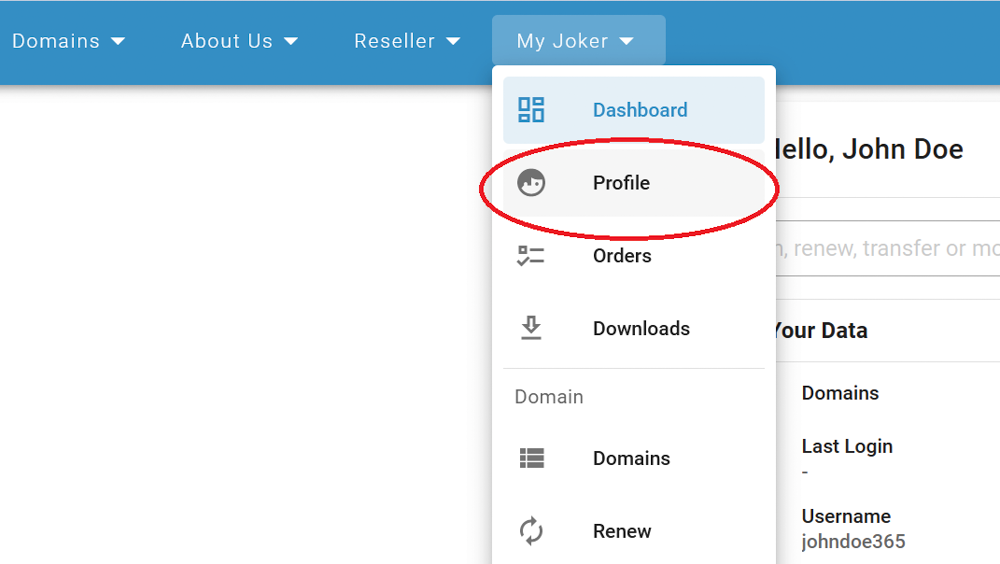
##### 1. Log in to your account and choose "Profile" in the "My Joker" menu on the left side:
![](https://joker.com/faq/uploads/images/gallery/FAQ_media/Account/password_change_reset-1.png)

#####  

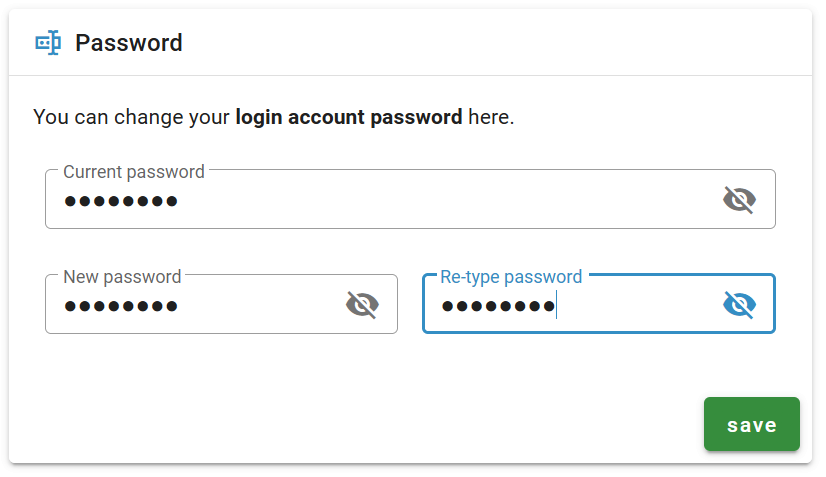
##### 2. On the right, under the "Password" section, enter your current and new password, and click "Save":
![](https://joker.com/faq/uploads/images/gallery/FAQ_media/Account/password_change_reset-2.png)

#####  

##### 3. Done! You will receive a notification email, next time you can log in with your new password.


###  

### Password Recovery

<span style="font-family: Arial,Helvetica;">In case you have lost your username or password, you will need to initiate password recovery. Please do the following:  
</span>

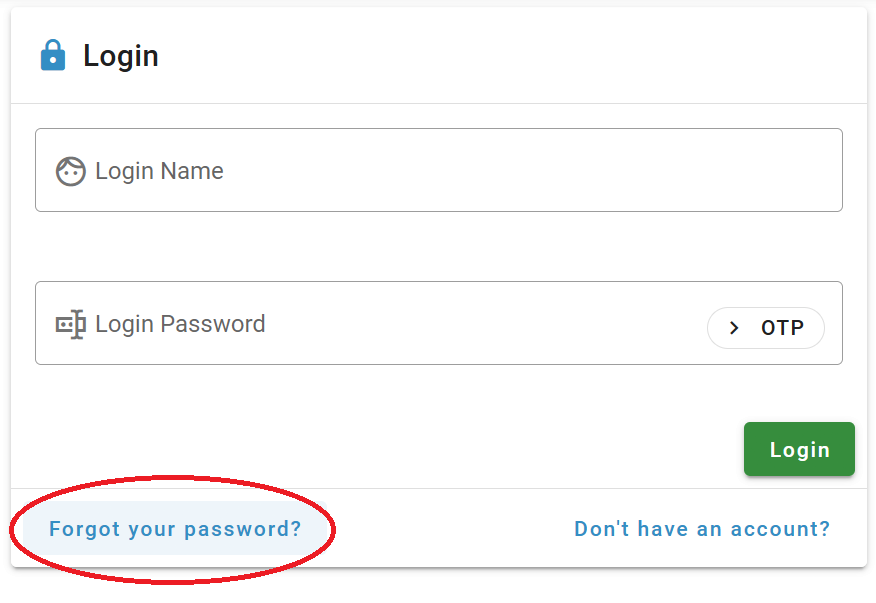
##### <span style="font-family: Arial,Helvetica;"> </span><span style="font-family: Arial,Helvetica;">1. Under the "Login" section, click the "Forgot your password?" button:</span><span style="font-family: Arial,Helvetica;"> </span>

<span style="font-family: Arial,Helvetica;">![](https://joker.com/faq/uploads/images/gallery/FAQ_media/Account/password_change_reset-3.png)</span>

#####  

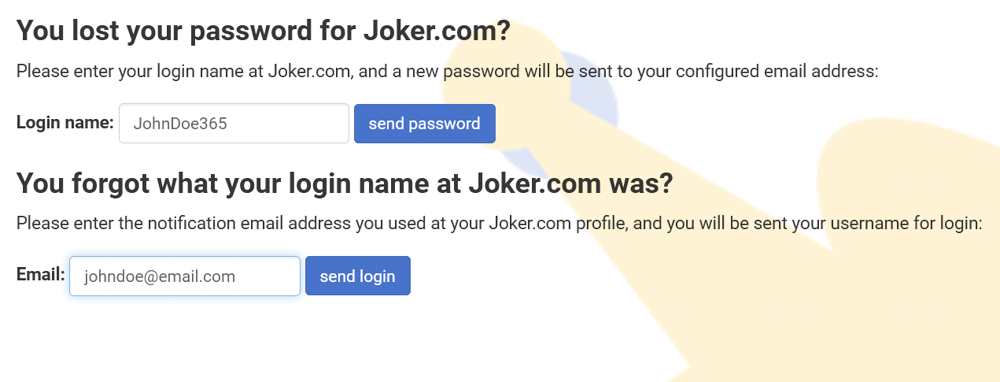
##### 2. On the next screen, enter your login and/or email, and click "Send Password" or "Send Login":

![](https://joker.com/faq/uploads/images/gallery/FAQ_media/Account/password_change_reset-4.png)

#####  

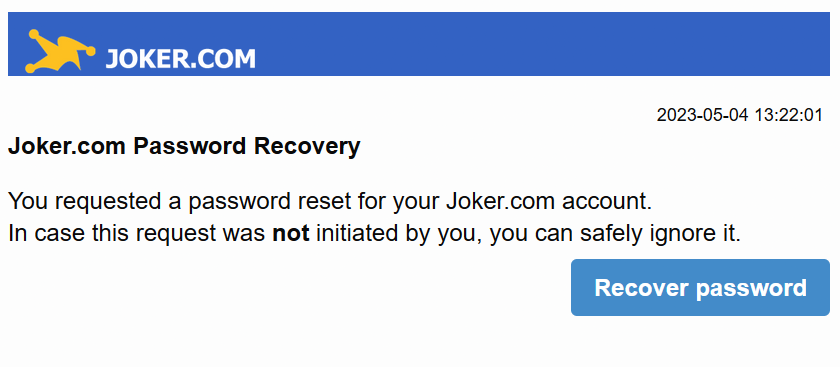
##### 3. Password recovery link or your Login information is sent to you via email. Open the email and click "Recover password":
![](https://joker.com/faq/uploads/images/gallery/FAQ_media/Account/password_change_reset-5.png)

#####  

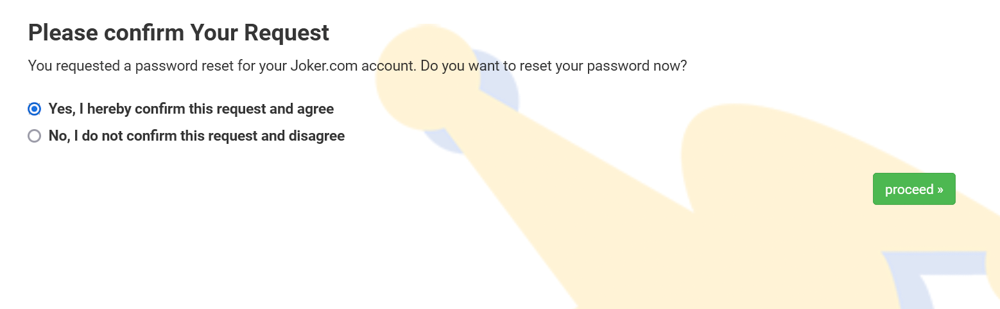
##### 4. Following the link, choose "Yes, I hereby confirm this request and agree", and click "proceed":
![](https://joker.com/faq/uploads/images/gallery/FAQ_media/Account/password_change_reset-6.png)

#####  

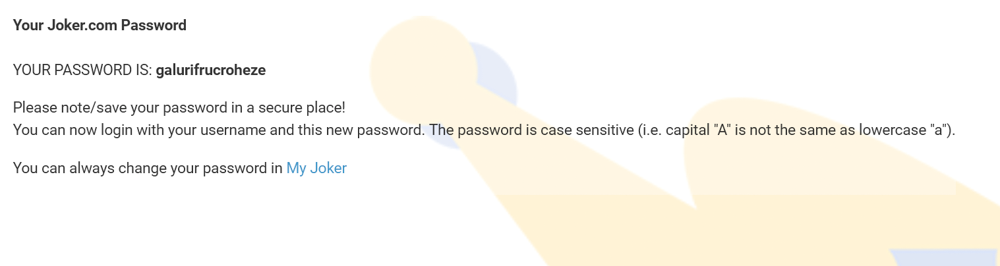
##### 5. New password has been generated for you, you can use it to log in to your account. We strongly recommend changing your password as soon as you get access to your account!
![](https://joker.com/faq/uploads/images/gallery/FAQ_media/Account/password_change_reset-7.png)

# Understanding Your Dashboard

<article id="bkmrk-1.-your-current-doma">#### Dashboard Map

![](https://joker.com/faq/uploads/images/gallery/FAQ_media/Account/dashboard-1.png)

<table border="1" class="align-center" style="border-collapse: collapse; width: 100%; border-width: 1px; border-style: hidden; height: 997.933px;"><colgroup><col style="width: 11.619%;"></col><col style="width: 88.3789%;"></col></colgroup><tbody><tr style="height: 280.8px;"><td style="padding: 20px; height: 280.8px;">**1**

</td><td style="padding: 20px; height: 280.8px;">**Your current domain portfolio**

This is the list of the domains ordered by you or managed by you (see also [roles and permissions](https://joker.com/faq/books/jokercom-faq-en/page/roles-and-permissions)). If you don't see any of your domains here, the possible reasons are:

- <span style="font-family: arial,helvetica,sans-serif; font-size: small;">you have ordered the domain just recently - it may take some minutes before it shows up  
    </span>
- <span style="font-family: arial,helvetica,sans-serif; font-size: small;">there was an issue with the payment for the domain - please check your email to if there are any messages from Joker.com   
    </span>
- <span style="font-family: arial,helvetica,sans-serif; font-size: small;">the domain has already expired - please check the WHOIS, if the domain is still registered, and do a "[simple renewal](https://joker.com/domain/renew/simple)" or contact [our support](https://joker.com/goto/support/)  
    </span>
- <span style="font-family: arial,helvetica,sans-serif; font-size: small;">you did not order this domain yourself, and you have not been assigned the [appropriate permissions ('grants')](https://joker.com/faq/books/jokercom-faq-en/page/roles-and-permissions "Roles and Permissions") to list or modify this domain. In this case, you may contact the owner of the domain to ask for such assignments.</span><span style="font-family: arial,helvetica,sans-serif; font-size: small;"> </span>

</td></tr><tr style="height: 227.233px;"><td style="padding: 20px; height: 227.233px;">**2**  
</td><td class="align-left" style="padding: 20px; height: 227.233px;">**Domain status and features:**

<table border="1" style="border-collapse: collapse; width: 100.163%; height: 380.383px; border-width: 0px;"><colgroup><col style="width: 5.9312%;"></col><col style="width: 94.0095%;"></col></colgroup><tbody><tr style="height: 63.4px;"><td style="border-width: 0px; height: 63.4px;">![grafik.png](https://joker.com/faq/uploads/images/gallery/2023-07/scaled-1680-/P4Mgrafik.png)</td><td style="border-width: 0px; height: 63.4px;">domain protection is enabled. This is highly recommended to protect your domain from unauthorized transfer. If you wish to transfer your domain anywhere else, you can always unlock it under the **"Modify" (4)**  
</td></tr><tr style="height: 40.65px;"><td style="border-width: 0px; height: 40.65px;">[![grafik.png](https://joker.com/faq/uploads/images/gallery/2023-07/scaled-1680-/n8ugrafik.png)](https://joker.com/faq/uploads/images/gallery/2023-07/n8ugrafik.png)

</td><td style="border-width: 0px; height: 40.65px;">indicates that the domain is unlocked, has the status "production" and is ready for transfer</td></tr><tr style="height: 35.4px;"><td style="border-width: 0px; height: 35.4px;">![grafik.png](https://joker.com/faq/uploads/images/gallery/2023-07/scaled-1680-/QY6grafik.png)</td><td style="border-width: 0px; height: 35.4px;">your domain is using Joker name service</td></tr><tr style="height: 39.4333px;"><td style="border-width: 0px; height: 39.4333px;">![grafik.png](https://joker.com/faq/uploads/images/gallery/2023-07/scaled-1680-/D3Egrafik.png)

</td><td style="border-width: 0px; height: 39.4333px;">your domain is using custom (foreign) name service</td></tr><tr style="height: 38px;"><td style="border-width: 0px; height: 38px;">![grafik.png](https://joker.com/faq/uploads/images/gallery/2023-07/scaled-1680-/6Qegrafik.png)</td><td style="border-width: 0px; height: 38px;">indicates that Privacy Service is activated for the domain. More about it you can find [here](https://joker.com/faq/books/jokercom-faq-en/page/adding-privacy-services)</td></tr><tr style="height: 34.9px;"><td style="border-width: 0px; height: 34.9px;">![grafik.png](https://joker.com/faq/uploads/images/gallery/2023-07/scaled-1680-/hF4grafik.png)</td><td style="border-width: 0px; height: 34.9px;">indicates that Trustee Service is activated for the domain. More about it you can find [here](https://joker.com/faq/books/jokercom-faq-en/page/domain-trustee-service)</td></tr><tr style="height: 46.6px;"><td style="border-width: 0px; height: 46.6px;">![grafik.png](https://joker.com/faq/uploads/images/gallery/2023-07/scaled-1680-/rtRgrafik.png)

</td><td style="border-width: 0px; height: 46.6px;">Domain is in "Auto-Renewal" mode. If you want to use this feature, please make sure you have **sufficient funds** under your **payment account (11)**  
</td></tr><tr style="height: 35.4px;"><td style="border-width: 0px; height: 35.4px;">[![grafik.png](https://joker.com/faq/uploads/images/gallery/2023-07/scaled-1680-/yXxgrafik.png)](https://joker.com/faq/uploads/images/gallery/2023-07/yXxgrafik.png)

</td><td style="border-width: 0px; height: 35.4px;">Role has been assigned to this domain. More about roles and permissions you can find [here](https://joker.com/faq/books/jokercom-faq-en/page/roles-and-permissions)  
</td></tr><tr style="height: 46.6px;"><td style="border-width: 0px; height: 46.6px;">[![grafik.png](https://joker.com/faq/uploads/images/gallery/2023-07/scaled-1680-/61Ygrafik.png)](https://joker.com/faq/uploads/images/gallery/2023-07/61Ygrafik.png)

</td><td style="border-width: 0px; height: 46.6px;">The domain is suspended. Most typical reasons are: [domain has expired](https://joker.com/faq/books/jokercom-faq-en/page/domain-has-expired-what-to-do), domain was suspended due to complaint or dispute.</td></tr><tr><td style="border-width: 0px;">![grafik.png](https://joker.com/faq/uploads/images/gallery/2023-07/scaled-1680-/dnigrafik.png)

</td><td style="border-width: 0px;">Domain is in RGP, and can be [restored](https://joker.com/faq/books/jokercom-faq-en/page/domain-has-expired-what-to-do#bkmrk-the-redemption-grace)  
</td></tr></tbody></table>

</td></tr><tr style="height: 85.8px;"><td style="padding: 20px; height: 85.8px;">**3**

</td><td class="align-left" style="padding: 20px; height: 85.8px;">**Your domain expiry date**

If it turns red, it means your domain is due for [renewal](https://joker.com/faq/books/jokercom-faq-en/page/domain-renewal).

</td></tr><tr style="height: 57.8px;"><td style="padding: 20px; height: 57.8px;">**4**  
</td><td class="align-left" style="padding: 20px; height: 57.8px;">**Quick access to the domain "Modify" area**

Here you can [update domain contacts](https://joker.com/faq/books/jokercom-faq-en/page/creating-and-modifying-contacts), lock or unlock your domain, [add nameservers](https://joker.com/faq/books/jokercom-faq-en/page/adding-name-servers-to-your-domain), [add privacy services](https://joker.com/faq/books/jokercom-faq-en/page/adding-privacy-services), and [assign roles](https://joker.com/faq/books/jokercom-faq-en/page/roles-and-permissions) for your domain.

</td></tr><tr style="height: 57.8px;"><td style="padding: 20px; height: 57.8px;">**5**  
</td><td class="align-left" style="padding: 20px; height: 57.8px;">**Quick access to the domain [renewal](https://joker.com/faq/books/jokercom-faq-en/page/domain-renewal)**

</td></tr><tr style="height: 57.8px;"><td style="padding: 20px; height: 57.8px;">**6**  
</td><td class="align-left" style="padding: 20px; height: 57.8px;">**Access to the <abbr class="glossary" title="Domain Name Server">DNS</abbr> zone configuration**

Here you can [add the necessary records to your <abbr class="glossary" title="Domain Name Server">DNS</abbr> zone](https://joker.com/faq/books/jokercom-faq-en/page/jokercom-name-service-adding-dns-records). This area is accessible only for domains using the Joker name service. If you want to change the name servers, you need to do it under the **"Modify" (4)** section.

</td></tr><tr style="height: 57.8px;"><td style="padding: 20px; height: 57.8px;">**7**  
</td><td class="align-left" style="padding: 20px; height: 57.8px;">**<abbr class="glossary" title="Domain Name Server">DNS</abbr> configuration unavailable**

If the "<abbr class="glossary" title="Domain Name Server">DNS</abbr>" sign appears grey and non-clickable - this means your domain is using third-party name servers, and you need to configure your <abbr class="glossary" title="Domain Name Server">DNS</abbr> zone at your name service provider.

</td></tr><tr style="height: 57.8px;"><td style="padding: 20px; height: 57.8px;">**8**  
</td><td class="align-left" style="padding: 20px; height: 57.8px;">**Grant a Role for your domain**

Please see [here](https://joker.com/faq/books/jokercom-faq-en/page/roles-and-permissions) how to assign roles for your domain

</td></tr><tr style="height: 57.8px;"><td style="padding: 20px; height: 57.8px;">**9**  
</td><td class="align-left" style="padding: 20px; height: 57.8px;">**Delete your Domain**

Please find more information [here](https://joker.com/faq/books/jokercom-faq-en/page/deletion-of-a-domain)

</td></tr><tr style="height: 57.3px;"><td style="padding: 20px; height: 57.3px;">**10**  
</td><td class="align-left" style="padding: 20px; height: 57.3px;">**Undo domain deletion**

This function is no longer available for most TLDs

</td></tr><tr><td style="padding: 20px;">**11** </td><td style="padding: 20px;">**The balance of your Payment Account**

If you want to make an order, please make sure, that you have enough funds. **The funds on hold -** the amount reserved for pending operations, like transfer for example.

</td></tr><tr><td style="padding: 20px;">**12\*** </td><td style="padding: 20px;">**Reseller's discount**

Find more information regarding the features and benefits of Joker.com Resellers [here](https://joker.com/faq/books/jokercom-faq-en/page/becoming-a-reseller)

</td></tr><tr><td style="padding: 20px;">**13\*** </td><td style="padding: 20px;">**Quick access to Reseller's Area**

</td></tr></tbody></table>


<p class="callout info"> *\* available only for Reseller's account*  
</p>

</article>

# Roles and Permissions

To give other people access to administrate your domain(s) at Joker.com, you can invite them and assign specific "roles" that determine their level of access. It's important to note that these roles only apply to granting access within Joker.com and do not affect the information displayed in Whois for published contacts.

### Granting a Role for Your Domain

Here's how you can invite someone to access your domain:

![](https://joker.com/faq/uploads/images/gallery/FAQ_media/Account/roles-1.png)

1. Next to your domain name, select "Grants" from the option list.
2. Choose the role you wish to grant, and provide the email address of the invitee.
3. A special link will be sent to the email address you provide.
4. The person you invite must accept the invitation by clicking the link in the email. If they don't have a Joker.com login, they will have the opportunity to register when they click the link.

###   
  
Role Types and Their Access Level

- **Admin:** Can modify domains, including Whois data, nameservers, nameserver records (such as IP addresses), <abbr class="glossary" title="Universal Resource Locator ('Link')">URL</abbr> and mail forwarding. However, this role cannot transfer or delete a granted domain, as only the Designated Agent (creator's account) can do that.
- **<abbr class="glossary" title="Domain Name Server">DNS</abbr> Admin:** Can modify nameservers, nameserver records (such as IP addresses), <abbr class="glossary" title="Universal Resource Locator ('Link')">URL</abbr>, and mail forwarding.
- **Billing:** Can renew domains and receive expiry notifications.
- ***Reseller only* - Assignment (Creator):** Has complete control over the domain. This grant allows our **Resellers to move their domains** conveniently between **their own** multiple accounts.

<p class="callout info">**Note:** Only the domain creator can modify the "auto-renew" feature of a domain, or transfer the domain.  
</p>

###   
Reseller's Features

---

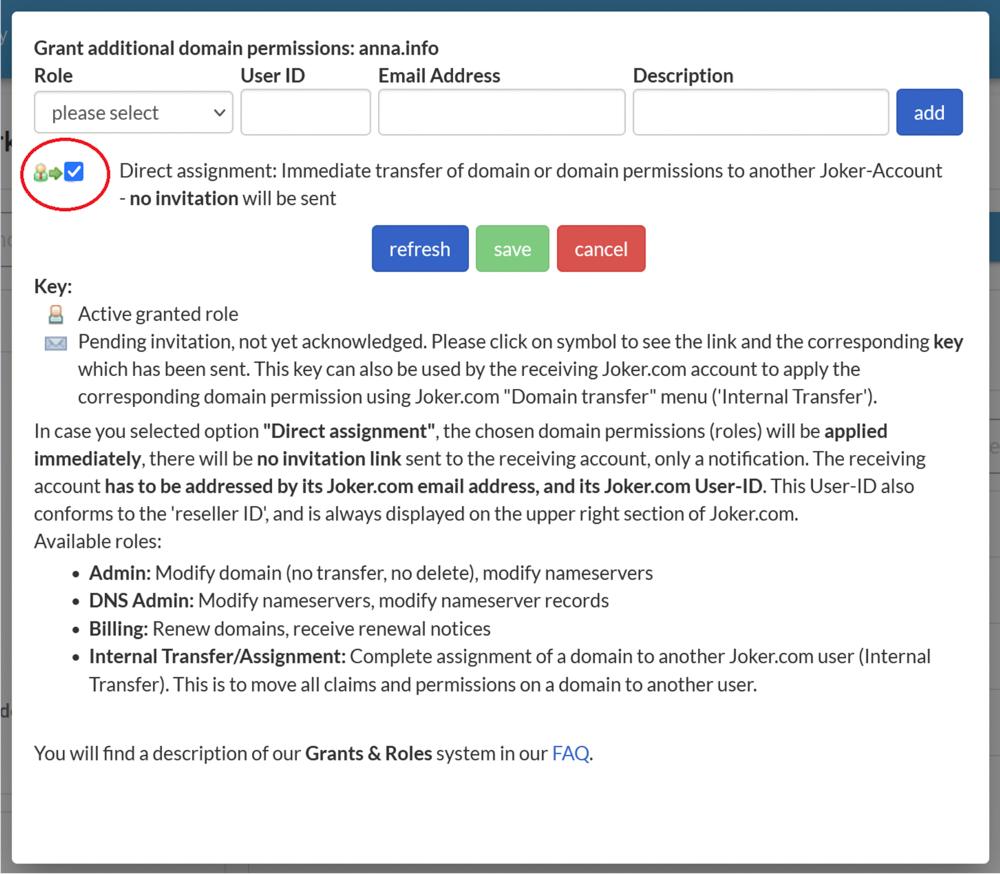
For Joker.com Resellers, there's an additional option called "Direct assignment." This allows you to instantly assign roles to another Joker.com account without sending an invitation. "Direct assignment" also enables you to quickly **move domains between your different Joker.com accounts.**
![](https://joker.com/faq/uploads/images/gallery/FAQ_media/Account/roles-2.png)

# Becoming a Reseller

### Why Become a Joker.com Reseller?

Without a doubt, there are plenty of compelling reasons to join our reseller program. Let's explore the exciting advantages you can enjoy:

- **Discounts:** As a Joker.com reseller, you'll receive discounts on all domain transactions. You'll start with a **20%** discount, which can increase up to **40%** based on your activities. Saving money while expanding your business is a win-win situation!

- **User-Friendly Interface:** Gain access to the Reseller Control Panel (rpanel.io), an alternative web interface designed specifically for resellers. This powerful tool simplifies domain management, allowing you to effortlessly handle even large volumes of domains and contacts. Real-time data presentation eliminates the need for time-consuming form submissions.

- **Test and Tryout System:** Explore Joker.com's registration and domain manipulation methods without affecting real data. The OT&amp;E system provides virtual domains and registries, enabling resellers to experiment and test various functionalities. You can experiment fearlessly, honing your skills and gaining confidence.

- **Seamless Integration:** Our HTTP-based API makes scripting and integration into your existing solutions a breeze. Automate processes and streamline your workflow with ease.

- **Convenient API and Email Gateway:** Register domains effortlessly by sending commands via email using PGP-signed emails. Our user-friendly API and email gateway simplify the domain registration process, ensuring a hassle-free experience.

- **Integration Modules for Hosting Solutions:** If your business utilizes hosting solutions like **WHMCS, Clientexec, or Hostbill**, consider automating your domain needs with our integration modules. These modules facilitate domain registration, renewal, billing, and maintenance, seamlessly integrating them into your existing business solution. Installation requires only a few simple steps, if necessary at all.

### Who Can Become a Reseller?

Whether you're an individual or a company, you are eligible to become a Joker.com reseller. If you have five domains or more, it's definitely worth considering the reseller opportunity.

### Is There a Fee for Becoming a Reseller?

  
No, becoming a Joker.com reseller is absolutely free. However, as a reseller, you'll need to fund your Joker.com account in advance (pre-payment). The amount you decide to fund is entirely up to you. Each time you place an order, the corresponding amount will be deducted from your account. This feature ensures reliable auto-renewals if you choose to utilize it.

###   
What is the Minimum Funding Amount to Become a Reseller?

  
Currently, there is no minimum funding requirement for your reseller account. Your discount will be based on the revenue you generated in the past, allowing you the flexibility to grow at your own pace.

### How Can I Become a Reseller?

Simply click [here](https://joker.com/reseller/registration/steps) and follow the instructions.

# Payment Methods and Invoicing

<article id="bkmrk-accepted-payment-met">### Accepted Payment Methods

Currently, Joker.com accepts the following payment methods:

**1. Credit/debit cards**

- Mastercard/Eurocard
- Visa
- American Express

**2. PayPal (verified account)**

**3. Apple Pay**

**4. ELV (Germany only, 'Lastschriftverfahren')**

**5. Wire transfer (Reseller's and customer's account funding)**

**6. Bitcoin (Reseller's account funding)**

**7. Klarna:**

- Payment by invoice
- Payment by instant bank transfer
- Please note: The invoicing party is "CSL Computer Service Langenbach"

<p class="callout info">**Klarna** is a payment provider similar to Paypal and offers both an online payment and purchase on the invoice.  
Simply select "Klarna" as your payment method - you can decide in the next step which variant you would like to choose. No fees are charged to the buyer. For more details see [klarna.com](https://klarna.com)  
</p>

**8. Payment Account:**

- Conveniently deposit your planned funds, regardless of an upcoming order
- Mark as many of your domains as you want for automatic renewal
- Never again run into a deadline problem at the end of your domain's term
- Use the most convenient payment method, including easy and cheap wire transfers directly to your account if you don't want to use credit cards or PayPal
- You still keep full control at any time and receive the usual notices about domain renewals. Automatic renewals will be marked accordingly
- You can be automatically notified about your account balance when it falls below a specified amount
- You can set up an automatic top-up of your account (not available for all payment methods)

### Activation of Your Payment Account

- After registering a login account at Joker.com, please note that it takes 3 days for the possibility to activate a customer account to become available
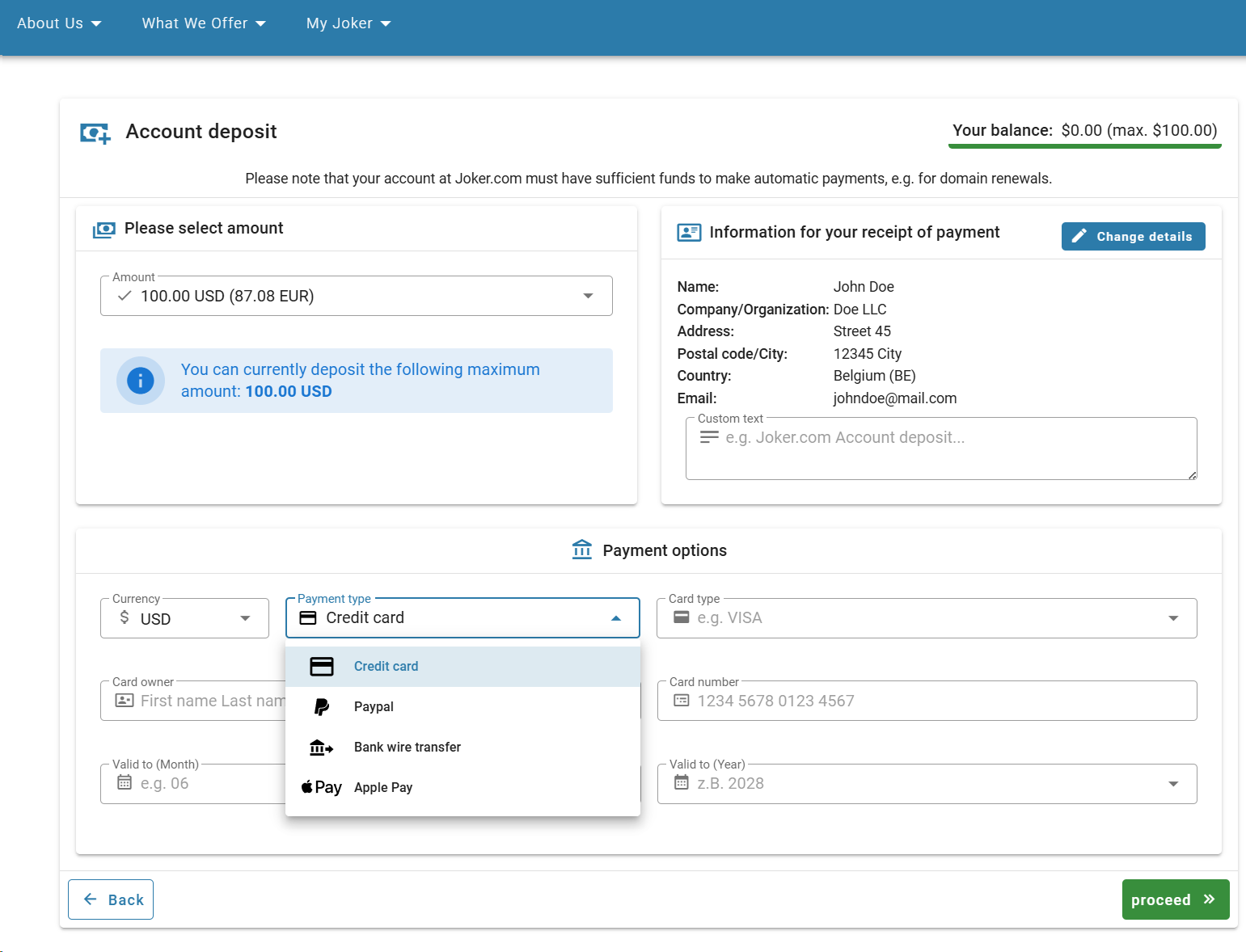
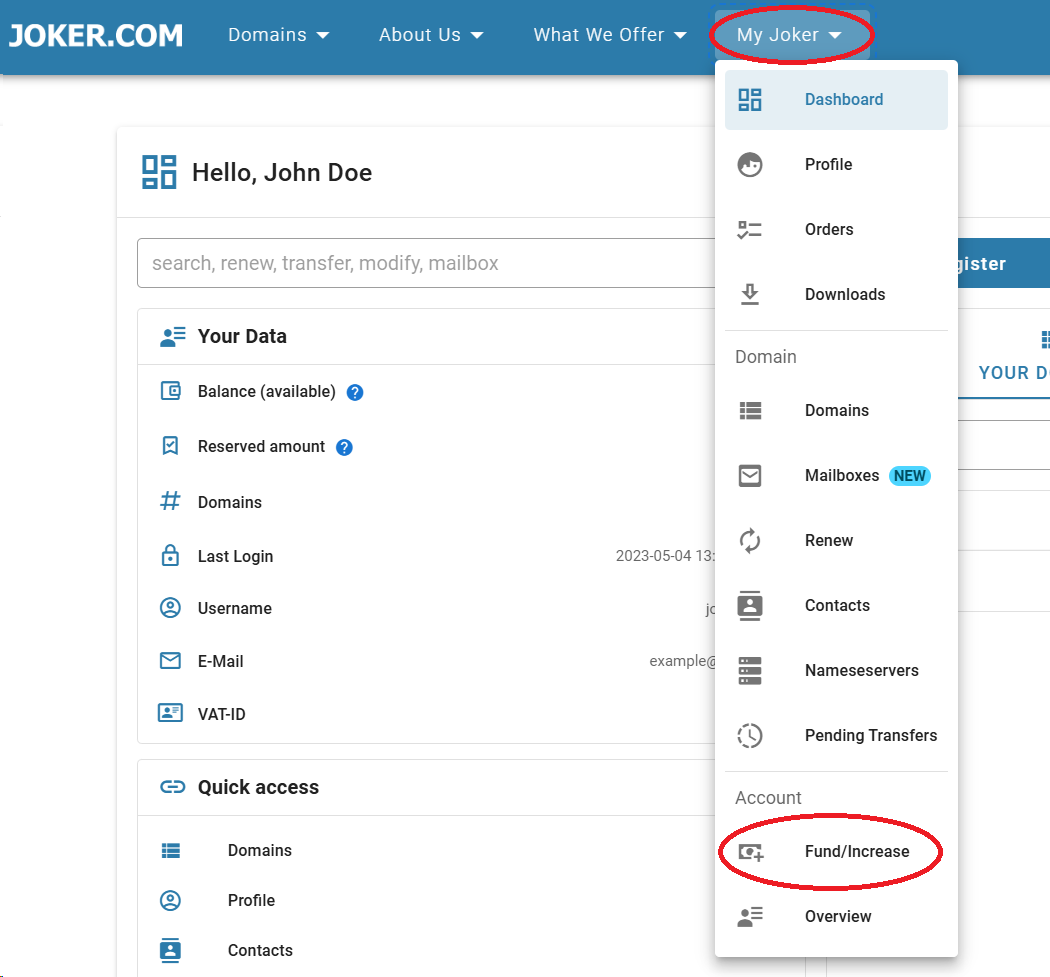
- Your account will be activated with your first deposit. You can do this by either going to the home page ([dashboard](https://joker.com/faq/books/jokercom-faq-en/page/understanding-your-dashboard "Understanding Your Dashboard")) and selecting "Account balance" followed by "Deposit into account," or by choosing the menu "My Joker" and selecting "Fund/Increase"
- This will take you directly to the account deposit section. You can access an overview of your account and your account movements at any time through the account overview. Additionally, you can activate and set a notification for a low account balance from there
- If you do not see a "Balance" view in your dashboard, please feel free to contact us for assistance

### Receipts for Domain Orders

Joker.com sends receipts for domain orders via email only. The receipts are sent to:

- The email address associated with your log in account
- The email address of the Default Billing Address you set in "My Profile"
- The email address of the billing [role](https://joker.com/faq/books/jokercom-faq-en/page/roles-and-permissions) (if created and granted)

<p class="callout info">Please note that the postal address of the receipt will be the same as the billing contact address used. Joker.com does not send invoices by regular mail. Resellers will also receive a monthly invoice for all sales of the previous month, and VAT-IDs are accepted.</p>

More information about roles and billing roles you can find [here](https://joker.com/faq/books/jokercom-faq-en/page/roles-and-permissions)

### Order overview

You can find an overview of all your orders and domain registrations from the last 3 years under “My Joker” -&gt; “Orders” You can filter by numerous criteria and also export the data as a file.

</article>

# Possible Problems With Credit Cards

<article id="bkmrk-common-problems-%C2%A0-fr">### Common Problems

- **Frequent Payments.** If you place multiple orders on the same day, you may encounter problems because the credit card company might interpret them as duplicate charges. To avoid this, it is recommended to order multiple domains at once, minimizing separate payments. If you experience any issues, please contact your bank for assistance in resolving them.
- **Verified by Visa Problems** (see below)

### Verified by Visa or Mastercard Secure Code

When you submit an order at Joker.com, your credit card will be automatically checked to determine if it participates in the Verified by Visa or Mastercard Secure Code program. More information on this process can be found here.  
  
If your card is flagged for one of these security measures, a new window will appear. If your credit card is not yet activated, simply provide the requested authentication information from your card issuer (e.g., date of birth or social security number) and create a password. Submit the information, and you're done.

<p class="callout info">**Note:** This mechanism is provided by your card issuer (bank), and Joker.com has no influence or insight into it.</p>

### Problems Associated with Verified by Visa/Mastercard Secure

**1. Problems with the Pop-up Window**

  
The pop-up window accessed during the process is not provided by Joker.com but by your bank. Occasionally, there may be temporary issues at the bank, resulting in error messages or a blank window. In such cases, contacting your bank, explaining the issue, and attempting to reorder later is recommended.  
  
Joker.com only charges once the popup application is successfully terminated, so there is no risk of double charging.  
  
Other problems may be related to malfunctioning modules or non-standard browser configurations. To address this, you can try the following:

- Disable popup-blocking browser functionality to ensure the popup window opens.
- Allow JavaScript, as the popup window requires it to function.
- Enable cookies in your browser.
- Disable any modules that may alter your browser's behavior (e.g., browser extensions in Firefox). Malfunctioning modules can cause a blank popup window or load the Joker.com site within the popup. Temporarily disabling your antivirus software, which may contain popup blockers, is also worth trying.

  
**2. Sharing Credit Cards**

  
Whether you and your family members share the same password depends on your Visa/Mastercard member bank's policies. Some banks require individual activation of each card and the creation of a personal Verified by Visa password/Mastercard Secure ID. Other banks activate the card for all account holders, resulting in a shared password. Contact your issuing bank for specific details.  
  
Once your card is activated, you can shop as usual, and your credit card number will be automatically recognized at checkout. Ensure that cookies and JavaScript are enabled and that pop-up blockers are disabled on your computer.

</article>

# Restore Access to Your Account

#### You forgot your password

You can easily recover it by clicking "forgot password" in the login section. Please refer to our [Step-by-Step instructions.](https://joker.com/faq/books/jokercom-faq-en/page/change-and-recover-your-password#bkmrk-password-recovery)

#### You have lost your device for 2FA

As a domain registrar, JOKER.com is committed to security - particularly account/domain data protection. We cannot simply switch off 2FA and give you access to the account.

If you want us to switch off the 2FA, **you must verify your identity first** and prove you are indeed the account/domain holder.

Therefore, please send us a copy of an official document (identity card, or driving license, or passport) that confirms:

- registrant's name
- registrant's address
- organization name and address (utility bill)

Once your identity is verified, we can proceed with further assistance.


#### You have lost your credentials completely

In this case, the only option left is to move your domain to a new active account. Please, refer to [this article](https://joker.com/faq/books/jokercom-faq-en/page/change-of-registrant-procedure#bkmrk-how-to-claim-domain-) for instructions.

# Deleting Your Joker.com Account

### How to Delete Your User Account?

If you don't have any domains under your administration and don't need an account at Joker.com anymore, you may want to delete your user account. This can be easily done in a few simple steps:

##### 1. Click on your Login in the top right corner, and choose "My Profile" from the list

![](https://joker.com/faq/uploads/images/gallery/FAQ_media/Account/delete_account-1.png)

#####  

##### 2. On the next page, scroll all the way down, and click "Delete"

![](https://joker.com/faq/uploads/images/gallery/FAQ_media/Account/delete_account-2.png)

#####  

##### 3. Our support will receive your request and send you a confirmation of a receipt.

We give 48 hours grace period, if you don't change your mind, your account will be deleted after this period.

# I Don't See My Domain

If you've logged in and can't find your domain under your account, there are a few common reasons for this:

<div class="flex flex-grow flex-col gap-3" id="bkmrk-recent-domain-order%3A"><div class="min-h-[20px] flex flex-col items-start gap-3 overflow-x-auto whitespace-pre-wrap break-words"><div class="markdown prose w-full break-words dark:prose-invert light">1. **Recent Domain Order:** If you've recently ordered the domain, it might take a few minutes before it becomes visible in your account.
2. **Payment Issues:** Check your email for any messages from Joker.com. There could have been a problem with the payment for the domain.
3. **Alternate Account:** It's possible that you registered your domain under a different Joker.com account. You might need to follow [**these steps**](https://joker.com/faq/books/jokercom-faq-en/page/restore-access-to-your-account) to restore access to your account if this is the case.
4. **Role Changes:** If your account was assigned a certain role that has been revoked or removed, this might lead to the domain not being visible. You could reach out to the domain owner to [**assign you a role**](https://joker.com/faq/books/jokercom-faq-en/page/roles-and-permissions).
5. **Domain Expiry:** If the domain has already expired and is scheduled for deletion, it won't be visible in your account. You can try to [**restore a domain**](https://joker.com/faq/books/jokercom-faq-en/page/the-redemption-grace-period-rgp) in such cases.
6. **Reseller's Domain:** If your domain has been registered through one of our [resellers](https://joker.com/faq/books/jokercom-faq-en/page/becoming-a-reseller), please get in touch with them for any domain-related questions.

</div></div></div>If you are indeed the owner of the domain and believe it's missing due to an error, please get in touch with Joker.com [Support](https://joker.com/?mode=support&support_type=intro) for assistance.

<p class="callout info">To get help as quickly as possible, please use this [Checklist](https://joker.com/faq/books/jokercom-faq-en/page/how-to-open-a-support-ticket-a-checklist)  
</p>

# Domain Management

This chapter offers instructions on how to manage your domain: the registration process, modifications, adding services, renewing, and restoring domains. It equips you with the knowledge and tools needed to handle your domains with ease and confidence.

# Registering a Domain Name

### How to Register a Domain Name?

<p class="callout info">If you are interested in a Premium Domain Name, please see also this article: [How to Register a Premium Domain](https://joker.com/faq/books/jokercom-faq-en/page/premium-domain-name-registration)  
</p>


#####  

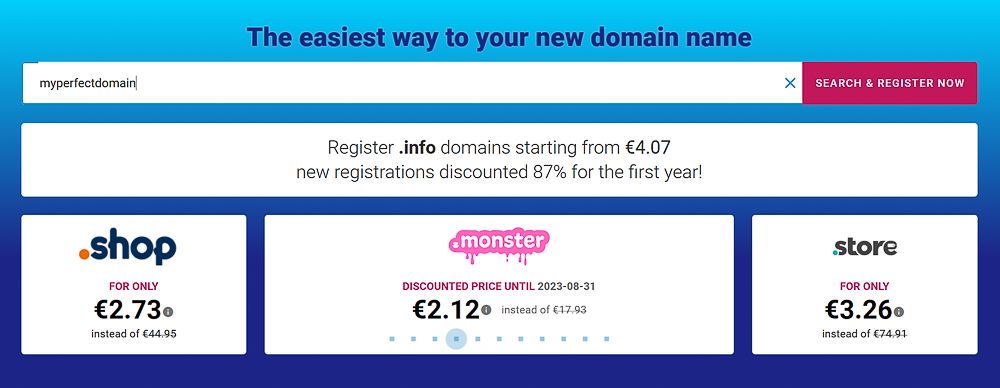
##### 1. Go to the Joker.com homepage and enter your desired domain name in the search field.

Click "Search &amp; Register Now."

<p class="callout warning">Most registries require a minimum of 2 characters (excluding endings), and the maximum length we support is 67 characters (including endings). The domain name cannot start with a hyphen "-", and some domains cannot start with "bq-" or have hyphens "--" at the third and fourth position. Refer to the registration policies for .de domains (below) for more information.</p>

![](https://joker.com/faq/uploads/images/gallery/FAQ_media/Domain%20management/registering_domain-1.png)


#####  

##### 2. On the next page, you'll see the availability of your desired domain name in different namespaces.

Click [here](https://joker.com/faq/books/jokercom-faq-en/page/what-is-tld-or-top-level-domain) to learn more about which TLDs are available at Joker.com. You can also check our [Pricelist](https://joker.com/domain/prices) to see if a specific <abbr class="glossary" title="Top Level Domain">TLD</abbr> is supported.

![](https://joker.com/faq/uploads/images/gallery/FAQ_media/Domain%20management/registering_domain-2.png)


#####  

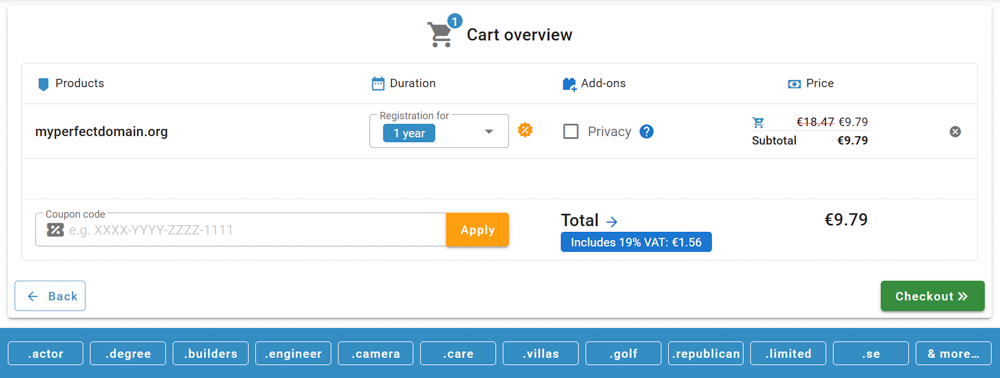
##### 3. Once you've chosen the perfect domain name, add it to your shopping cart and proceed to checkout. 

At this stage, you can also add a Privacy service for your domain. If you're interested in privacy, you can find more information [here](https://joker.com/faq/books/jokercom-faq-en/page/privacy-services). Click "checkout," and you'll be prompted to log in. If you don't have an account, you'll have the opportunity to register one.
![](https://joker.com/faq/uploads/images/gallery/FAQ_media/Domain%20management/registering_domain-3.png)


#####  

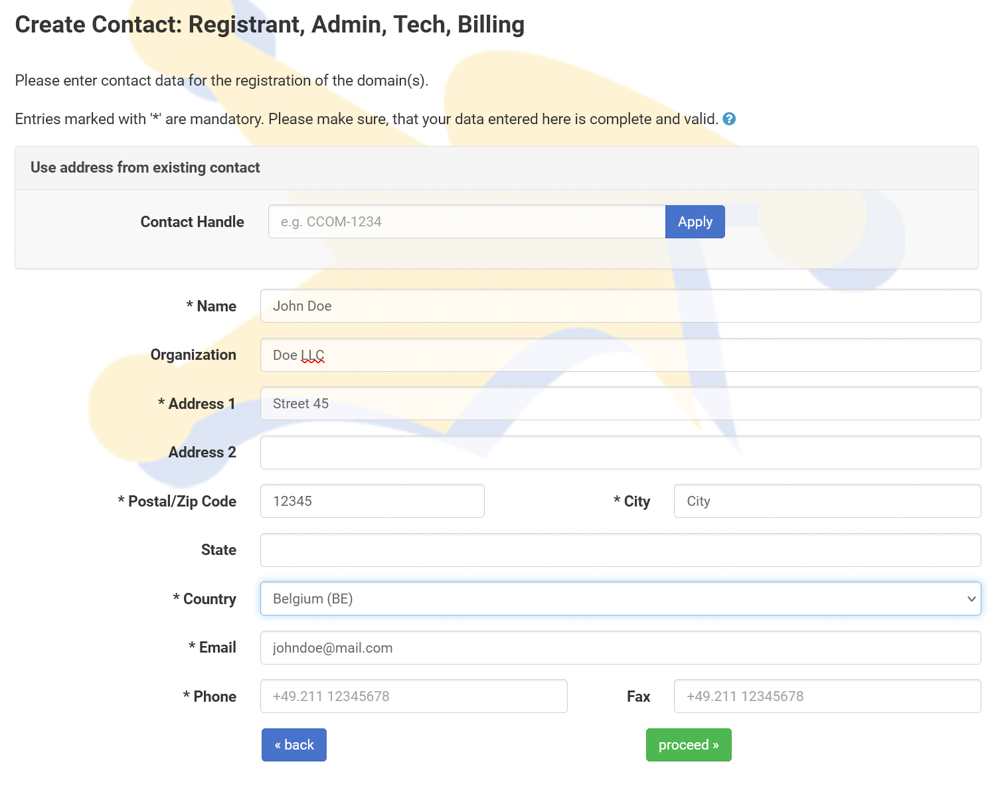
##### 4. On the next page, you'll need to create contacts for your domain name. 

You can either create new contacts or use existing ones. Please note that contact requirements may vary for some ccTLDs (country code top-level domains).
![](https://joker.com/faq/uploads/images/gallery/FAQ_media/Domain%20management/registering_domain-4.png)


#####  

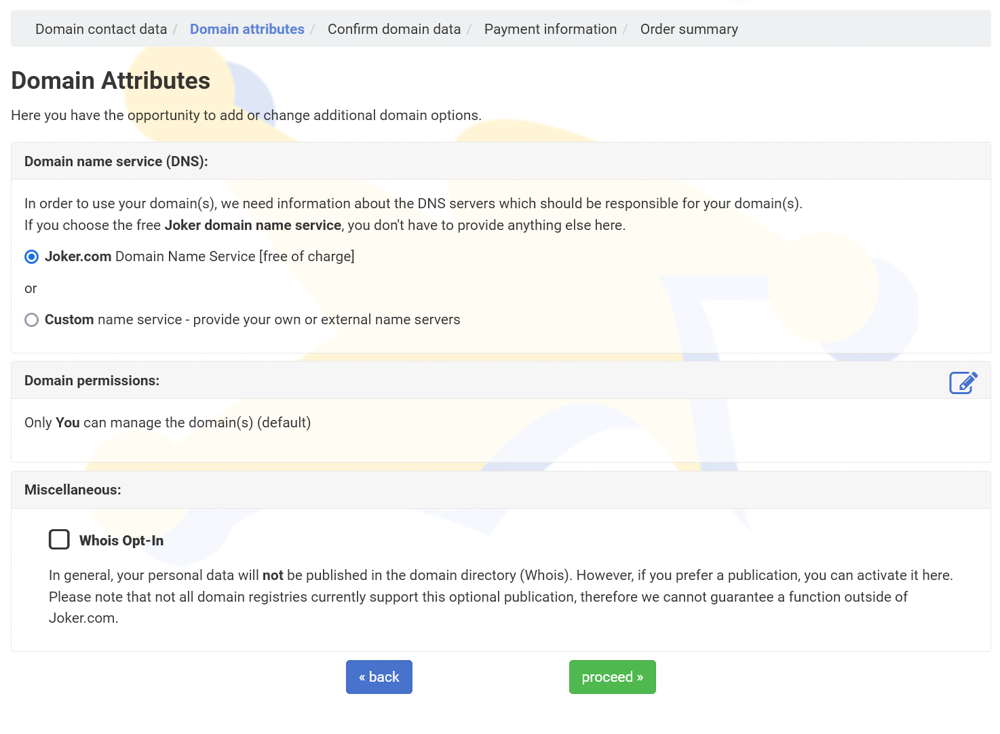
##### 5. After adding the contact information, you can choose the nameservice to be used for your new domain.

You can either add external nameservers or use Joker nameservers for free. You can always change nameservers later if needed. More information about nameservice can be found [here](https://joker.com/faq/books/jokercom-faq-en/page/what-is-domain-name-service-dns). Additionally, you can add domain permissions (see [roles)](https://joker.com/faq/books/jokercom-faq-en/page/roles-and-permissions "Roles and Permissions") and choose to make your Whois information public by selecting "Whois opt-in."![](https://joker.com/faq/uploads/images/gallery/FAQ_media/Domain%20management/registering_domain-5.png)


#####  

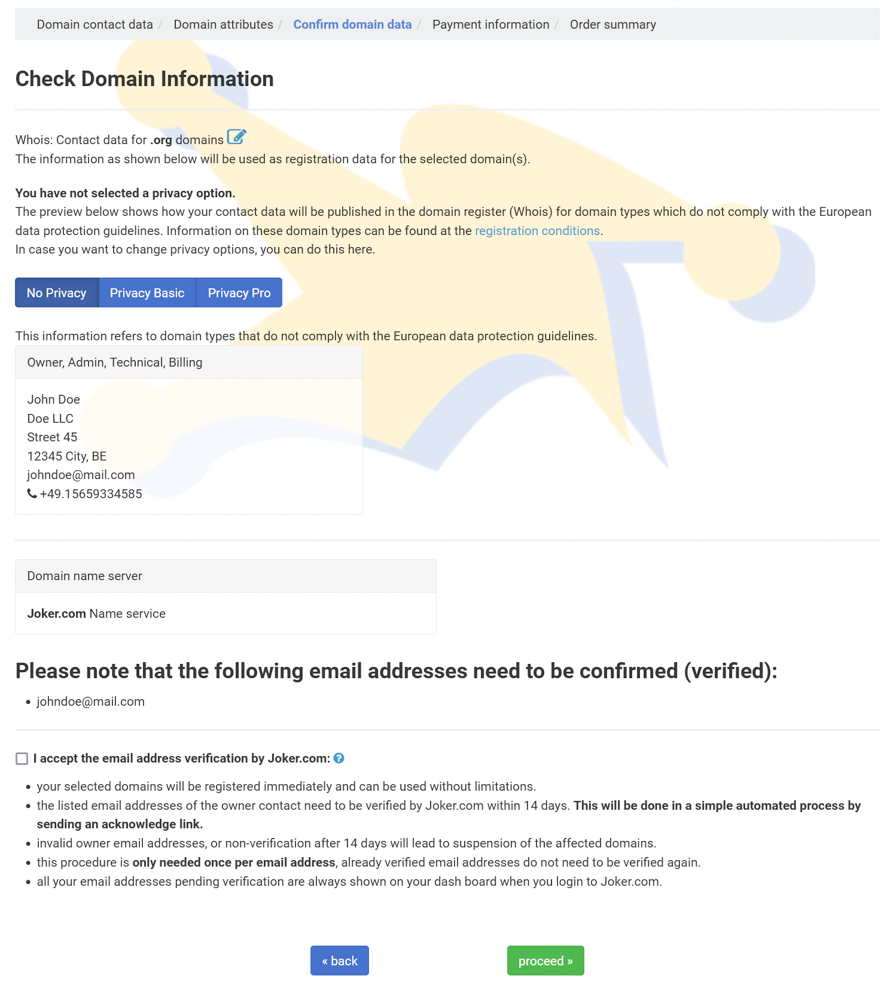
##### 6. Review the domain information and make any necessary corrections.
![](https://joker.com/faq/uploads/images/gallery/FAQ_media/Domain%20management/registering_domain-6.png)


#####  

##### 7. Select your preferred payment method, agree to our [Terms and Conditions](https://joker.com/index.joker?mode=page&page=terms_cond), and complete your order.

![](https://joker.com/faq/uploads/images/gallery/FAQ_media/Domain%20management/registering_domain-7.png)


#####  

##### 8. Verify your Domain Order. 

To check if your domain has been successfully registered, wait for the email notification. You can also query our 'Search whois' tool by entering the domain name in question. A successfully registered domain will also appear on your dashboard within a couple of minutes after registration.

###  

### Registration Policies for .de Domains

---

Valid characters for a .de domain name include:

- Numbers (0-9)
- Hyphen (-)
- Letters (a-z)

With the introduction of <abbr class="glossary" title="Internationalized Domain Names">IDN</abbr> registrations, an additional 92 characters are allowed from the character sets Latin Extended-A and Latin-1 Supplement.  
  
Important rules for .de domains:

- .de domains can consist of numbers only.
- A domain name can be between 1 and 63 characters long, regardless of whether it is an <abbr class="glossary" title="Internationalized Domain Names">IDN</abbr> or not.
- A domain name cannot begin with a hyphen (-).
- Hyphens are not allowed in the 3rd and 4th positions of a domain name.

For more information, please refer to [DENIC-Domainrichtlinien](https://www.denic.de/denic-domainrichtlinien-master).

###  

### My Order Failed

---

If your order for domain registration failed for any reason, the specific domain order request has FAILED. Unfortunately, it is not possible to 'reactivate' this order request, so please start a new order.  
  
The reason for the failure is always stated in the email sent after every domain order.  
  
In some cases, you may encounter the error message "The domain is already registered," indicating that the domain was temporarily reserved by your first request.  
  
If this happens, please try again after a few minutes to allow the process to settle on our side. If the issue persists, please contact us and provide your order details.

# Privacy Services

### Secure your Domain Privacy

---

Since May 25th, 2018, European and generic top-level domains have limited the amount of Whois data available on the internet to comply with the European data privacy regulation (GDPR).  
  
However, **the registrant's data still needs to be submitted to the registries**. Some top-level domains require the complete set of Whois data and make it publicly available.  
  
The WHOIS service provides information such as the registrant's name and, depending on the responsible registry's policy, their street address and email addresses. It is important to note that using incorrect, incomplete, or fake data violates the registration agreement with the related registry and Joker.com, and may result in the deletion of the domain name (refer to section 5.c/11.d of [Joker.com T&amp;C](https://joker.com/index.joker?mode=page&page=terms_cond)).  
  
To protect registrants from data abuse, proxy-privacy.com, through IDPS (International Domain Privacy Services) GmbH, a subsidiary of CSL GmbH, offers privacy protection services. These services effectively shield the registrant's information, keeping their data confidential. By using these services, the registrant is represented by alternate contact data provided by IDPS GmbH while remaining compliant with registration policies.  
  
The registrant's own data will still be securely maintained and escrowed by Joker.com to ensure the registrant's ownership of the domain and compliance with ICANN's and the registry's policies.  
  
Privacy services are available for most <abbr class="glossary" title="generic Top Level Domain">gTLD</abbr> domain names. The availability of privacy services is indicated in the [price list](https://joker.com/goto/prices) and [domain search](https://joker.com/goto/order) ( [![image.png](https://joker.com/faq/uploads/images/gallery/2024-12/scaled-1680-/3q1image.png)](https://joker.com/faq/uploads/images/gallery/2024-12/3q1image.png) Whois Proxy Privacy available).

Here is an example of what privacy service means to a domain name's public Whois output:

<div class="row" id="bkmrk-%C2%A0-standard-whois-out"><div class="col-md-10 col-md-offset-1"><table class="table table-bordered table-striped-column"><thead></thead><tbody><tr><td> </td><td style="background-color: rgb(180, 180, 180);">##### <span style="color: rgb(0, 0, 0);">Standard Whois Output\*</span>

</td><td style="background-color: rgb(66, 159, 227);">##### <span style="color: rgb(0, 0, 0);">With Privacy Basic</span>

</td><td style="background-color: rgb(45, 194, 107);">##### <span style="color: rgb(0, 0, 0);">With Privacy Pro</span>

</td></tr><tr><td>**Registrant Name:**</td><td>Max Musterman</td><td><span style="color: rgb(66, 159, 227);">Max Musterman</span></td><td><span style="color: rgb(45, 194, 107);">On behalf of yourdomain.com</span></td></tr><tr><td>**Registrant Organization:**</td><td>ACME</td><td><span style="color: rgb(66, 159, 227);">ACME</span></td><td><span style="color: rgb(45, 194, 107);">c/o IDPS International Domain Privacy Services GmbH</span></td></tr><tr><td>**Registrant Street:**</td><td>Main Street 123</td><td><span style="color: rgb(66, 159, 227);">c/o IDPS International Domain Privacy Services GmbH</span>

<span style="color: rgb(66, 159, 227);">Hansaallee 191</span>

</td><td><span style="color: rgb(45, 194, 107);">Hansaallee 191</span></td></tr><tr><td>**Registrant City:**</td><td>Foo City</td><td><span style="color: rgb(66, 159, 227);">Duesseldorf</span></td><td><span style="color: rgb(45, 194, 107);">Duesseldorf</span></td></tr><tr><td>**Registrant State/Province:** </td><td>ABC</td><td> </td><td> </td></tr><tr><td>**Registrant Postal Code:**</td><td>54321</td><td><span style="color: rgb(66, 159, 227);">40549</span></td><td><span style="color: rgb(45, 194, 107);">40549</span></td></tr><tr><td>**Registrant Country:**</td><td>DE</td><td><span style="color: rgb(66, 159, 227);">DE</span></td><td><span style="color: rgb(45, 194, 107);">DE</span></td></tr><tr><td>**Registrant Phone:**</td><td>+99.110 12345678</td><td><span style="color: rgb(66, 159, 227);">+49 211 867 67 448</span></td><td><span style="color: rgb(45, 194, 107);">+49 211 867 67 448</span></td></tr><tr><td>**Registrant Fax:**</td><td>+99.110 12345679</td><td><span style="color: rgb(66, 159, 227);">+49 211 867 67 6448</span></td><td><span style="color: rgb(45, 194, 107);">+49 211 867 67 6448</span></td></tr><tr><td>**Registrant Email:**</td><td>yourprivatemail@email.com </td><td><span style="color: rgb(66, 159, 227);">35b27c46c3d9040b881fc4f@proxy-privacy.com </span></td><td><span style="color: rgb(45, 194, 107);">35b27c46c3d9040b881fc4f@proxy-privacy.com </span></td></tr></tbody></table>

</div></div><sup>\*</sup> Without WHOIS privacy for non-GDPR-compliant TLDs

Please find all details, conditions, and the Acceptable Use Policy here: [proxy-privacy.com](http://proxy-privacy.com)

And here you find all instructions on how to [enable Whois Privacy](https://joker.com/faq/books/jokercom-faq-en/page/adding-privacy-services)

Prices are available here: [Joker.com Pricelist](https://joker.com/goto/prices)

**Please note the following:**

- When selecting privacy services, the registrant must still provide Joker.com with correct and valid personal Whois data. This data will be securely maintained and escrowed by Joker.com, including encryption, to ensure <abbr class="glossary" title="generic Top Level Domain">gTLD</abbr> compliance. **Joker.com uses a German escrow provider for this purpose (DENIC).**
- The registrant and the account holder can enable or disable (disclose) Whois privacy services at any time.
- If privacy services are acquired together with a transfer to Joker.com, the privacy service term will always be one year plus the remaining term until the domain's creation day, and it will be charged for one year.
- If privacy services are purchased for existing domain names during renewal or as an additional option, the privacy service term will automatically synchronize with the domain name's term. Terms shorter than six months will be rounded down, while longer terms will be rounded up and charged as an additional year.
- If privacy services are purchased without renewal for an existing domain, the minimum charge will always be one year of the chosen privacy service, even if the remaining term of the domain is less than one year. To avoid eventually shortened privacy terms, it is advisable to consider renewal with an included privacy option.

## Examples

---

### Transfer with privacy service

Let's assume you have a .com domain with a remaining term of 5 months, and you want to transfer it to Joker.com with a **privacy basic** service.  
  
This would result in:

<table border="0" id="bkmrk-mandatory-1-year-ren" style="width: 70.8642%;"><tbody><tr><td style="width: 81.6503%;">mandatory 1-year renewal with transfer: </td><td style="width: 18.2882%;">USD 13.70\*</td></tr><tr><td style="width: 81.6503%;">optional 1-year privacy basic service:</td><td style="width: 18.2882%;">USD 1.49\*</td></tr><tr><td style="width: 81.6503%;">**result** - **1-year** additional domain term, and **17 months** of privacy </td><td style="width: 18.2882%;"><span style="text-decoration: underline;">USD 15.19\*</span>

</td></tr></tbody></table>

*\*The above price is **an example only**, actual prices are shown in our [Price List](https://joker.com/domain/prices)*

### Renew with privacy service (I)

Let's say you want to renew a .com domain expiring in 3 months and enable Whois **privacy pro**:

<table border="0" id="bkmrk-1-year-renewal-for-t"><tbody><tr><td>1-year renewal for the .com domain: </td><td>USD 13.70\*</td></tr><tr><td>1-year privacy pro service:</td><td>USD 2.49\*</td></tr><tr><td>**result** - **1-year** additional domain term, and **15 months** of privacy </td><td><span style="text-decoration: underline;">USD 16.19\*</span></td></tr><tr><td colspan="2">the additional 3 months are "rounded down" which means, they are added, but not charged</td></tr></tbody></table>

*\*The above price is **an example only**, actual prices are shown in our [Price List](https://joker.com/domain/prices)*

### Renew with privacy service (II)

Let's say you want to renew a .com domain expiring in 8 months and enable Whois **privacy pro**:

<table border="0" id="bkmrk-1-year-renewal-for-t-1"><tbody><tr><td>1-year renewal for the .com domain: </td><td>USD 13.70\*</td></tr><tr><td>2 years of privacy pro service:</td><td>USD 4.98\*</td></tr><tr><td>**result** - **1-year** additional domain term, and **20 months** of privacy </td><td><span style="text-decoration: underline;">USD 18.68\*</span></td></tr><tr><td colspan="2">the additional 8 months are "rounded up" which means, an additional year of privacy is charged</td></tr></tbody></table>

*\*The above price is **an example only**, actual prices are shown in our [Price List](https://joker.com/domain/prices)*

### Acquire privacy service for an existing domain (I)

Let's assume you own a .com domain expiring in 13 months, and you want to add privacy pro:

<table border="0" id="bkmrk-1-year-privacy-pro-s" style="width: 75.3087%;"><tbody><tr><td style="width: 83.3725%;">1-year privacy pro service:</td><td style="width: 16.5687%;">USD 2.49\*</td></tr><tr><td style="width: 83.3725%;">**result** - domain term is unchanged, and **13 months** of privacy </td><td style="width: 16.5687%;"><span style="text-decoration: underline;">USD 2.49\*</span>

</td></tr><tr><td colspan="2" style="width: 99.9412%;">the additional 1 month is "rounded down" which means, they are added, but not charged</td></tr></tbody></table>

*\*The above price is **an example only**, actual prices are shown in our [Price List](https://joker.com/domain/prices)*

### Acquire privacy service for an existing domain (II)

Let's assume you own a .com domain expiring in 3 months, and you want to add **privacy pro**. In this case, you will receive a warning because the privacy term cannot exceed the domain's term. We advise considering using the "Renewal" option with privacy in this scenario:

<table border="0" id="bkmrk-1-year-privacy-pro-s-1" style="width: 75.9259%;"><tbody><tr><td style="width: 81.4099%;">1-year privacy pro service:</td><td style="width: 18.5278%;">USD 2.49\*</td></tr><tr><td style="width: 81.4099%;">**result** - domain term is unchanged, and **3 months** of privacy </td><td style="width: 18.5278%;"><span style="text-decoration: underline;">USD 2.49</span>\*

</td></tr><tr><td colspan="2" style="width: 99.9376%;">you will only get 3 months of privacy service - you should consider 'renewal' instead</td></tr></tbody></table>

<p class="callout info">*\*The above price is **an example only**, actual prices are shown in our [Price List](https://joker.com/domain/prices)*</p>

# Adding Privacy Services

Whois Privacy Services are available for most generic top-level domains. You can check their availability in Joker.com's s [price list](https://joker.com/goto/prices) and also the [domain search](https://joker.com/goto/order).  
  
Privacy Services can be enabled for new domain **registrations, transfers, renewals**, and even for existing domains.  
  
For detailed information about the services, pricing, and periods, please visit the [Whois Privacy Services](https://joker.com/faq/books/jokercom-faq-en/page/privacy-services) page.

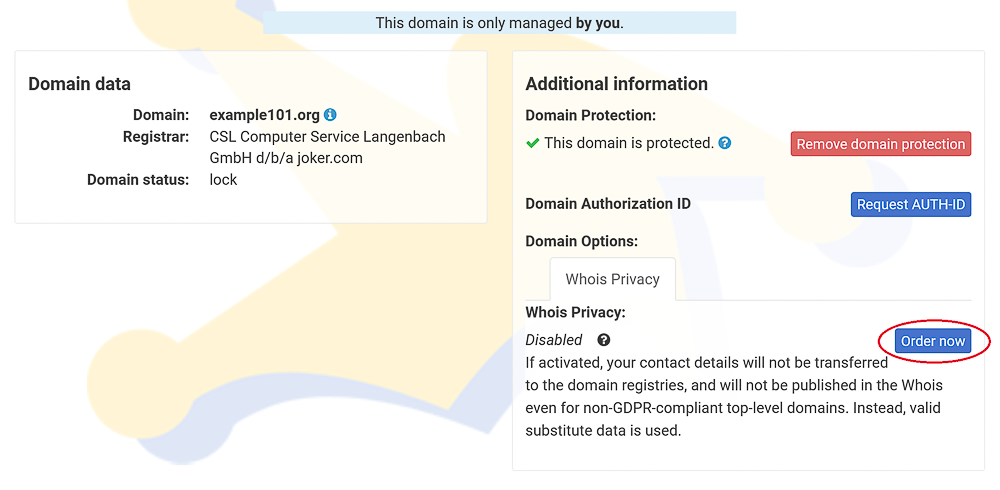
### Enabling Privacy Services for Existing Domains

To order Privacy Services for your existing domains, please:

- Log in to your Joker.com account
- Click on the "Modify your domain settings" icon next to your domain on the home page
- add the desired service to "Whois Privacy"; if this option is not available, it means the domain in question does not support privacy services.
![](https://joker.com/faq/uploads/images/gallery/FAQ_media/Domain%20management/setting_privacy-1.png)


###  

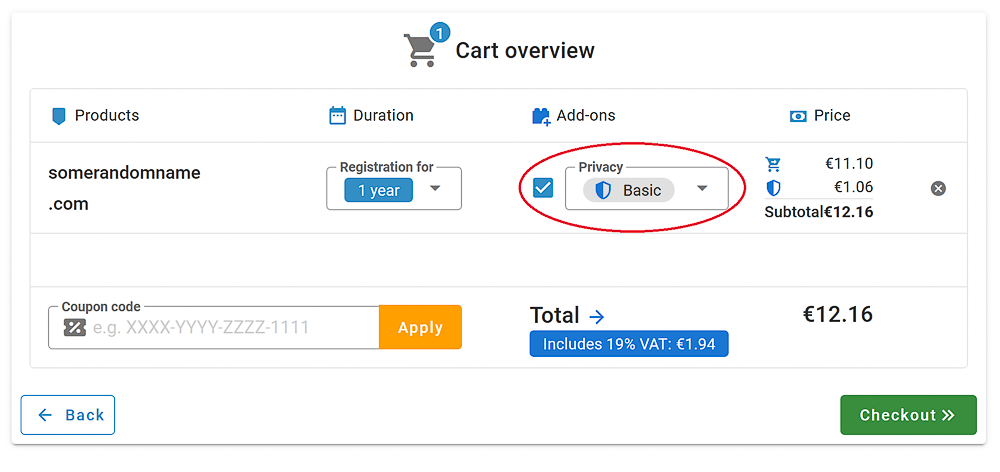
### Registering New Domains with Privacy Services

To register a new domain with Privacy Services, simply add the domain to the cart as usual. In the cart, you'll find the new privacy options under **"Add Privacy."** Just click on it to make your selection.
![](https://joker.com/faq/uploads/images/gallery/FAQ_media/Domain%20management/setting_privacy-2.png)


###  

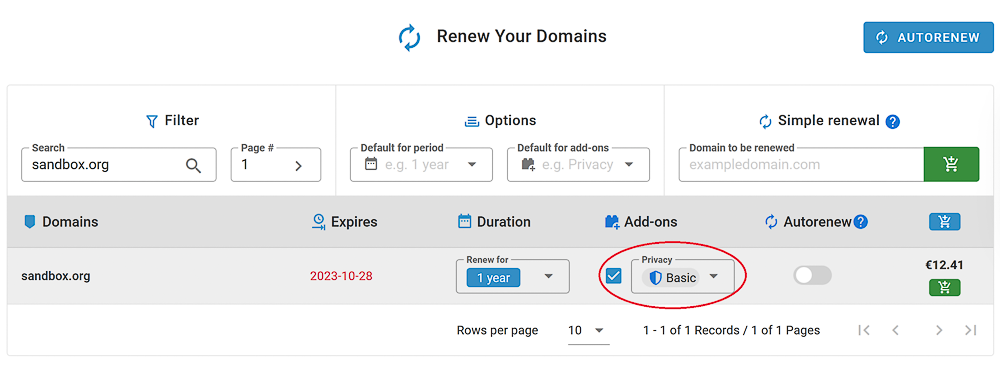
### Renewing a Domain and Adding Privacy Services

When renewing your domains, you can use the "Renew Domains" option in the Service zone or a direct link on the Joker.com home page. In the new renewal dialogue, you'll find easy-to-use checkboxes to enable Privacy Services for applicable domains.
![](https://joker.com/faq/uploads/images/gallery/FAQ_media/Domain%20management/setting_privacy-3.png)


###  

### Transferring a Domain and Adding Privacy Services

We now offer the option to apply Privacy Services to domains during a transfer. **If a domain already had privacy services with the previous registrar, the Whois data will never be disclosed.** To choose privacy options, initiate a transfer as usual, and find the selection under the "Additional Products" section below the AUTH-ID.
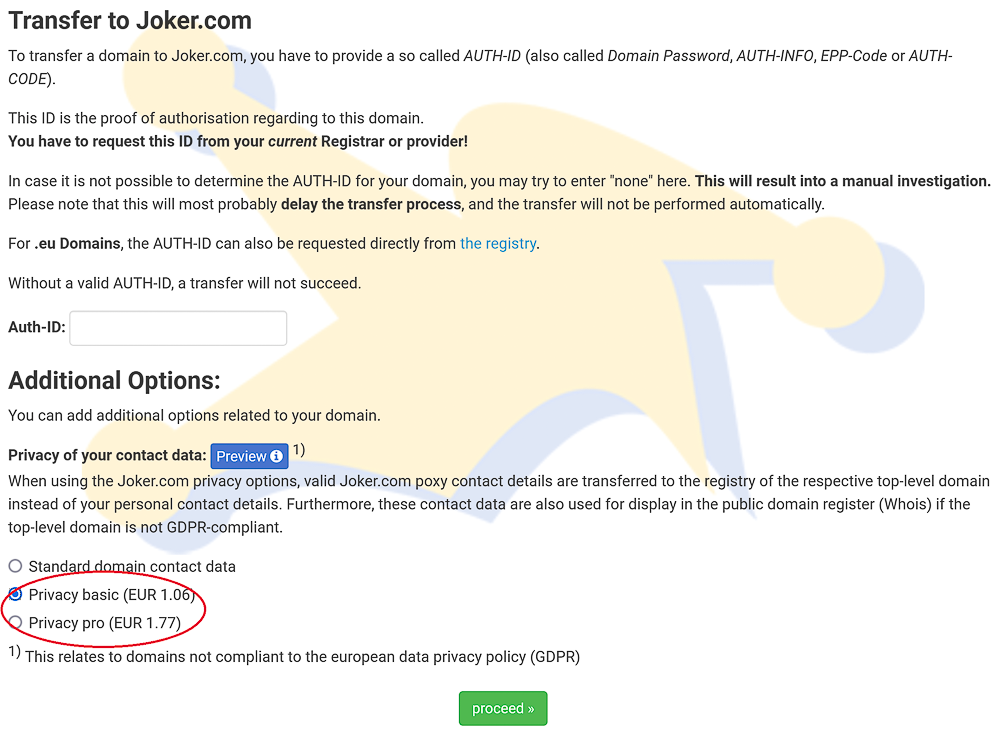
![](https://joker.com/faq/uploads/images/gallery/FAQ_media/Domain%20management/setting_privacy-4.png)

# Domain Trustee Service

Some domain types, particularly country domains, have regulations regarding the residency of the domain holder. For instance, for .EU domains, the registrant's contact country must be a member of the EU, including Norway and Liechtenstein.  
  
To allow clients who don't meet these requirements to register such domains, they can utilize trustee services. A trustee acts as the official registrant on behalf of the client. The trustee-client relationship is governed by a trustee contract, which outlines responsibilities and ensures the client's ownership of the domain. Sample contracts can be found under "My Joker" -&gt; "Downloads" after logging in to Joker.com.  
  
In addition to privacy services, IDPS GmbH offers trustee services for Joker.com. In our [price list](https://joker.com/goto/prices "Joker.com Price list"), you'll find the domains for which a trustee service is available.

### Registering a Domain With a Trustee Service

When ordering a domain with an available trustee service, you can choose to include this service along with the domain name.
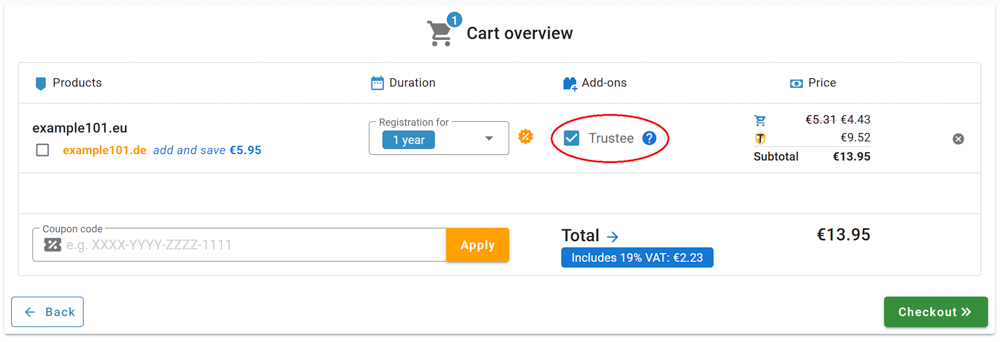
![](https://joker.com/faq/uploads/images/gallery/FAQ_media/Domain%20management/trustee-1.png)


###  

### Adding Trustee Service to an Existing Domain

Trustee agreements can also be added to existing domains by accessing the "[Domain Management](https://joker.com/faq/books/jokercom-faq-en/page/domain-management-section "Domain Management")" section.
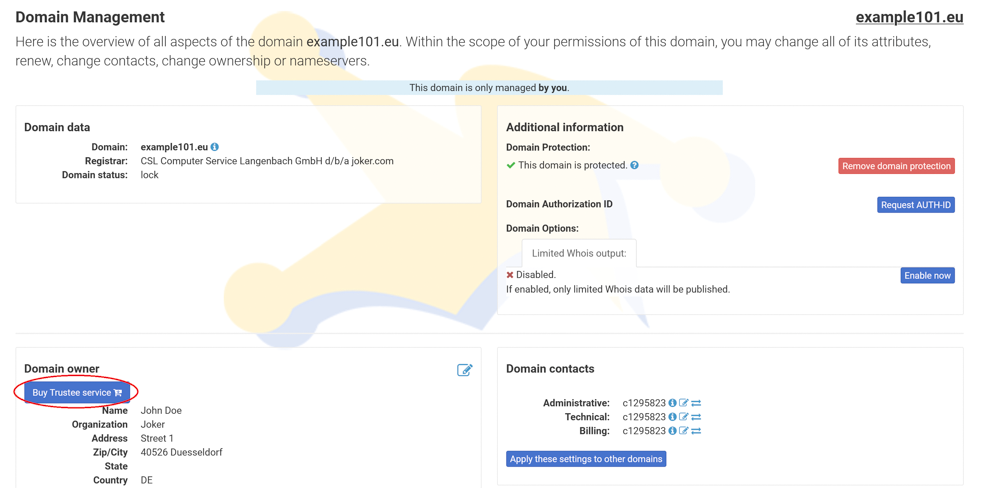
![](https://joker.com/faq/uploads/images/gallery/FAQ_media/Domain%20management/trustee-2.png)

# Domain Has Expired - What to Do?

### Domain Stopped Working

The most common reason for this is that the domain has expired. According to the [ERRP regulation by ICANN](https://www.icann.org/resources/pages/errp-2013-02-28-en), we are required to set the domain status to 'inactive' when it expires as a final reminder.

If you missed the renewal reminders we sent before the expiration, please check the email addresses associated with your Joker.com account and the domain data for accuracy.

To check the domain status, go to 'My Domains' or use the 'Whois Search' on Joker.com.

If you see that the domain name has expired, please renew it as soon as possible. For most domain types, Joker.com provides an additional grace period of up to **30 days\*** for renewing the domain. **During this period, you can still renew this domain at the regular renewal price.**

To renew a domain, visit 'Renew a Domain' in the 'Domains' menu. Learn more about the renewal procedure[ here](https://joker.com/faq/books/jokercom-faq-en/page/domain-renewal).

### Grace Periods for Expired Domains

Most domains can be renewed within a grace period of up to **30 days\*** after the expiration date. During this period, we keep the domain reserved, but it will not be usable due to its "expired" status.

However, post-expiration renewal may not be available for all the domain types as it depends on the registry.

Please note that you can always use the [Simple Renewal ](https://joker.com/domain/renew/simple)procedure to renew a domain, even if regular renewal is not currently possible.

After the grace period mentioned above, most domains will enter the [**Redemption Grace Period (RGP)**](https://joker.com/faq/books/jokercom-faq-en/page/the-redemption-grace-period-rgp), which is explained [here](https://joker.com/faq/books/jokercom-faq-en/page/the-redemption-grace-period-rgp).

---

<p class="callout info">***\*** Please keep in mind that the data provided above are **indicative**, and the **exact times** are specified by the registries, which **may vary.** Additionally, there are technical requirements for some deadlines that may allow for processing within slightly shorter periods. Therefore, we strongly recommend **not waiting until the theoretical maximum**, such as the "expired grace period," before renewing a domain.*</p>

# Domain Renewal

Renewing a domain involves extending its lifetime by adding years. The duration can range from 1 to 10 years, depending on the domain type (TLD). When you renew before the expiration date, the added time is appended to the existing term, ensuring you don't lose any remaining validity.

Domain owners can renew their domains using the regular renewal procedure, which can be initiated right from the dashboard:

##### ![](https://joker.com/faq/uploads/images/gallery/FAQ_media/Domain%20management/renewal-1.png)
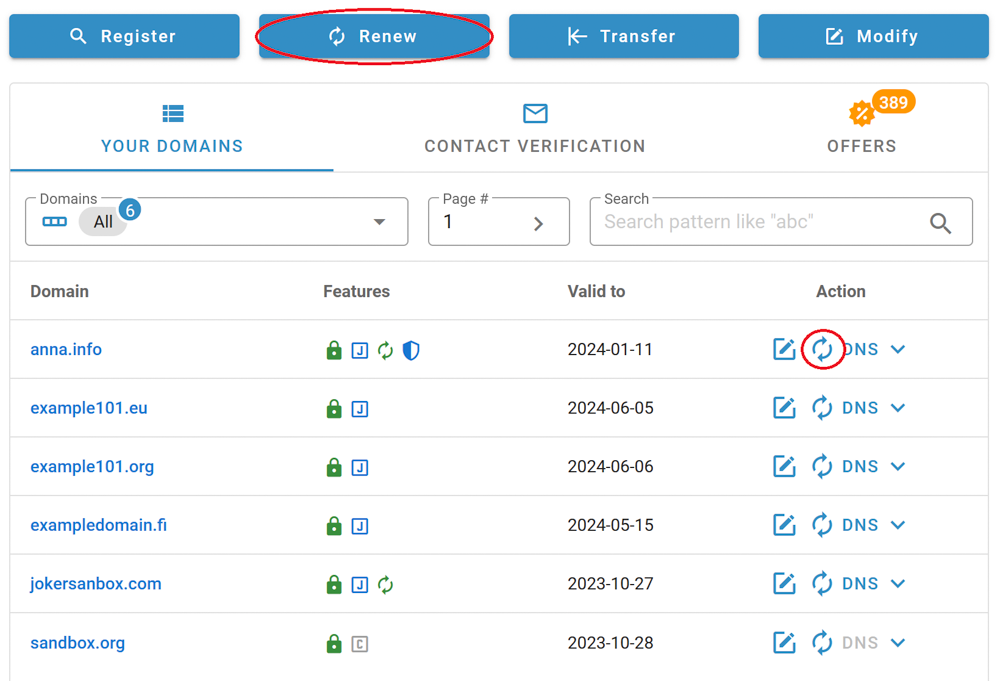
Notifications are sent before a domain's expiration to remind them of the upcoming renewal. More information about these renewal reminders, including recipients and timing, is provided below.

In cases where roles are assigned to a domain, the 'Admin' and/or 'Billing' roles also have the authority to renew the domain. To learn more about 'roles' and 'permissions,' please click [here](https://joker.com/faq/books/jokercom-faq-en/page/roles-and-permissions).


### Automatic Domain Renewal

**Note:** In order to use automatic renewals, a Joker.com **[payment account](https://joker.com/faq/books/jokercom-faq-en/page/payment-methods-and-invoicing#bkmrk-activation-of-your-p) is required**, which you can activate easily and free of charge if you do not already have one. Deposits to this account can then also be made by bank transfer.

All domains you marked as "to be auto-renewed" will be **automatically renewed** when due to expire. The auto-renewal status for domains can be enabled or disabled at any time.

You will still get the usual renewal reminders, which additionally contain the auto-renewal status. Please find the complete schedule of renewal notices below. Additionally, 2 special auto-renew messages are sent 4 and 2 weeks before expiration.

**The actual renewal will happen 30 days before the expiration of the given domain.**

For **Resellers**, the renewals are executed **7 days before expiration**, and this can be changed in the Joker.com user profile.

Domains with the status **"expired"** (grace period) **can not be included in auto-renewal,** they have to be renewed manually.

If your account **does not have sufficient funds** at the selected time of auto-renew, automatic **renewal will not take place**, and you will have to renew manually.

Notifications will also be sent before and after an automatic renewal - so you are always up-to-date!

Auto-renew can be configured in the following sections:

- General default and time of renewal
- Domain management
- Renew Section


### Simple Renewal

If you encounter difficulties while renewing a domain, such as login issues or your designated administrator failing to renew it for you, you have the option to use [Simple Renewal](https://joker.com/domain/renew/simple). With this method, you can renew a domain for one year without needing to log in.

Initiate simple renewal in three easy steps:


##### 1. Choose "Renew" from the "Domains" menu in the top left corner

##### ![](https://joker.com/faq/uploads/images/gallery/FAQ_media/Domain%20management/renewal-2.png)
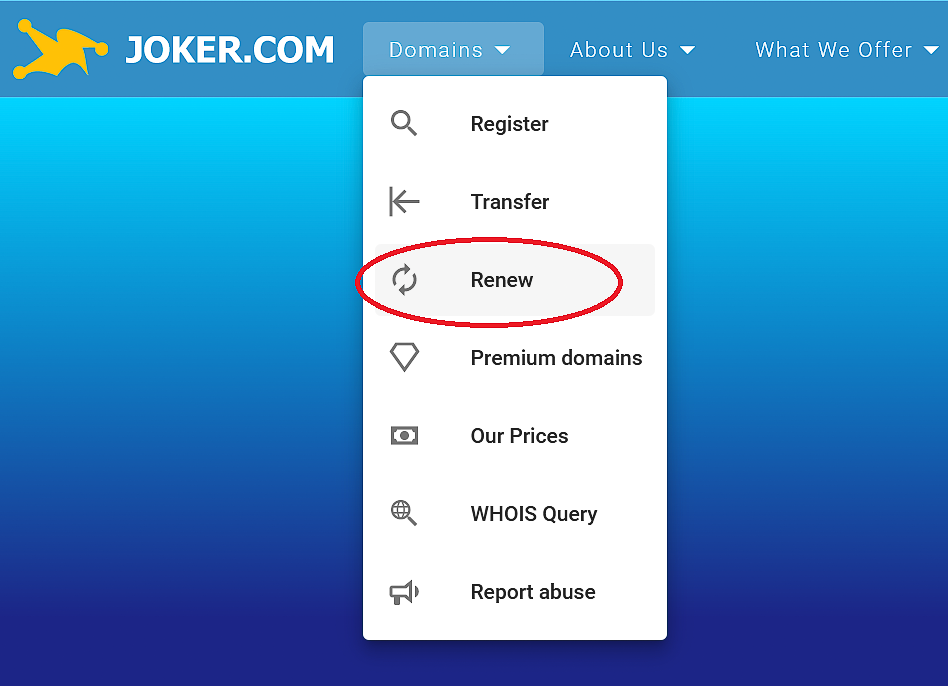


##### 2. Provide the domain name under the "Simple renewal" section, and add it to your shopping cart 

You can even add multiple domains to your shopping cart, and further options like Privacy Service.

##### ![](https://joker.com/faq/uploads/images/gallery/FAQ_media/Domain%20management/renewal-3.png)
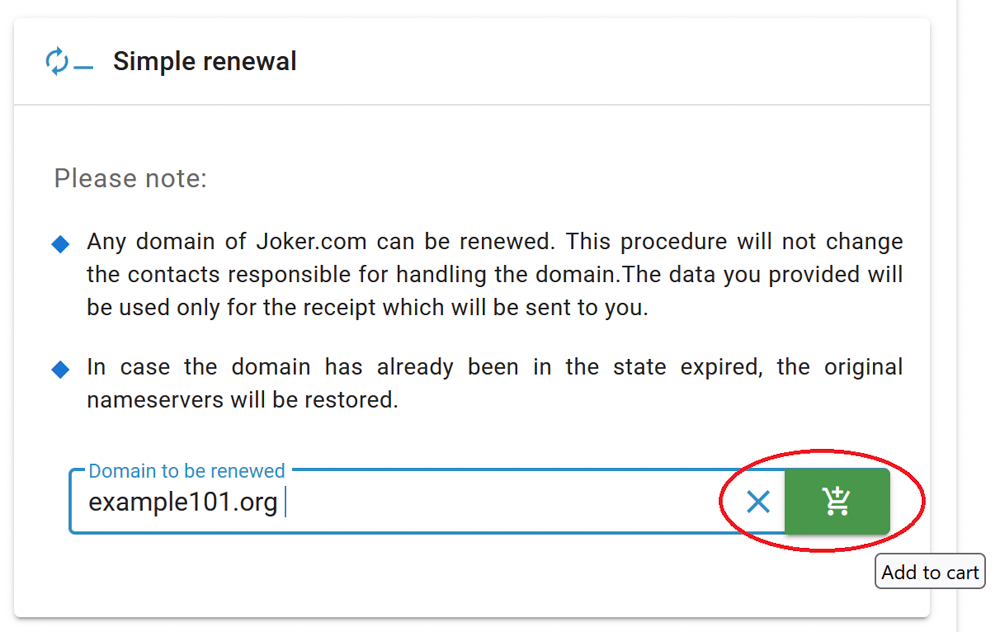
##### ![](https://joker.com/faq/uploads/images/gallery/FAQ_media/Domain%20management/renewal-4.png)


##### 3. Complete the payment.

Learn about accepted payment methods [here.](https://joker.com/faq/books/jokercom-faq-en/page/payment-methods-and-invoicing) This renewal process extends the domain's validity for one year without making any changes to other data, permissions, claims, or aspects of the domain.

##### ![](https://joker.com/faq/uploads/images/gallery/FAQ_media/Domain%20management/renewal-5.png)
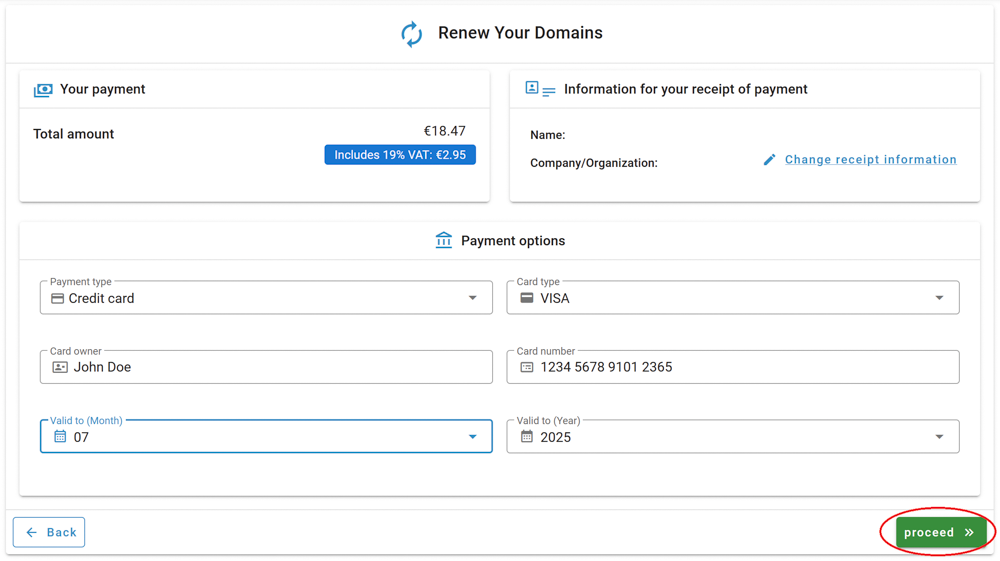


### Renewal Reminders

**Expired Registration Recovery Policy (ERRP)**

According to the ICANN policies, all ICANN-accredited [Registrars](https://joker.com/faq/books/jokercom-faq-en/page/what-is-a-domain-name-registrar) like Joker.com are obliged to establish certain procedures for communication with domain owners ([the registrants](https://joker.com/faq/books/jokercom-faq-en/page/who-is-a-domain-registrant)) in the event of due[ renewals](https://joker.com/faq/books/jokercom-faq-en/page/domain-renewal "Domain Renewal").

As of 9/01/2013, each Registrar has to comply with certain minimum requirements regarding the notification of domain owners ([the registrants](https://joker.com/faq/books/jokercom-faq-en/page/who-is-a-domain-registrant)) about the expiration of their domain.

This is part of the ERRP, the "Expired Registration Recovery Policy", and this also includes the obligation of the registrar to send at least two notices to the registrant before, and one notice after the eventual expiration of a domain.  
Please find more details at [ICANN](https://www.icann.org/resources/pages/errp-2013-02-28-en "ICANN ERRP").

Timing and number of notices to be sent are defined by ICANN. Of course, ERRP emails will not be sent if a renewal has been already performed.

Resellers do have the option to set their own sender's address for these reports in the reseller's profile, which allows to connect to their customers.

##### The complete schedule of all renewal notices issued by Joker.com for domains

<table align="center" cellpadding="1" cellspacing="1" class="align-center" id="bkmrk-renewal-notices-%C2%A0tim" rules="all" style="width: 571px; background-color: rgb(183, 242, 255); border: 1px solid rgb(0, 0, 0); height: 217.594px;"><caption><span style="font-family: arial,helvetica,sans-serif; font-size: small;">**Renewal Notices**</span></caption><tbody><tr style="height: 35.0625px;"><td style="background-color: rgb(255, 204, 102); border: 1px solid rgb(0, 0, 0); height: 35.0625px;"><span style="font-family: arial, helvetica, sans-serif; font-size: small; color: rgb(0, 0, 0);"> **Sent when**</span></td><td style="background-color: rgb(255, 204, 102); border: 1px solid rgb(0, 0, 0); height: 35.0625px;"><span style="font-family: arial, helvetica, sans-serif; font-size: small; color: rgb(0, 0, 0);">**Recipient ([ role ](https://joker.com/faq/books/jokercom-faq-en/page/roles-and-permissions))**</span></td></tr><tr style="height: 30.4531px;"><td bgcolor="#ccffff" class="align-left" style="height: 30.4531px;"><span style="font-family: arial, helvetica, sans-serif; font-size: small; color: rgb(0, 0, 0);"> 60 days before the expiration</span></td><td bgcolor="#ccffff" class="align-left" style="height: 30.4531px;"><span style="font-family: arial, helvetica, sans-serif; font-size: small; color: rgb(0, 0, 0);">creator (or DA, who ordered a domain)</span></td></tr><tr style="height: 30.4531px;"><td bgcolor="#ccffff" class="align-left" style="height: 30.4531px;"><span style="font-family: arial, helvetica, sans-serif; font-size: small; color: rgb(0, 0, 0);"> 30 days before the expiration</span></td><td bgcolor="#ccffff" class="align-left" style="height: 30.4531px;"><span style="font-family: arial, helvetica, sans-serif; font-size: small; color: rgb(0, 0, 0);">creator, admin, billing</span></td></tr><tr style="height: 30.4531px;"><td bgcolor="#ccffff" class="align-left" style="height: 30.4531px;"><span style="font-family: arial, helvetica, sans-serif; font-size: small; color: rgb(0, 0, 0);"> **26 days before expiration\***</span></td><td bgcolor="#ccffff" class="align-left" style="height: 30.4531px;"><span style="font-family: arial, helvetica, sans-serif; font-size: small; color: rgb(0, 0, 0);">**owner\*** (registrant in Whois), creator</span></td></tr><tr style="height: 30.2656px;"><td bgcolor="#ccffff" class="align-left" style="height: 30.2656px;"><span style="font-family: arial, helvetica, sans-serif; font-size: small; color: rgb(0, 0, 0);"> 10 days before the expiration</span></td><td bgcolor="#ccffff" class="align-left" style="height: 30.2656px;"><span style="font-family: arial, helvetica, sans-serif; font-size: small; color: rgb(0, 0, 0);">creator, admin, billing, **owner\***</span></td></tr><tr style="height: 30.4531px;"><td bgcolor="#ccffff" class="align-left" style="height: 30.4531px;"><span style="font-family: arial, helvetica, sans-serif; font-size: small; color: rgb(0, 0, 0);"> 2 days before the expiration</span></td><td bgcolor="#ccffff" class="align-left" style="height: 30.4531px;"><span style="font-family: arial, helvetica, sans-serif; font-size: small; color: rgb(0, 0, 0);">creator, admin, billing, **owner\***</span></td></tr><tr style="height: 30.4531px;"><td bgcolor="#ccffff" class="align-left" style="height: 30.4531px;"><span style="font-family: arial, helvetica, sans-serif; font-size: small; color: rgb(0, 0, 0);"> **2 days after expiration**</span></td><td bgcolor="#ccffff" class="align-left" style="height: 30.4531px;"><span style="font-family: arial, helvetica, sans-serif; font-size: small; color: rgb(0, 0, 0);">**owner**, creator</span></td></tr></tbody></table>

<span style="font-family: Arial; font-size: x-small;"><span style="font-family: Arial;">\*) new mailing, or new addressee</span></span>


### Beware of Fake Renewal Offers

Some unauthorized parties send false renewal announcements to domain holders, often with inflated prices and concealed transfer attempts. Further details and examples of these scams can be found in the following resources:

- <span style="font-family: Arial,Helvetica;">[ICANN on Domain Scams](https://www.icann.org/news/blog/be-careful-what-you-click-alert-of-new-fraudulent-domain-renewal-emails)  
    </span>
- <span style="font-family: Arial,Helvetica;">[About <span class="highlight">fake</span> "Renewal Reminders"](https://www.ricksdailytips.com/fake-domain-renewal-notices-scam/)</span>

# Domain Management Section

#### Domain Management Tools

![](https://joker.com/faq/uploads/images/gallery/FAQ_media/Domain%20management/domain_management-1.png)

<table border="1" class="align-center" id="bkmrk-1-general-domain-inf" style="border-collapse: collapse; width: 100%; height: 771.6px; border-width: 1px; border-style: hidden;"><colgroup><col style="width: 7.59267%;"></col><col style="width: 92.5309%;"></col></colgroup><tbody><tr style="height: 35.4px;"><td style="height: 35.4px;">**1**

</td><td class="align-left" style="height: 35.4px;">**General domain information and current status**

</td></tr><tr style="height: 35.4px;"><td style="height: 35.4px;">**2**

</td><td class="align-left" style="height: 35.4px;">**Current domain owner ([registrant](https://joker.com/faq/books/jokercom-faq-en/page/who-is-a-domain-registrant)) details**

</td></tr><tr style="height: 35.4px;"><td style="height: 35.4px;">**3**

</td><td class="align-left" style="height: 35.4px;">**"Edit" button for domain owner information - update [Whois details](https://joker.com/faq/books/jokercom-faq-en/page/whois-data-accuracy) for your domain**

</td></tr><tr style="height: 80.2px;"><td style="height: 80.2px;">**4**

</td><td class="align-left" style="height: 80.2px;">**"Edit" button for nameservers**

Connect external nameservers or switch to Joker free nameservers, for more information and instructions please refer to [this article](https://joker.com/faq/books/jokercom-faq-en/page/adding-name-servers-to-your-domain)

</td></tr><tr style="height: 57.8px;"><td style="height: 57.8px;">**5**

</td><td class="align-left" style="height: 57.8px;">**DNS configuration - [add necessary records](https://joker.com/faq/books/jokercom-faq-en/page/jokercom-name-service-adding-dns-records)**

This option is available only with Joker free nameservice

</td></tr><tr style="height: 35.4px;"><td style="height: 35.4px;">**6**

</td><td class="align-left" style="height: 35.4px;">**Apply current nameservice to multiple or all domains at once**

</td></tr><tr style="height: 57.8px;"><td style="height: 57.8px;">**7**

</td><td class="align-left" style="height: 57.8px;">**Grant roles for your domain**

Find more information about roles [here](https://joker.com/faq/books/jokercom-faq-en/page/roles-and-permissions)

</td></tr><tr style="height: 35.4px;"><td style="height: 35.4px;">**8**

</td><td class="align-left" style="height: 35.4px;">**Indicator showing enabled protection and "lock" status for the domain**

</td></tr><tr style="height: 57.8px;"><td style="height: 57.8px;">**9**

</td><td class="align-left" style="height: 57.8px;">**Remove the domain protection button**

Unlock the domain with a click if preparing for transfer

</td></tr><tr style="height: 57.8px;"><td style="height: 57.8px;">**10**

</td><td class="align-left" style="height: 57.8px;">**Request AuthId for domain transfer**

AuthId will be sent to the current registrant's email - Remember to unlock the domain first **(button 9)**

</td></tr><tr style="height: 35.4px;"><td style="height: 35.4px;">**11**

</td><td class="align-left" style="height: 35.4px;">**Add privacy service to your domain**

Learn more about privacy [here](https://joker.com/faq/books/jokercom-faq-en/page/privacy-services)

</td></tr><tr style="height: 35.4px;"><td style="height: 35.4px;">**12**

</td><td class="align-left" style="height: 35.4px;">**Information about domain contacts**

Find more details about domain contacts [here](https://joker.com/faq/books/jokercom-faq-en/page/what-are-domain-contacts)

</td></tr><tr style="height: 35.4px;"><td style="height: 35.4px;">**13**

</td><td class="align-left" style="height: 35.4px;">**Domain contact details**

</td></tr><tr style="height: 35.4px;"><td style="height: 35.4px;">**14**

</td><td class="align-left" style="height: 35.4px;">**"Edit" contact button**

</td></tr><tr style="height: 35.4px;"><td style="height: 35.4px;">**15**

</td><td class="align-left" style="height: 35.4px;">**Swap contact**

Connect another already existing contact handle if desired

</td></tr><tr style="height: 35.4px;"><td style="height: 35.4px;">**16**

</td><td class="align-left" style="height: 35.4px;">**Apply these contacts to multiple domains at once**

</td></tr><tr style="height: 35.4px;"><td style="height: 35.4px;">**17**

</td><td class="align-left" style="height: 35.4px;">**Additional information about your domain**

</td></tr><tr style="height: 35.4px;"><td style="height: 35.4px;">**18**

</td><td class="align-left" style="height: 35.4px;">**[Renew](https://joker.com/faq/books/jokercom-faq-en/page/domain-renewal) your domain by clicking this button**

</td></tr></tbody></table>

# Creating and Modifying Contacts

To add or modify [Domain Contacts](https://joker.com/faq/books/jokercom-faq-en/page/what-are-domain-contacts), follow these steps:

##### 1. Log in to Joker.com using your login name and password.


##### 2. In the menu "My Joker", select "Contacts".

![](https://joker.com/faq/uploads/images/gallery/FAQ_media/Domain%20management/contact_modify-1.png)


##### 3. You will see a list of all your contacts. 

To create a new contact, click on the "Create New Contact" button located at the top right corner (1). To modify any of them, click on "Modify" (2).

![](https://joker.com/faq/uploads/images/gallery/FAQ_media/Domain%20management/contact_modify-2.png)


##### 4. Fill out the form, and click "Proceed."  


![](https://joker.com/faq/uploads/images/gallery/FAQ_media/Domain%20management/contact_modify-3.png)

**Please note the following:**

- A contact is a template consisting of an email, name, and street address.
- When you populate a domain with Whois data, you create or choose a contact and assign it to the domain.
- You can assign individual contacts to each domain or use a single contact for multiple domains.
- If you make changes to a contact that is assigned to multiple domains, those changes will apply to all domains associated with that contact.
- Each contact has a unique identifier called "contact-id" or 'handle'. Examples include "CCOM-12345" for .com domains or "CODE-12345" for .de domains.

<p class="callout info">For a complete list of contact handle prefixes used across all TLDs, please refer to the [**Contact Prefix Reference Table**](https://joker.com/faq/books/reseller-documentation-en/page/tld-list-and-assosiated-contact-prefixes)</p>

# Cancel a Domain Name Registration

<article id="bkmrk-how-to-cancel-a-doma">We understand that sometimes you may need to cancel a domain name registration. However, it's important to note that once a domain is registered, **it cannot be canceled or refunded**.

Domain registrations occur in **real-time**, and therefore, it's crucial to double-check the domain name you intend to register to avoid any future complications.  
  
If you made a typo or an error while registering a domain, unfortunately, you will need to start the registration process again with the correct information.  
  
While it is possible to delete a domain name, it's essential to be aware that doing so will not result in a refund. Once a domain is deleted, any fees or charges associated with the registration will not be reimbursed.  
  
Please note that **resellers** may receive a refund for deletions of **generic top-level domains (gTLDs)** **within 72 hours** after the initial registration.

</article>

# Deletion of a Domain

<span style="font-family: Arial,Helvetica;">![](https://joker.com/faq/uploads/images/gallery/FAQ_media/Domain%20management/delete_domain-1.png)</span>

<span style="font-family: Arial,Helvetica;">To <span class="highlight">delete</span> a domain, please:   
</span>

- <span style="font-family: Arial,Helvetica;">login at [Joker.com](https://joker.com) </span>
- <span style="font-family: Arial,Helvetica;">on your dashboard, choose "delete" from the menu next to the domain name you want to delete  
    </span>
- <span style="font-family: Arial,Helvetica;">a verification email will be sent to your email address - **you have to acknowledge** the deletion</span>
- <span style="font-family: Arial,Helvetica;">a deletion is free of charge  
    </span>
- <span style="font-family: Arial,Helvetica;">**Resellers only:** gTLDs that are deleted within **72h** after registration are **fully refunded**</span><span style="font-family: Arial,Helvetica;"> </span>

<p class="callout info"><span style="font-family: Arial,Helvetica;">**Please note:** Most domain names are **not** immediately available after a deletion. They usually enter a "pending delete" status determined by the domain's registry. Here you find more information regarding the [Redemption Grace Period](https://joker.com/faq/books/jokercom-faq-en/page/domain-has-expired-what-to-do#bkmrk-the-redemption-grace), and a [domain name's life cycle](https://joker.com/faq/books/jokercom-faq-en/page/life-cycle-of-a-domain).</span></p>

# The Redemption Grace Period (RGP)

Most gTLD domains, which are domains under ICANN regulation, have a special status called the **Redemption Grace Period or RGP.**

**What does this mean?**

When a domain is deleted, it is not immediately removed from the registry's database. Instead, for up to **30 days\*** following the deletion, the domain cannot be registered again. During this time, the registrar responsible for the domain can "reanimate" or restore it on behalf of the registrant, typically in cases of renewal problems.

Please note that Joker.com also adds a grace period of approximately **30 days\*** for expired domains. Therefore, the **30-day\*** Redemption Grace Period starts after approximately **30 days\*** of Joker.com's grace period for regular expired domains.

The availability of the Redemption Grace Period and the specific timeline depend on the domain type and the registry operating the domain.

A domain in Redemption can be restored or re-registered either through the **Redemption Restore Procedure** or by browsing the pool of available domains in the RGP. Please be aware that this procedure usually has different pricing based on the domain type. Refer to the [price list](https://joker.com/domain/prices) for more information.

### How to restore the domain:

##### 1. Log in to your account, and choose "Restore - RGP" from the "Domains" menu
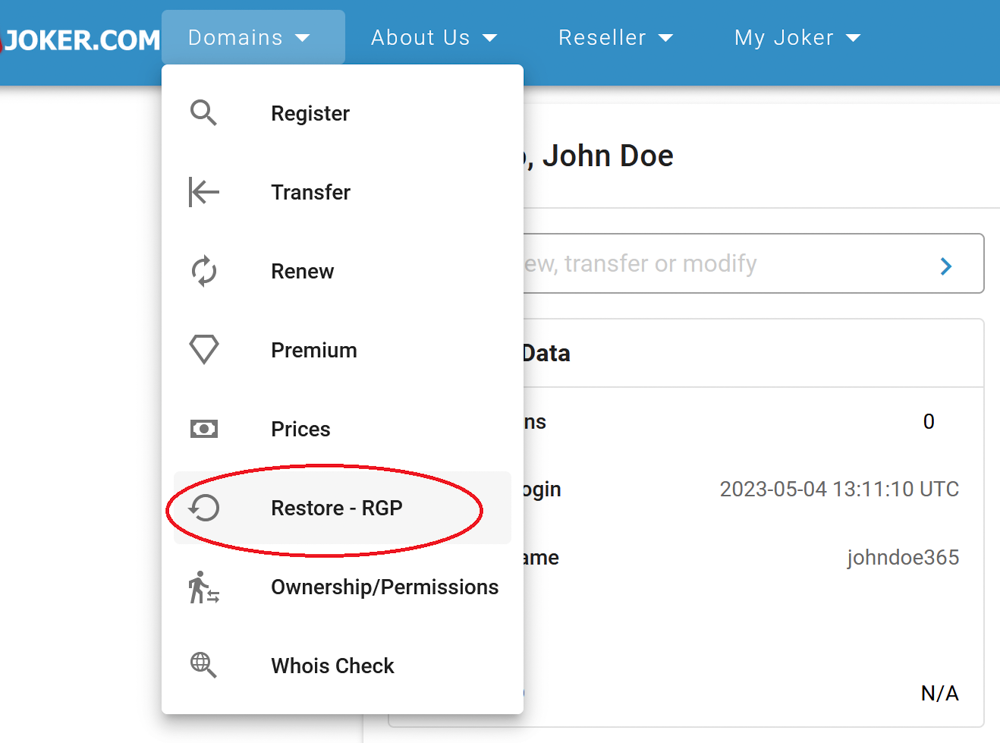
![](https://joker.com/faq/uploads/images/gallery/FAQ_media/Domain%20management/restore-1.png)

#####  

##### 2. Enter the domain name and add it to the shopping cart  


After clicking "Proceed", you will be directed to the payment page. The total fee will be calculated as follows: **restore fee + 1-year renewal fee.** For the exact amount, please check our [price list](https://joker.com/domain/prices).
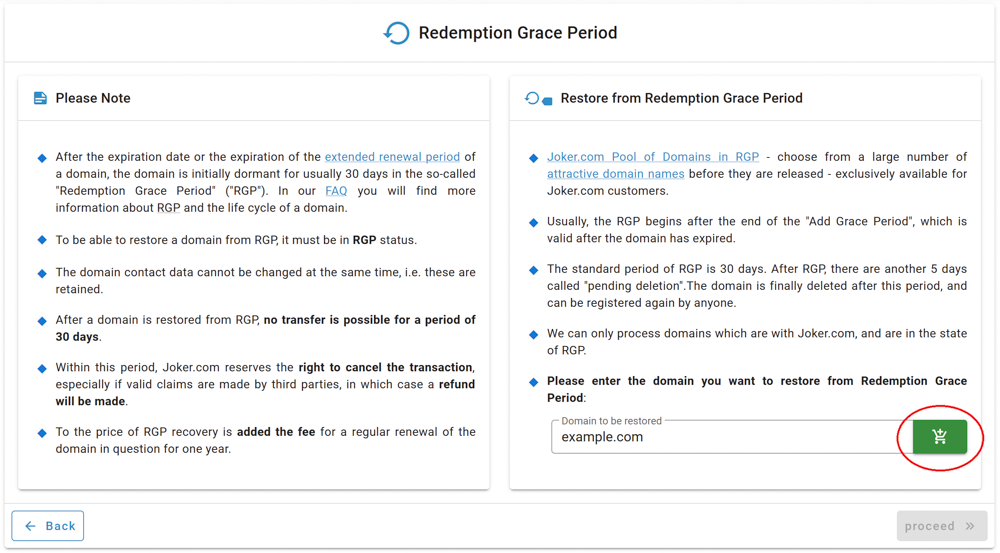
![](https://joker.com/faq/uploads/images/gallery/FAQ_media/Domain%20management/restore-2.png)

<p class="callout warning">Please note, after successful restoration of a domain from RGP, transferring it to another registrar is **not possible for another 30 days.**</p>

###  

### End of Redemption Grace Period (RGP)

After approximately **30 days\*** in RGP, the domain's status changes to "pending delete" for **5 days\***. During this period, restoration is no longer possible.

On the 6th day after the deletion, the domain becomes available for registration again. The exact time for when a new registration is possible is randomly chosen to ensure fair conditions for all.

For more information about a [domain's life cycle](https://joker.com/faq/books/jokercom-faq-en/page/life-cycle-of-a-domain), please refer to the Joker.com [Terms and Conditions](https://joker.com/index.joker?mode=page&page=terms_cond).

Please note that before a domain enters RGP or is deleted by Joker.com, the responsible contacts associated with the domain will receive multiple email notifications. The exact notification scheme can be found [here.](https://joker.com/faq/books/jokercom-faq-en/page/domain-renewal#bkmrk-renewal-reminders)

---

<p class="callout info">***\*** Please keep in mind that the data provided above are **indicative**, and the **exact times** are specified by the registries, which **may vary.** Additionally, there are technical requirements for some deadlines that may allow for processing within slightly shorter periods. Therefore, we strongly recommend **not waiting until the theoretical maximum**, such as the "expired grace period," before renewing a domain.*</p>

# Premium Domain Name Registration

Here is how you register a premium domain name:

1\. You send a request to our support team to register a premium domain name.

2\. Additionally, you will need to provide us with the following information:

- **Customer ID at Joker.com:** Include your customer ID associated with your account at Joker.com.
- **Billing Data:** Provide your billing details, including the necessary information required for generating the receipt.
- **Registrant Contact Data:** Include the contact details of the person or entity who will be the registrant of the domain name.
- **Nameservice Preference:** Specify the nameservice you would like to use for this domain. For example, provide the nameserver details or mention if you prefer to use Joker.com's free nameservers.

3\. Make a payment prior to registration:

- **Reseller:** If you are a reseller, kindly give us your consent to charge you for the premium domain name registration. Please note that the reseller discount does not apply to premium domains.
- **End Customer:** If you are an end customer, you will need to transfer the necessary amount to one of our bank accounts before the registration process. When making the payment, make sure to include the payment reference "Premium domain \[your.domain\]" to ensure proper identification.

# Whois Data Accuracy

With the introduction of new generic top-level domains (new gTLDs), ICANN established fresh criteria for registrants' data when registering a domain. You can find the official specifications for these new requirements [here](https://joker.com/goto/icann_ra_whois). Due to the enforcement of the General Data Protection Regulation (GDPR), no personal data is disclosed in the Whois records for gTLDs.

For all generic top-level domains (gTLDs), the registrar is required to perform Whois data validation in the following instances:

- New registrations of gTLDs
- Changes to the registrant information of a gTLD
- Transfers of a gTLD

Upon registration, transfer, or modification of the registrant details, an email will be promptly sent to the Registrant's specified email address for the domain.

This email will contain a link that, when clicked, will register the associated email address as verified.

It is important to verify the email **within 15 calendar days**; otherwise, the domain associated with the Registrant's email address may be temporarily suspended. In such cases, the domain will redirect to a special landing page.

The landing page will notify you of the issue and provide information on how to resolve it.

Additionally, you will receive at least three (3) additional email notices before the end of the 15-day period.

### Role of Domain Owners in Maintaining Up-to-Date Whois Data

When it comes to maintaining the accuracy of whois data, and the information associated with a domain name, it is the responsibility of the domain owner. The domain owner has to ensure that the contact information provided, such as email and postal addresses, remains valid and up to date. It is crucial that any notices or communications sent to these addresses are promptly received and read.

#### Consequences of Invalid Whois Data

Having invalid contact information in the whois data can result in the cancellation of the domain. This policy is enforced by ICANN, and most domain registries, and is also outlined in Joker.com's Terms &amp; Conditions.

### You Received a Warning: Wrong Whois Data or "Invalid Address"

---

If we receive a complaint from an authoritative party (such as ICANN, Registry, or local authorities) regarding potential issues with the Whois data of a domain, we typically initiate a process to request the domain owner to review the information and make necessary corrections to rectify any inaccuracies.

Please note that if this process leads to a change in the registrant's Whois data, there may be **applicable fees involved.**

To correct your data after the "Invalid Address" process is started, please:

##### 1. Choose "Ownership/Permissions" from the "Domains" menu
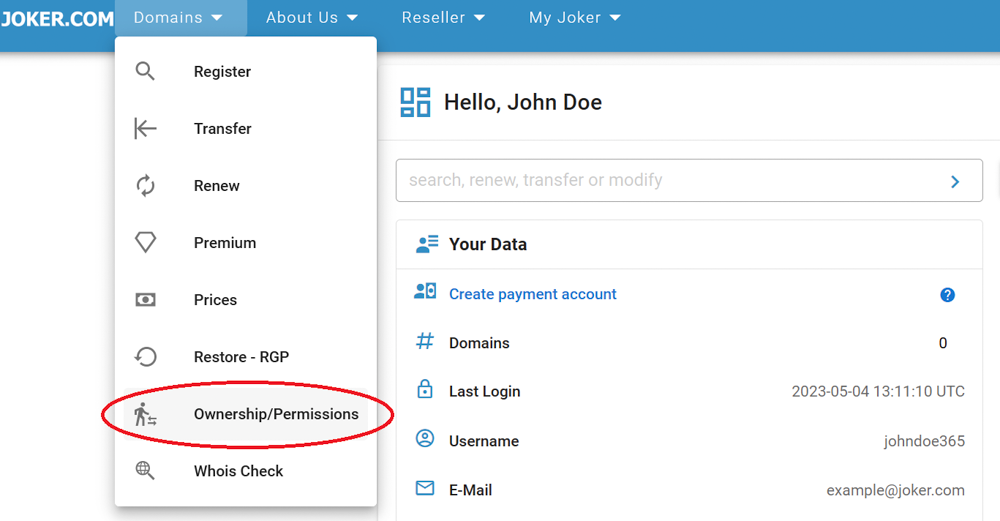
![](https://joker.com/faq/uploads/images/gallery/FAQ_media/Domain%20management/invalid_address-1.png)


##### 2. Enter the domain name with "Invalid Address" status, choose "Change an **incomplete or wrong Whois address record**", and click "proceed"
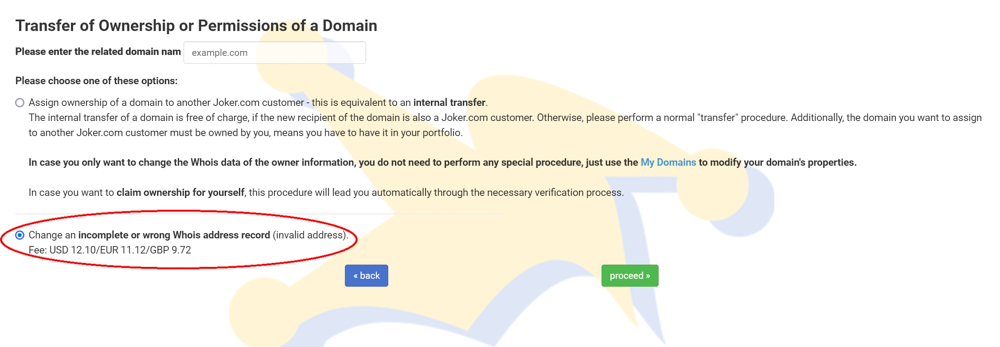
![](https://joker.com/faq/uploads/images/gallery/FAQ_media/Domain%20management/invalid_address-2.png)

# Additional Information for Specific TLDs

### General Guidelines for ccTLDs

---


#### Distinguishing Person and Organization Handles

For the majority of ccTLDs, we classify handles into two categories: **person (format = 'COTO-P-xxxxx')** and **organization (format = 'COTO-O-xxxxx')**. For instance, a person handle might look like 'COTO-P-1234567'.


<p class="callout warning">**Mandatory Contact Types:** the roles of **admin, tech, and billing** contacts are **exclusively** assigned to **person-type handles**.  
</p>

**Creating Person-contact Handles**

When generating person handles, follow these rules:

- If the organization field has a value: 
    - The 'name' field must contain a minimum of two words separated by a space.
- If the organization field is empty: 
    - The contact will always be a **person** handle.

 If the new person handle is created, it will adhere to the format **'COTO-P-XXXXX'.**

<p class="callout warning">**Exception for .FR Domains:**</p>

- The tech contact must differ from the owner contact; they cannot be the same.
- The **tech contact must be an organization type** and cannot be redacted in the WHOIS database.

**Creating Organization-contact Handles**

For generating organization handles, follow these steps:

- Set the 'name' field to 'Hostmaster'.
- The 'organization' field must contain the name of the organization

If the newly created handle is an organization type, it will follow the format **'COTO-O-XXXXX'.**

The policies and registration rules for many country code top-level domains (ccTLDs) differ from those of generic top-level domains (gTLDs), and they also vary among themselves. If you are considering registering a ccTLD, we recommend checking the additional information in our [Terms and Conditions (T&amp;C):](https://joker.com/?mode=page&page=terms_cond)

> *5) Addendum of T&amp;C if you register one of the following domains:*
> 
> <table class="table table-bordered table-condensed table-responsive-md" style="max-width: 600px;"><tbody><tr><td class="tbl_Bcopy" width="16%">[.ag](https://joker.com/index.joker?mode=page&page=ag)</td><td class="tbl_Bcopy" width="16%">[.at](https://joker.com/index.joker?mode=page&page=at)</td><td class="tbl_Bcopy" width="16%">[.army, .navy, .airforce](https://joker.com/index.joker?mode=page&page=army_navy_airf)</td><td class="tbl_Bcopy" width="16%"> </td><td class="tbl_Bcopy" width="16%"> </td><td class="tbl_Bcopy" width="16%"> </td></tr><tr><td class="tbl_Bcopy">[.be](https://joker.com/index.joker?mode=page&page=be)</td><td class="tbl_Bcopy">[.berlin](https://joker.com/index.joker?mode=page&page=berlin)</td><td class="tbl_Bcopy">[.biz](https://joker.com/index.joker?mode=page&page=biz)</td><td class="tbl_Bcopy">[.build](https://joker.com/index.joker?mode=page&page=build)</td><td class="tbl_Bcopy">[.bz](https://joker.com/index.joker?mode=page&page=bz)</td><td class="tbl_Bcopy"> </td></tr><tr><td class="tbl_Bcopy">[.ca](https://joker.com/index.joker?mode=page&page=ca)</td><td class="tbl_Bcopy">[.ch](https://joker.com/index.joker?mode=page&page=ch)</td><td class="tbl_Bcopy">[.cn](https://joker.com/index.joker?mode=page&page=cn)</td><td class="tbl_Bcopy">[.courses](https://joker.com/index.joker?mode=page&page=courses)</td><td class="tbl_Bcopy">[.cz](https://joker.com/index.joker?mode=page&page=cz)</td><td class="tbl_Bcopy"> </td></tr><tr><td class="tbl_Bcopy">[.de](https://joker.com/index.joker?mode=page&page=de)</td><td class="tbl_Bcopy">[.dk](https://joker.com/index.joker?mode=page&page=dk)</td><td class="tbl_Bcopy">[.doctor](https://joker.com/index.joker?mode=page&page=doctor)</td><td class="tbl_Bcopy"> </td><td class="tbl_Bcopy"> </td><td class="tbl_Bcopy"> </td></tr><tr><td class="tbl_Bcopy">[.eco](https://joker.com/index.joker?mode=page&page=eco)</td><td class="tbl_Bcopy">[.ee](https://joker.com/index.joker?mode=page&page=ee)</td><td class="tbl_Bcopy">[.es](https://joker.com/index.joker?mode=page&page=es)</td><td class="tbl_Bcopy">[.eu](https://joker.com/index.joker?mode=page&page=eu)</td><td class="tbl_Bcopy"> </td><td class="tbl_Bcopy"> </td></tr><tr><td class="tbl_Bcopy">[.fi](https://joker.com/index.joker?mode=page&page=fi)</td><td class="tbl_Bcopy">[.fr](https://joker.com/index.joker?mode=page&page=fr)</td><td class="tbl_Bcopy"> </td><td class="tbl_Bcopy"> </td><td class="tbl_Bcopy"> </td><td class="tbl_Bcopy"> </td></tr><tr><td class="tbl_Bcopy">[.hamburg](https://joker.com/index.joker?mode=page&page=hamburg)</td><td class="tbl_Bcopy">[.hn](https://joker.com/index.joker?mode=page&page=hn)</td><td class="tbl_Bcopy"> </td><td class="tbl_Bcopy"> </td><td class="tbl_Bcopy"> </td><td class="tbl_Bcopy"> </td></tr><tr><td class="tbl_Bcopy">[.ie](https://joker.com/index.joker?mode=page&page=ie)</td><td class="tbl_Bcopy">[.im](https://joker.com/index.joker?mode=page&page=im)</td><td class="tbl_Bcopy">[.in](https://joker.com/index.joker?mode=page&page=in)</td><td class="tbl_Bcopy">[.info](https://joker.com/index.joker?mode=page&page=info)</td><td class="tbl_Bcopy">[.io](https://joker.com/index.joker?mode=page&page=io)</td><td class="tbl_Bcopy">[.it](https://joker.com/index.joker?mode=page&page=it)</td></tr><tr><td class="tbl_Bcopy">[.koeln/.cologne](https://joker.com/index.joker?mode=page&page=koeln)</td><td class="tbl_Bcopy"> </td><td class="tbl_Bcopy"> </td><td class="tbl_Bcopy"> </td><td class="tbl_Bcopy"> </td><td class="tbl_Bcopy"> </td></tr><tr><td class="tbl_Bcopy">[.lc](https://joker.com/index.joker?mode=page&page=lc)</td><td class="tbl_Bcopy">[.li](https://joker.com/index.joker?mode=page&page=li)</td><td class="tbl_Bcopy">[.london](https://joker.com/index.joker?mode=page&page=london)</td><td class="tbl_Bcopy">[.lu](https://joker.com/index.joker?mode=page&page=lu)</td><td class="tbl_Bcopy"> </td><td class="tbl_Bcopy"> </td></tr><tr><td class="tbl_Bcopy">[.me](https://joker.com/index.joker?mode=page&page=me)</td><td class="tbl_Bcopy">[.mn](https://joker.com/index.joker?mode=page&page=mn)</td><td class="tbl_Bcopy">[.mobi](https://joker.com/index.joker?mode=page&page=mobi)</td><td class="tbl_Bcopy"> </td><td class="tbl_Bcopy"> </td><td class="tbl_Bcopy"> </td></tr><tr><td class="tbl_Bcopy"> </td><td class="tbl_Bcopy">[.net](https://joker.com/index.joker?mode=page&page=net)</td><td class="tbl_Bcopy">[.nl](https://joker.com/index.joker?mode=page&page=nl)</td><td class="tbl_Bcopy">[.nu](https://joker.com/index.joker?mode=page&page=nu)</td><td class="tbl_Bcopy"> </td><td class="tbl_Bcopy"> </td></tr><tr><td class="tbl_Bcopy">[.sc](https://joker.com/index.joker?mode=page&page=sc)</td><td class="tbl_Bcopy">[.se](https://joker.com/index.joker?mode=page&page=se)</td><td class="tbl_Bcopy">[.sk](https://joker.com/index.joker?mode=page&page=sk)</td><td class="tbl_Bcopy">[.study](https://joker.com/index.joker?mode=page&page=study)</td><td class="tbl_Bcopy"> </td><td class="tbl_Bcopy"> </td></tr><tr><td class="tbl_Bcopy">[.tel](https://joker.com/index.joker?mode=page&page=tel)</td><td class="tbl_Bcopy">[.travel](https://joker.com/index.joker?mode=page&page=travel)</td><td class="tbl_Bcopy"> </td><td class="tbl_Bcopy"> </td><td class="tbl_Bcopy"> </td><td class="tbl_Bcopy"> </td></tr><tr><td class="tbl_Bcopy">[.uk](https://joker.com/index.joker?mode=page&page=uk)</td><td class="tbl_Bcopy">[.us](https://joker.com/index.joker?mode=page&page=us)</td><td class="tbl_Bcopy"> </td><td class="tbl_Bcopy"> </td><td class="tbl_Bcopy"> </td><td class="tbl_Bcopy"> </td></tr><tr><td class="tbl_Bcopy">[.vet](https://joker.com/index.joker?mode=page&page=vet)</td><td class="tbl_Bcopy">[.vc](https://joker.com/index.joker?mode=page&page=vc)</td><td class="tbl_Bcopy"> </td><td class="tbl_Bcopy"> </td><td class="tbl_Bcopy"> </td><td class="tbl_Bcopy"> </td></tr><tr><td class="tbl_Bcopy">[.xxx](https://joker.com/index.joker?mode=page&page=xxx)</td><td class="tbl_Bcopy">[.xyz](https://joker.com/index.joker?mode=page&page=xyz)</td><td class="tbl_Bcopy"> </td><td class="tbl_Bcopy"> </td><td class="tbl_Bcopy"> </td><td class="tbl_Bcopy"> </td></tr></tbody></table>

##### Renewals

One of the most important aspects to consider is the renewal timeframe. This refers to the period within which you must renew your domain if you wish to keep it before it expires. When we send you a renewal reminder, we provide the **latest renewal date** along with the expiration date. **It is crucial to renew your domain before the "latest renewal date."** Failure to do so may result in the need to pay a restoration fee in addition to the renewal fee, even if the expiration date has not yet been reached.


### .AT Renewal and Deletion Policy

---

##### To find the service period of an .AT domain, follow these steps:

- Go to the website Joker.com.
- Use the 'Whois' feature on the website.
- Look for the information called 'expiration date' to find the service period.


##### When .AT domain is deleted by the end of the current service period:

- The domain can still be used until the end of the paid service period.
- After the service period ends, the domain will be automatically locked and become technically inoperative.
- The internet services associated with the domain, such as the website and email, will also become inoperative.
- The domain's sub-domains will also be affected.
- After a technical lock period of approximately 8 weeks, the domain becomes available for registration again.


##### If an .AT domain is explicitly deleted:

- The registry, NIC.AT, will immediately lock the domain, making it technically inoperative.
- The internet services associated with the domain, such as the website and email, will become inoperative.
- The domain's sub-domains will also be affected.
- After a technical lock period of approximately 8 weeks, the domain becomes available for registration again.


##### To delete an .AT domain:

- If the domain holder wants to delete the domain due to non-renewal, the deletion will occur one day before the end of the regular term.
- The domain holder must submit a written request, signed by the proper person or company, to cancel (delete) the domain.
- By deleting the domain, the holder relinquishes all rights and liabilities associated with it.  
    The domain can then be registered anew by someone else.
- If the domain is administered by a nic.at-registrar, it can also be canceled directly with the registrar. In such cases, it is advisable to contact your Internet Service Provider (ISP) for assistance.


##### If an .AT domain is not renewed and has expired:

- If an .AT domain is not renewed and the owner does not explicitly cancel it in due time, Joker.com will put the domain into a "Transit" state one day before the end of the regular term, following NIC.AT (the registry) terms and conditions.
- During the "Transit" state, the operational status of the domain remains unaffected.
- The domain undergoes an administrative migration towards NIC.AT, which may result in additional expenses through NIC.AT.
- To retrieve a non-renewed .AT domain, you need to request an Auth-code directly from the registry by visiting this link: [Domain Administration](https://www.nic.at/en/my-at-domain/administration)
- Once you have obtained the Auth-code, you can initiate an inbound transfer back to Joker.com by following this link: [Initiate Transfer](https://joker.com/?mode=transfer_gain&do_next=step1)


### Registration and Modifications of .DK Domains

---

Upon completing the registration process, the owner-contact will receive an email with a login ID and PIN code. These credentials are needed to log in to the registry site and activate their domain name. **Failure to complete this activation within four (4) days will result in the deletion of the domain.**

General modifications including changing name servers for .dk domains **can only be performed** on the Hostmaster-DK Self-Service: [https://self-service.dk-hostmaster.dk/domain](https://self-service.dk-hostmaster.dk/domain)

For more information please refer to [https://punktum.dk/en/faq](https://punktum.dk/en/faq)

**Please see also:** [.dk Domain Transfer and Change of Registrant](https://joker.com/faq/books/jokercom-faq-en/page/specific-cctlds-transfers#bkmrk-.dk-trade)

### .DK Domains - Registrant's Contact Type Verification

---

Just like .se domains, the owner contacts for **.dk** domains also have specific requirements:

- If you select the Registrant Type as **"organization,"** the "Organization" field **must contain a valid company name,** the "Name" field must contain "Hostmaster"**.**
- If the Registrant Type is **"natural person,"** the "Organization" field must be left **empty.**

It's essential to ensure that the owner's contact information matches the correct type; otherwise, the domain registration will not be successful.

### .IT Domains - creating the contacts

---

The **.it** registry has specific requirements for the contacts, if these requirements not met, the domain registration will fail:

- Contact handles with country code "IT" have to contain the **2digit ISO code** (ISO\_3166-2:IT) which defines codes for the names of the principal subdivisions in Italy.
- If the domain owner is a **company**, the owner handle must be of an **"Organization"** type (please see above), registrant type "companies" and the VAT ID must be provided.
- **Admin Contact** must be of a **"Person"** type (please see above), however, it must contain a valid organization name.

Additionally, the **nameservers** for a .it domain **must be pre-configured** before the actual registration. The registry checks the nameservers for a period of 30 days, if the check fails, the **domain will be deleted.**

### .BE Domains - Registrant's Verification at Initial Registration  


---

BE-nic activates domain names only after validating the contact details of the domain name holder. Please, refer to this article for more information about contact validation:

[https://www.dnsbelgium.be/en/registrant-verification](https://www.dnsbelgium.be/en/registrant-verification)


### .SE Domains - Registrant's Contact Type Verification

---

When registering a .se domain, the registrant is required to provide additional information, specifically the **organization or personal identification number of the registrant**.

From time to time, the .se registry checks the registrants' records for .se domains. If this ID is incorrect or of the wrong type, they may suspend or **even delete the domain**. Therefore, at the moment of registration, please ensure the following:

- The ID number is correct
- It complies with the contact type: 
    - If the **organization ID** is provided, the "Organization" field **must include** the company name and not be left empty.
    - If the organization field is **empty**, the contact type is an individual, and a **personal ID** must be provided.


### .CN Domains - Real Name Verification (RNV)

---

After registration, renewal, or transfer of a .cn domain, there are special requirements of the registry CNNIC to meet before the domain will become active.

**Update: As of August 1st, 2022, .cn domains can only be renewed when the Registrant Contact ID has passed RNV!**

<div class="flex flex-grow flex-col gap-3" id="bkmrk-a-.cn-registration-o"><div class="flex flex-grow flex-col gap-3"><div class="min-h-[20px] flex flex-col items-start gap-4 whitespace-pre-wrap break-words"><div class="markdown prose w-full break-words dark:prose-invert light">- A .CN registration or transfer will show a "PENDING" status within the first 5 days from registration submission.
- A .CN registration or transfer will bypass the PENDING status only if the REGISTRANT ID (see below) has previously been verified (or whitelisted) by CNNIC.
- Supporting documents (see below) have to be uploaded here after the registration or transfer, or in case the RNV is requested for existing .cn domains (you have to be logged in to upload the documents).
- In the event that the supporting documentation provided does not match the Registrant Name or if no supporting documentation is submitted, the Real Name Verification will FAIL, and the domain name will then be deactivated until a correct set of supporting documentation is received and accepted by CNNIC.
- A .cn domain that cannot be renewed because of a missing or failed Real Name Verification (RNV) will be deleted.

</div></div></div></div>

##### Documentation Requirements:

**China-based Company Registrations need to provide the following:**

<div class="flex flex-grow flex-col gap-3" id="bkmrk-if-the-registrant-is"><div class="flex flex-grow flex-col gap-3"><div class="min-h-[20px] flex flex-col items-start gap-4 whitespace-pre-wrap break-words"><div class="markdown prose w-full break-words dark:prose-invert light">- If the registrant is a business/organization, then the registrant's name and the organization cannot be the same. For this type of registrant, you will need to submit a Business Registration Certificate (BRC). Additionally, the registrant contact also has to provide a personal document/ID.

</div></div></div></div>**China-based Individual Registrations need to provide the following:**

<div class="flex flex-grow flex-col gap-3" id="bkmrk-if-the-registrant-is-1"><div class="flex flex-grow flex-col gap-3"><div class="min-h-[20px] flex flex-col items-start gap-4 whitespace-pre-wrap break-words"><div class="markdown prose w-full break-words dark:prose-invert light">- If the registrant is an individual, then the registrant's name and organization name must be the same. For individual registrants, you must submit an ID.

</div></div></div></div>**Company Registrations based outside of China need to provide the following:**

<div class="flex flex-grow flex-col gap-3" id="bkmrk-a-copy-of-corporate-"><div class="flex flex-grow flex-col gap-3"><div class="min-h-[20px] flex flex-col items-start gap-4 whitespace-pre-wrap break-words"><div class="markdown prose w-full break-words dark:prose-invert light">- A copy of corporate documentation that shows it is a legal entity (e.g., Articles of Incorporation, business license). Additionally, the CNNIC audit system only allows one page to be uploaded. Only the first page of the license, which mentions the official company name, has to be provided.

</div></div></div></div>**Individual Registrations based outside of China need to provide the following:**

<div class="flex flex-grow flex-col gap-3" id="bkmrk-a-copy-of-government"><div class="flex flex-grow flex-col gap-3"><div class="min-h-[20px] flex flex-col items-start gap-4 whitespace-pre-wrap break-words"><div class="markdown prose w-full break-words dark:prose-invert light">- A copy of government-issued identification for the Registrant must match what is listed in WHOIS (must be a valid passport).

</div></div></div></div>**Important:**

<div class="flex flex-grow flex-col gap-3" id="bkmrk-all-files-should-be-"><div class="flex flex-grow flex-col gap-3"><div class="flex flex-grow flex-col gap-3"><div class="min-h-[20px] flex flex-col items-start gap-4 whitespace-pre-wrap break-words"><div class="markdown prose w-full break-words dark:prose-invert light">- All files should be in **.JPG** format, **no less than 100KB and no more than 1MB** in size.
- The CNNIC audit system only allows one page to be submitted.
- China-based companies should only provide the first page of the BRC.

</div></div></div></div></div>

# DNS

This chapter is dedicated to DNS (Domain Name System). It provides detailed guidance on adding, changing, modifying, and configuring your DNS zone, ensuring proper functioning and accessibility of their domains and associated services.

# Adding Name Servers to Your Domain

Every domain requires a minimum of two (2) associated [nameservers](https://joker.com/faq/books/jokercom-faq-en/page/what-is-domain-name-service-dns).

You have the freedom to choose any name service you prefer. The Joker.com name service is provided for free along with the Joker.com domain fee. By default, the Joker.com name servers are configured unless you explicitly change them during the ordering process.

It's important to note that certain top-level domains (TLDs) have **specific nameserver requirements**. For more details, please refer to the [Specific ccTLDs: Nameservice](https://joker.com/faq/books/jokercom-faq-en/page/specific-cctlds-nameservers "Specific ccTLDs: Nameservers") article.

### Adding Existing Nameservers: Joker NS or Foreign

To add nameservers, follow these steps:

##### 1. On your [Dashboard](https://joker.com/faq/books/jokercom-faq-en/page/understanding-your-dashboard), click the "Modify" icon next to the domain you want to add NS to:

![](https://joker.com/faq/uploads/images/gallery/FAQ_media/DNS/ns-1.png)


##### 2. In the [Domain Management](https://joker.com/faq/books/jokercom-faq-en/page/domain-management-section) section, locate the "Name Servers" subsection, and click the "edit" icon:  


![](https://joker.com/faq/uploads/images/gallery/FAQ_media/DNS/ns-2.png)


#####  

##### 3. Click the "Use custom Nameservers" button:

![](https://joker.com/faq/uploads/images/gallery/FAQ_media/DNS/ns-3.png)


#####  

##### 4. Add desired nameservers, and click "save":

![](https://joker.com/faq/uploads/images/gallery/FAQ_media/DNS/ns-4.png)

<p class="callout info">You can change these to any foreign nameservers, such as the nameservers provided by your hosting provider. Please note that **only already registered nameservers in the respective registry** can be added.</p>


#####  

##### 5. You can switch back to Joker NS at any time:
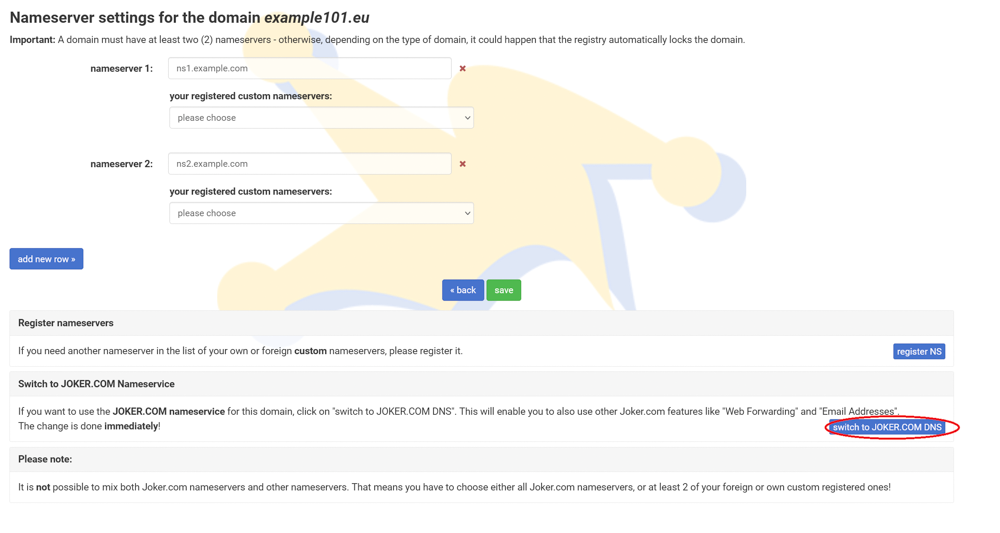
![](https://joker.com/faq/uploads/images/gallery/FAQ_media/DNS/ns-5.png)

# Creating and Modifying Your Own Nameservers

If you prefer not to use the free Joker.com name service and instead want to use your own nameservers, you need to "register" it.

<p class="callout info">**Please note:** Creating nameservers (e.g., registering a hostname with an IP address to define a nameserver) **only works** with Joker.com if the domain used for these nameservers is **also a Joker.com domain**. This limitation is based on technical/registry constraints.</p>

If you intend to use a domain from another registrar, only that registrar will be able to register the nameservers with the registry.

To register your own nameservers, please follow these steps:

##### 1. Choose "Nameservers" from the "My Joker" menu:
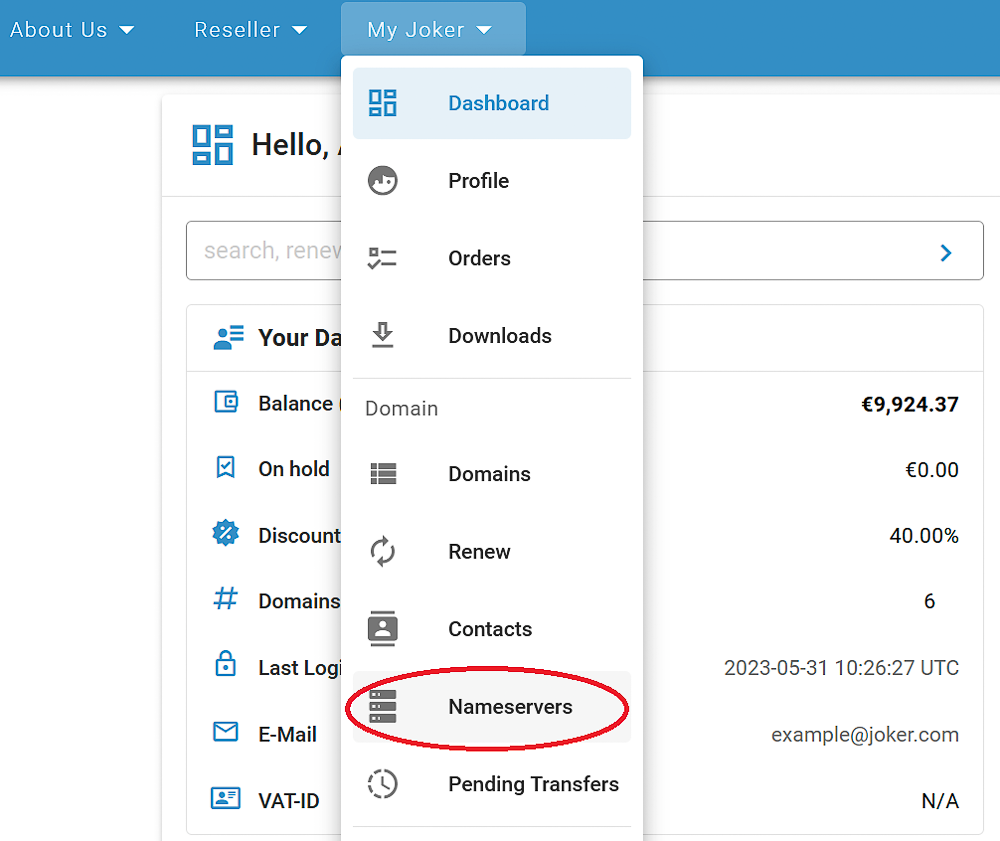
![](https://joker.com/faq/uploads/images/gallery/FAQ_media/DNS/ns-9.png)

##### 2. Click on the "Nameserver" button:
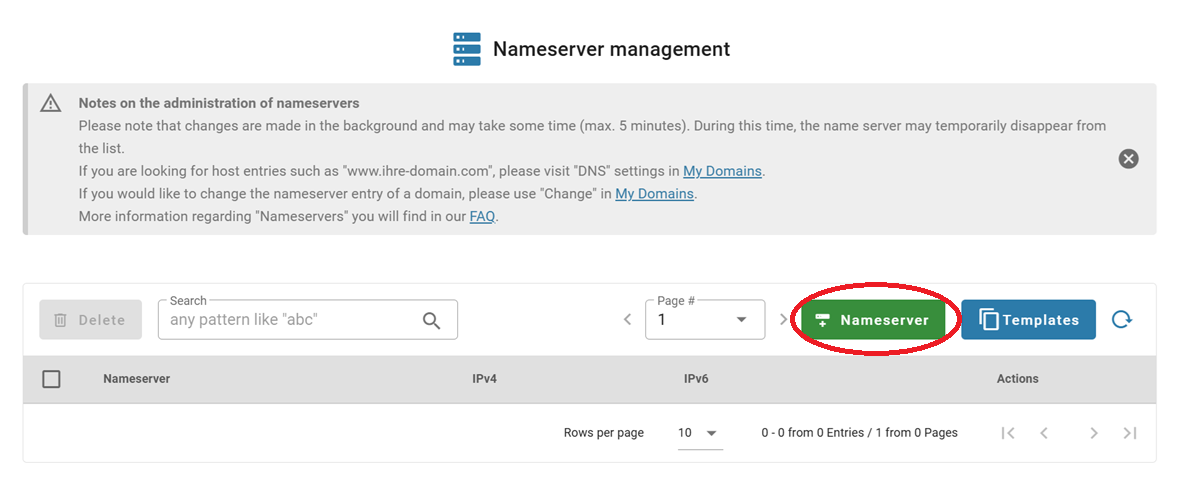
![](https://joker.com/faq/uploads/images/gallery/FAQ_media/DNS/ns-reg-1.png)

##### 2. Add the host name and IP addresses, save them, and click on the "Save" button when it becomes active:
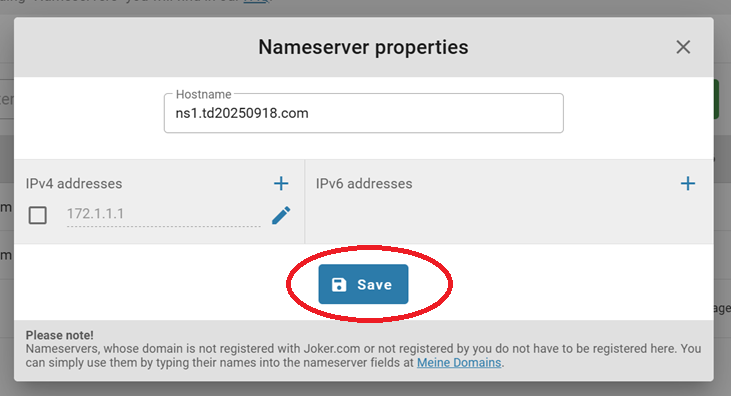
![](https://joker.com/faq/uploads/images/gallery/FAQ_media/DNS/ns-reg-2.png)


You're done!

### Modifying Your Own Nameservers

If you want to modify the Nameserver you have previously created, you need to follow these steps:

##### 1. Choose "Nameservers" from the "My Joker" menu:

![](https://joker.com/faq/uploads/images/gallery/FAQ_media/DNS/ns-9.png)

##### 2. Search for the Nameserver you would like to modify, and click the "Edit" icon:
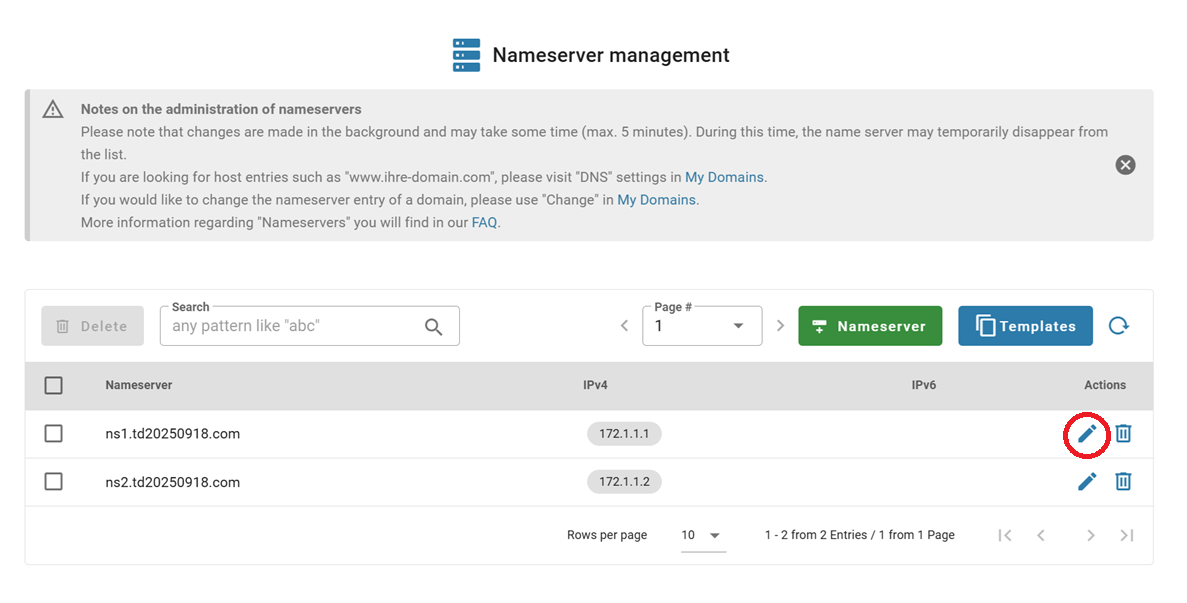
![](https://joker.com/faq/uploads/images/gallery/FAQ_media/DNS/ns-reg-10.png)

##### 3. Make necessary changes, save them, then click "Save" after it activates:
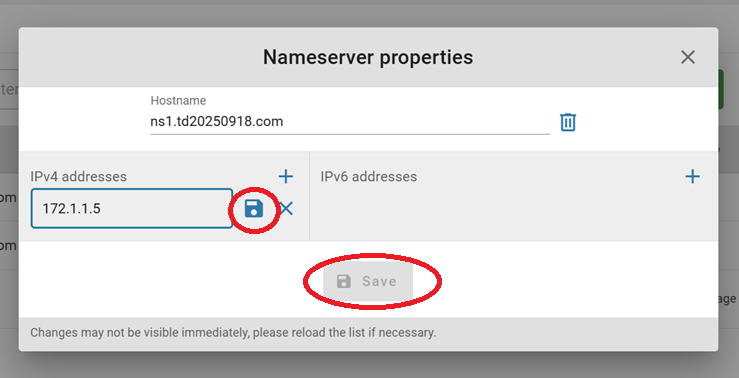
![](https://joker.com/faq/uploads/images/gallery/FAQ_media/DNS/ns-reg-11.png)

After a successful change, you will receive a confirmation email.

### Deleting Your Nameservers

If you want to delete one of your previously registered Nameservers, you can do this easily by following the steps below:

##### 1. Choose "Nameservers" from the "My Joker" menu:

![](https://joker.com/faq/uploads/images/gallery/FAQ_media/DNS/ns-9.png)

##### 2. Either click on the "Delete" icon next to the nameserver you want to delete, or select multiple and click the "Delete" button:
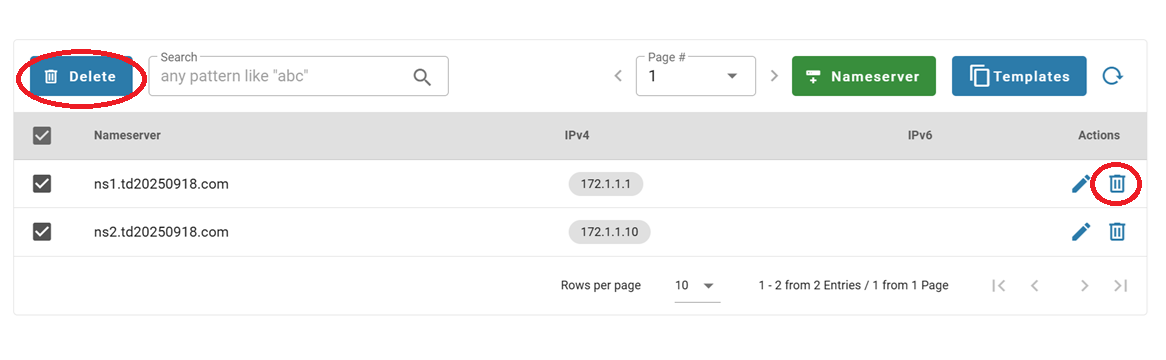
![](https://joker.com/faq/uploads/images/gallery/FAQ_media/DNS/ns-reg-12.png)

<p class="callout warning">**Please note:** Only Nameservers that are **not linked** to any domain (even if they are in the RGP) can be deleted. If the selected name server is still in use, it cannot be deleted.</p>

# Nameserver Templates

A familiar **reseller feature** is now available at the Joker.com interface.

### Create Nameserver Templates in Joker.com

While nameserver templates have long existed in Rpanel, you can now **create and manage nameserver templates directly in the Joker.com interface** as well.

- A **default template** based on **Joker nameservers** is provided.
- You can create **custom templates** using your own nameservers or external ones.
- Templates help streamline domain setup, reduce configuration errors, and speed up onboarding of new domains.

This improvement brings both interfaces in sync and ensures more flexible workflow options for our resellers.


##### To access the templates:

1\. Go to the "Nameservers" section under the "My Joker" menu and click on the "Templates" button:
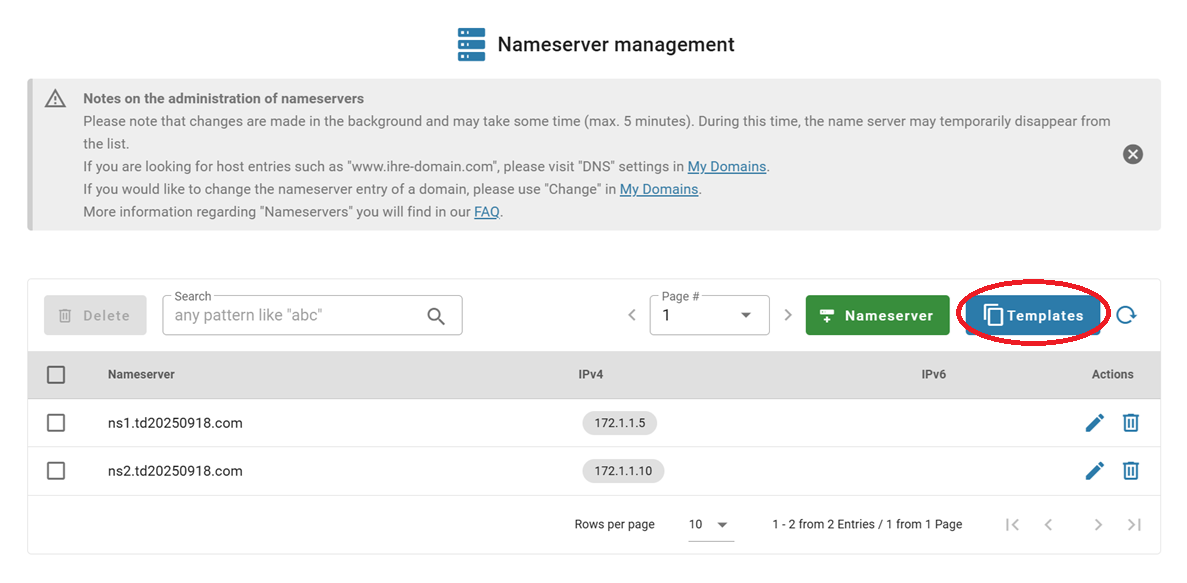
![](https://joker.com/faq/uploads/images/gallery/FAQ_media/DNS/templ-1.png)

2\. You can edit an existing template by clicking on the "Edit" symbol, or create a new one by clicking on the "Template" button:
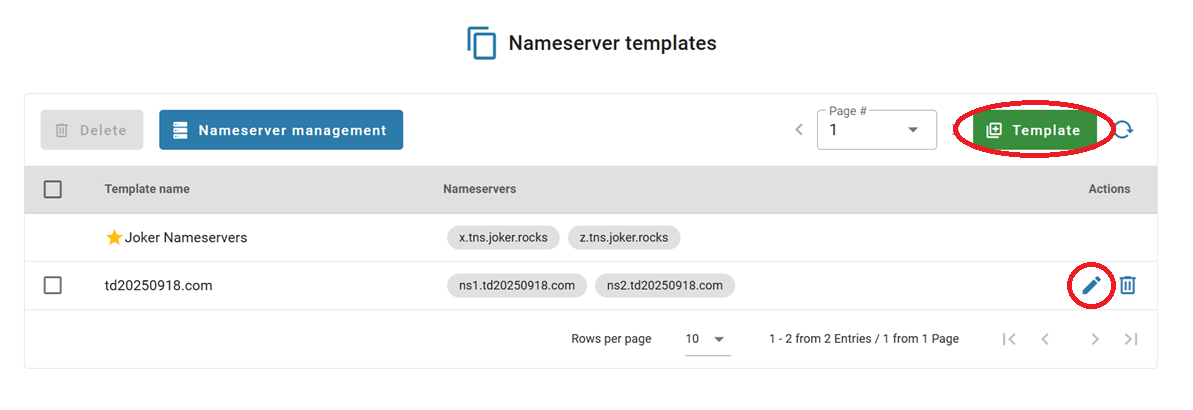
![](https://joker.com/faq/uploads/images/gallery/FAQ_media/DNS/templ-2.png)

3\. In the pop-up menu, you can create a template using your own, registered at Joker.com, nameservers, by choosing them from the list:
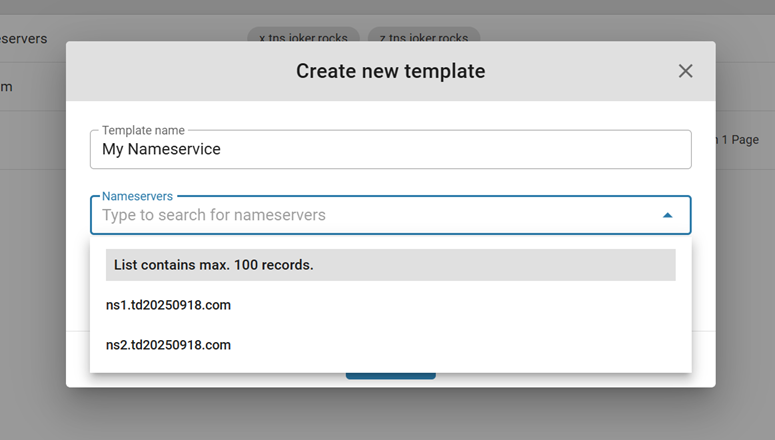
![](https://joker.com/faq/uploads/images/gallery/FAQ_media/DNS/templ-3.png)

4\. Or add external nameservers for your template manually:
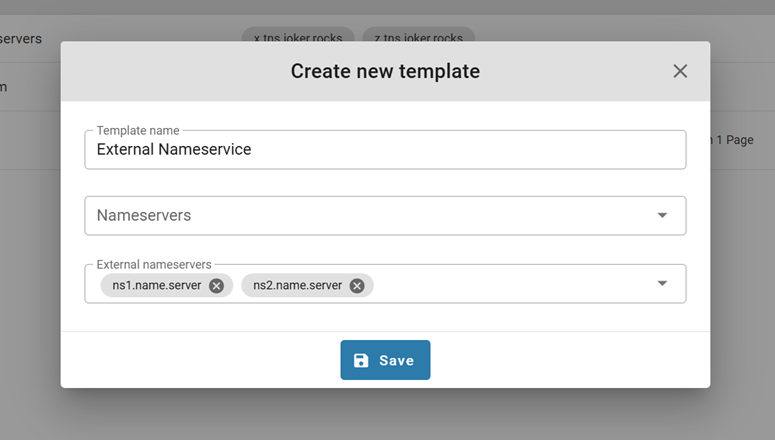
![](https://joker.com/faq/uploads/images/gallery/FAQ_media/DNS/templ-4.png)

5\. Click "Save", and you're done!

# DNS Records Supported by Joker.com Nameservice

Overview of supported records and brief explanations. You can enter these records for your domain by accessing the "DNS" menu item in the domain list on Joker.com.

<table border="1" id="bkmrk-url-forwarding-redir" style="border-collapse: collapse; width: 100%; height: 1343.6px; border-width: 1px; border-style: hidden;"><colgroup><col style="width: 29.6296%;"></col><col style="width: 70.3704%;"></col></colgroup><tbody><tr><td style="border-width: 1px; padding: 15px;">##### **Supported Records**

</td><td style="border-width: 1px; padding: 15px;">  
</td></tr><tr style="height: 64.2667px;"><td style="height: 64.2667px; border-width: 1px; padding: 15px;">**URL Forwarding**</td><td style="height: 64.2667px; border-width: 1px; padding: 15px;">Redirects your domain to an external website (URL). For more information, refer to [this article](https://joker.com/faq/books/jokercom-faq-en/page/url-forwarding-and-e-mail-forwarding) on how to use the web/URL forwarding feature of Joker.com  
</td></tr><tr style="height: 64.2667px;"><td style="height: 64.2667px; border-width: 1px; padding: 15px;">**Email Forwarding**</td><td style="height: 64.2667px; border-width: 1px; padding: 15px;">Creates email addresses for your domain, forwarding emails to your existing external mail account. Learn how to configure email forwarding in the provided [guide](https://joker.com/faq/books/jokercom-faq-en/page/url-forwarding-and-e-mail-forwarding#bkmrk-email-forwarding)  
</td></tr><tr style="height: 64.2667px;"><td style="height: 64.2667px; border-width: 1px; padding: 15px;">**A** </td><td style="height: 64.2667px; border-width: 1px; padding: 15px;">Binds your domain or hosts within the domain to an **IPv4** address. Allows you to create entries like 'www.your-domain.com' that point to an external IP address.  
</td></tr><tr style="height: 97.8667px;"><td style="height: 97.8667px; border-width: 1px; padding: 15px;">**DYNA** </td><td style="height: 97.8667px; border-width: 1px; padding: 15px;">Part of the [Dynamic DNS Service](https://joker.com/faq/books/jokercom-faq-en/page/dynamic-dns-dyndns) - associates your domain or host with your provider's temporary IP address. The IP can be automatically updated using your router device or a client program. Make sure [Dynamic DNS (DynDNS)](https://joker.com/faq/books/jokercom-faq-en/page/dynamic-dns-dyndns) is enabled for your domain.  
</td></tr><tr style="height: 69.8667px;"><td style="height: 69.8667px; border-width: 1px; padding: 15px;">**MX** </td><td style="height: 69.8667px; border-width: 1px; padding: 15px;">Specifies the email server responsible for accepting emails for your domain. Additional details about MX records can be found [here](https://en.wikipedia.org/wiki/MX_Resource_Record).  
</td></tr><tr style="height: 47.4667px;"><td style="height: 47.4667px; border-width: 1px; padding: 15px;">**AAAA** </td><td style="height: 47.4667px; border-width: 1px; padding: 15px;">Associates your domain or host within the domain with an **IPv6** address.</td></tr><tr style="height: 81.0667px;"><td style="height: 81.0667px; border-width: 1px; padding: 15px;">**DYNAAAA** </td><td style="height: 81.0667px; border-width: 1px; padding: 15px;">Part of the [Dynamic DNS Service](https://joker.com/faq/books/jokercom-faq-en/page/dynamic-dns-dyndns) - associates your domain or host with your provider's temporary IPv6 address. The IP can be automatically updated using your router device or a client program. Ensure that [Dynamic DNS (DynDNS)](https://joker.com/faq/books/jokercom-faq-en/page/dynamic-dns-dyndns) is enabled for your domain.  
</td></tr><tr style="height: 97.8667px;"><td style="height: 97.8667px; border-width: 1px; padding: 15px;">**CNAME** </td><td style="height: 97.8667px; border-width: 1px; padding: 15px;">Maps your domain or hostname to another domain or hostname. This is useful for creating aliases such as *'www.your-domain.com'* and *'blog.your-domain.com'*, alongside an A record for *your-domain.com*. More information about CNAME records can be found [here](https://en.wikipedia.org/wiki/CNAME_record).</td></tr><tr style="height: 81.0667px;"><td style="height: 81.0667px; border-width: 1px; padding: 15px;">**ALIAS**</td><td style="height: 81.0667px; border-width: 1px; padding: 15px;">Somehow similar to CNAME, it allows to ALIAS can also be applied to the domain itself. Note that ALIAS records are not compatible with DNSSEC. More information can be found [here](https://en.wikipedia.org/wiki/CNAME_record#ANAME_record).</td></tr><tr style="height: 64.2667px;"><td style="border-width: 1px; padding: 15px; height: 64.2667px;">**DNAME**</td><td style="border-width: 1px; padding: 15px; height: 64.2667px;">Similar to CNAME, but DNAME applies to all subordinate hosts (subdomains) of an entry. Additional details about DNAME records can be found[ here](https://en.wikipedia.org/wiki/CNAME_record#DNAME_record).</td></tr><tr style="height: 64.2667px;"><td style="height: 64.2667px; border-width: 1px; padding: 15px;">**SPF** </td><td style="height: 64.2667px; border-width: 1px; padding: 15px;">[Sender Policy Framework](https://en.wikipedia.org/wiki/Sender_Policy_Framework) - used to detect email spoofing and prevent spam. There are various free online SPF record creators available, such as the one found [here](https://www.spf-record.com/generator). Please see below, how to define an SPF record.  
</td></tr><tr style="height: 64.2667px;"><td style="border-width: 1px; padding: 15px; height: 64.2667px;">**TXT** </td><td style="border-width: 1px; padding: 15px; height: 64.2667px;">Creates a TXT record for handling specific tasks, including requesting [***Let's Encrypt SSL***](https://joker.com/faq/books/jokercom-faq-en/page/lets-encrypt-ssl-certificates) certificates. See [here](https://en.wikipedia.org/wiki/TXT_record) for more information about TXT records.</td></tr><tr style="height: 64.2667px;"><td style="border-width: 1px; padding: 15px; height: 64.2667px;">**SRV** </td><td style="border-width: 1px; padding: 15px; height: 64.2667px;">Specifies the location of server(s) for a specific protocol and domain. More details about SRV records can be found[ here](https://en.wikipedia.org/wiki/SRV_record).</td></tr><tr style="height: 81.0667px;"><td style="border-width: 1px; padding: 15px; height: 81.0667px;">**NAPTR** </td><td style="border-width: 1px; padding: 15px; height: 81.0667px;">Specifies a regular expression-based rewrite rule that generates a new domain label or URI when applied to an existing string. Refer to [this resource](https://en.wikipedia.org/wiki/NAPTR_record) for additional information on NAPTR records.</td></tr><tr style="height: 64.2667px;"><td style="border-width: 1px; padding: 15px; height: 64.2667px;">**NS** </td><td style="border-width: 1px; padding: 15px; height: 64.2667px;">Specifies the responsible nameserver for a subdomain and is not allowed at top-level. More details about NS records can be found [here](https://support.dnsimple.com/articles/ns-record/).</td></tr><tr style="height: 81.0667px;"><td style="border-width: 1px; padding: 15px; height: 81.0667px;">**CAA** </td><td style="border-width: 1px; padding: 15px; height: 81.0667px;">Allows you to specify which Certification Authority (CA) is permitted to issue SSL certificates for your domain or hostname. See [here](https://en.wikipedia.org/wiki/DNS_Certification_Authority_Authorization) for more information about CAA records.  
</td></tr><tr style="height: 64.2667px;"><td style="border-width: 1px; padding: 15px; height: 64.2667px;">**TLSA** </td><td style="border-width: 1px; padding: 15px; height: 64.2667px;">Validates certificates used for DNS-based Authentication of Named Entities (DANE). Additional details about TLSA records can be found [here](https://en.wikipedia.org/wiki/DNS-based_Authentication_of_Named_Entities).  
</td></tr><tr style="height: 64.2667px;"><td style="border-width: 1px; padding: 15px; height: 64.2667px;">**SSHFP** </td><td style="border-width: 1px; padding: 15px; height: 64.2667px;">Specifies SSH fingerprints served by DNS. Refer to [this resource](https://en.wikipedia.org/wiki/SSHFP_record) for more information on SSHFP records.</td></tr><tr style="height: 63.6px;"><td style="border-width: 1px; padding: 15px; height: 63.6px;">**SMIMEA** </td><td style="border-width: 1px; padding: 15px; height: 63.6px;">Secures SMIME (Secure/Multipurpose Internet Mail Extensions) with certificates. More information about SMIMEA records can be found [here](https://www.cloudns.net/wiki/article/386/).</td></tr><tr><td style="border-width: 1px; padding: 15px;">**SVCB**</td><td style="border-width: 1px; padding: 15px;">Create a link to any service. Further details can be found here: [SVCB DNS record](https://www.domaintools.com/resources/blog/the-use-cases-and-benefits-of-svcb-and-https-dns-record-types/ "SVCB Record").</td></tr><tr><td style="border-width: 1px; padding: 15px;">**HTTPS**</td><td style="border-width: 1px; padding: 15px;">Create a link to a HTTP service. Further details can be found here: [HTTPS DNS Record](https://de.wikipedia.org/wiki/HTTPS_Resource_Record "HTTPS Record").</td></tr></tbody></table>


### How to Define a <abbr class="glossary" title="Sender Policy Framework">SPF</abbr> Record

---

<abbr class="glossary" title="Sender Policy Framework">SPF</abbr> means "[Sender Policy Framework](https://en.wikipedia.org/wiki/Sender_Policy_Framework "SPF records")", and can be used to avoid forging of sender's addresses in emails. It is not a record type of its own, but uses **TXT** records for this.

**There should always be only one <abbr class="glossary" title="Sender Policy Framework">SPF</abbr> policy record** for a domain, while the <abbr class="glossary" title="Sender Policy Framework">SPF</abbr> definition may contain several different rules, and can be split over multiple TXT records with different names, if needed.

There are many tools online available to help with creating a <abbr class="glossary" title="Sender Policy Framework">SPF</abbr> record for a specific domain, e.g. [this one](https://www.spf-record.com/generator "SPF generator").

For instance, your Joker.com-domain is "example.com", and you want to allow emails from Gmail, you have to create a <abbr class="glossary" title="Domain Name Server">DNS</abbr> record of type "TXT" for your domain "example.com", and enter this line:

```
v=spf1 include:_spf.google.com ~all
```

In case you want to make use of a <abbr class="glossary" title="Sender Policy Framework">SPF</abbr> record for a Joker.com domain, and want to make sure that emails from Joker.com will reach email addresses using your Joker.com domain, you need to add (include) this additional rule to your <abbr class="glossary" title="Sender Policy Framework">SPF</abbr> policy:

```
include:_spf.joker.com
```

resulting in this <abbr class="glossary" title="Sender Policy Framework">SPF</abbr> policy:

```
v=spf1 include:_spf.google.com include:_spf.joker.com ~all
```

You can create more than one TXT record to split the <abbr class="glossary" title="Sender Policy Framework">SPF</abbr> policy rules, then the records should all start with <span style="color: rgb(0, 0, 0); font-family: monospace, monospace; font-size: 14px; font-style: normal; font-variant-ligatures: normal; font-variant-caps: normal; font-weight: 400; letter-spacing: 0.08px; text-align: left; text-indent: 0px; text-transform: none; white-space: normal; word-spacing: 0px; -webkit-text-stroke-width: 0px; display: inline !important; float: none; background-color: rgb(236, 240, 241);">v=spf1</span> to define one <abbr class="glossary" title="Sender Policy Framework">SPF</abbr> policy and every record must have a different name, or in other words - for every unique name (including domain itself) only one record starting with <span style="background-color: rgb(236, 240, 241);"><span style="color: rgb(0, 0, 0); font-family: monospace, monospace; font-size: 14px; font-style: normal; font-variant-ligatures: normal; font-variant-caps: normal; font-weight: 400; letter-spacing: 0.08px; text-align: left; text-indent: 0px; text-transform: none; white-space: normal; word-spacing: 0px; -webkit-text-stroke-width: 0px; display: inline !important; float: none; background-color: rgb(236, 240, 241);">v=spf1</span></span> is allowed:

##### Correct:

<table border="1" id="bkmrk-example.com%C2%A0-txt-%22v%3D" style="border-collapse: collapse; width: 100%; height: 30.8px;"><colgroup><col style="width: 21.6658%;"></col><col style="width: 78.3342%;"></col></colgroup><tbody><tr style="height: 30.8px;"><td style="height: 30.8px;"><span style="color: rgb(45, 194, 107);"><span style="font-family: monospace, monospace; font-size: 14px; font-style: normal; font-variant-ligatures: normal; font-variant-caps: normal; font-weight: 400; letter-spacing: 0.08px; text-align: left; text-indent: 0px; text-transform: none; white-space: normal; word-spacing: 0px; -webkit-text-stroke-width: 0px; display: inline !important; float: none;">example.com </span></span></td><td style="height: 30.8px;"><span style="color: rgb(45, 194, 107);"><span style="font-family: monospace, monospace; font-size: 14px; font-style: normal; font-variant-ligatures: normal; font-variant-caps: normal; font-weight: 400; letter-spacing: 0.08px; text-align: left; text-indent: 0px; text-transform: none; white-space: normal; word-spacing: 0px; -webkit-text-stroke-width: 0px; display: inline !important; float: none;">TXT "v=spf1 include:\_spf.google.com ~all"</span></span></td></tr><tr><td><span style="color: rgb(45, 194, 107);"><span style="font-family: monospace, monospace; font-size: 14px; font-style: normal; font-variant-ligatures: normal; font-variant-caps: normal; font-weight: 400; letter-spacing: 0.08px; text-align: left; text-indent: 0px; text-transform: none; white-space: normal; word-spacing: 0px; -webkit-text-stroke-width: 0px; display: inline !important; float: none;"><span style="font-family: monospace, monospace; font-size: 14px; font-style: normal; font-variant-ligatures: normal; font-variant-caps: normal; font-weight: 400; letter-spacing: 0.08px; text-align: left; text-indent: 0px; text-transform: none; white-space: normal; word-spacing: 0px; -webkit-text-stroke-width: 0px; display: inline !important; float: none;">spf1.example.com</span></span></span></td><td><span style="color: rgb(45, 194, 107);"><span style="font-family: monospace, monospace; font-size: 14px; font-style: normal; font-variant-ligatures: normal; font-variant-caps: normal; font-weight: 400; letter-spacing: 0.08px; text-align: left; text-indent: 0px; text-transform: none; white-space: normal; word-spacing: 0px; -webkit-text-stroke-width: 0px; display: inline !important; float: none;"><span style="font-family: monospace, monospace; font-size: 14px; font-style: normal; font-variant-ligatures: normal; font-variant-caps: normal; font-weight: 400; letter-spacing: 0.08px; text-align: left; text-indent: 0px; text-transform: none; white-space: normal; word-spacing: 0px; -webkit-text-stroke-width: 0px; display: inline !important; float: none;">TXT "v=spf1 include:\_spf.joker.com ~all"</span></span></span></td></tr></tbody></table>

##### Incorrect:

<table border="1" id="bkmrk-example.com-txt-%22v%3Ds" style="border-collapse: collapse; width: 100%;"><colgroup><col style="width: 21.7902%;"></col><col style="width: 78.3334%;"></col></colgroup><tbody><tr><td><span style="color: rgb(224, 62, 45);"><span style="font-family: monospace, monospace; font-size: 14px; font-style: normal; font-variant-ligatures: normal; font-variant-caps: normal; font-weight: 400; letter-spacing: 0.08px; text-align: left; text-indent: 0px; text-transform: none; white-space: normal; word-spacing: 0px; -webkit-text-stroke-width: 0px; display: inline !important; float: none;">example.com</span></span></td><td><span style="color: rgb(224, 62, 45);"><span style="font-family: monospace, monospace; font-size: 14px; font-style: normal; font-variant-ligatures: normal; font-variant-caps: normal; font-weight: 400; letter-spacing: 0.08px; text-align: left; text-indent: 0px; text-transform: none; white-space: normal; word-spacing: 0px; -webkit-text-stroke-width: 0px; display: inline !important; float: none;">TXT "v=spf1 include:\_spf.google.com ~all"</span></span></td></tr><tr><td><span style="color: rgb(224, 62, 45);"><span style="font-family: monospace, monospace; font-size: 14px; font-style: normal; font-variant-ligatures: normal; font-variant-caps: normal; font-weight: 400; letter-spacing: 0.08px; text-align: left; text-indent: 0px; text-transform: none; white-space: normal; word-spacing: 0px; -webkit-text-stroke-width: 0px; display: inline !important; float: none;">example.com</span></span></td><td><span style="color: rgb(224, 62, 45);"><span style="font-family: monospace, monospace; font-size: 14px; font-style: normal; font-variant-ligatures: normal; font-variant-caps: normal; font-weight: 400; letter-spacing: 0.08px; text-align: left; text-indent: 0px; text-transform: none; white-space: normal; word-spacing: 0px; -webkit-text-stroke-width: 0px; display: inline !important; float: none;">TXT "v=spf1 include:\_spf.joker.com ~all"</span></span></td></tr></tbody></table>


### <abbr class="glossary" title="Domain Name Server">DNS</abbr> PTR Records

---

A <abbr class="glossary" title="Domain Name Server">DNS</abbr> pointer record (PTR for short) provides the domain name associated with an IP address.

A <abbr class="glossary" title="Domain Name Server">DNS</abbr> PTR record is **exactly the opposite** of the A-record, which provides the IP address associated with a domain name.

<abbr class="glossary" title="Domain Name Server">DNS</abbr> PTR records are used in [reverse <abbr class="glossary" title="Domain Name Server">DNS</abbr> lookups](https://simple.wikipedia.org/wiki/Reverse_DNS_lookup). When a user attempts to reach a domain name in their browser, a <abbr class="glossary" title="Domain Name Server">DNS</abbr> lookup occurs, matching the domain name to the IP address.

A reverse <abbr class="glossary" title="Domain Name Server">DNS</abbr> lookup is the opposite of this - **it searches for a domain name with the given IP address**.

This also means that **PTR records can not be defined using the name servers of the domain, but have to be requested at the provider of the IP address**, in case the provider supports this.

# Joker.com Name Service: Adding DNS Records

If you're using the free joker.com nameservice, you have the freedom to configure your DNS zone as you like by adding various records. All supported types of records are listed [here](https://joker.com/faq/books/jokercom-faq-en/page/dns-records-supported-by-jokercom-nameservice).


###  

### How to add a new DNS record

We took the A record as an example, but any other record type can be added in the same way.

##### 1. Switch to our Nameservers

Check [this article](https://joker.com/faq/books/jokercom-faq-en/page/adding-name-servers-to-your-domain) on how to do this.


#####  

##### 2. Once you've switched, the DNS button will become active (blue) on your [dashboard](https://joker.com/faq/books/jokercom-faq-en/page/understanding-your-dashboard) next to the domain name. Click it:
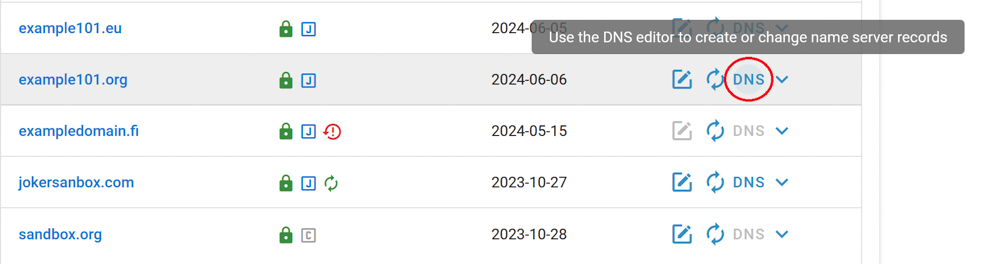
![](https://joker.com/faq/uploads/images/gallery/FAQ_media/DNS/add_dns_record-1.png)

#####  

##### 3. In the DNS configuration section, choose a record type you want to add, let's take an A-record as example:

![](https://joker.com/faq/uploads/images/gallery/FAQ_media/DNS/add_dns_record-2.png)

#####  

##### 4. Add a subdomain (optionally) and target IP address, click "Add":  


![](https://joker.com/faq/uploads/images/gallery/FAQ_media/DNS/add_dns_record-3.png)


#####  

##### 5. Scroll down to view the newly added record, check its correctness, and click the "Save changes" button:

![](https://joker.com/faq/uploads/images/gallery/FAQ_media/DNS/add_dns_record-4.png)

#####  

##### 6. If you want to apply the same records to your other domains, you can click "Copy records to another domain":

![](https://joker.com/faq/uploads/images/gallery/FAQ_media/DNS/add_dns_record-5.png)


#####  

##### 7. Choose the type of record you want to propagate or select all of them. Let's use our newly added A-record for example:

![](https://joker.com/faq/uploads/images/gallery/FAQ_media/DNS/add_dns_record-6.png)


#####  

##### 8. Type the domains to which you want to add the record, separated by commas, and click "Proceed":

![](https://joker.com/faq/uploads/images/gallery/FAQ_media/DNS/add_dns_record-7.png)

<div class="input-group" id="bkmrk-now%2C-all-the-domains">Now, **all the domains listed will point to the same IP address** we specified in our A record.  
</div>Once the changes have been applied, you'll receive a confirmation email.

###  

### Adding SPF And DKIM Records

Adding **SPF** (Sender Policy Framework) and **DKIM** (DomainKeys Identified Mail) records to your domain's DNS settings helps improve email deliverability and prevents your emails from being marked as spam or forged by malicious parties.

Here's a guide on how to add SPF and DKIM records:

#### SPF Record

SPF allows you to specify which servers are authorized to send emails on behalf of your domain. To create an SPF record, follow these steps:


##### 1. In the DNS configuration section, create a new TXT record.

##### ![](https://joker.com/faq/uploads/images/gallery/FAQ_media/DNS/add_spf_dkim-1.png)  


#####  

##### 2. In the "Content" field, enter your SPF policy.

If you are using a third-party email service like Google Workspace, **they will provide you with the appropriate include value**. The SPF policy typically looks like this:

##### ![](https://joker.com/faq/uploads/images/gallery/FAQ_media/DNS/add_spf_dkim-2.png)

#####  

##### 3. Save the changes.

#### DKIM Record

**DKIM** allows the receiver to check that an email that claimed to have come from a specific domain was indeed authorized by the owner of that domain.


##### 1. In DNS management section, create a new TXT record:

##### ![](https://joker.com/faq/uploads/images/gallery/FAQ_media/DNS/add_spf_dkim-1.png)


#####  

##### 2. In the "Content" field, you'll need to add your DKIM public key

The DKIM key is usually **provided by your email service provider** (e.g., Google Workspace, Microsoft 365, etc.). The DKIM record should look something like this:

##### ![](https://joker.com/faq/uploads/images/gallery/FAQ_media/DNS/add_spf_dkim-3.png)


#####  

##### 3. Save the changes.

<p class="callout info">**Important:** wait for DNS Propagation. After adding the SPF and DKIM records, **it may take up to 48 hours** for the changes to propagate across the internet. Once the records have propagated, the SPF and DKIM authentication should be active for your domain's email.</p>

# URL Forwarding and E-mail Forwarding

Joker.com offers a service that allows you to direct all web requests **(HTTP)** for a domain or subdomain registered with Joker.com to a different externally hosted domain. For example, you can point the web traffic of your domain to the webspace provided by your Internet service provider.

<p class="callout success">This feature lets you access your domain: ***http://www.your-domain.com*** while the actual content is hosted at: ***http://www.your-internet-service-provider.com/your Account***</p>

By default, the redirection is of the type '**HTTP/1.1 301 Moved Permanently**'. This can be changed in the options of the DNS editor ("Type of redirection").

'**TLS**' can also be activated in the options - this enables **encrypted access via https** to your forwarding. A suitable SSL certificate is then automatically generated the first time it is called up, which takes a few seconds.

You have the option to use a standard redirection or a **"frame-based"** redirection that keeps the **original domain name visible** in your browser's location bar.

Moreover, you can customize your URL forwards with your own special title, meta, or HTTP header tags.

<p class="callout info">**Please note:** only HTTP(S) requests can be forwarded using URL Forwarding</p>

### To configure your URL forwarding, follow these steps:

##### 1. Switch to our Nameservers

Check [this article](https://joker.com/faq/books/jokercom-faq-en/page/adding-name-servers-to-your-domain) on how to do this.


##### 2. Once you've switched, the DNS button will become active (blue) on your [dashboard](https://joker.com/faq/books/jokercom-faq-en/page/understanding-your-dashboard) next to the domain name. Click it:

![](https://joker.com/faq/uploads/images/gallery/FAQ_media/DNS/add_dns_record-1.png)


##### 3. In the DNS configuration section, choose URL Forward as record type:
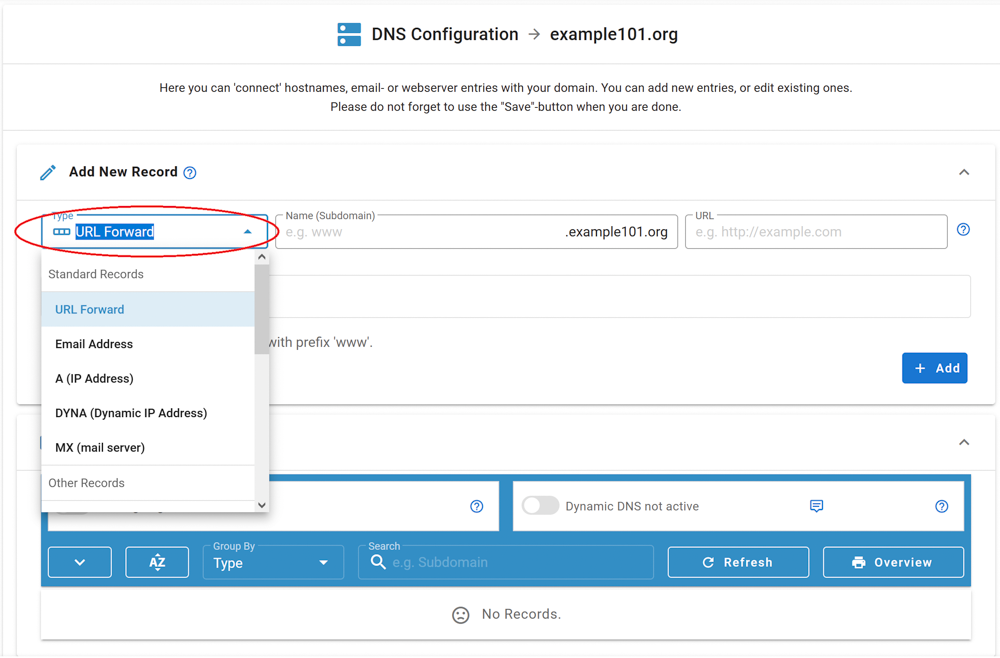
![](https://joker.com/faq/uploads/images/gallery/FAQ_media/DNS/add_url-1.png)


##### 4. Let's create a URL forwarding for a subdomain "www..." for our domain. Click "add":![](https://joker.com/faq/uploads/images/gallery/FAQ_media/DNS/add_url-2.png)
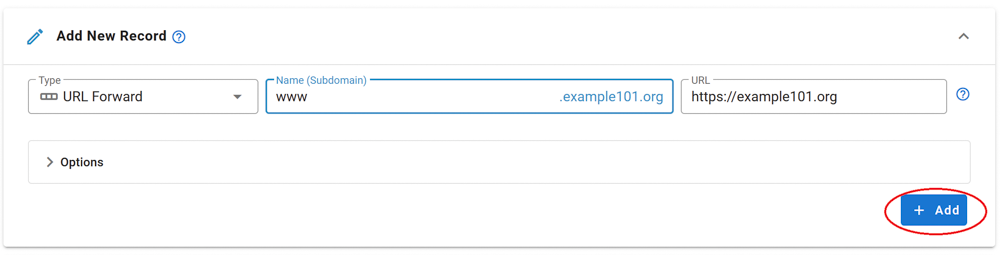


##### 5. Scroll down to view the newly added record, check its correctness, and click the "Save changes" button:
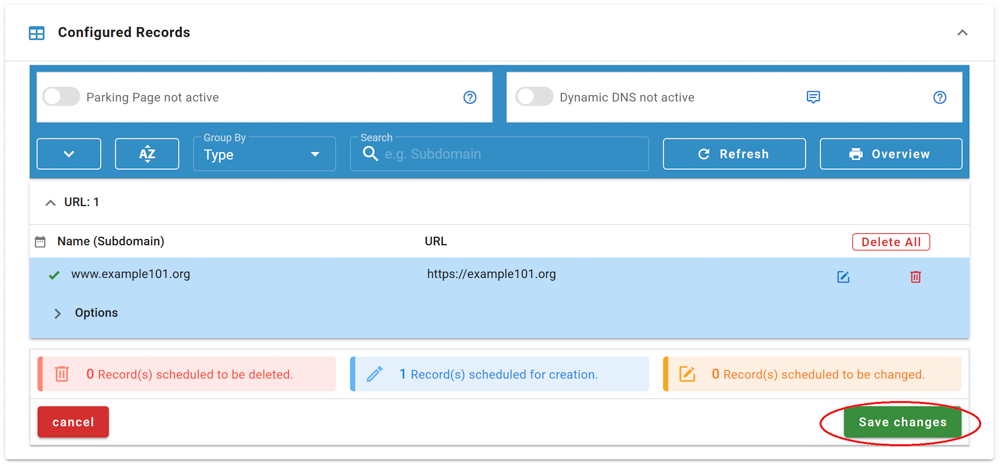


![](https://joker.com/faq/uploads/images/gallery/FAQ_media/DNS/add_url-3.png)


You are done!

## Email Forwarding

---

Email Forwarding is a service provided by Joker.com that enables you to create email addresses for a domain and forward incoming emails for those addresses to an external mail account.

This means you can have email addresses such as:

- info@yourdomain.com
- john@yourdomain.com
- \*@yourdomain.com

These addresses can be forwarded to your email account at your ISP or email provider, such as Gmail, Yahoo, or others.

<p class="callout info">If you create an **Email Forwarding** at Joker.com, an SPF record is **not** created automatically. It is strongly recommended to [**create**](https://joker.com/faq/books/jokercom-faq-en/page/dns-records-supported-by-jokercom-nameservice#bkmrk-how-to-define-spf-re) and [**set up an SPF record**](https://joker.com/faq/books/jokercom-faq-en/page/jokercom-name-service-adding-dns-records#bkmrk-spf-record) for forwards - especially if you forward emails to providers such as Gmail - to ensure proper email delivery.</p>

**Please note the following:**

- Email forwarding, similar to URL forwarding, requires that the domain uses the free Joker.com nameservice (which is the default). If you have a domain with a third-party nameservice, you cannot use Joker.com email forwarding. You can easily switch to Joker nameservice, [here you will find the instructions](https://joker.com/faq/books/jokercom-faq-en/page/adding-name-servers-to-your-domain).
- To add or modify email addresses for your domains, visit the DNS configuration section by clicking the "DNS" button next to your domain on your [dashboard](https://joker.com/faq/books/jokercom-faq-en/page/understanding-your-dashboard).
- Enabling **Email Forwarding will automatically delete current MX records**. This is unavoidable for technical reasons, so you can either let Joker.com handle your email or use a third-party mail server.
- <span style="font-family: Arial,Helvetica;">**The reverse is also true** - creating an <abbr class="glossary" title="Mail eXchange">MX</abbr> record for a (sub-)domain for which an e-mail forwarding already exists **will deactivate it** (a corresponding warning will be displayed beforehand).</span>
- <span style="font-family: Arial,Helvetica;"><span style="font-family: Arial,Helvetica;">For security reasons, we advise against using email forwarding as the "main" email address for your Joker.com account. If this is inadvertently deactivated, you will no longer receive account-related notices.</span></span>

It is also possible to create catch-all addresses. By entering '**\***' instead of *'your\_name'* as the *Email Address:*

*![](https://joker.com/faq/uploads/images/gallery/FAQ_media/DNS/email_forward-1.png)*
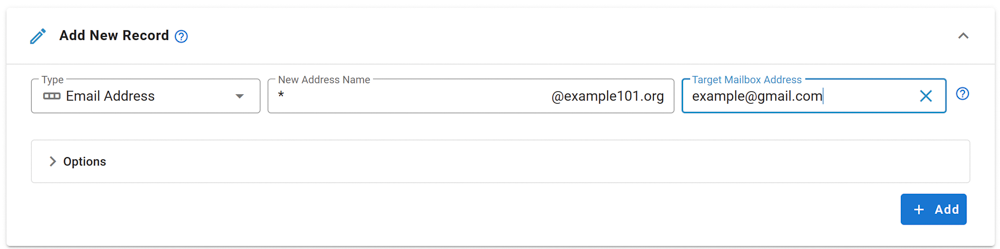
Any emails that **do not match any other address you created** will be directed to the '**\***' entry.

**Additionally:**

- There is a special account called **'postmaster'** that can be modified but **not deleted.**
- You have the option to "**block" specific addresses.** When activated, all incoming emails to the blocked address will be **deleted.**

Regarding the number of email addresses per domain, we do not impose strict limits. Instead, we follow a **fair-use policy**. As long as there are no significant *system impacts* caused by an *excessive* number of emails sent or addresses created, there will be no restrictions.

*Excessive* in this context refers to significantly above average, and *system impact* refers to significant interference with the general system and/or other users.

The current limits are as follows:

- Maximum size of a single email: **25MB**
- Maximum number of emails per day per address: **400**

<p class="callout info">**Important:** When creating a new email address or changing the target address, you need to activate it by responding to the activation email sent to the **Target Email Address**. Simply click on the link provided within the email.</p>

##### What about SPAM?  


<div align="justify" id="bkmrk-all-email-forwards-a"><span style="font-family: Arial,Helvetica;">All email forwards are **automatically scanned for SPAM.** </span>Emails classified as spam or malware will be **blocked**.</div><div align="justify" id="bkmrk--50"></div><div align="justify" id="bkmrk--51"></div><div align="justify" id="bkmrk--52"></div><div align="justify" id="bkmrk--53"></div>

# Dynamic DNS (DynDNS)

[**Dynamic DNS (DynDNS)**](https://en.wikipedia.org/wiki/Dynamic_DNS "Wikipedia: DynDNS") is a system that allows the domain name data held in a nameserver to be updated in real-time. The most common use for this is in allowing an Internet domain name to be assigned to a computer with a varying (dynamic) IP address.  
This makes it possible for other sites on the Internet to establish connections to the computer without needing to track the IP address themselves. A common use for it is running server software on a computer that has a dynamic IP address, as usually happens with many consumer Internet service providers.  
  
To use Dynamic DNS records with Joker.com, you have to create at least one **Dynamic DNS record**.  
Additionally, the Dynamic DNS feature has to be **activated**.

This can be done by visiting DNS configuration section by clicking the **"DNS" button** next to your domain on your [dashboard](https://joker.com/faq/books/jokercom-faq-en/page/understanding-your-dashboard).

After this, you have to configure your (DSL-) router or your Dynamic DNS software on your computer. You should select "**dyndns2**" as protocol in your router or dyndns-client.

Currently, there is a limit of 20 records per domain. The nameserver records have a TTL (time to live - defines the latency before changes become visible) of **60 seconds**.

<p class="callout info">**Please note: The "username" and "password" referred to in this section are not identical to your standard Joker.com credentials.** Instead, when you create your DynDNS entry, you will be provided with special credentials which are only valid for those entries with the specific domain.</p>

## Examples

---

### Hardware Devices / Routers

A hardware device like a DSL router often is able to handle Dynamic DNS itself. As an example, this is the corresponding section of a Fritz!Box DSL router:

- In the menu (web ui), you have to chose "Preferences" =&gt; "Internet" =&gt; "Dynamic DNS".
- You have to enable "Dynamic DNS" with the checkbox.
- Then please choose **"Custom" as the Dynamic DNS Provider**.
- The input fields then have to be filled like this:

```
Update-URL: https://svc.joker.com/nic/update?username=<username>&password=<pass>&myip=<ipaddr>&hostname=<domain><br></br>Domain name: <enter your Joker.com Dynamic DNS record (Domain name) here><br></br>Username: <enter the username you got at Joker.com's DNS management for this domain><br></br>Password: <enter the password you got at Joker.com's DNS management for this domain><br></br>Note: SSL is not supported by all devices, especially olders ones need to use: <strong>http</strong>://svc.joker.com/nic/update?...
```

**Please note:** The parameter '*myip*' is optional; if not provided, the originating IP address is used automatically.

**Sample:**

```
Update-URL: <strong>https://svc.joker.com/nic/update?username=<username>&password=<pass>&myip=<ipaddr>&</strong><strong>hostname=<domain></strong><br></br>Domain name: <strong>www.yourdomain.com</strong><br></br>Username: <strong>156ba6fa7f93bfd7</strong><br></br>Password: <strong>5bc123a7100ef6a2</strong>
```

Or using as direct URL:

```
Update-URL: <strong>https://svc.joker.com/nic/update?username=156ba6fa7f93bfd7&password=5bc123a7100ef6a2&</strong><strong>hostname=www.yourdomain.com</strong>
```

<div align="justify" id="bkmrk-to-check-your-curren">To check your current IP address, please use this URL: </div>`<strong>https://svc.joker.com/nic</strong>/checkip`

<div align="justify" id="bkmrk-%C2%A0-3"> </div><div align="justify" id="bkmrk-some-dynamic-dns-sof">Some Dynamic DNS software clients do need this without additional text: </div>`<strong>https://svc.joker.com/nic</strong>/myip`

`<strong>https://ipv4.svc.joker.com/nic/myip</strong> `Does always return an **IPv4** address if available - empty otherwise

`<strong>https://ipv6.svc.joker.com/nic/myip</strong> `Does always return an **IPv6** address if available - empty otherwise


### Software Clients

<div align="justify" id="bkmrk-%C2%A0-7"> </div>#### Windows

A simple and popular free DynDNS updater for Windows is **[ddclient](http://www.randomnoun.com/wp/2013/08/19/a-dynamic-dns-client-for-windows/ "DDClient")**. The installation creates a section "ddclient" in the Windows start menu.

After the installation - during which you **might enter any data** - please copy the following text as "*ddclient.conf*" into the directory where "ddclient" was installed. In the windows start menu you can also use the entry "Open ddclient.conf in notepad" by right-clicking on "Run as administrator".

Please replace the placeholders with your entries beforehand:

```
# ddclient.conf<br></br>#<br></br>daemon=5m<br></br>use=web<br></br>web=svc.joker.com/nic/checkip<br></br>server=svc.joker.com/nic/update?<br></br>protocol=dyndns2<br></br>login=USERNAME<br></br>password=PASSWORD<br></br>host=WWW.YOURDOMAIN.COM<br></br>ssl=yes
```

USERNAME = the **DynDNS**-"**Username**" in the DynDNS-section at Joker.com

PASSWORD = the **DynDNS**-"**Password**"

YOUR.DOMAIN.COM = Your desired hostname - which you should have previously created under "**DynA**" in the DynDNS section on Joker.com. When creating, there you may enter **any** IP like "192.168.0.1". You will later know whether your DynDNS client is working or not by checking if this IP changes to your dynamic one.

In this example above you would create the entry "**www**" under "**DynA**" for your domain "**yourdomain.com**".

After you have created the file *ddclient.conf* or copied it into the program directory, call the entry "***start ddclient console***" in the Windows start menu. A window will open and after a short time, you should see messages indicating a successful IP change. Otherwise, please check whether your details (username, password, host or domain name) are correct, and also whether the URL for determining your own IP works for you in the browser (".../checkip/").  
  
If this test was successful, you can close the window and then call "***start ddclient service***" in the start menu with **administrator rights** (right mouse button, "run as administrator").  
This will run *ddclient* in the background.

Another common Windows client is the "**DynDNS Updater**" from [Kana Solution](http://www.kanasolution.com/). A suitable profile can be downloaded here: [kana\_joker.profile](https://joker.com/faq/attachments/41)

#### Linux

<div align="justify" id="bkmrk-%C2%A0-9"> </div>**Free DynDNS-client für Linux:** ddclient - [ddclient.sf.net](http://ddclient.sf.net/)

**Hints for *ddclient:***

<div align="justify" id="bkmrk-please-use-the-confi"><div align="justify">- please use the config file *ddclient.conf* for the windows version provided above, it works the same
- protocol is also "dyndns2"
- please check on the Linux commandline, that you have access to the DynDNS service:
- *wget https://svc.joker.com/nic/checkip*


</div></div>#### Apple MacOS

**Free DynDNS-Client for MacOS:** ddclient (s. Windows &amp; Linux) Installation preferably via [HomeBrew](https://brew.sh/):

<div align="justify" id="bkmrk-ddclient-%28s.-windows"><div align="justify">- open Mac Terminal App

</div></div>```
ruby -e "$(curl -fsSL https://raw.githubusercontent.com/Homebrew/install/master/install)" < /dev/null 2> /dev/null
```

- If you are asked for a password, enter the password of your user account

```
brew install ddclient
```

A paid dynamic DNS client for MacOS with **native Joker.com** support is "**IP Monitor**" from [Appquarter.com](https://appquarter.com/)

It is also available from the Mac Appstore.

# DNSSEC

<span style="font-family: arial,helvetica,sans-serif; font-size: small;">DNSSEC is the abbreviation for '</span><span style="font-size: small;">Domain Name System Security Extensions'. It is a set of extensions to the domain name system (<abbr class="glossary" title="Domain Name Server">DNS</abbr>), basically to allow clients to **verify the authenticity and integrity of <abbr class="glossary" title="Domain Name Server">DNS</abbr> records**.</span>

<span style="font-size: small;">For a domain to make use of DNSSEC, the following is needed:</span><span style="font-size: small;"> </span>

- <span style="font-size: small;">the domain type (<abbr class="glossary" title="Top Level Domain">TLD</abbr>) needs to support DNSSEC (i.e. the registry)</span>
- <span style="font-size: small;">the registrar of the domain needs to allow to activate and configure DNSSEC for a domain</span>
- <span style="font-size: small;">the configured nameservers need to support DNSSEC</span>
- <span style="font-size: small;">the clients (e.g. browsers) need to make use of DNSSEC </span>

<span style="font-family: arial,helvetica,sans-serif; font-size: small;"> </span><span style="font-family: arial,helvetica,sans-serif; font-size: small;">You may have a look at [Wikipedia](http://en.wikipedia.org/wiki/Domain_Name_System_Security_Extensions) or this short [tutorial](https://www.internetsociety.org/deploy360/dnssec/basics/ "DNSSEC Internet Society") as starters for reading more about these topics.</span>

<p class="callout warning"><span style="font-family: arial,helvetica,sans-serif; font-size: small;">**Important:**</span><span style="font-family: arial,helvetica,sans-serif; font-size: small;"> DNSSEC cannot be fully activated for **.dk domains** directly through the Joker.com interface. To enable DNSSEC for your **.dk domain**, please follow the instructions provided [**HERE**](https://joker.com/faq/books/jokercom-faq-en/page/specific-cctlds-nameservers#bkmrk-adding-dnssec)</span></p>

## DNSSEC Support at Joker.com

Joker.com enables you to activate and configure DNSSEC for nearly all of your domains - most domain types (TLDs) do support DNSSEC. The only exceptions at Joker.com currently are .ws and .cn.

<span style="font-family: arial,helvetica,sans-serif; font-size: small;">**Please note:** Joker.com supports DNSSEC with standard Joker.com name servers as well as with domains that use external name servers</span>

- <span style="font-size: small;"><span style="font-family: arial,helvetica,sans-serif;">**for Joker.com nameservers:** To enable DNSSEC, please go to click on "<abbr class="glossary" title="Domain Name Server">DNS</abbr>" next to your domain on your [dashboard](https://joker.com/faq/books/jokercom-faq-en/page/understanding-your-dashboard). There you will find the "**Enable DNSSEC**" button. If you then click on "**Save changes**", you are done!  
    </span></span>
- <span style="font-size: small;"><span style="font-family: arial,helvetica,sans-serif;">**for DNSSEC with own or external name servers:** Please use our instructions below.  
    </span></span>

<span style="font-size: small;"><span style="font-family: arial,helvetica,sans-serif;">To find out if your domain is working properly with DNSSEC, you may use the [DNSSEC Analyzer](http://dnssec-debugger.verisignlabs.com/ "DNSSEC Analyzer").  
</span></span>

<span style="font-size: small;"><span style="font-family: arial,helvetica,sans-serif;"> </span></span><span style="font-size: small;"><span style="font-family: arial,helvetica,sans-serif;">Resellers will find similar commands to operate DNSSEC using **DMAPI** and [**RPanel**](https://rpanel.io).</span></span>


## How To use DNSSEC with a Joker.com Domain and a <abbr class="glossary" title="Domain Name Server">DNS</abbr> Hosting Provider

This is about:

- you want to use DNSSEC with domains from Joker.com
- you are using an **external name service**, like from a service provider, or your own

To make this work, the domain has to be "linked" to the external name service:

##### 1. Set up the <abbr class="glossary" title="Domain Name Server">DNS</abbr> zone and records at the <abbr class="glossary" title="Domain Name Server">DNS</abbr> hosting provider

Each <abbr class="glossary" title="Domain Name Server">DNS</abbr> hosting provider has its own web interface and system for adding records. Here you have to create the zone records you need, like A records to add IPv4 addresses to a hostname.


##### 2. Still at the <abbr class="glossary" title="Domain Name Server">DNS</abbr> hosting provider

**sign the domain with DNSSEC**. This of course requires, that your <abbr class="glossary" title="Domain Name Server">DNS</abbr> provider support DNSSEC.

The end result is that you have a **signed domain with a DS record**. You will need this information (DS record) later at **Joker.com**.


##### 3. At Joker.com

[**Change the name servers**](https://joker.com/faq/books/jokercom-faq-en/page/adding-name-servers-to-your-domain#bkmrk-1.-on-your-dashboard) for the domain to point to the name servers of the <abbr class="glossary" title="Domain Name Server">DNS</abbr> hosting provider.

It should look like this now:
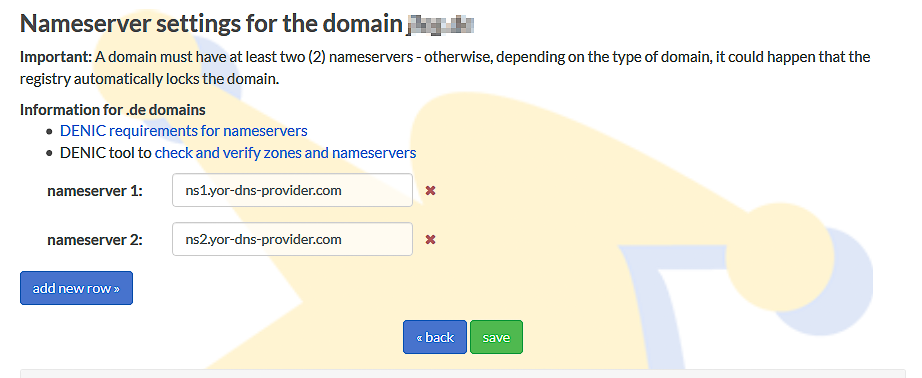
![change name servers](https://joker.com/faq/uploads/images/gallery/FAQ_media/DNS/dnssec-1.png "change name servers")

This change may take some time to propagate through the larger <abbr class="glossary" title="Domain Name Server">DNS</abbr> infrastructure. Until the name server change has fully propagated, people may still see <abbr class="glossary" title="Domain Name Server">DNS</abbr> records coming from the previous name servers.

**At this point, you have a domain signed with DNSSEC at the <abbr class="glossary" title="Domain Name Server">DNS</abbr> hosting provider, and you have changed the records at Joker.com to point to the name servers of the <abbr class="glossary" title="Domain Name Server">DNS</abbr> hosting provider.**

Almost done!

If you now run your domain through the [**DNSSEC analyzer tool**](https://dnssec-analyzer.verisignlabs.com/ "https://dnssec-analyzer.verisignlabs.com/"), you will still see a problem: "***No DS records found***"

This means, you still have to create a so-called ***Delegation Signer (DS)*** record at **Joker.com**.

##### 4. Create DS record at Joker.com

- again, visit Joker.com, click "Modify" next to your domain name
- You will now find your name servers listed and a DNSSEC section:
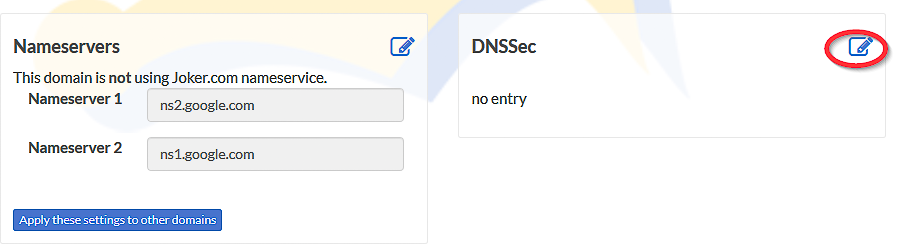
![change name servers](https://joker.com/faq/uploads/images/gallery/FAQ_media/DNS/dnssec-2.png "change name servers")

- click on '![](https://joker.com/faq/uploads/images/gallery/2023-09/2023-09-29-16-40-46-window.png "Edit name servers")' at section **DNSSEC**
- it will then look like this - please check if the information corresponds with what you got in step 2 above:
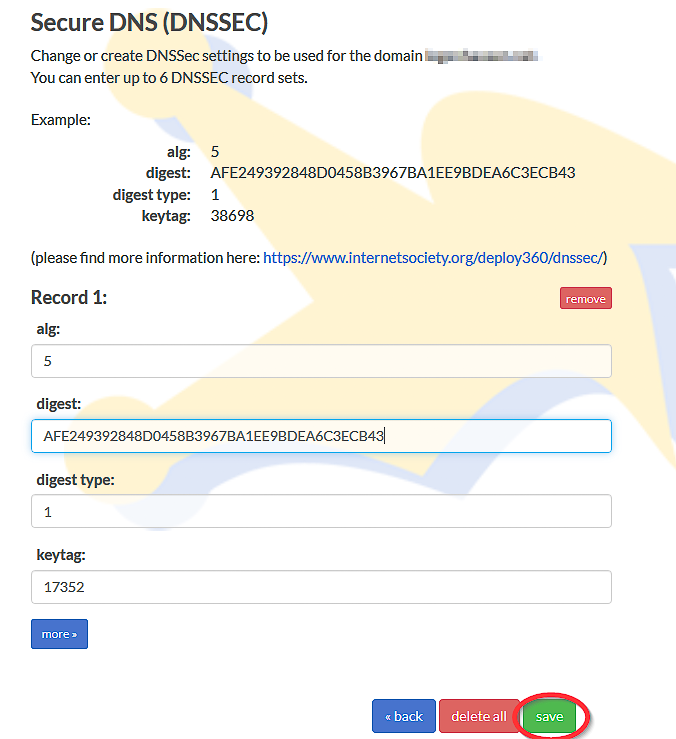
![change name servers](https://joker.com/faq/uploads/images/gallery/FAQ_media/DNS/dnssec-3.png "change name servers")

- <div class="li">tag is derived from the key (provided by <abbr data-original-title="Domain Name System" title="">DNS</abbr> operator)</div>
- <div class="li">digest type is 1 (SHA-1, deprecated) or 2 (SHA-256)</div>
- digest itself: up to 40 hex digits for SHA-1 and up to 64 hex digits for SHA-256
- Press "save", and you are done - DNSSEC is enabled on your domain.

##### 5. Finally, **verify that DNSSEC works**

using a tool such as Verisign Labs’ [DNSSEC Analyzer](http://dnssec-debugger.verisignlabs.com/). It should show nice green check marks now - but please keep in mind, that your changes will take some time until they become active.

**Having followed these steps, you have DNSSEC working on a domain registered with Joker.com, using name servers from an external name service provider.**

Meanwhile, there is good news: **You now also are able to use DNSSEC with the regular Joker.com name servers** as well, free of charge! This of course is probably much simpler for you, since you do not have to maintain external name server records, and you can make use of DNSSEC fully integrated into Joker.com's web portal.

# Let's Encrypt SSL Certificates

## Support for Automating Let's Encrypt SSL Certificates

Joker.com offers a simple tool to automate the process of using **[*Let's Encrypt* certificates](https://letsencrypt.org "Let's Encrypt").**

With this tool, you can easily request Let's Encrypt certificates without the need to expose your domain through an HTTP web server or make any special configurations to existing web services.

The method used to obtain the certificates is **'dns-01'**, where a special TXT record must be added to your domain. To use this method, your domain **must be using the free Joker.com nameservice,** which is the default option.

Setting a TXT record is a straightforward process:

- On your Joker.com dashboard, click "DNS" button next to the domain you want to add a Let's Encrypt certificate for.
- If '[Dynamic DNS](https://joker.com/faq/books/jokercom-faq-en/page/dynamic-dns-dyndns "Dynamic DNS (DynDNS)")' is not already active, activate it. This will not affect any other existing DNS records for the domain.
- Take note of the 'Dynamic DNS Authentication' credentials shown (username and password) - only once per domain.

The following explains the technical details - you may skip this and **simply use the attached files which you find below.** They do work with the commonly used tool [**dehydrated**](https://github.com/lukas2511/dehydrated "dehydrated - make Let's Encrypt easy"). Where to place these files, and **how to configure your domains** or host names, is documented in the file [config.sh](https://joker.com/faq/attachments/42)

For the use of the [**certbot**](https://certbot.eff.org/ "https://certbot.eff.org/"), github-user **dhull** kindly provides another solution:

- GitHub: [https://github.com/dhull/certbot-dns-joker ](https://github.com/dhull/certbot-dns-joker "https://github.com/dhull/certbot-dns-joker")
- PyPI: [https://pypi.org/project/certbot-dns-joker/ ](https://pypi.org/project/certbot-dns-joker/ "https://pypi.org/project/certbot-dns-joker/")

This can easily be installed by "*pip install certbot-dns-joker"* - see the Github page above for details.

---

**To set a TXT record, you may now do this using a single cURL request:**

```
curl -X POST https://svc.joker.com/nic/replace -d \<br></br>'username=<em>your-username</em>&password=<em>your-password</em>&zone=<em>your-domain.com</em>&label=_acme-challenge&type=TXT&value=<em>the-TXT-content-to-insert</em>'
```

This will create a TXT record for "\_acme-challenge" in zone "your-domain.com".  
It responds with 200 and "OK: n# inserted, n# deleted" if everything went OK, and appropriate status and text if not.

**Some additional notes regarding this:**

- only POST method is supported
- only *type=TXT* is supported (and must be provided) for now
- "label" could be anything within the zone (including "@" and "\*")
- this request will replace all TXT records for the **specified label** with the provided content
- "value" must be printable ASCII only, without double quotes
- if "value" is empty ("value="), all existing records for specified label are deleted
- multiple TXT records with the same label can be added by using multiple "value" parameters in the URL

<p class="callout info">Attached files: [hook.sh](https://joker.com/faq/attachments/43) [config.sh](https://joker.com/faq/attachments/42)</p>

# Specific ccTLDs: Nameservers

### .DE-Domains

<span style="font-family: Arial,Helvetica;">In case you want to **use your own/external name servers** for your .**DE-domains** instead of the standard name servers from Joker.com, you have to make sure that these name servers are compliant with the [requirements set by the DENIC](https://www.denic.de/fileadmin/public/documentation/DENIC-23p.pdf "DENIC DNS requirements").</span><span style="font-family: Arial,Helvetica;"> </span>

<span style="font-family: Arial,Helvetica;">Requests to register or update **.de domains** are handled by a robot doing the following **checks on the registry side**:</span>

- are all name servers given in the request reachable?
- are they authoritative?
- do their answers contain the "authoritative answer" (AA) bit and do they know about the other authoritative name servers?
- are all authoritative nameservers given in the request?
- are values in the SOA record*s* in the ranges required by the DENIC?
- are the SOA values identical for all name servers?
- do at least two of the three name servers differ in the first three bytes of the IP (v4) address?

Name Server: SOA Records

<span style="font-family: Arial,Helvetica;"> </span>

<span style="font-family: Arial,Helvetica;">SOA stands for "**Start of Authority**". </span>

<span style="font-family: Arial,Helvetica;">An [SOA record](https://en.wikipedia.org/wiki/SOA_Resource_Record "Wikipedia: SOA") is the part of a <abbr class="glossary" title="Domain Name Server">DNS</abbr> zone containing the email of the responsible person of the zone, and various synchronization parameters used by the different name servers of the zone. </span>

<span style="font-family: Arial,Helvetica;">Requests to register or update **.DE domains** must contain SOA values in the following ranges:</span>

<div align="left" id="bkmrk-soa-record-value-ser-1"><table border="1" class="align-center" style="border-collapse: collapse; width: 424px; height: 96px; border-width: 1px;"><tbody><tr><td style="border-width: 1px;">**<span style="font-family: arial,helvetica,sans-serif; font-size: small;">SOA-Record</span>**</td><td style="border-width: 1px;">**<span style="font-family: arial,helvetica,sans-serif; font-size: small;">Value</span>**</td></tr><tr><td class="align-left" style="border-width: 1px;"><span style="font-family: arial,helvetica,sans-serif; font-size: small;">serial recommended format</span></td><td class="align-left" style="border-width: 1px;"><span style="font-family: arial,helvetica,sans-serif; font-size: small;">YYYYMMDDnn</span></td></tr><tr><td class="align-left" style="border-width: 1px;"><span style="font-family: arial,helvetica,sans-serif; font-size: small;">refresh</span></td><td class="align-left" style="border-width: 1px;"><span style="font-family: arial,helvetica,sans-serif; font-size: small;">\[10000 ... 86400\]</span></td></tr><tr><td class="align-left" style="border-width: 1px;"><span style="font-family: arial,helvetica,sans-serif; font-size: small;">retry</span></td><td class="align-left" style="border-width: 1px;"><span style="font-family: arial,helvetica,sans-serif; font-size: small;">\[1800 ... 28800\]</span></td></tr><tr><td class="align-left" style="border-width: 1px;"><span style="font-family: arial,helvetica,sans-serif; font-size: small;">expire</span></td><td class="align-left" style="border-width: 1px;"><span style="font-family: arial,helvetica,sans-serif; font-size: small;">\[604800 ... 3600000\]</span></td></tr><tr><td class="align-left" style="border-width: 1px;"><span style="font-family: arial,helvetica,sans-serif; font-size: small;">ttl</span><span style="font-family: arial,helvetica,sans-serif; font-size: small;"> </span>

</td><td class="align-left" style="border-width: 1px;"><span style="font-family: arial,helvetica,sans-serif; font-size: small;">\[180 ... 345600\]</span></td></tr></tbody></table>

</div>If you are not sure, if your nameservers are compliant with DENIC requirements, or get an error related to nameservice, please check your nameservers at [https://nast.denic.de/](https://nast.denic.de/)


### .DK-Domains

##### Nameserver change

The process of changing the nameserver for .dk domains is specifically regulated by DK Hostmaster. To modify the nameserver associated with a .dk domain, it is mandatory to go through DK Hostmaster's designated platform at:

[https://self-service.dk-hostmaster.dk/domain/change\_name\_server](https://self-service.dk-hostmaster.dk/domain/change_name_server)

When you navigate to the aforementioned website, you will find a user-friendly interface designed to assist domain owners in updating their nameserver information. This process ensures that only authorized individuals with the appropriate access can make modifications to the nameservers associated with .dk domains. By centralizing this function through DK Hostmaster, they maintain control and oversight over the nameserver settings for all .dk domains, helping to ensure the security, stability, and integrity of the Danish domain space.

<p class="callout warning">**Important:** If your .dk domain has **never used Joker.com nameservers -** for example, if you just transferred it to us while still using old external/foreign nameservers—you must **create a DNS zone** *before* switching to Joker.com nameservers at **DK Hostmaster (Punktum)**. To activate a zone, simply **create a [virtual zone](https://joker.com/faq/books/jokercom-faq-en/page/new-feature-virtual-zones)** or add **any [DNS record](https://joker.com/faq/books/jokercom-faq-en/page/jokercom-name-service-adding-dns-records)** in the DNS editor (even a placeholder TXT record is sufficient). Once a zone exists, you can successfully update your nameservers at Punktum.</p>

##### Adding DNSSEC

**If you use Joker.com nameservers**

Activating DNSSEC for your .dk domain is a **two-step process**:

1. **Activate DNSSEC in the Joker.com [DNS Editor](https://joker.com/faq/books/jokercom-faq-en/page/jokercom-name-service-adding-dns-records#bkmrk-2.-once-you%27ve-switc)**
    
    
    - Go to the [**DNS Editor**](https://joker.com/faq/books/jokercom-faq-en/page/jokercom-name-service-adding-dns-records#bkmrk-2.-once-you%27ve-switc) (not the *Modify* section as you would normally do).
    - Enable the **DNSSEC** switch.
    - This generates the necessary DNSSEC keys.
2. **Import DS records at DK Hostmaster (Punktum)**
    
    
    - Log in to your account at Punktum.
    - Open the **DNSSEC** section and choose **“Import DNSSEC keys.”**
    - Select **all keys**, or at least those using **SHA-256** or **SHA-384**.
    - Save your changes.

Afterwards, verify that everything is functioning correctly using the [DNSSEC Analyzer](https://dnssec-debugger.verisignlabs.com/)

**If you use foreign nameservers**

The process is similar:

1. **Activate/enable DNSSEC** at your external DNS provider (they will provide the DS records).
2. Go directly to Punktum and **import the DS records** in the DNSSEC management section.
3. **No changes are needed at Joker.com** in this case.

<p class="callout warning">**Important:** The **“Import DNSSEC Keys”** page at Punktum does **not work reliably in all browsers**. If the page freezes or shows no error but doesn't proceed, try a different browser. **Microsoft Edge** and **Google Chrome** work consistently.</p>


### .IT-Domains  


Similar to .de domains, .it domain registry has specific requirements for nameservers.

It is crucial to verify the compliance of your custom nameservers before registering an .it domain. If your nameservers do not meet the registry requirements, the domain will be **deleted within 30 days**. To check the compliance of your nameservers, you can use the following link:

 [https://www.nic.it/en/manage-your-it/dns-check](https://www.nic.it/en/manage-your-it/dns-check).

# Transfers

This section provides instructions on Inter-Registrar Transfers, Internal Transfers, and Change of Registrant (Owner-Change) Procedures.

# Transferring Domains to Joker.com

According to ICANN regulations, when transferring domains between registrars, the Gaining Registrar (Joker.com) must initiate the process. To begin, Joker.com needs to obtain express authorization from either the Registered Name Holder or the Administrative Contact. This authorization is fulfilled by possessing the AUTH-ID. You can find more information about the transfer policy here: [https://www.icann.org/resources/pages/transfer-policy-2016-06-01-en](https://www.icann.org/resources/pages/transfer-policy-2016-06-01-en)

**The transfer policies and rules may vary from registry to registry, for more information and examples please also refer to our [Specific ccTLDs: Transfers article](https://joker.com/faq/books/jokercom-faq-en/page/specific-cctlds-transfers).**

### Prepare for the Transfer

- Check with your current/old registrar
- Make sure your domain is "unlocked" and eligible "change of registrar"
- Request the AUTH-ID (also known as the 'epp-code') for the domain you want to transfer.

<p class="callout info">**Note:** Generally, the domain must be registered for at least 60 days before a transfer is possible.</p>

### Initiate the Transfer

##### 1. Log in, and click the "Transfer a Domain to Joker.com" button:  
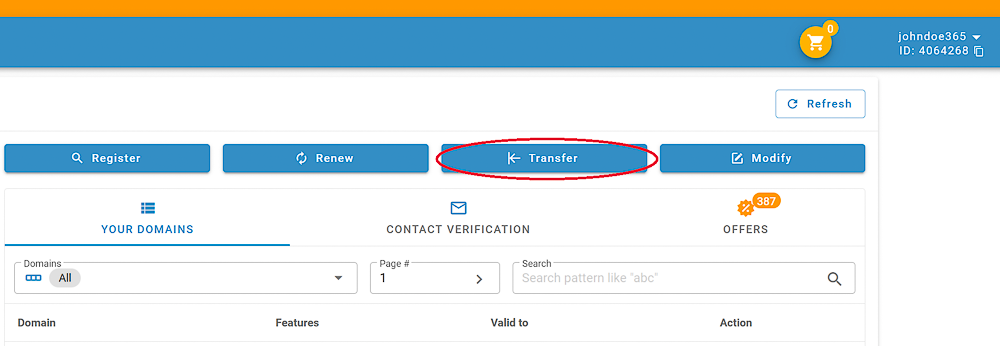

![](https://joker.com/faq/uploads/images/gallery/FAQ_media/Transfer/transfer_in-1.png)


##### 2. Enter the domain name you want to transfer (without "www."), click "Transfer Domain"
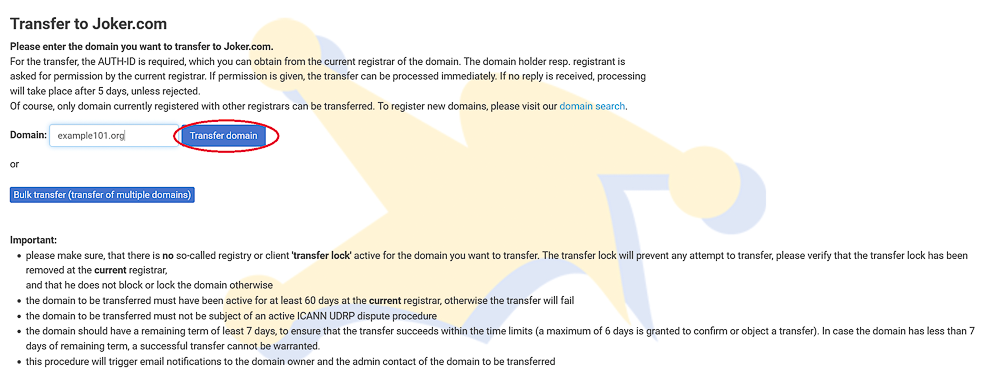
![](https://joker.com/faq/uploads/images/gallery/FAQ_media/Transfer/transfer_in-2.png)


##### 3. Enter the AUTH-ID (epp-code) obtained from your current Registrar, click "Proceed":  
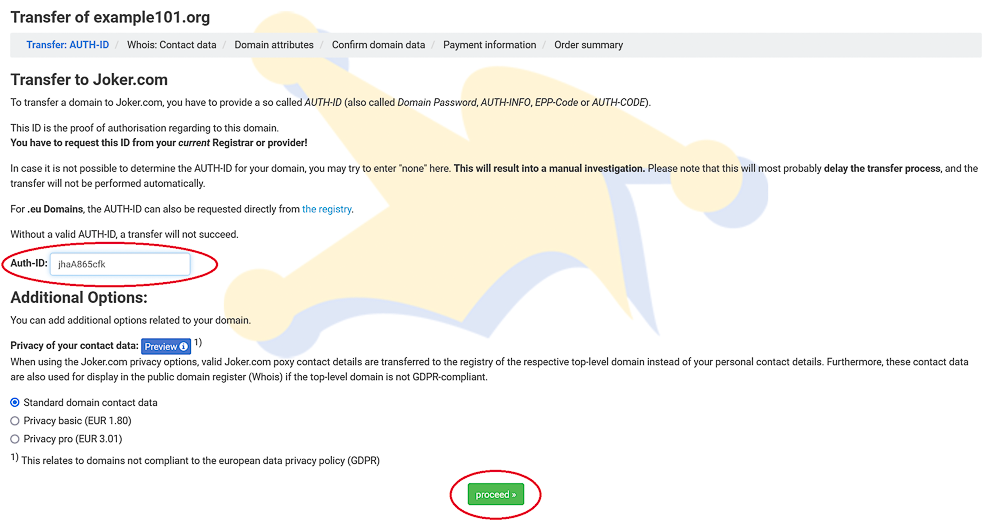

![](https://joker.com/faq/uploads/images/gallery/FAQ_media/Transfer/transfer_in-3.png)


##### 4. Add the contacts:

![](https://joker.com/faq/uploads/images/gallery/FAQ_media/Transfer/transfer_in-4.png)

You can either create new contacts, or use already existing. See also:

[What are Domain Contacts?](https://joker.com/faq/books/jokercom-faq-en/page/what-are-domain-contacts)

[Creating and Modifying Contacts](https://joker.com/faq/books/jokercom-faq-en/page/creating-and-modifying-contacts)

<p class="callout info">**Please note:** due to GDPR regulations and technical reasons, we cannot automatically transfer your existing domain contact data.</p>


##### 5. Choose your nameservice:

![](https://joker.com/faq/uploads/images/gallery/FAQ_media/Transfer/transfer_in-5.png)

<p class="callout info">**Tip:** If you are currently using the name service of the initial registrar, it is best to choose our equivalent, the free Joker.com name service. Our system will attempt to read and accept your current name server entries. You can add and confirm them before starting the transfer: click on "edit DNS records" on the next page.</p>

You may also consider using our **free [DNSSEC](https://joker.com/faq/books/jokercom-faq-en/page/dnssec "DNSSEC")** option for secure name services.


##### 6. Add privacy service, if desired:
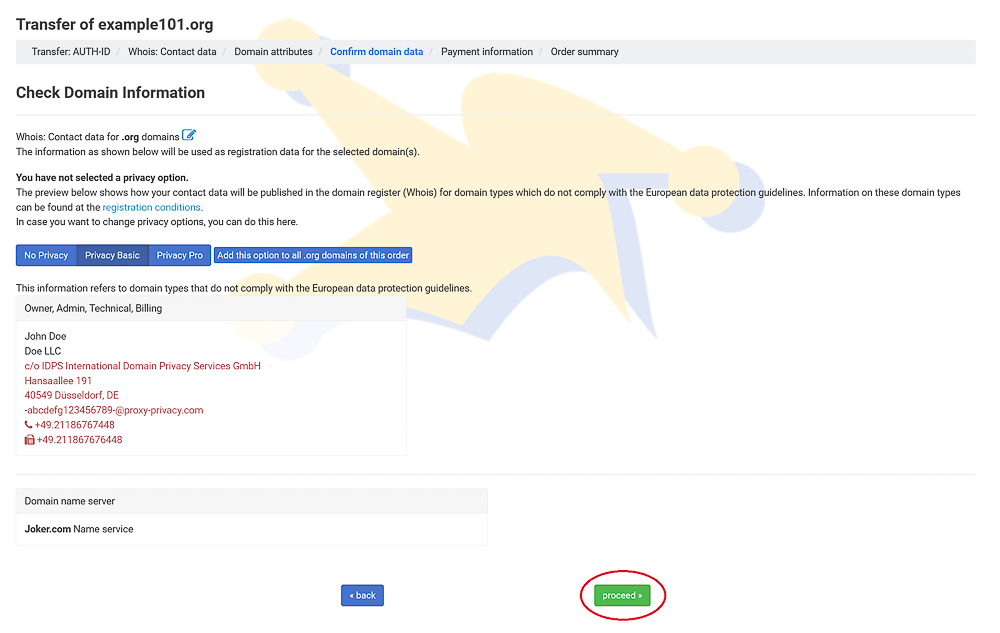
![](https://joker.com/faq/uploads/images/gallery/FAQ_media/Transfer/transfer_in-6.png)

More info about our [Privacy Service](https://joker.com/faq/books/jokercom-faq-en/page/privacy-services).


##### 7. Enter your payment details, and click "Proceed":
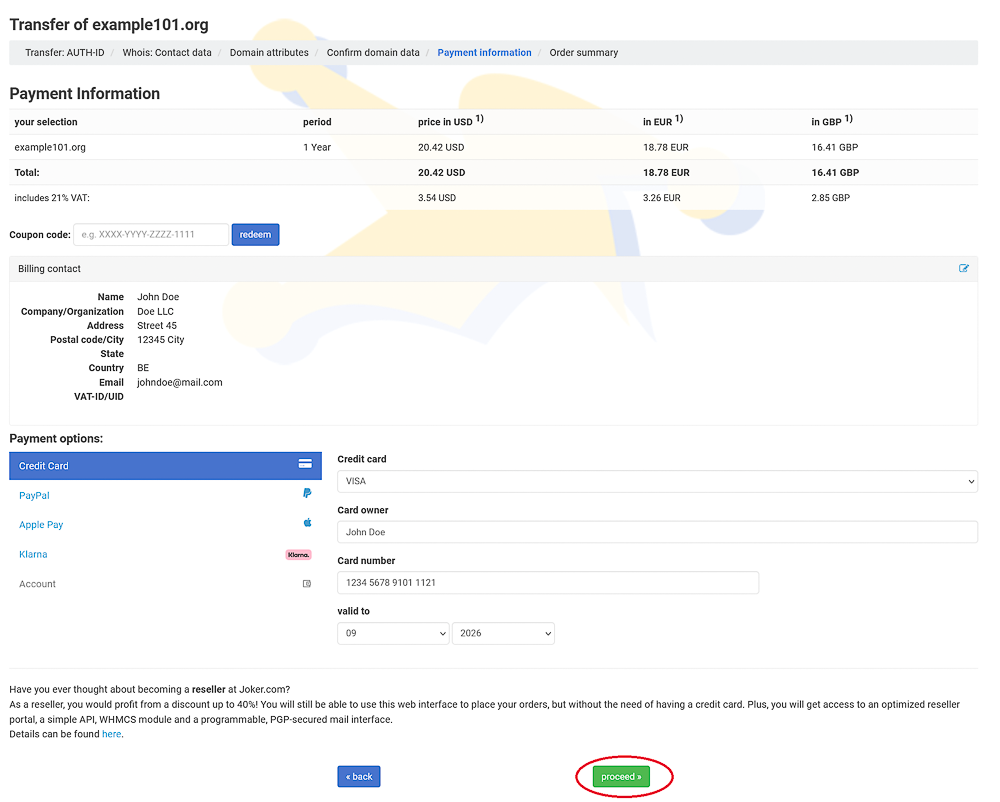
![](https://joker.com/faq/uploads/images/gallery/FAQ_media/Transfer/transfer_in-7.png)


### Processing the Transfer

Once we have received the AUTH-ID and other required information, we will charge you for the transfer. If the attempt is successful, we will forward the transfer request to the registry. The registry will then notify your current (old) registrar.

Your current (initial) registrar may have their own verification procedures. They might ask you, the owner, and/or the admin contact to verify the transfer via email or other means. Be cautious with emails from your old registrar, as some may be confusing or appear as spam. It's important to respond appropriately to these emails, as failure to do so could result in a denied transfer.


### Finishing the Transfer

**After a maximum of 5 days**, we will receive a notification from the registry regarding the success or failure of the transfer. We will inform you immediately once we receive this notification. If the transfer is successful, you can start using the domain right away.

However, please note that after a successful transfer, the **domain will be locked for 60 days** to prevent another transfer. This is part of the transfer policy.

If you encounter any issues during the transfer, please don't hesitate to contact us. Choose the topic 'transfer - move the domain to Joker.com,' or email us at *<transfer@joker.com>*


### Cost of Domain Transfers

---

When you transfer a domain from another registrar to Joker.com, an additional one-year term will be added to the domain. **You will only be charged for this one-year renewal** if the transfer is successful, and there won't be any additional transfer costs.

For most gTLDs (generic top-level domains), this extra year of registration will be added to your current domain term. This means you won't lose any remaining time from your current registration. However, there are **exceptions**, which are explained below.

**Here's an example:**

Let's say your domain has 7 months left until it expires when you transfer it to us. If the transfer is successful, your domain will expire in 1 year + 7 months, which equals 19 months.

Please note that the fee for the transfer is non-refundable if the transfer fails due to a reason not caused by Joker.com.

**Exceptions:**

If you transfer your **.eu, .de, or .nl**  domain to Joker.com, the registration period will automatically be extended to 12 months from the date the transfer is completed. After the transfer, the expiration date of your domain will be extended by one year from the transfer completion date, not from the current expiration date. In other words, if you have 3 months left on your domain before the transfer, you will have 1 year left after the transfer, not 1 year and 3 months.

For **.at** domains, there is no specific "expiry date" in the registry, and explicit renewal after the transfer is not possible. Instead, the registration of .at domains will be extended for an additional year starting from the creation date.


### Your Pending Transfers

---

In "My Joker" -&gt; "Pending Transfers" you always find a list of all your transfers to Joker.com and also away from Joker.com. There, you also can cancel a transfer, or re-send the email for transfer authorization.

[![image.png](https://joker.com/faq/uploads/images/gallery/2026-01/scaled-1680-/image.png)](https://joker.com/faq/uploads/images/gallery/2026-01/image.png)

<div class="flex flex-grow flex-col gap-3" id="bkmrk-the-domain-is-less-t"><div class="min-h-[20px] flex items-start overflow-x-auto whitespace-pre-wrap break-words flex-col gap-4"><div class="markdown prose w-full break-words dark:prose-invert light">  
</div></div></div>### Typical Reasons Why Transfer Fails

---

If you receive a message stating, "The current status of '&lt;domain name&gt;' didn't allow this operation (transfer)," it means that the attempt to transfer the domain to Joker.com has failed. There are several reasons why a transfer request may fail, according to ICANN policies:

<div class="flex flex-grow flex-col gap-3" id="bkmrk-the-domain-is-less-t-1"><div class="min-h-[20px] flex items-start overflow-x-auto whitespace-pre-wrap break-words flex-col gap-4"><div class="markdown prose w-full break-words dark:prose-invert light">- The domain is less than **60 days** old since its initial registration.
- There is a pending domain **dispute**, such as UDRP or WIPO.
- The current owner/holder of the domain has rejected the transfer.
- There was a problem with your payment. Please review the receipt you received from Joker.com.
- You have already received the final domain renewal notice from your current/old registrar, and you did not renew it with them. To avoid this issue, make sure to transfer the domain in a timely manner. Transferring to Joker.com does not cause any loss in the registration period. However, if the domain's expiration date is too close, the transfer may be rejected.

</div></div></div>Additionally, it is possible that the domain is **still locked** at your current registrar. In such cases, you need to unlock the domain at your current registrar before initiating the transfer.


### Domain Expiration and Transfers

---

If your domain transfer was initiated before the expiration date, you can still complete the transfer. Most domain registrars allow the transfer to proceed even if the domain has expired before the transfer is completed.

However, it's worth noting that some registrars manually deny transfers after the domain has expired. If this concerns you, it's advisable to contact your previous domain registrar and inquire if they will still permit the transfer to proceed since it was initiated before the domain expired.

If you have any doubts, it's recommended to **renew the domain before initiating the transfer**. Our support team or <transfer@joker.com> are always available to assist you.

Please keep in mind that a domain transfer doesn't commence immediately after submitting a transfer order to us. The transfer starts once it has been authorized. You will receive an email titled "Transfer Initiated" from us when this occurs.

# Bulk Transfer

You can transfer to us **up to 100 domains** at once by using our bulk transfer feature. Here's how it works:

##### 1. Go to the Transfer section and click on "Bulk Transfer":

![](https://joker.com/faq/uploads/images/gallery/FAQ_media/Transfer/transfer_bulk-1.png)

##### 2. Enter the domain names and AUTH-IDs, separated by commas, with one domain per line:

![](https://joker.com/faq/uploads/images/gallery/FAQ_media/Transfer/transfer_bulk-2.png)

##### 3. Double-check the accuracy of the entered data:

![](https://joker.com/faq/uploads/images/gallery/FAQ_media/Transfer/transfer_bulk-3.png)

##### 4. Create the owner contact for the domains in the list:

![](https://joker.com/faq/uploads/images/gallery/FAQ_media/Transfer/transfer_bulk-4.png)

##### 5. Choose the nameservers:

![](https://joker.com/faq/uploads/images/gallery/FAQ_media/Transfer/transfer_bulk-5.png)

##### 6. You're done!

![](https://joker.com/faq/uploads/images/gallery/FAQ_media/Transfer/transfer_bulk-6.png)

**Please keep in mind the following:**

- Bulk Transfer works only as **gaining transfer (to Joker.com)**
- Bulk Transfer is a manual procedure, so you won't see your transfers initiated immediately
- End customers are required to make advance payment for the Bulk Transfer. We will send you a payment link after processing your request
- Only one Owner Contact can be added for all the domains in the bulk transfer
- The Admin/Tech/Billing contacts will be the same as the owner contact

# Transferring Domains Away From Joker.com

To transfer a domain away from Joker.com to another registrar, follow these steps:

##### 1. Go to your dashboard and click "Modify" next to your domain name:

![](https://joker.com/faq/uploads/images/gallery/FAQ_media/Transfer/transfer_out-1.png)


##### 2. Click on "remove domain protection" to disable it:

![](https://joker.com/faq/uploads/images/gallery/FAQ_media/Transfer/transfer_out-2.png)


##### 3. Click on "Request AUTH-ID":

![](https://joker.com/faq/uploads/images/gallery/FAQ_media/Transfer/transfer_out-3.png)

##### 4. Initiate the transfer at the gaining (new) Registrar.

The transfer process may vary depending on the registrar you choose.

**Please note:**

- When a transfer request is initiated, a confirmation email is sent notifying the domain owner.
- If you don't explicitly disagree with the transfer within 5 days, it will be acknowledged.
- To confirm or deny the transfer, reply to the authorization form in the confirmation email.
- If both the domain owner and the Admin contact agree to the transfer, it will be completed immediately.

<p class="callout warning">**Important:** If the domain is unprotected (unlocked), any incoming transfer request will be acknowledged if you don't respond to explicitly disagree. Therefore, it is highly recommended to keep your domains protected.</p>

### I Can't Request AUTH-ID or Unlock the Domain. Why?

---

The most common reason for this issue is a lack of permissions. It is likely that your account only has an [Admin role](https://joker.com/faq/books/jokercom-faq-en/page/roles-and-permissions) for the domain, which does not allow you to transfer the domain. You can verify this by checking the [Domain Management](https://joker.com/faq/books/jokercom-faq-en/page/domain-management-section) section:
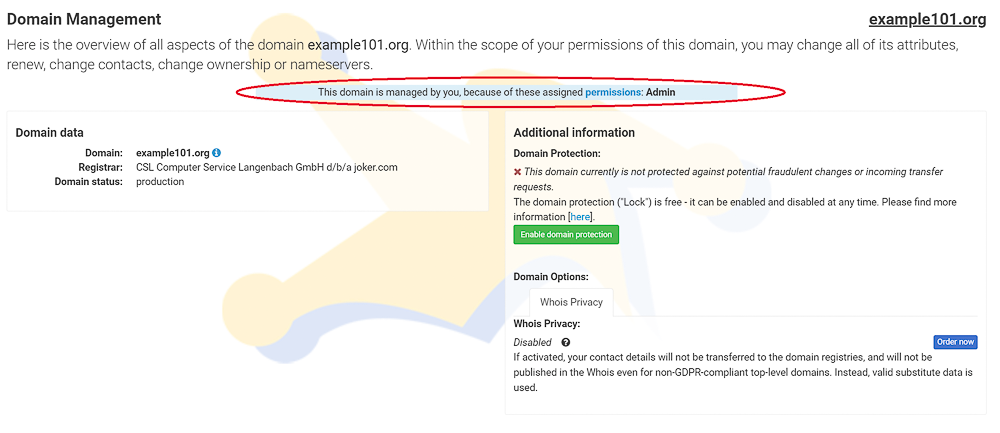
![](https://joker.com/faq/uploads/images/gallery/FAQ_media/Transfer/transfer_out-4.png)

If this is indeed the case, please contact the domain owner (creator) to coordinate the transfer. More information about roles can be found [here](https://joker.com/faq/books/jokercom-faq-en/page/roles-and-permissions).

Another possible reason for being **unable to unlock the domain** is if it is currently **suspended:**
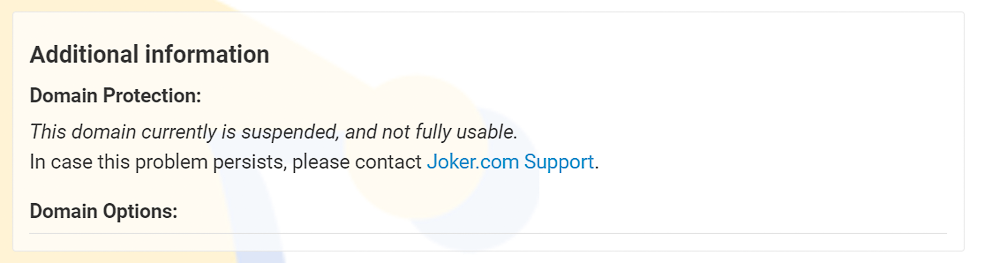
![](https://joker.com/faq/uploads/images/gallery/FAQ_media/Transfer/transfer_out-5.png)

There are several common causes for domain suspension:

- Domain has expired
- Domain is under dispute
- Domain is younger than **60 days** and can not yet be transferred
- Domain is in **a 60-day lock period** after the last transfer, and can not yet be transferred
- Domain is in **a 60-day lock period** after the last COR (Change of Registrant) procedure, and can not yet be transferred

If you encounter any issues during the transfer, please don't hesitate to contact us at *<transfer@joker.com>*

# Internal Transfer

### Moving Domains to Another User  


Transfer from one Joker.com account to another is just like an inbound transfer, described [here](https://joker.com/faq/books/jokercom-faq-en/page/transferring-domains-to-jokercom#bkmrk-initiate-the-transfe)

To summarize the procedure, let's say **Alice is the current domain creator** (owner of the account where the domain belongs), and **Bob is the desired new creator** (another Joker.com account).

**Alice needs to perform the following steps:**

- Unlock the domain
- Obtain the AUTH-ID (authorization code)
- Provide the AUTH-ID to Bob, the desired new owner of the domain

**Bob should initiate a domain transfer at Joker.com by doing the following:**

- Start the gaining transfer process, as described [here](https://joker.com/faq/books/jokercom-faq-en/page/transferring-domains-to-jokercom#bkmrk-initiate-the-transfe)

**What happens next?**

- FOA (Form of Authorization) emails will be sent to the current **owner and admin** of the domain
- The current **owner or admin must acknowledge** the FOA, otherwise the transfer fails
- A losing transfer FOA is sent to the current **owner and admin**
- The current owner and admin have the option to deny or acknowledge the losing transfer. If no objection is raised within 5 days, the transfer is performed. If **both, the owner and admin**, acknowledge it, the transfer is finished immediately
- The domain's creator will be changed
- The owner/admin/billing/tech details will be updated according to the transfer order
- The old owner will be informed about the completed COR process in accordance with ICANN policy


### Reseller Feature: Moving Domains Between Your Own Accounts

If you have multiple Reseller accounts at Joker.com and want to transfer domains between them, you can do so by granting an Assignment (Creator) role. Detailed instructions on how to perform this action can be found by clicking [HERE.](https://joker.com/faq/books/jokercom-faq-en/page/roles-and-permissions)

<p class="callout info">In case you have lost the login credentials for one of your Joker.com accounts and are unable to retrieve your domains, please follow [these instructions.](https://joker.com/faq/books/jokercom-faq-en/page/change-of-registrant-procedure#bkmrk-how-to-claim-domain-)  
</p>

# Change of Registrant Procedure

### Change of Owner (COR)

When you register a domain with Joker.com, you become the "owner" of that domain. This means the domain is added to your domain portfolio, and you always maintain full control over it.

Your role as the Joker.com "account holder" also designates you as the **"Designated Agent" (DA) of the domain since December 1, 2016**. This change was introduced in the [ICANN Change of Registrant policy (COR)](https://joker.com/goto/icann_irtp).

The responsibilities of a DA are governed by Joker.com's [Terms &amp; Conditions](https://joker.com/goto/tc), specifically outlined in sections **§19-2, §19-4, §10-2, §10-7, and §10-8.**

The definition of a DA is further explained in **Addendum 1** of the [T&amp;C.](https://joker.com/goto/tc)

There is also a contact called the "registrant" who represents the official identity of the domain owner according to ICANN and/or Registry requirements. More information about the domain registrant can be found[ here.](https://joker.com/faq/books/jokercom-faq-en/page/who-is-a-domain-registrant)

Just like any registrant data, you can edit or maintain the registrant information using Joker.com's [Domain Management section](https://joker.com/faq/books/jokercom-faq-en/page/domain-management-section).

Since December 1, 2016, changing the registrant (COR or owner change) of a generic top-level domain requires an **extended procedure mandated by ICANN:**

- Generally, **both** the prior registrant and the new registrant need to confirm the change
- Emails will be sent to both parties containing coded links to acknowledge the transaction
- The designated agent (DA) is also empowered to make decisions regarding this process (see above for details)
- Before initiating the process, the initiator has the option to choose not to apply a 60-day transfer lock after the change of registrant. Otherwise, this lock will be applied by default.
- For Resellers, we offer extended IRTP-C options and tools to handle COR and secure keys.
- The full policy can be found [here](https://www.icann.org/resources/pages/transfer-policy-2016-06-01-en?&).
- It is mandatory to provide valid and **accurate address and identity information for [Whois data](https://joker.com/faq/books/jokercom-faq-en/page/whois-data-accuracy).** This requirement applies to all domain registries.

**Please note:**

- some ccTDLs (**.be, .fi, .es**) can not be modified regularly and requires a special procedure. Please refer to **[Specific ccTLDs: Transfers article](https://joker.com/faq/books/jokercom-faq-en/page/specific-cctlds-transfers)**
- In case you have received an **"invalid address"** or **"Wrong Whois Data"** notice, please refer to [this article](https://joker.com/faq/books/jokercom-faq-en/page/whois-data-accuracy#bkmrk-you-received-a-warni)***.***

To update the current Whois information in a regular way, or **change the registrant**, please:

##### 1. Go to [Domain Management](https://joker.com/faq/books/jokercom-faq-en/page/domain-management-section), and click "edit" in the "Domain Owner" section:
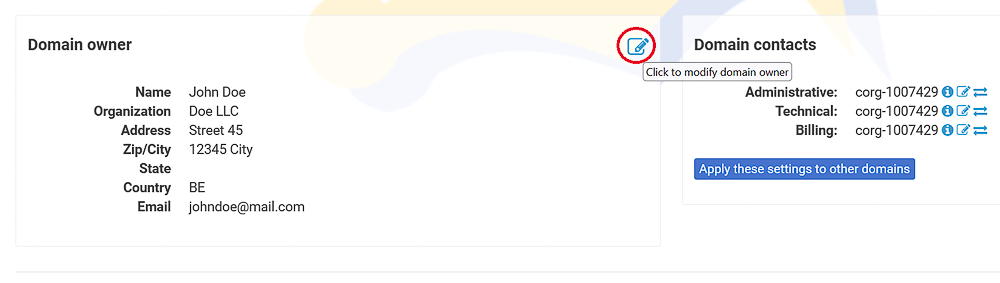
![](https://joker.com/faq/uploads/images/gallery/FAQ_media/Transfer/cor-1.png)


#####  

##### 2. Enter the new registrant's data, and click "Proceed":
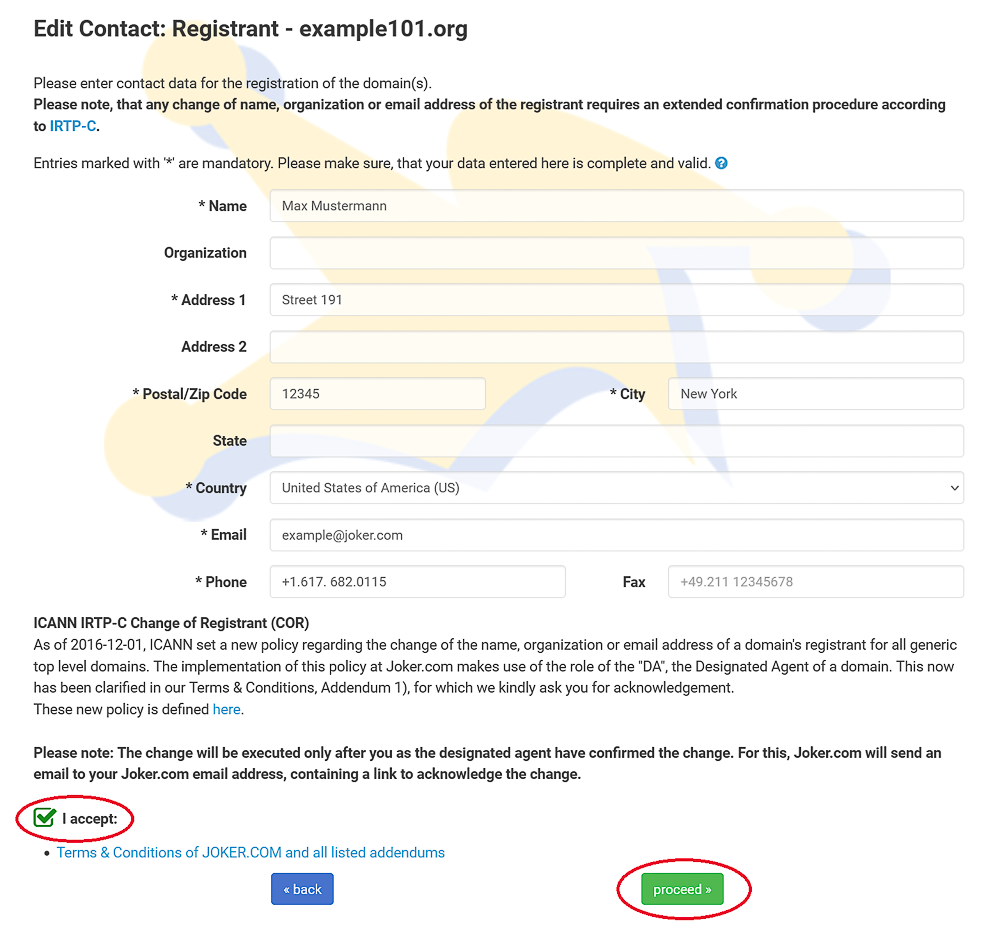
![](https://joker.com/faq/uploads/images/gallery/FAQ_media/Transfer/cor-2.png)


#####  

##### 3. Apply the changes by clicking the **link in the confirmation email** you received from us.


### How to Claim Domain Ownership

There are situations that may require you to claim ownership of your domain, such as losing your login credentials for the account of DA or if your domain is being managed by someone else whom you have lost contact with.

In such a scenario, the only option left is to transfer your domain to a new active account. To do this, follow these steps:

##### 1. Log in to your account or [create a new one](https://joker.com/faq/books/jokercom-faq-en/page/setting-up-your-jokercom-account) if necessary

##### 2. Go to the "Domains" menu and select "Change Ownership or Permissions of a Domain":
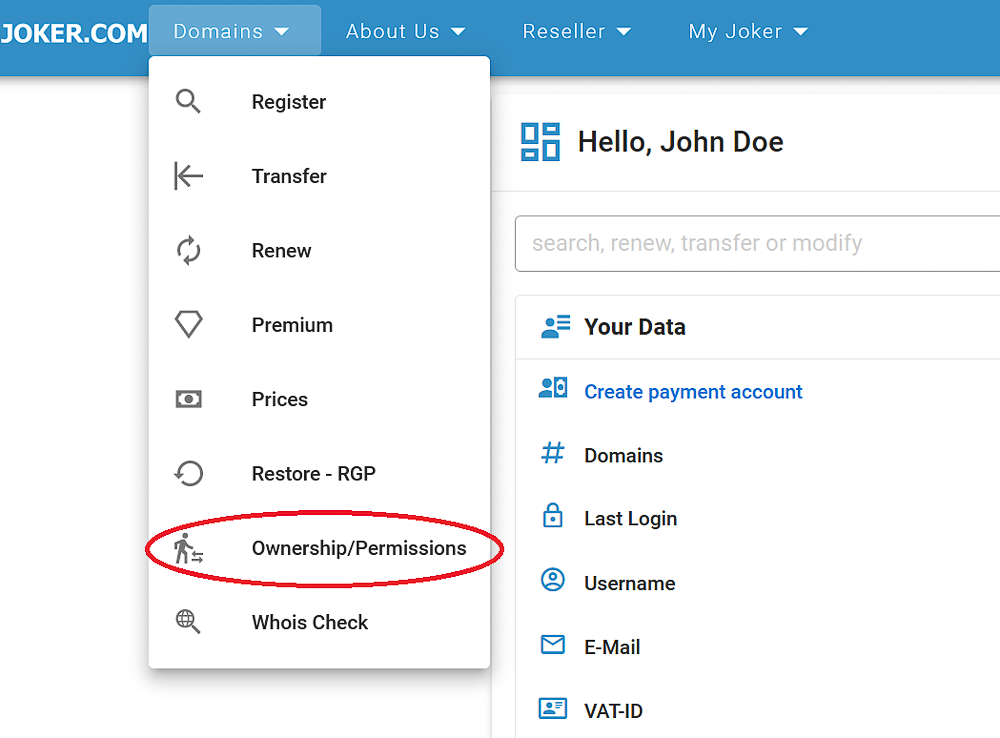
![](https://joker.com/faq/uploads/images/gallery/FAQ_media/Transfer/cor-3.png)


#####  

##### 3. Enter your domain and click "Proceed":
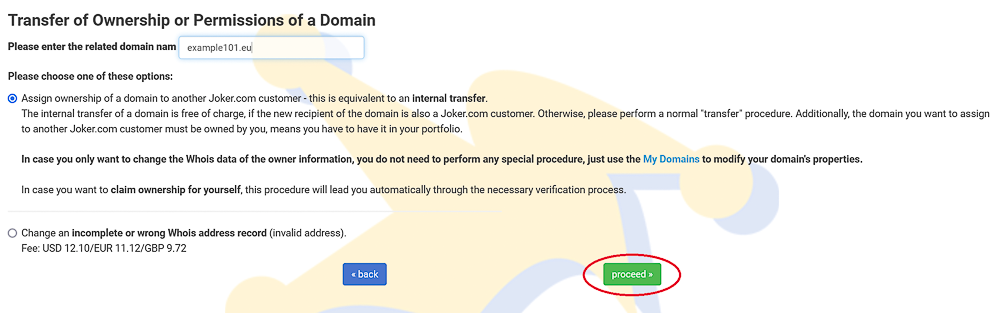
![](https://joker.com/faq/uploads/images/gallery/FAQ_media/Transfer/cor-4.png)

Depending on the Whois data and the current owner of the domain, you may be asked to submit additional documents. Along with the provided form for this procedure, please prepare the following documents:

- **A copy of an official document** (identity card, driving license, or passport) that confirms the registrant's name and address
- **For organizations:** Print out the form on the company letterhead
- **For organizations:** A copy of a utility bill that confirms the address

# UDRP Procedures

The [**UDRP (Uniform Domain-Name Dispute-Resolution Policy)**](https://joker.com/goto/icann_udrp) is a policy that applies to all ICANN domains and is also adopted by many other domain types (ccTLDs). You can find detailed explanations on [Wikipedia](https://en.wikipedia.org/wiki/Uniform_Domain-Name_Dispute-Resolution_Policy) as well.

When registering a domain, you must accept this policy in order to purchase a domain. This policy is included in our [Terms &amp; Conditions](https://joker.com/terms/general), specifically in section 11.

The UDRP process handles complaints related to domain ownership. If the arbitrator decides that a domain should be transferred to the complainant, it is the **complainant's responsibility to initiate the transfer and become the new owner.**

If you, as the complainant, have been awarded the domain after a UDRP decision, please follow these steps to gain access to the domain:

- [Create a Joker.com account](https://joker.com/faq/books/jokercom-faq-en/page/setting-up-your-jokercom-account) if you don't already have one. This account is free of charge and ensures the fastest processing.
- Provide us with the customer ID of this account by sending it to <udrp@joker.com>
- We will then immediately transfer the domain to your Joker.com account.

<p class="callout info">**Please note:** During the UDRP procedure, the domain will be **blocked from changes** (status 'freeze'). After the execution of the UDRP decision, the domain will be set to normal status again.</p>

# Specific ccTLDs: Transfers

### Transfer of the .UK Domains

---

#### Transferring Your .UK Domain to Joker.com

To transfer a .UK domain, you need to follow these steps:

<div class="flex flex-grow flex-col gap-3" id="bkmrk-go-to-our-regular-tr"><div class="min-h-[20px] flex items-start overflow-x-auto whitespace-pre-wrap break-words flex-col gap-4"><div class="markdown prose w-full break-words dark:prose-invert light">1. Go to our regular transfer page and [place an order for the .UK domain transfer](https://joker.com/faq/books/jokercom-faq-en/page/transferring-domains-to-jokercom#bkmrk-initiate-the-transfe). Unlike other domains, you don't need to enter an AUTH-ID for .UK domains.
2. Contact your current registrar and initiate a transfer request. Request them to release the domain name to the new **TAG** of our registrar, which is **JOKER**.
3. Once your transfer request is initiated, we will wait for Nominet (the .UK registry) to notify us that the domain has been released by your current registrar.
4. Once Nominet confirms the domain release, we will add the domain to your Joker.com account.

</div></div></div>If you encounter any difficulties transferring your domain with your current registrar, you have the option to transfer it directly with [Nominet](https://www.nominet.uk/domain-support/#transferring-your-domain-name).


#### Transferring Your .UK Domain Away From Joker.com

To transfer a .UK domain to a different registrar, follow these simple steps:

<div class="flex flex-grow flex-col gap-3" id="bkmrk-sign-in-to-your-joke"><div class="min-h-[20px] flex items-start overflow-x-auto whitespace-pre-wrap break-words flex-col gap-4"><div class="markdown prose w-full break-words dark:prose-invert light">1. Sign in to your Joker.com account and navigate to the [dashboard](https://joker.com/faq/books/jokercom-faq-en/page/understanding-your-dashboard).
2. Locate the domain name you want to transfer and click on "Modify" icon.
3. Within the [domain management section](https://joker.com/faq/books/jokercom-faq-en/page/domain-management-section), you'll find the option "Transfer Domain" on the right-hand side.![](https://joker.com/faq/uploads/images/gallery/FAQ_media/Transfer/uk_transfer_out-1.png)
4. Click on "Remove domain protection."
5. Click on "Change Registrar Tag."
6. Choose the identifier (TAG) of your new registrar.

</div></div></div>**Please keep in mind the following points:**

<div class="flex flex-grow flex-col gap-3" id="bkmrk-prior-to-initiating-"><div class="min-h-[20px] flex items-start overflow-x-auto whitespace-pre-wrap break-words flex-col gap-4"><div class="markdown prose w-full break-words dark:prose-invert light">- **Prior** to initiating the transfer, inform your new registrar as some registrars may require activation or unlocking of incoming transfers.
- Your new registrar will provide you with the correct registrar identifier (TAG).

</div></div></div>
#### Other ccTLDs Which Don't Require AUTH-ID for Transfer-In

Similar to .UK domains, there are a few more ccTLDs that do not require an AUTH-ID for the transfer. These include **.es** and **.dk.**

The transfer process for these TLDs is dependent on the approval of a Form of Authorization (FOA) by the domain owner. When initiating the transfer for any of these TLDs at Joker.com, simply enter "**none**" in the AUTH-ID field.


### Trade - Owner Change for Specific ccTLDs

---


#### .FI Trade

A trade for a **.FI** domain involves a **two-step process**. When you update the Owner data for a .FI domain, the following takes place:

1. A new COFI-XXXXXX handle is created with the new registrant's data.
2. The previous owner receives an email from **Traficom** containing a **Holder Transfer Key** for Owner Change:**![](https://joker.com/faq/uploads/images/gallery/FAQ_media/Transfer/fi-trade-1.png)**
3. The domain **Creator (Designated Agent)** receives an email from Joker:![](https://joker.com/faq/uploads/images/gallery/FAQ_media/Transfer/fi-trade-2.png)
4. You need to click on the link provided in the email and submit the **Holder Transfer Key:**![](https://joker.com/faq/uploads/images/gallery/FAQ_media/Transfer/fi-trade-3.png)
5. Once the **Holder Transfer Key** is submitted, the Owner Change is completed, and the new handle appears in the registry.

Please note that if you fail to submit the Auth-code within **32 days** after the Owner Change was initiated, the owner change will be automatically **canceled**.

#### .BE Trade

Owner-Data-Change of a .BE domain is a trade process, which can only be initiated manually directly at the Registry (BENIC) for a **fee of 9.75 Euro**.

If you decide to initiate an Owner Change for a .BE Domain, please follow these steps:

1. [Create a new Owner Contact](https://joker.com/faq/books/jokercom-faq-en/page/creating-and-modifying-contacts) (Handle) with the new owner's data.
2. Send your request for Owner Change via email to <ownerchange@joker.com>.
3. We will send you a Payment Link or charge your Payment account with the **fee of 9.75 Euro.**
4. We will request a new **AUTH-ID** for the domain, which will be sent **directly to the domain owner via email**.
5. If you are not the domain owner, you need to ask the Owner of the domain to **forward us the email with the new AUTH-ID** and send us the new **Owner Contact Handle** for the trade process, if you haven't done so already.
6. We will initiate your TRADE request with BENIC.
7. The new Owner will appear in the Whois shortly.


#### .ES Trade

The change of registrant for **.es** domains must be performed **directly at the Registry**. For this you will need to do the following:

1. Check your domain info here: [https://nic.es/sgnd/dominio/publicDetalleDominio.action](https://nic.es/sgnd/dominio/publicDetalleDominio.action)  
    And write down the **"Identifier"** of the registrant.
2. Go to [https://www.nic.es/sgnd/contacto/passRecoverInicializar.action?tContacto.nic](https://www.nic.es/sgnd/contacto/passRecoverInicializar.action?tContacto.nic)  
    and using the **Identifier from step 1**, request a **password**. It will be sent to the current owner's email.
3. Log in with **Identifier and password** here: [https://www.nic.es/sgnd/login.action](https://www.nic.es/sgnd/login.action)
4. Make the necessary changes, and upload the required documents. Document check usually takes **24-48 hours.**


#### .DK Trade

Changing the registrant of a .dk domain **is only possible at the [Hostmaster-DK Self Service](https://self-service.dk-hostmaster.dk/domain)**.

For more information please refer to [https://punktum.dk/en/faq](https://punktum.dk/en/faq)

### Transferring a .DK Domain to Joker.com

---

The Danish registry has implemented two domain models:

- Registrar Management
- Registrant Management

Currently, our system only supports the **"Registrant Management"** model. Therefore, before initiating the transfer of your .dk domain to us, ensure that your domain is configured under the "Registrant Management" model. To make this adjustment, please use the **[Hostmaster-DK Self Service](https://self-service.dk-hostmaster.dk/domain)**.


### Transferring an .FR Domain to Joker.com

---

Please note that AFNIC, the registry of .FR domains, **does not allow** simultaneous **domain transfers and Change of Registrant**. Therefore, when initiating a transfer of a .FR domain to Joker.com, please ensure that the owner data you provide is **identical to the current owner data.**

<p class="callout info">**Please note:** we can not automatically transfer your existing domain contact data due to GDPR regulations and technical limitations.</p>


### AUTH-INFO 2 for .DE Domains

---

If the domain holder is unable to request a regular AuthInfo from DENIC through their current provider, for example, if the provider no longer exists or cannot be reached, they can directly request a [provider change password (AuthInfo2) from DENIC](https://www.denic.de/en/domains/de-domains/provider-transfer/how-to-generate-and-store-an-authinfo/).

In such cases, the domain holder should contact the future domain administrator, such as <transfer@joker.com>.

The provider initiates the generation of an AuthInfo directly from DENIC. DENIC then sends the generated AuthInfo to the domain holder via **registered regular mail (letter in paper form)**.

The letter will be addressed to the recorded address in the Whois database. If the domain holder is not located in Germany, the letter will be addressed to the Admin-Contact in Germany to ensure prompt and secure delivery.

Simultaneously, DENIC stores the generated AuthInfo as a hash in its database.

The domain holder should share the AuthInfo with the future domain administrator, who will then initiate the provider change by submitting the AuthInfo to DENIC.

If you need to request an AuthInfo2, please send an email to <transfer@joker.com>.

# Mailboxes

Instructions and how-tos for Joker Mailboxes

# Introduction to Joker Mailboxes

Welcome to Joker Mailboxes! With each domain registered at Joker.com, you can order a mailbox, allowing you to send, receive, and manage emails associated with your domain name. Here is a quick overview of the features:

- **Support for multiple mailboxes:** You can create multiple mailboxes under one domain.
- **Aliases**: You can set up to 300 additional e-mail addresses per mailbox. **Catch-all** alias is also supported.
- **Dynamic aliases ("plus addressing"):**
    
    
    - Add tags to your email address, like *info+tag@sample.com*, to create unlimited aliases. Great for tracking where you've shared your email address.
- **Subscription Plans:** Basic and Plus, please find the details below
- **Webmail Application:**  
    
    - Automatic replies can be scheduled.
    - Emails can be forwarded to other addresses.
    - Use multiple sender identities in one mailbox.
    - Includes an address book that syncs with CardDAV-based address books.
    - Optional two-factor authentication for extra security.
    - Import and export email messages easily.
    - Compose emails using a visual editor (WYSIWYG) or plain text.
    - Use full **SIEVE** filter functionality.
    - No ads.
- **Direct access for email clients:** Connect to your mailbox using IMAP or POP3 with standard email apps.
- **SMTP mail relay:** You can send emails using any address, not just the mailbox address.
- **Server-side email filters:** Set up custom rules to organize your email automatically.
- **SPAM Filtering:** recognized SPAM emails are rejected by our systems. This is adjustable by the user.
- **SPF and DKIM:** These email authentication methods are automatically set up (to prevent spoofing).

For a more detailed description of the available features, please visit [this page](https://joker.com/faq/books/jokercom-faq-en/page/webmail-client-usage-and-plugin-overview).

To ensure the best experience with Joker Mailboxes, please check the conditions ***here.***

### Subscription Plans  


<div class="row" id="bkmrk-%C2%A0-standard-whois-out"><div class="col-md-10 col-md-offset-1"><table class="table table-bordered table-striped-column"><tbody><tr><td> </td><td style="background-color: rgb(66, 159, 227);">##### <span style="color: rgb(0, 0, 0);">Basic</span>

</td><td style="background-color: rgb(45, 194, 107);">##### <span style="color: rgb(0, 0, 0);">Plus</span>

</td></tr><tr><td>**Storage**</td><td class="align-center">2 GB<sup>1</sup></td><td class="align-center">10 GB<sup>1</sup></td></tr><tr><td>**Aliases**</td><td class="align-center">up to 25</td><td class="align-center">up to 300</td></tr><tr><td>**Allow "+"-subaddresses**</td><td class="align-center">yes</td><td class="align-center">yes</td></tr><tr><td>**Full Sieve filtering**</td><td class="align-center">yes</td><td class="align-center">yes</td></tr><tr><td>**Full SMTP relay with TLS encryption** </td><td class="align-center">yes</td><td class="align-center">yes</td></tr><tr><td>**Direct IMAP access with TLS encryption**</td><td class="align-center">yes</td><td class="align-center">yes</td></tr><tr><td>**POP3 support with TLS encryption**</td><td class="align-center">yes</td><td class="align-center">yes</td></tr><tr><td>**Maximum emails sent per day** </td><td class="align-center">100<sup>2</sup>  
</td><td class="align-center">500<sup>2</sup>  
</td></tr><tr><td>**Maximum attachment size** </td><td class="align-center">20 MB  
</td><td class="align-center">100 MB  
</td></tr></tbody></table>

</div></div><p class="callout info">**<sup>1)</sup>** If the storage space allocated to the respective mailbox is **exceeded**, Joker.com reserves the right to **stop** the receipt of emails</p>


<p class="callout info">**<sup>2)</sup> Fair-use** regulation, limits are only applied in the event of conspicuous or persistent unusual overruns  
</p>


### Mailbox Life Cycle

If you purchase mailboxes for an **existing domain**, the term of the mailbox is adjusted to the term of the domain name for technical reasons. For your benefit, **you will only be charged for full years** (rounded down).

If you buy mailboxes without renewing the domain beforehand, you will be charged at least one year for the mailbox service, even if your domain has a term of less than one year. To avoid disadvantages due to shortened mailbox terms, it is advantageous for you to **renew your domain first** and then create the mailbox.

<div class="mb-2 flex gap-3 empty:hidden -ml-2" id="bkmrk-below-you-will-find-"><div class="items-center justify-start rounded-xl p-1 flex"><div class="flex items-center">Below you will find illustrative examples of different mailbox order scenarios.</div></div></div>#### Acquire a mailbox for an existing domain (I)

Let's assume you own a .com domain expiring in **17 months**, and you want to add a basic mailbox:

<table border="0" id="bkmrk-1-year-privacy-pro-s" style="width: 75.3087%;"><tbody><tr><td style="width: 83.3971%;">1-year basic mailbox:</td><td style="width: 16.6161%;">USD 11,96\*</td></tr><tr><td style="width: 83.3971%;">**result** - domain term is unchanged, and **17 months** of mailbox service  
</td><td style="width: 16.6161%;"><span style="text-decoration: underline;">USD 11,96\*</span>

</td></tr><tr><td colspan="2" style="width: 100.013%;">the additional 5 months are "rounded down" which means, they are added, but not charged</td></tr></tbody></table>

#### Acquire a mailbox for an existing domain (II)

Suppose you have a .com domain that **expires in 3 months**. You would like to add a basic mailbox service; you receive a warning because the term of the mailbox clearly is **below one year**. In this case, you should **renew the domain** before ordering the mailbox.

<table border="0" id="bkmrk-1-year-privacy-pro-s-1" style="width: 96.3095%;"><tbody><tr><td style="width: 81.4629%;">1-year basic mailbox:</td><td style="width: 18.5214%;">USD 11,96\*</td></tr><tr><td style="width: 81.4629%;">**result** - domain term is unchanged, and **3 months** of mailbox service  
</td><td style="width: 18.5214%;"><span style="text-decoration: underline;">USD 11,96</span>\*

</td></tr><tr><td colspan="2" style="width: 99.9843%;">For technical reasons, you only receive a 3-month term - it would be more advantageous for you to **renew** the domain **beforehand**</td></tr></tbody></table>

<p class="callout info">*\*The above price is **an example only**, actual prices are shown in our [Price List](https://joker.com/domain/prices)*</p>

#### Renewal of the domain with existing mailbox service  


Existing mailboxes are also automatically renewed when the domain is renewed. If you do not wish this, mailboxes that are not to be renewed must be **[deleted](https://joker.com/faq/books/jokercom-faq-en/page/mailbox-management#bkmrk-deleting-mailboxes) before the domain renewal**.

### Mailbox deletion: grace period and statuses

When your domain name expires or you place a deletion order, your mailbox will go through a grace period, followed by a cool-down phase, and then permanent deletion. Below is an explanation of the different mailbox statuses based on each phase of its lifecycle:

<div class="table-wrap" id="bkmrk-when-who-what-%28statu"><table class="confluenceTable" style="width: 100%;"><tbody><tr><th class="confluenceTh" style="width: 22.5152%;">**when**</th><th class="confluenceTh" style="width: 19.5343%;">**status**</th><th class="confluenceTh" style="width: 57.8989%;">**what happens**  
</th></tr><tr><td class="confluenceTd" style="width: 22.5152%;">mailbox creation</td><td class="confluenceTd" style="width: 19.5343%;">*<tt>active</tt>*</td><td class="confluenceTd" style="width: 57.8989%;">user is active, login is allowed  
</td></tr><tr><td class="confluenceTd" style="width: 22.5152%;">mailbox deletion 1: triggered by user action or expiration  
</td><td class="confluenceTd" style="width: 19.5343%;">*<tt>pending\_deletion</tt>*</td><td class="confluenceTd" style="width: 57.8989%;">start of the grace period (14 days): the user may still log in, no email sending is possible  
</td></tr><tr><td class="confluenceTd" style="width: 22.5152%;">mailbox deletion 2</td><td class="confluenceTd" style="width: 19.5343%;">*<tt>deleted</tt>*</td><td class="confluenceTd" style="width: 57.8989%;">no login is possible, cool-down phase (14 days)</td></tr><tr><td class="confluenceTd" style="width: 22.5152%;">mailbox removal 1</td><td class="confluenceTd" style="width: 19.5343%;">*<tt>ready\_for\_removal</tt>*</td><td class="confluenceTd" style="width: 57.8989%;">user and data can be removed</td></tr><tr><td class="confluenceTd" style="width: 22.5152%;">mailbox removal 2</td><td class="confluenceTd" style="width: 19.5343%;">*<tt>removed</tt>*</td><td class="confluenceTd" style="width: 57.8989%;">user and data have been removed</td></tr><tr><td class="confluenceTd" style="width: 22.5152%;">mailbox suspension</td><td class="confluenceTd" style="width: 19.5343%;">*suspended*</td><td class="confluenceTd" style="width: 57.8989%;">login is allowed, email sending and receiving are not possible  
</td></tr></tbody></table>

</div>

# Creating a Mailbox

### Creating a New Mailbox for Your Domain

<p class="callout warning">**Note:** Ordering a mailbox is currently only possible for domains that are using **Joker.com nameservice**. If your domain is using external nameservers, please **switch to the free Joker.com nameservers** before attempting to order a mailbox.</p>

Add a mailbox to your domain in a few easy steps:

##### 1. Click on the mailbox icon next to the domain name or choose "Mailbox" in the top menu:
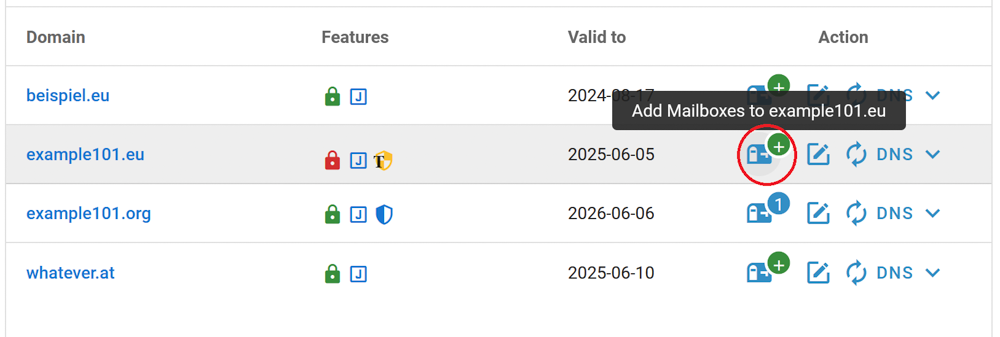
![](https://joker.com/faq/uploads/images/gallery/FAQ_media/Mailboxes/order_mailbox-0.png)

![](https://joker.com/faq/uploads/images/gallery/FAQ_media/Mailboxes/order_mailbox-1.png)


##### 2. On the next screen, click "Create":
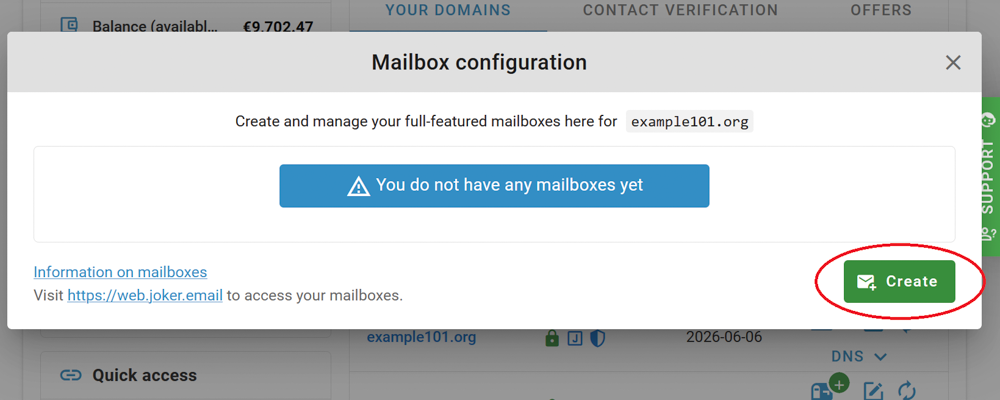
![](https://joker.com/faq/uploads/images/gallery/FAQ_media/Mailboxes/order_mailbox-2.png)


##### 3. Choose the [subscription plan](https://joker.com/faq/books/jokercom-faq-en/page/introduction-to-joker-mailboxes#bkmrk-subscription-plans-a), create a name for your mailbox and click "Add":
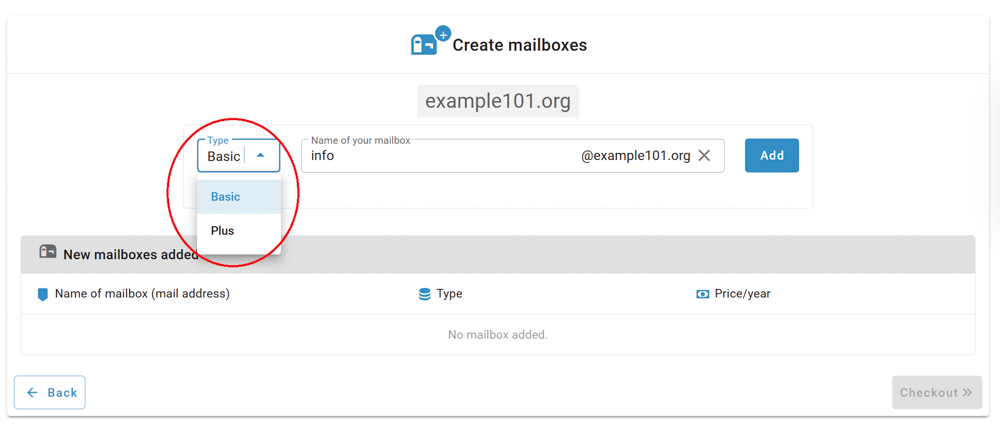
![](https://joker.com/faq/uploads/images/gallery/FAQ_media/Mailboxes/order_mailbox-3.png)

##### 4. Check it, click "Checkout":

![](https://joker.com/faq/uploads/images/gallery/FAQ_media/Mailboxes/order_mailbox-4.png)

##### 5. Check your order carefully, accept T&amp;C and click "Order":

![](https://joker.com/faq/uploads/images/gallery/FAQ_media/Mailboxes/order_mailbox-5.png)

##### 6. You are done! In a few moments, a successfully created mailbox will appear on your dashboard:
![](https://joker.com/faq/uploads/images/gallery/FAQ_media/Mailboxes/order_mailbox-6.png)

<p class="callout warning">**Please note:** the lifetime of the mailbox is bound to the domain term. If the domain term is less than one year, you will not receive a full mailbox year. To receive the **full mailbox term**, we recommend **renewing the domain before ordering** **the mailbox!**  
</p>


### Nameserver Records

<p class="callout info">We **automatically** add the entries required for your mailbox to the name server. This also applies to SPF and DKIM.  
You will only be notified if you have already made your own entries at this point – see also below.</p>

### Migrating an Existing Mailbox to Joker.com

If your domain already has existing MX records or email forwards ('email addresses'), you will see a warning message when creating a mailbox. We have designed the system in such a way that no changes are forced or made automatically, but you are shown the necessary changes. In this way, we want to ensure that no other existing e-mail services are unintentionally disrupted.

However, the **mailbox will still be created**. if you continue your order. To ensure your email works correctly, you’ll need to **update the MX record manually** later, resp. you need to **remove the existing email forwards**. Both can be done using the **DNS-Editor** in the Dashboard.

The MX record you need to add is:

<p class="callout info">MX 10 smtp.joker.email  
</p>

Also, a **SPF record** should be added if not yet existing, or extended if you already have one:

<p class="callout info">SPF does exist: Please add "include:\_spf.joker.email"</p>

<p class="callout info">SPF does not yet exist: Please add TXT record with "v=spf1 include:\_spf.joker.email -all"</p>

<p class="callout success">Note: To conveniently transfer all emails from the old mailbox to your new one, you can simply drag and drop the folders from the old mailbox to the new one using the mail program ‘Thunderbird’, for example - where you have set up mailboxes.</p>

# Mailbox Management

To access the Mailbox configuration, enter the Domain Management by clicking on the "Mailbox" button:

#### ![](https://joker.com/faq/uploads/images/gallery/FAQ_media/Mailboxes/order_mailbox-1.png)
Set the filter to "all domains with mailboxes", then click the mailbox icon next to the domain name:

#### ![](https://joker.com/faq/uploads/images/gallery/FAQ_media/Mailboxes/manage_mailbox-0.png)
Or you can manage your mailbox by clicking the mailbox icon next to the domain name on your dashboard:

#### ![](https://joker.com/faq/uploads/images/gallery/FAQ_media/Mailboxes/order_mailbox-6.png)



### Overview of Management Functions

#### Change Mailbox Name

1\. Click the "edit" icon next to the mailbox name:
![](https://joker.com/faq/uploads/images/gallery/FAQ_media/Mailboxes/manage_mailbox-1.png)

2\. Enter the new desired name for your mailbox and click "save":
![](https://joker.com/faq/uploads/images/gallery/FAQ_media/Mailboxes/manage_mailbox-2.png)


#### Set or Change Mailbox Password

After you have created a mailbox, **you will need to set a password** for it to be able to access your mailbox via the webmail client. In the same way, you can later change this password via Joker.com Mailbox configuration or directly via webmail client.

1\. In the management menu, click "edit" icon:
![](https://joker.com/faq/uploads/images/gallery/FAQ_media/Mailboxes/manage_mailbox-3.png)

2\. Enter a desired password that is at least 8 characters long and contains a special symbol. Click "save":
![](https://joker.com/faq/uploads/images/gallery/FAQ_media/Mailboxes/manage_mailbox-4.png)


#### Create and Manage Mailbox Aliases

For each of your mailboxes, you can create multiple aliases. The number of aliases you can create depends on your [subscription plan](https://joker.com/faq/books/jokercom-faq-en/page/introduction-to-joker-mailboxes#bkmrk-subscription-plans-a)***.*** To create an alias:

1\. Go to the mailbox management menu and click the "edit" icon under "Aliases":
![](https://joker.com/faq/uploads/images/gallery/FAQ_media/Mailboxes/manage_mailbox-5.png)

2\. Add a name for the alias and click "save" icon:
![](https://joker.com/faq/uploads/images/gallery/FAQ_media/Mailboxes/manage_mailbox-6.png)

3\. Manage aliases: after creating an alias, it will appear in the alias configuration. To delete an alias, click the trash bin icon next to it. You can also add more aliases as needed.
![](https://joker.com/faq/uploads/images/gallery/FAQ_media/Mailboxes/manage_mailbox-7.png)


#### Multiple Mailboxes VS Aliases

A **mailbox** is a unique email account with its own inbox, login credentials, and settings. You can create multiple mailboxes for each of your domains:
![](https://joker.com/faq/uploads/images/gallery/FAQ_media/Mailboxes/manage_mailbox-8.png)

The use cases for multiple mailboxes may be the following:

- **Employee Mailboxes:** Alice has *alice@company.com* and Bob has *bob@company.com*. Each has a separate inbox and password.
- **Department Mailboxes:** The sales team uses *sales@company.com*, and the support team uses *support@company.com*. Emails sent to these addresses go to separate mailboxes.

An **alias** is an alternative email address that directs emails to the same inbox as the primary mailbox.

Examples:

- **Personal Aliases:** Alice's primary mailbox is *alice@company.com*. She also has aliases such as *a.smith@company.com* and *alicesmith@company.com*. Emails sent to any of these addresses go to *alice@company.com.*
- **Role-Based Aliases:** Bob's primary mailbox is *bob@company.com.* He manages both marketing and events, so he has aliases *marketing@company.com* and *events@company.com*. Emails sent to these aliases also go to *bob@company.com.*

**Summary**

- **Multiple Mailboxes:** Separate email accounts with individual logins and inboxes. Ideal for different users or departments.
- **Multiple Aliases:** Different email addresses that direct to a single inbox. Ideal for handling variations of a name or multiple roles by one person.


####   
Using Dynamic Email Aliases

Dynamic email aliases allow you to create customised variations of your main mailbox address without additional configuration. By appending a *+tag* to your base email (e.g., *info+newsletter@mydomain.com*). Messages will still be delivered to *info@mydomain.com*.

This feature is useful for:

- Organising incoming messages by purpose or sender
- Tracking email signups or campaign sources
- Filtering or setting up rules in your email client

To start using a dynamic alias, simply **use the format *info+yourtag@mydomain.com*** when submitting your email address. No setup is required—emails sent to this alias will automatically be delivered to your main *info@mydomain.com* inbox.

####   
Using Catch-all Alias

By using the special alias **‘\*’**, your mailbox will accept **all** emails sent to this mailbox. You can then use the SIEVE filter options in the webmail client, for example, to process the incoming emails.

#### Change mailbox tariff

Unfortunately, it is not yet possible to switch from one mailbox tariff to another via the user interface. If you would like to **switch from the ‘Basic’ mailbox to ‘Plus’**, e.g. to increase the storage space, please contact our **[support team](https://joker.com/goto/support)**, who will then make the necessary arrangements for you.


#### Deleting mailboxes

To delete your mailbox, go to the mailbox management menu and click on "delete" icon:
![](https://joker.com/faq/uploads/images/gallery/FAQ_media/Mailboxes/manage_mailbox-9.png)

To avoid accidental deletion, you will be asked to enter the full mailbox address you intend to delete:
![](https://joker.com/faq/uploads/images/gallery/FAQ_media/Mailboxes/manage_mailbox-10.png)

After you delete your mailbox, it will go through a grace period and a cool-down phase, which are explained [here.](https://joker.com/faq/books/jokercom-faq-en/page/introduction-to-joker-mailboxes#bkmrk-%C2%A0-6)

# Webmail Client: Usage and Plugin Overview

### Main Functions

Our Joker.com webmail client is based on Roundcube Webmail, below you will find the original documentation and how-tos:

- [User Guide in English](https://docs.roundcube.net/doc/help/1.1/en_US/)
- [User Guide in German](https://docs.roundcube.net/doc/help/1.1/de_DE/)

<p class="callout warning">**Important:** to access your newly created mailbox, you **have to set a password for it** using the mailbox configurator at Joker.com. The instructions can be found [here.](https://joker.com/faq/books/jokercom-faq-en/page/mailbox-management#bkmrk-changing-password)</p>

---

### Plugin Overview


<table border="1" id="bkmrk-responses-%C2%A0-allows-t" style="border-collapse: collapse; width: 101.548%; height: 754.267px; border-width: 1px;"><colgroup><col style="width: 15.0098%;"></col><col style="width: 52.2957%;"></col><col style="width: 32.76%;"></col></colgroup><tbody><tr style="height: 73.4667px;"><td class="align-left" style="height: 73.4667px; padding: 10px;">**Responses**

</td><td style="height: 73.4667px; padding: 10px;">[![](https://joker.com/faq/uploads/images/gallery/FAQ_media/Mailboxes/plugins-1.png)](https://joker.com/faq/uploads/images/gallery/FAQ_media/Mailboxes/plugins-1.png)</td><td style="height: 73.4667px; padding: 10px;">Allows to save pre-written frequently used responses.  
</td></tr><tr style="height: 73.4667px;"><td class="align-left" style="height: 73.4667px; padding: 10px;">**Mailbox Quota**

</td><td style="height: 73.4667px; padding: 10px;">[![](https://joker.com/faq/uploads/images/gallery/FAQ_media/Mailboxes/plugins-2.png)](https://joker.com/faq/uploads/images/gallery/FAQ_media/Mailboxes/plugins-2.png)</td><td style="height: 73.4667px; padding: 10px;">A quick overview of free and used space according to your [subscription plan.](https://joker.com/faq/books/jokercom-faq-en/page/introduction-to-joker-mailboxes#bkmrk-subscription-plans-a)  
</td></tr><tr style="height: 73.4667px;"><td class="align-left" style="height: 73.4667px; padding: 10px;">**Password**

</td><td style="height: 73.4667px; padding: 10px;">[![](https://joker.com/faq/uploads/images/gallery/FAQ_media/Mailboxes/plugins-3.png)](https://joker.com/faq/uploads/images/gallery/FAQ_media/Mailboxes/plugins-3.png)</td><td style="height: 73.4667px; padding: 10px;">Allows you to change the password for your mailbox and add an alternative email address. An **alternative email address** is essential for recovering access to your mailbox. To ensure you can always regain access quickly and securely, we highly recommend providing one if possible.</td></tr><tr style="height: 73.4667px;"><td class="align-left" style="height: 73.4667px; padding: 10px;">**User info**

</td><td style="height: 73.4667px; padding: 10px;">[![](https://joker.com/faq/uploads/images/gallery/FAQ_media/Mailboxes/plugins-4.png)](https://joker.com/faq/uploads/images/gallery/FAQ_media/Mailboxes/plugins-4.png)</td><td style="height: 73.4667px; padding: 10px;">Overview of user information including the allocated space for your mail according to your [subscription plan.](https://joker.com/faq/books/jokercom-faq-en/page/introduction-to-joker-mailboxes#bkmrk-subscription-plans-a)  
</td></tr><tr style="height: 73.4667px;"><td class="align-left" style="height: 73.4667px; padding: 10px;">**Filters**

</td><td style="height: 73.4667px; padding: 10px;">[![](https://joker.com/faq/uploads/images/gallery/FAQ_media/Mailboxes/plugins-6.png)](https://joker.com/faq/uploads/images/gallery/FAQ_media/Mailboxes/plugins-6.png)</td><td style="height: 73.4667px; padding: 10px;">Allows creating filters, managing rules and sorting incoming emails.  
</td></tr><tr style="height: 73.4667px;"><td class="align-left" style="height: 73.4667px; padding: 10px;">**Forwarding**

</td><td style="height: 73.4667px; padding: 10px;">[![](https://joker.com/faq/uploads/images/gallery/FAQ_media/Mailboxes/plugins-5.png)](https://joker.com/faq/uploads/images/gallery/FAQ_media/Mailboxes/plugins-5.png)</td><td style="height: 73.4667px; padding: 10px;">Allows to send a copy or redirect the incoming emails to desired address. Can be enabled and disabled anytime.  
</td></tr><tr style="height: 73.4667px;"><td class="align-left" style="height: 73.4667px; padding: 10px;">**CardDAV**

</td><td style="height: 73.4667px; padding: 10px;">[![](https://joker.com/faq/uploads/images/gallery/FAQ_media/Mailboxes/plugins-7.png)](https://joker.com/faq/uploads/images/gallery/FAQ_media/Mailboxes/plugins-7.png)</td><td style="height: 73.4667px; padding: 10px;">This plugin allows you to keep your contact list up-to-date and synchronized across your mailboxes. Please find more information [on GitHub](https://github.com/christian-putzke/Roundcube-CardDAV).  
</td></tr><tr style="height: 80px;"><td class="align-left" style="height: 80px; padding: 10px;">**Mailclient**

**Provisioning**

</td><td style="height: 80px; padding: 10px;">[![](https://joker.com/faq/uploads/images/gallery/FAQ_media/Mailboxes/plugins-10.png)](https://joker.com/faq/uploads/images/gallery/FAQ_media/Mailboxes/plugins-10.png)</td><td style="height: 80px; padding: 10px;">Provides **automatic** configuration files and **manual** settings for using your Joker mail across different webmail clients like Thunderbird etc:

**Username and password:**

same as your login at [https://web.joker.email](https://web.joker.email).

**IMAP:** imap.joker.email

**Port:** 143

**Security:** 'Password', STARTTLS

**SMTP:** smtp.joker.email

**Port:** 587

**Security:** 'Password', STARTTLS

</td></tr><tr style="height: 80px;"><td class="align-left" style="height: 80px; padding: 10px;">**Two FA**

</td><td style="height: 80px; padding: 10px;">[![](https://joker.com/faq/uploads/images/gallery/FAQ_media/Mailboxes/plugins-8.png)](https://joker.com/faq/uploads/images/gallery/FAQ_media/Mailboxes/plugins-8.png)</td><td style="height: 80px; padding: 10px;">This feature adds an extra layer of protection by requiring a six-digit security code, in addition to your password, whenever you log in to your mailbox. Here are the recommended apps:

- [Google Authenticator ](https://support.google.com/accounts/answer/1066447?hl=en)(Android, iOS, Blackberry)
- [Microsoft Authenticator](https://www.microsoft.com/de-de/account/authenticator) (Android, IOS)

</td></tr><tr style="height: 80px;"><td class="align-left" style="height: 80px; padding: 10px;">**Layout**

**preferences**

</td><td style="height: 80px; padding: 10px;">[![](https://joker.com/faq/uploads/images/gallery/FAQ_media/Mailboxes/plugins-9.png)](https://joker.com/faq/uploads/images/gallery/FAQ_media/Mailboxes/plugins-9.png)</td><td style="height: 80px; padding: 10px;">Allows you to choose the desired appearance of your mailbox.</td></tr></tbody></table>

# Configuring Joker.com Mailboxes with Mail Clients

To use your Joker.com mailbox with popular email clients, you have two options: **automatic provisioning** – use the provided files for easy configuration, and **manual setup** – enter the required settings yourself.

Joker email service parameters:

<table border="1" id="bkmrk-username-and-passwor" style="border-collapse: collapse; width: 100%;"><colgroup><col style="width: 34.2004%;"></col><col style="width: 65.8671%;"></col></colgroup><tbody><tr><td>**Username and password**</td><td>same as your login at [https://web.joker.email](https://web.joker.email)</td></tr></tbody></table>

<table border="1" id="bkmrk-imap-imap.joker.emai" style="border-collapse: collapse; width: 100%;"><colgroup><col style="width: 34.2004%;"></col><col style="width: 65.8671%;"></col></colgroup><tbody><tr><td>**IMAP**</td><td>imap.joker.email </td></tr><tr><td>**Port**</td><td>143 (TLS: 993)</td></tr><tr><td>**Security:**</td><td>'Password', STARTTLS (or TLS for port 993)</td></tr></tbody></table>

<table border="1" id="bkmrk-smtp-smtp.joker.emai" style="border-collapse: collapse; width: 100%;"><colgroup><col style="width: 34.2004%;"></col><col style="width: 65.8671%;"></col></colgroup><tbody><tr><td>**SMTP**</td><td>smtp.joker.email</td></tr><tr><td>**Port**</td><td>587</td></tr><tr><td>**Security:**</td><td>'Password', STARTTLS</td></tr></tbody></table>

<table border="1" id="bkmrk-pop3-pop3.joker.emai" style="border-collapse: collapse; width: 100%; height: 88.4001px;"><tbody><tr style="height: 29.4667px;"><td style="height: 29.4667px; width: 34.4322%;">**POP3**</td><td style="height: 29.4667px; width: 65.5281%;">pop3.joker.email</td></tr><tr style="height: 29.4667px;"><td style="height: 29.4667px; width: 34.4322%;">**Port**</td><td style="height: 29.4667px; width: 65.5281%;">110 (TLS: 995)</td></tr><tr style="height: 29.4667px;"><td style="height: 29.4667px; width: 34.4322%;">**Security:**</td><td style="height: 29.4667px; width: 65.5281%;">'Password' (or TLS for port 993)</td></tr></tbody></table>

Below, you’ll find examples of how to set up your mailbox with popular email clients.

<table border="1" id="bkmrk-thunderbird-ios-andr" style="border-collapse: collapse; width: 100%;"><colgroup><col style="width: 15.6094%;"></col><col style="width: 84.337%;"></col></colgroup><tbody><tr><td>**Thunderbird**</td><td>Use the **automatic account setup in Thunderbird**, or set up the provisioning manually as described above. </td></tr><tr><td>**IOS**</td><td>Download provisioning profile under "Mailclient Provisioning" section as shown on the screenshot below:

[![image.png](https://joker.com/faq/uploads/images/gallery/2025-03/scaled-1680-/ZeKimage.png)](https://joker.com/faq/uploads/images/gallery/2025-03/ZeKimage.png)

Or set up the provisioning manually as described above.

Below, you will find step-by-step instructions on how to set up your Joker.com mailbox on IOS device.

</td></tr><tr><td>**Android**</td><td>Set up the provisioning manually using the parameters specified above, in case the automatic configuration does not succeed.</td></tr><tr><td>**Windows**</td><td>Set up the provisioning manually using the parameters specified above.</td></tr></tbody></table>

### Setting up your Joker.com Mailbox on IOS device (iPhone, iPad, etc.)

##### 1. Login to https://web.joker.email **using your IOS device** (iPhone, iPad, Mac)

##### 2. Visit 'Settings' -&gt; 'Mailclient provisioning', and click on the 'provisioning profile' link. You will get the prompt "Profile loaded". 

##### 3. Go to the **iPhone/iPad settings**, under your account name, you will see the downloaded profile; click on it:

##### ![image.png](https://joker.com/faq/uploads/images/gallery/FAQ_media/Mailboxes/ios-02.jpg)

##### 4. Click "Install":

The "Not signed" warings can be safely ignored.

##### ![image.png](https://joker.com/faq/uploads/images/gallery/FAQ_media/Mailboxes/ios-03.jpg)


##### 5. Enter your password and click "next". It may take a minute for the profile to install.

##### ![image.png](https://joker.com/faq/uploads/images/gallery/FAQ_media/Mailboxes/ios-04.jpg)

After this, you will find the new mailbox account listed in your "'Mail' app.

# Mailboxes: Troubleshooting

#### I've lost my password and can't log in anymore

If you've lost your password and can't log in, don't worry — there are two ways to recover access:

1. **Use Your Alternative Email Address**  
    When you create a mailbox, it's important to add an *alternative email address*. This address will be used for password recovery. To reset your password:

- Click on **"I Forgot Password"** on the login page.
- Recovery instructions will be sent to your alternative email address.  
    (If you haven't set an alternative email, we recommend doing so as soon as you regain access.)

2. **Set a New Password via Joker.com**  
    You can also set a new password directly through Joker.com. Detailed instructions are available [here.](https://joker.com/faq/books/jokercom-faq-en/page/mailbox-management#bkmrk-changing-password)

---


#### Two-Factor Authentication (2FA): Setup and Recovery

**Setting Up 2FA**

1. Click on **"Initial Setup"** to begin.
2. A *secret* and *recovery codes* will be generated automatically.
3. In your authenticator app, scan the QR code or manually enter the *secret* to generate one-time codes.
4. Check the box labeled **"Activate"** to enable 2FA.

That's it! The next time you log in, 2FA will be active.

<p class="callout warning">**Important:** Be sure to **save and securely store your recovery codes**. You may need them if you ever encounter issues with your authenticator app.</p>

**Recovering Access**

If you, for some reason,n cannot log in using a one-time password (OTP) from your authenticator app, you can use one of your recovery codes. After the initial setup, you receive **four recovery codes**, and **each code can only be used once**.

Once you've logged in with a recovery code, you can set up 2FA again by scanning a new QR code with your authenticator app.  
You can also manually create a new set of recovery codes at any time.

---

# Email Security

### SPF (Sender Policy Framework)

SPF is an email authentication method that **specifies which mail servers are allowed to send emails on behalf of your domain**. This helps receiving servers detect and block **unauthorized senders**, reducing the risk of spam and phishing using your domain.

- **Joker.com mailboxes:** SPF records are automatically created, so no action is needed.
- **Other mail services:** You need to create an SPF TXT record yourself as described [here](https://joker.com/faq/books/jokercom-faq-en/page/dns-records-supported-by-jokercom-nameservice#bkmrk-how-to-define-spf-re). Instructions for adding SPF records can be found [here](https://joker.com/faq/books/jokercom-faq-en/page/jokercom-name-service-adding-dns-records#bkmrk-spf-record)

<p class="callout info">If you create an **[Email Forwarding](https://joker.com/faq/books/jokercom-faq-en/page/url-forwarding-and-e-mail-forwarding#bkmrk-email-forwarding)** at Joker.com, an SPF record is **not** created automatically. It is strongly recommended to **[create](https://joker.com/faq/books/jokercom-faq-en/page/dns-records-supported-by-jokercom-nameservice#bkmrk-how-to-define-spf-re)** and [**set up an SPF record**](https://joker.com/faq/books/jokercom-faq-en/page/jokercom-name-service-adding-dns-records#bkmrk-spf-record) for forwards - especially if you forward emails to providers such as Gmail - to ensure proper email delivery.</p>

**How it works:**

1. When an email is sent, the receiving server checks your SPF record.
2. If the sending server is listed in your SPF record, the email passes authentication.
3. If it’s not listed, the email may be marked as spam or rejected.

### DKIM (DomainKeys Identified Mail)

DKIM adds a **digital signature to your outgoing emails**, ensuring that the message **hasn’t been tampered with** and that it really comes from your domain. This improves trust with email providers and recipients.

- **Joker.com mailboxes:** DKIM records are automatically set up.
- **Other mail services:** You need to create a DKIM TXT record yourself. Instructions for adding DKIM records can be found [here](https://joker.com/faq/books/jokercom-faq-en/page/jokercom-name-service-adding-dns-records#bkmrk-dkim-record)

**How it works:**

1. Your mail server signs each outgoing email with a **private key**.
2. The receiving server uses the **public key in your DKIM record** to verify the signature.
3. If the signature matches, the email passes authentication; if not, it may be flagged as suspicious.

### DMARC (Domain-based Message Authentication, Reporting &amp; Conformance)

**What is DMARC?**  
DMARC (Domain-based Message Authentication, Reporting &amp; Conformance) is an email authentication standard that helps protect your domain from email spoofing and phishing. It works with SPF and DKIM to tell receiving mail servers how to handle emails that fail authentication.

**What does a DMARC record help you with?**  
A DMARC record helps you:

- Prevent attackers from sending fake emails using your domain
- Improve email deliverability
- Gain visibility into who is sending email on behalf of your domain
- Protect your brand and users from phishing

**What should I do before setting up DMARC?**  
Before setting up DMARC, make sure that you have **SPF and DKIM** records in place for your domain.

<p class="callout info">If you are using Joker Mailboxes, **SPF and DKIM** are set up automatically.</p>

**How is a DMARC record added?**  
A DMARC record is added as a DNS TXT record for your domain. The basic format of a DMARC record starts with `v=DMARC1; p=`, followed by your policy.

- In the DNS configuration section, choose "TXT" as record type.
- The Name field should be set to `_dmarc`.
- In the Content field, paste your DMARC policy (example below).

**What does a simple DMARC record look like?**  
A simple DMARC record for monitoring only looks like:

<div class="relative w-full mt-4 mb-1" id="bkmrk-v%3Ddmarc1%3B-p%3Dnone%3B-ru"><div class=""><div class="relative"><div class="h-full min-h-0 min-w-0"><div class="h-full min-h-0 min-w-0"><div class="border border-token-border-light border-radius-3xl corner-superellipse/1.1 rounded-3xl"><div class="h-full w-full border-radius-3xl bg-token-bg-elevated-secondary corner-superellipse/1.1 overflow-clip rounded-3xl lxnfua_clipPathFallback"><div class="pe-11 pt-3"><div class="relative z-0 flex max-w-full"><div class="q9tKkq_viewer cm-editor z-10 light:cm-light dark:cm-light flex h-full w-full flex-col items-stretch ͼ5 ͼj" dir="ltr" id="bkmrk-v%3Ddmarc1%3B-p%3Dnone%3B-ru-1"><div class="cm-scroller"><div class="cm-content q9tKkq_readonly">v=DMARC1; p=none; rua=mailto:dmarc@example.com;</div></div></div></div></div></div></div></div></div><div class=""><div class="">  
</div></div></div></div></div>**Explanation:**

- `v=DMARC1` – DMARC version (required)
- `p=none` – Monitor only, no enforcement
- `rua=` – Email address where aggregate reports are sent

<p class="callout info">Starting with `p=none` allows you to monitor email traffic without blocking anything. Once you review reports and confirm legitimate senders are properly authenticated, you can gradually move to a stricter policy (`quarantine` then `reject`) as you gain confidence in your email sending practices and ensure that legitimate emails are properly authenticated.</p>

**What are the available DMARC policies?**

- `p=none` – Monitor only, no action taken on failed messages
- `p=quarantine` – Place failing messages in spam/junk folder
- `p=reject` – Block delivery of failing messages completely

**Example of a strict policy:**

<div class="relative w-full mt-4 mb-1" id="bkmrk-v%3Ddmarc1%3B-p%3Dreject%3B-"><div class=""><div class="relative"><div class="h-full min-h-0 min-w-0"><div class="h-full min-h-0 min-w-0"><div class="border border-token-border-light border-radius-3xl corner-superellipse/1.1 rounded-3xl"><div class="h-full w-full border-radius-3xl bg-token-bg-elevated-secondary corner-superellipse/1.1 overflow-clip rounded-3xl lxnfua_clipPathFallback"><div class="pe-11 pt-3"><div class="relative z-0 flex max-w-full"><div class="q9tKkq_viewer cm-editor z-10 light:cm-light dark:cm-light flex h-full w-full flex-col items-stretch ͼ5 ͼj" dir="ltr" id="bkmrk-v%3Ddmarc1%3B-p%3Dreject%3B--1"><div class="cm-scroller"><div class="cm-content q9tKkq_readonly">v=DMARC1; p=reject; rua=mailto:dmarc@example.com;</div></div></div></div></div></div></div></div></div><div class=""><div class="">  
</div></div></div></div></div>**What information do DMARC reports show?**  
DMARC reports show:

- Which servers send email for your domain
- Whether emails pass or fail SPF/DKIM
- Potential abuse or misconfiguration

Reports are sent in XML format to the email address specified in `rua`.

**How can I check if my DMARC record is working?**

- Use online DMARC lookup tools like DMARC Analyzer, [MXToolbox](https://mxtoolbox.com/), or [Google Admin Toolbox](https://toolbox.googleapps.com/apps/main/)
- Run a DNS TXT lookup for `_dmarc.example.com`
- Wait for DMARC reports to arrive at your reporting address

# Responsibilities and Domain Abuse

A summary of main responsibilities, useful tips, and checklists.

# Responsibilities Of Joker.com Customer

As a valued customer, we want to ensure that you have a seamless experience while using and managing your domain. To help you with that, we'd like to outline the key responsibilities expected from our customers:

**Secure Login Credentials**: When creating your Joker.com account, please choose strong login credentials. Your password should be robust, and make sure the associated email is one you have secure access to.

**Activate 2FA for Extra Security**: We highly recommend enabling Two-Factor Authentication (2FA) to add an extra layer of security to your account.

**Keep Account Credentials Safe**: It is your responsibility to safeguard your account credentials and avoid sharing them with any third parties.

**Provide Accurate Registrant Data**: When registering a domain, ensure that you provide real and valid data about the registrant. Incorrect information could lead to complications or even domain suspension in the future.

**Regularly Check Whois Data**: It's important to monitor your Whois data regularly and ensure it is accurate and up-to-date.

**Timely Domain Renewals**: You are responsible for renewing your domain on time or maintaining sufficient funds for auto-renewal.

**Avoid Waiting Until the Last Minute**: We strongly advise against waiting until the last possible day to renew your domain or restore it from Redemption Grace Period (RGP). Different registries have varying deletion times, and we cannot guarantee the availability of your domain when you believe it can still be restored.

**Domain Modifications**: Should you need to make any domain modifications such as changing nameservers or configuring DNS zones, the responsibility lies with you. For assistance, please refer to our FAQ section.

**Ensure Good Faith Usage**: Use your domain in good faith, and avoid engaging in illegal activities or infringing on third-party rights. Failure to comply may lead to domain suspension, in some cases - immediately.

**Pay Attention to Notifications**: Keep an eye on the notifications sent from Joker.com. They may contain important notices or require specific actions. Failure to respond may result in your domain stop working.

<p class="callout info">**Tip**: We strongly advise **not using an email associated with your domain name for login purposes.** If you miss the renewal and your domain stops working, you won't be able to recover your password. Losing your credentials entirely would require [moving your domain to a new account](https://joker.com/faq/books/jokercom-faq-en/page/change-of-registrant-procedure#bkmrk-how-to-claim-domain-) and undergoing a verification procedure that takes at least 5 days.</p>

For more detailed information, you can refer to our [Terms &amp; Conditions](https://joker.com/index.joker?mode=page&page=terms_cond) and[ ICANN resources](https://www.icann.org/resources/pages/educational-2012-02-25-en).

We value your partnership and hope these guidelines will help you make the most of our services. If you have any questions or need assistance, don't hesitate to reach out to our support team.

# How to Open a Support Ticket: A Checklist

Before reaching out for support, consider checking our **FAQ**, as you might find a **quick solution** to your issue without waiting for our response.

However, if you encounter difficulties managing your domain name and require our assistance, follow this checklist to expedite the support process:

- <p class="callout success">**Log In:** If possible, log in to your account before submitting the ticket. This helps us locate your account promptly, allowing us to assist you more efficiently.</p>
- <p class="callout success">**Include Domain Name:** Don't forget to provide the domain name associated with the problem you are experiencing. This information is crucial for us to address the correct issue.</p>
- <p class="callout success">**Choose the Appropriate Topic:** Select the relevant topic or category when submitting your request. This ensures that your ticket goes to the right support department, leading to a quicker resolution.</p>
- <p class="callout success">**Clear Description of the Issue:** Describe the problem you are facing as clearly as possible. Provide detailed information about what you intended to do or achieve, so we can better understand your needs.</p>
- <p class="callout success">**Step-by-Step Actions Taken:** Clearly outline your steps before encountering the issue. This allows our support team to retrace your actions and identify any potential errors or misunderstandings.</p>
- <p class="callout success">**Specify the Moment of Failure:** Describe at which point and at which time you encountered the failure or issue. This timing information helps us pinpoint the problem and find a solution more efficiently.</p>
- <p class="callout success">**Include Order ID and/or Processing ID (if applicable):** If you have an order ID or processing ID related to the problem, please provide it. This helps us access relevant information about your transaction.</p>
- <p class="callout success">**Include Error Message (if applicable):** If an error message appears during the process, include it in your ticket. Error messages provide valuable clues for troubleshooting.</p>
- <p class="callout success">**Provide Screenshots (if possible):** If you can capture screenshots of the problem or error, include them in your ticket. Visuals often convey information more effectively and can aid our understanding.</p>
- <p class="callout success">**Include All Relevant Details:** Provide any other details that may be related to the issue you are facing. The more information we have, the better equipped we are to address your concern accurately.</p>

By following this checklist, you'll help our support team assist you **more effectively and speed up the resolution** process for your domain name management issues.

# Reporting Domain Name Abuse

Reporting domain name abuse is important to help maintain a safe and secure online environment. Here are **some cases** in which you should **consider reporting domain name abuse** related to the domains registered at Joker.com:

- **Phishing:** If you come across a domain that appears to be impersonating a legitimate website or organization with the intention of tricking users into providing sensitive information, such as login credentials, credit card details, or personal information
- **Illegal Content:** If the domain hosts or promotes illegal content, such as CSAM, or involved in the distribution of illegal drugs
- **Trademark Infringement:** If a domain is using a brand name or trademark without permission, leading to confusion or deception among consumers.
- **Spam:** When a domain is used for sending unsolicited and bulk emails, often promoting scams or fraudulent activities.
- **Fraud and Scams:** If a domain is engaged in fraudulent activities, including online scams, or fake e-commerce websites.


###  

### How to Report Domain Abuse Case: Checklist

Reported abuse cases are serious accusations, and we want to ensure a proper investigation process and swift action from our side. To help us effectively handle abuse reports, **please follow the recommendations below:**

<table border="1" id="bkmrk-phishing-clearly-des" style="border-collapse: collapse; width: 100%; height: 210.6px; border-width: 1px; border-style: hidden;"><colgroup><col style="width: 23.482%;"></col><col style="width: 76.5159%;"></col></colgroup><tbody><tr style="height: 63.4px;"><td style="height: 63.4px; padding: 20px;">**Phishing**</td><td style="height: 63.4px; padding: 20px;">- Clearly **describe** the issue you encountered.
- Provide us with the **direct URL** to the phishing source.
- Include **evidence**, such as references to legitimate websites and screenshots.

</td></tr><tr style="height: 57.8px;"><td style="height: 57.8px; padding: 20px;">**Illegal Content**</td><td style="height: 57.8px; padding: 20px;">- **Describe** the issue in detail.
- Share the **direct URL** to the illegal materials.

</td></tr><tr style="height: 29.8px;"><td style="height: 29.8px; padding: 20px;">**Trademark Infringement**</td><td style="height: 29.8px; padding: 20px;">- Provide **formal description** of the subject of the dispute.
- Provide proof of **trademark registration.**
- If you are acting on behalf of the trademark owner, include an **Authorization Letter (LOA/POA).**
- Provide **evidence of infringement:** direct <abbr data-original-title="Uniform Resource Locator" title="">URL</abbr>(s) and/or screenshots
- Clearly **specify your request** related to the issue.

<p class="callout info">If you are reporting trademark infringement and wish to **transfer the domain to you**, you'll need to initiate an arbitration process at [WIPO](https://www.wipo.int/amc/en/domains/). **WIPO's decision** will be binding for us and ensure a quick transfer of the domain in question to you.</p>

<p class="callout info">For copyright infringement and **content-related complaints**, it's also advisable to forward them to the respective hosting provider. **Joker.com** is solely a domain name registrar and **does not have direct or indirect access to website content.** Contacting the **hosting provider** directly will expedite the removal of infringing content.</p>

</td></tr><tr style="height: 29.8px;"><td style="height: 29.8px; padding: 20px;">**Spam**</td><td style="height: 29.8px; padding: 20px;">- **Describe** the spam issue thoroughly.
- Specify the **domain name registered with Joker.com** that is involved in spam-sending.
- Attach **a copy of the spam email** and provide **email headers**.

</td></tr><tr style="height: 29.8px;"><td style="height: 29.8px; padding: 20px;">**Fraud and Scams**</td><td style="height: 29.8px; padding: 20px;">- Clearly **describe** the fraud or scam issue you encountered.
- Provide **evidence**, such as references to official webshops and screenshots.

<p class="callout info">In some cases, if we **found no evidence of obviously illegal activities**, such as phishing or distribution of illegal drugs, or child sexual abuse material (CSAM), we may not have the authority to take immediate action. As a domain registrar, **we cannot determine the legal status** of the domain owner's activities. If you encounter such situations, we strongly advise you to seek **legal assistance** and report the case. Once we receive **an authoritative decision**, we will take the necessary action accordingly.</p>

</td></tr></tbody></table>

While we strive to contribute to maintaining a safe online environment, it's important to understand that our jurisdiction as a domain registrar is limited.

## How Joker.com Handles Domain Complaints

  
Complaints about domains can be reported to Joker.com in the following ways:

- by form via [https://joker.com/goto/abuse](https://joker.com/goto/abuse)
- by e-mail to **abuse@joker.com**
- by FAX or phone to +4921186767 6449 or +49.21186767447 respectively
- in writing to our address, published at h[ttps://joker.com/goto/abuse](https://joker.com/goto/abuse)

  
Each complaint will be acknowledged upon receipt, and you will be given a unique ticket number - please refer to it if you have any requests.  
  
Each complaint will be **reviewed individually** and we will endeavor to resolve it within 24h. A response is usually given within 3 working days.  
  
The processing of domain complaints hinges primarily on **German legislation** and **Joker.com's [Terms and Conditions](https://joker.com/index.joker?mode=page&page=terms_cond)**. Additionally, the guidelines specific to the respective domain type (country code or global domain) play a secondary role.

# New at Joker.com

[More News for Resellers](/faq/books/reseller-documentation-en/chapter/news-and-updates)

# New Feature: Virtual Zones

We’re excited to introduce **Virtual Zones** — a new feature that gives you more flexibility and control over your domain management!

Domains that do not currently use Joker.com’s nameservice can now create or edit DNS zones directly from your Dashboard.

#### What does this mean for you?

- **Preconfigure DNS** records before switching nameservers — ensuring a seamless transition with **no service interruption**.
- Prepare your DNS setup even **while a transfer to Joker.com is pending**, so your domain is ready the moment the transfer completes.
- Switch to Joker.com nameservers instantly once your zone is configured — **no downtime**, no hassle.

This feature makes it easier than ever to migrate your DNS to Joker.com smoothly and securely.


#### Create Virtual Zone at Joker.com

On your dashboard, click on "DNS" next to the domain name. If the domain is not using Joker.com nameservice, the button will be white:

![](https://joker.com/faq/uploads/images/gallery/FAQ_media/New%20stuff/2025-11-1.png)

The DNS editor indicates Virtual Zone mode with an additional header:

![](https://joker.com/faq/uploads/images/gallery/FAQ_media/New%20stuff/2025-11-2.png)

Add your records, click "Save changes":

![](https://joker.com/faq/uploads/images/gallery/FAQ_media/New%20stuff/2025-11-3.png)

You're done, the zone is prepared, and will be immediately active once you switch to Joker.com nameservers.

If you prepared the zone before the transfer, it will remain editable even if the transfer is already in process.

<p class="callout info">Please note: Preparation of zones of domains which do have DNSSEC enabled is **not supported**. DNSSEC has to be temporarily switched off, before a zone can be prepared.</p>

**Reseller:** Please find [HERE](https://joker.com/faq/books/reseller-documentation-en/page/new-feature-virtual-zones) how to create virtual zones at Rpanel.io

# Joker.com DNS Editor: Choose Your URL Redirect Method

We would like to introduce an enhancement to the **Joker.com DNS Editor**: you can now **choose the redirect method for URL forwarding** directly when configuring your domain.

##### What’s new?

By default, your redirect is set to **“HTTP/1.1 301 Moved Permanently.”** If you prefer a different type of redirect, you can change it in the DNS editor under “**Type of redirection.”**

When setting up URL forwarding, you can select the exact redirect method - such as **301, 302, 303, 307, or 308 -** giving you control over how browsers, clients, and search engines handle your redirects.

You can also enable **“TLS”** in the options. This allows your redirect to be accessed securely via **HTTPS**. When it’s used for the first time, an **SSL certificate is generated automatically**—this may take a few seconds at first access.

##### Why it matters

<div class="page-content clearfix" component="page-display" id="bkmrk-better-seo-control%C2%A0w" option:page-display:page-id="274"><div dir="auto">- **Better SEO control** with accurate permanent/temporary redirects
- **Predictable request handling** for apps and APIs (method-preserving options)
- **Greater flexibility** for managing site migrations, A/B tests, and form workflows

</div></div>

##### Quick Comparison of Redirect Methods

<div class="page-content clearfix" component="page-display" id="bkmrk-code-permanent%3F-meth" option:page-display:page-id="274"><div dir="auto"><div class="_tableContainer_1rjym_1" id="bkmrk-code-permanent%3F-meth-1"><div class="group _tableWrapper_1rjym_13 flex w-fit flex-col-reverse" tabindex="-1"><table class="w-fit min-w-(--thread-content-width)" data-end="1429" data-start="900"><thead data-end="949" data-start="900"><tr data-end="949" data-start="900"><th data-col-size="sm" data-end="907" data-start="900">Code</th><th data-col-size="sm" data-end="920" data-start="907">Permanent?</th><th data-col-size="md" data-end="940" data-start="920">Method Preserved?</th><th data-col-size="md" data-end="949" data-start="940">Notes</th></tr></thead><tbody data-end="1429" data-start="1000"><tr data-end="1110" data-start="1000"><td data-col-size="sm" data-end="1010" data-start="1000">**301**</td><td data-col-size="sm" data-end="1016" data-start="1010">Yes</td><td data-col-size="md" data-end="1064" data-start="1016">Not strictly — browsers often switch POST→GET</td><td data-col-size="md" data-end="1110" data-start="1064">Best for permanent redirects, SEO-friendly</td></tr><tr data-end="1187" data-start="1111"><td data-col-size="sm" data-end="1121" data-start="1111">**302**</td><td data-col-size="sm" data-end="1126" data-start="1121">No</td><td data-col-size="md" data-end="1158" data-start="1126">Not strictly — often POST→GET</td><td data-col-size="md" data-end="1187" data-start="1158">Legacy temporary redirect</td></tr><tr data-end="1268" data-start="1188"><td data-col-size="sm" data-end="1198" data-start="1188">**303**</td><td data-col-size="sm" data-end="1203" data-start="1198">No</td><td data-col-size="md" data-end="1220" data-start="1203">**Forces GET**</td><td data-col-size="md" data-end="1268" data-start="1220">Ideal for redirecting after form submissions</td></tr><tr data-end="1348" data-start="1269"><td data-col-size="sm" data-end="1279" data-start="1269">**307**</td><td data-col-size="sm" data-end="1284" data-start="1279">No</td><td data-col-size="md" data-end="1294" data-start="1284">**Yes**</td><td data-col-size="md" data-end="1348" data-start="1294">Modern temporary redirect; method + body preserved</td></tr><tr data-end="1429" data-start="1349"><td data-col-size="sm" data-end="1359" data-start="1349">**308**</td><td data-col-size="sm" data-end="1365" data-start="1359">Yes</td><td data-col-size="md" data-end="1375" data-start="1365">**Yes**</td><td data-col-size="md" data-end="1429" data-start="1375">Modern permanent redirect; method + body preserved</td></tr></tbody></table>

</div></div></div></div>

##### Where to find it

Open the **DNS Editor** for your domain → configure **URL Forwarding** → click **"Options"** → choose your preferred redirect method:

![](https://joker.com/faq/uploads/images/gallery/FAQ_media/New%20stuff/2025-12-1.jpg)

#### Joker.com: Registry Maintenance Preview

Joker.com has added a new feature that shows all upcoming registry maintenance with a **two-week** look-ahead. During these periods, any potentially affected domains will be marked directly in domain lists.

![](https://joker.com/faq/uploads/images/gallery/FAQ_media/New%20stuff/2025-12-2.jpg)

<div class="page-content clearfix" component="page-display" id="bkmrk--4" option:page-display:page-id="274"><div dir="auto"></div></div>This update helps customers anticipate possible service interruptions for specific TLDs, ensuring tasks such as urgent renewals can be completed ahead of time.