New at Joker.com
- New Feature: Virtual Zones
- Joker.com DNS Editor: Choose Your URL Redirect Method
- Joker.com: New Billing Options in Reseller's Profile
New Feature: Virtual Zones
We’re excited to introduce Virtual Zones — a new feature that gives you more flexibility and control over your domain management!
Domains that do not currently use Joker.com’s nameservice can now create or edit DNS zones directly from your Dashboard.
What does this mean for you?
- Preconfigure DNS records before switching nameservers — ensuring a seamless transition with no service interruption.
- Prepare your DNS setup even while a transfer to Joker.com is pending, so your domain is ready the moment the transfer completes.
- Switch to Joker.com nameservers instantly once your zone is configured — no downtime, no hassle.
This feature makes it easier than ever to migrate your DNS to Joker.com smoothly and securely.
Create Virtual Zone at Joker.com
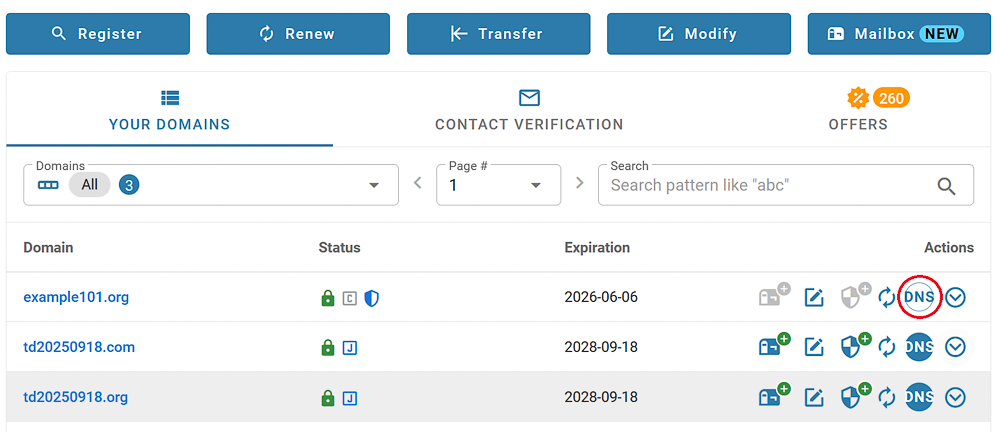
On your dashboard, click on "DNS" next to the domain name. If the domain is not using Joker.com nameservice, the button will be white:
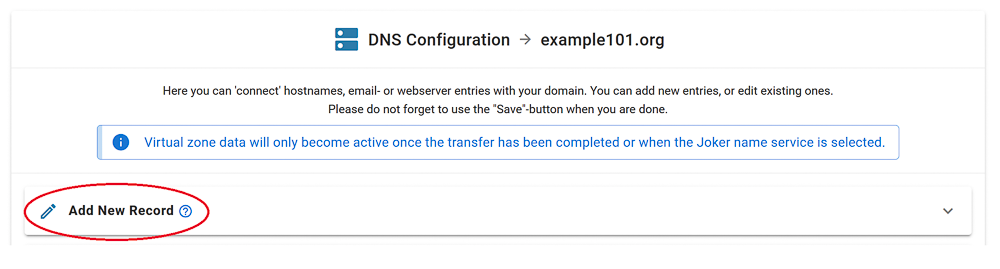
The DNS editor indicates Virtual Zone mode with an additional header:
Add your records, click "Save changes":
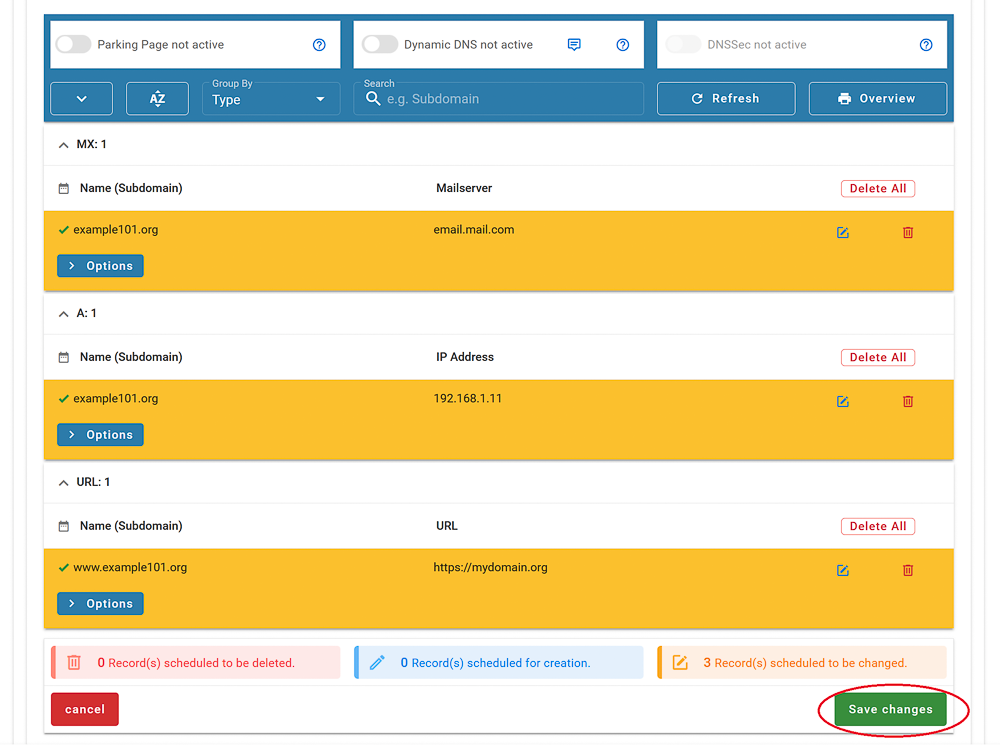
You're done, the zone is prepared, and will be immediately active once you switch to Joker.com nameservers.
If you prepared the zone before the transfer, it will remain editable even if the transfer is already in process.
Please note: Preparation of zones of domains which do have DNSSEC enabled is not supported. DNSSEC has to be temporarily switched off, before a zone can be prepared.
Reseller: Please find HERE how to create virtual zones at Rpanel.io
Joker.com DNS Editor: Choose Your URL Redirect Method
We would like to introduce an enhancement to the Joker.com DNS Editor: you can now choose the redirect method for URL forwarding directly when configuring your domain.
What’s new?
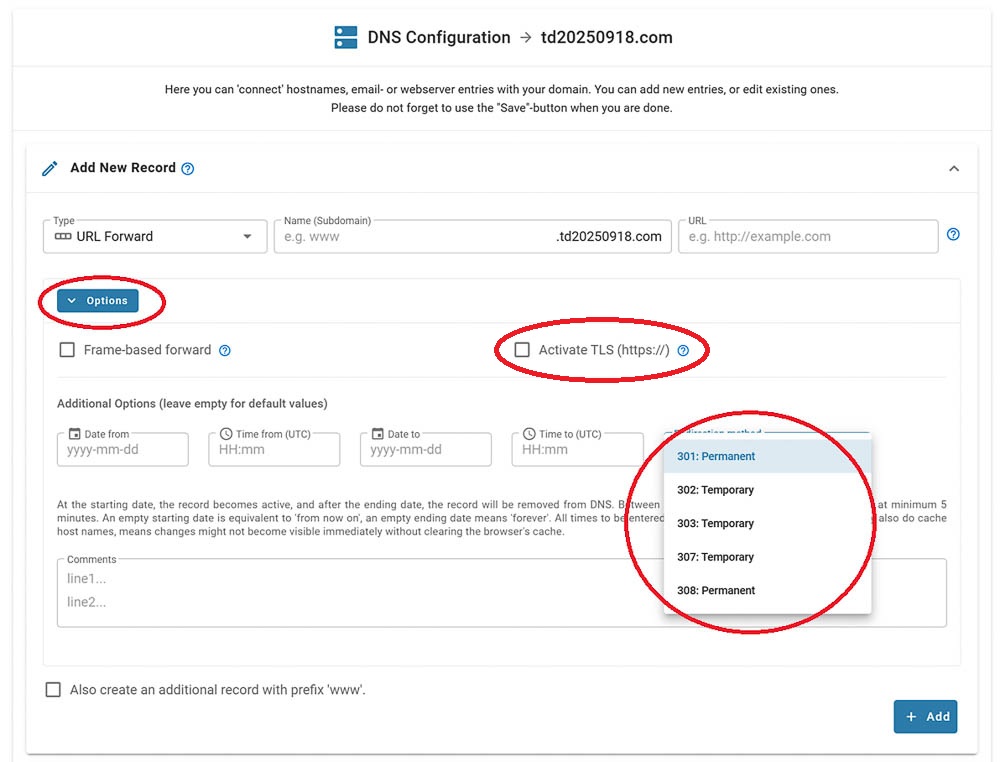
By default, your redirect is set to “HTTP/1.1 301 Moved Permanently.” If you prefer a different type of redirect, you can change it in the DNS editor under “Type of redirection.”
When setting up URL forwarding, you can select the exact redirect method - such as 301, 302, 303, 307, or 308 - giving you control over how browsers, clients, and search engines handle your redirects.
You can also enable “TLS” in the options. This allows your redirect to be accessed securely via HTTPS. When it’s used for the first time, an SSL certificate is generated automatically—this may take a few seconds at first access.
Why it matters
-
Better SEO control with accurate permanent/temporary redirects
-
Predictable request handling for apps and APIs (method-preserving options)
-
Greater flexibility for managing site migrations, A/B tests, and form workflows
Quick Comparison of Redirect Methods
| Code | Permanent? | Method Preserved? | Notes |
|---|---|---|---|
| 301 | Yes | Not strictly — browsers often switch POST→GET | Best for permanent redirects, SEO-friendly |
| 302 | No | Not strictly — often POST→GET | Legacy temporary redirect |
| 303 | No | Forces GET | Ideal for redirecting after form submissions |
| 307 | No | Yes | Modern temporary redirect; method + body preserved |
| 308 | Yes | Yes | Modern permanent redirect; method + body preserved |
Where to find it
Open the DNS Editor for your domain → configure URL Forwarding → click "Options" → choose your preferred redirect method:
Joker.com: Registry Maintenance Preview
Joker.com has added a new feature that shows all upcoming registry maintenance with a two-week look-ahead. During these periods, any potentially affected domains will be marked directly in domain lists.
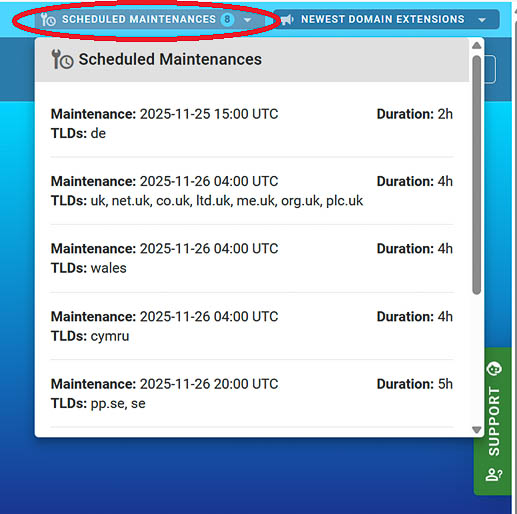
This update helps customers anticipate possible service interruptions for specific TLDs, ensuring tasks such as urgent renewals can be completed ahead of time.
Joker.com: New Billing Options in Reseller's Profile
Additional Email Option for Monthly Invoices
We’re introducing a new invoicing enhancement for Resellers:
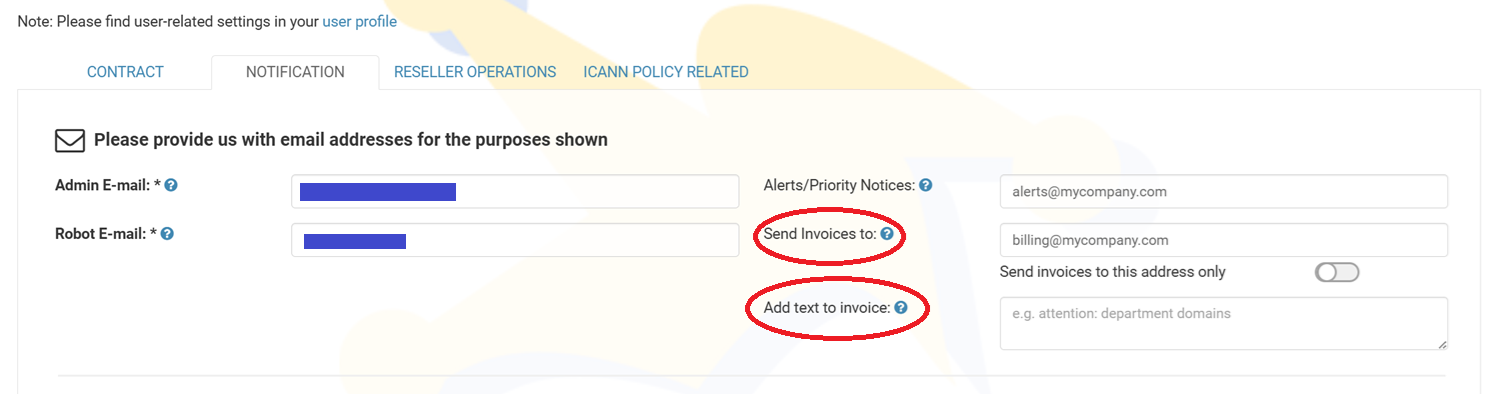
You can now:
- Add an additional email address to receive monthly invoices
- Choose how this email is used:
- As the exclusive recipient (replacing the primary alerts email), or
- As an additional recipient (receiving invoices alongside the primary address)
In addition, a new optional field is now available:
- Add custom invoice text, which will be automatically included on your invoices when provided
This update offers greater flexibility for accounting processes and internal invoice handling.