# DNS

This chapter is dedicated to DNS (Domain Name System). It provides detailed guidance on adding, changing, modifying, and configuring your DNS zone, ensuring proper functioning and accessibility of their domains and associated services.

# Adding Name Servers to Your Domain

Every domain requires a minimum of two (2) associated [nameservers](https://joker.com/faq/books/jokercom-faq-en/page/what-is-domain-name-service-dns).

You have the freedom to choose any name service you prefer. The Joker.com name service is provided for free along with the Joker.com domain fee. By default, the Joker.com name servers are configured unless you explicitly change them during the ordering process.

It's important to note that certain top-level domains (TLDs) have **specific nameserver requirements**. For more details, please refer to the [Specific ccTLDs: Nameservice](https://joker.com/faq/books/jokercom-faq-en/page/specific-cctlds-nameservers "Specific ccTLDs: Nameservers") article.

### Adding Existing Nameservers: Joker NS or Foreign

To add nameservers, follow these steps:

##### 1. On your [Dashboard](https://joker.com/faq/books/jokercom-faq-en/page/understanding-your-dashboard), click the "Modify" icon next to the domain you want to add NS to:

![](https://joker.com/faq/uploads/images/gallery/FAQ_media/DNS/ns-1.png)


##### 2. In the [Domain Management](https://joker.com/faq/books/jokercom-faq-en/page/domain-management-section) section, locate the "Name Servers" subsection, and click the "edit" icon:  


![](https://joker.com/faq/uploads/images/gallery/FAQ_media/DNS/ns-2.png)


#####  

##### 3. Click the "Use custom Nameservers" button:

![](https://joker.com/faq/uploads/images/gallery/FAQ_media/DNS/ns-3.png)


#####  

##### 4. Add desired nameservers, and click "save":

![](https://joker.com/faq/uploads/images/gallery/FAQ_media/DNS/ns-4.png)

<p class="callout info">You can change these to any foreign nameservers, such as the nameservers provided by your hosting provider. Please note that **only already registered nameservers in the respective registry** can be added.</p>


#####  

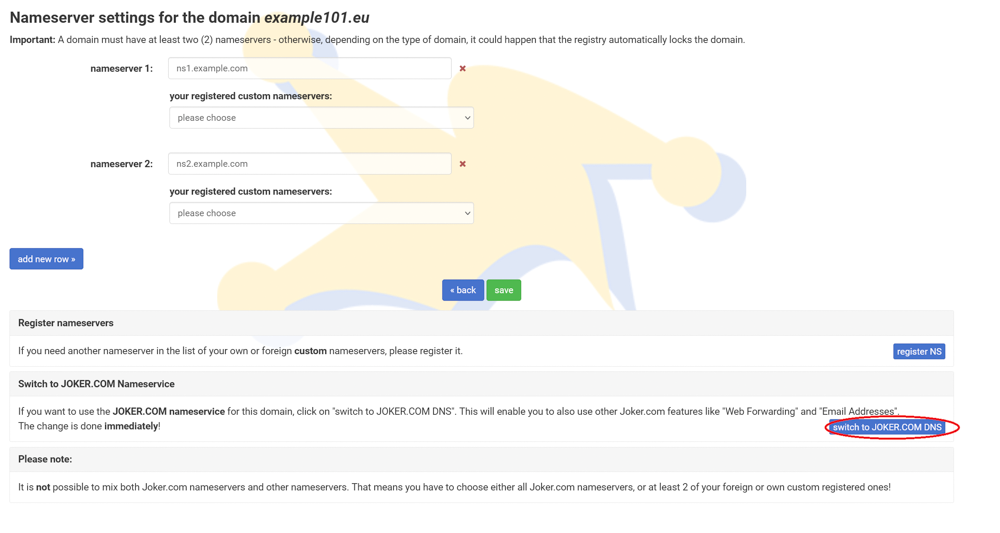
##### 5. You can switch back to Joker NS at any time:
![](https://joker.com/faq/uploads/images/gallery/FAQ_media/DNS/ns-5.png)

# Creating and Modifying Your Own Nameservers

If you prefer not to use the free Joker.com name service and instead want to use your own nameservers, you need to "register" it.

<p class="callout info">**Please note:** Creating nameservers (e.g., registering a hostname with an IP address to define a nameserver) **only works** with Joker.com if the domain used for these nameservers is **also a Joker.com domain**. This limitation is based on technical/registry constraints.</p>

If you intend to use a domain from another registrar, only that registrar will be able to register the nameservers with the registry.

To register your own nameservers, please follow these steps:

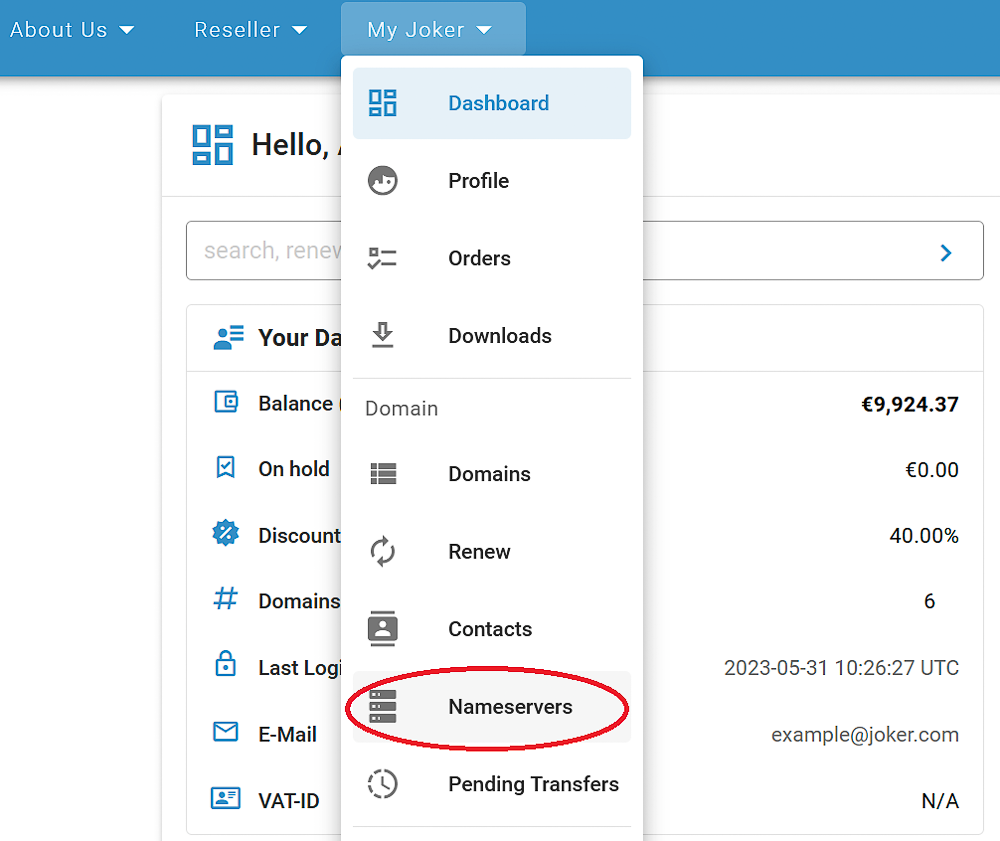
##### 1. Choose "Nameservers" from the "My Joker" menu:
![](https://joker.com/faq/uploads/images/gallery/FAQ_media/DNS/ns-9.png)

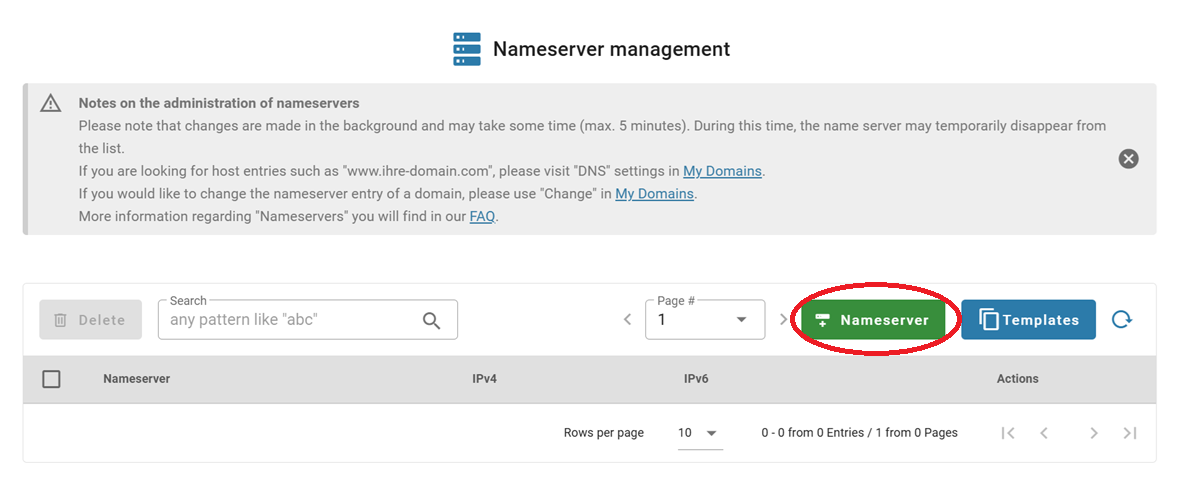
##### 2. Click on the "Nameserver" button:
![](https://joker.com/faq/uploads/images/gallery/FAQ_media/DNS/ns-reg-1.png)

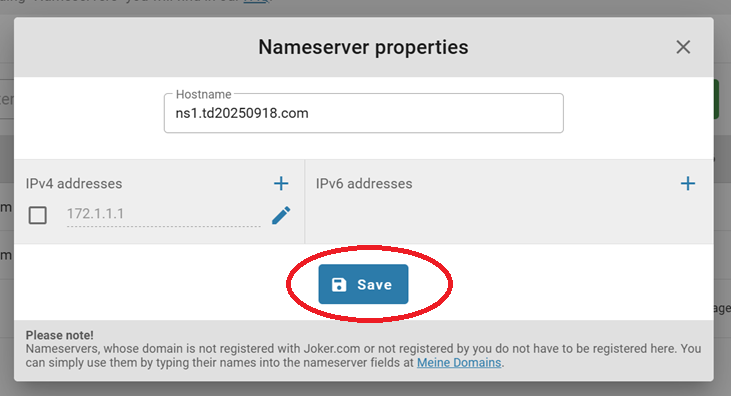
##### 2. Add the host name and IP addresses, save them, and click on the "Save" button when it becomes active:
![](https://joker.com/faq/uploads/images/gallery/FAQ_media/DNS/ns-reg-2.png)


You're done!

### Modifying Your Own Nameservers

If you want to modify the Nameserver you have previously created, you need to follow these steps:

##### 1. Choose "Nameservers" from the "My Joker" menu:

![](https://joker.com/faq/uploads/images/gallery/FAQ_media/DNS/ns-9.png)

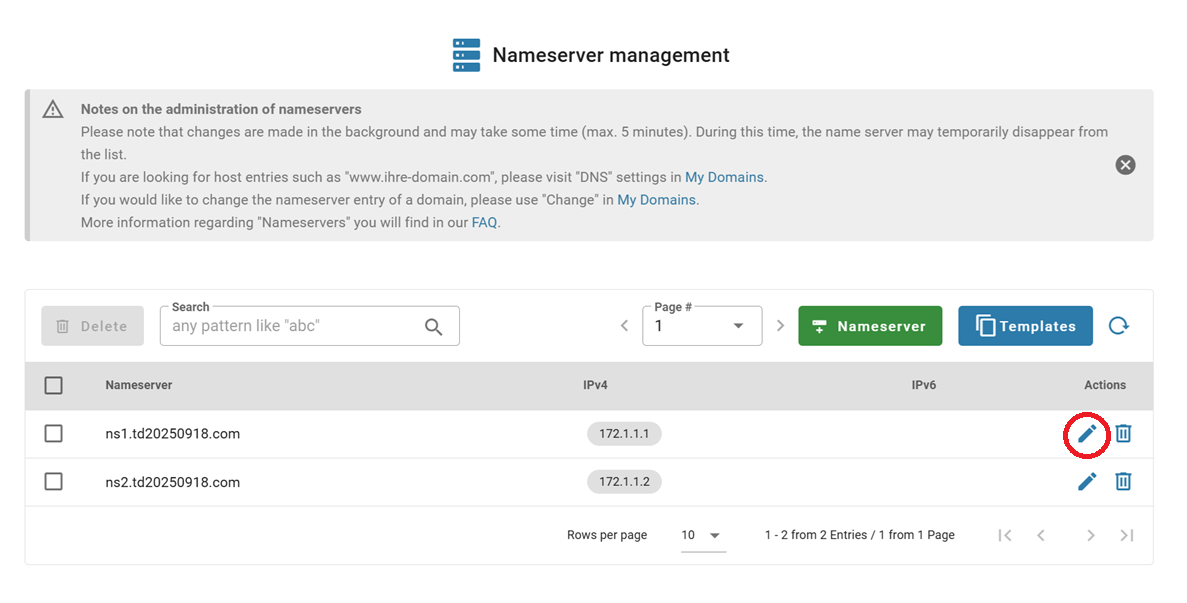
##### 2. Search for the Nameserver you would like to modify, and click the "Edit" icon:
![](https://joker.com/faq/uploads/images/gallery/FAQ_media/DNS/ns-reg-10.png)

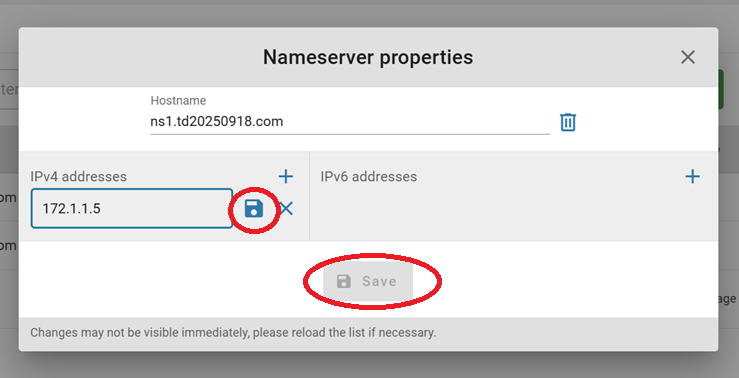
##### 3. Make necessary changes, save them, then click "Save" after it activates:
![](https://joker.com/faq/uploads/images/gallery/FAQ_media/DNS/ns-reg-11.png)

After a successful change, you will receive a confirmation email.

### Deleting Your Nameservers

If you want to delete one of your previously registered Nameservers, you can do this easily by following the steps below:

##### 1. Choose "Nameservers" from the "My Joker" menu:

![](https://joker.com/faq/uploads/images/gallery/FAQ_media/DNS/ns-9.png)

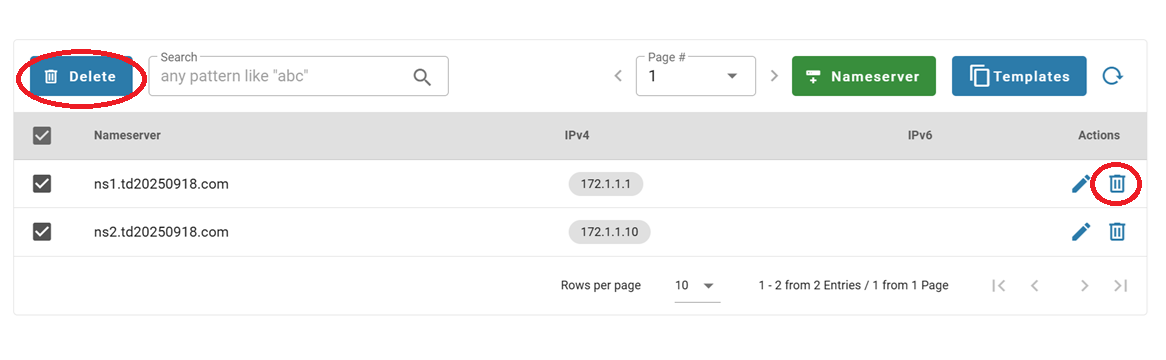
##### 2. Either click on the "Delete" icon next to the nameserver you want to delete, or select multiple and click the "Delete" button:
![](https://joker.com/faq/uploads/images/gallery/FAQ_media/DNS/ns-reg-12.png)

<p class="callout warning">**Please note:** Only Nameservers that are **not linked** to any domain (even if they are in the RGP) can be deleted. If the selected name server is still in use, it cannot be deleted.</p>

# Nameserver Templates

A familiar **reseller feature** is now available at the Joker.com interface.

### Create Nameserver Templates in Joker.com

While nameserver templates have long existed in Rpanel, you can now **create and manage nameserver templates directly in the Joker.com interface** as well.

- A **default template** based on **Joker nameservers** is provided.
- You can create **custom templates** using your own nameservers or external ones.
- Templates help streamline domain setup, reduce configuration errors, and speed up onboarding of new domains.

This improvement brings both interfaces in sync and ensures more flexible workflow options for our resellers.


##### To access the templates:

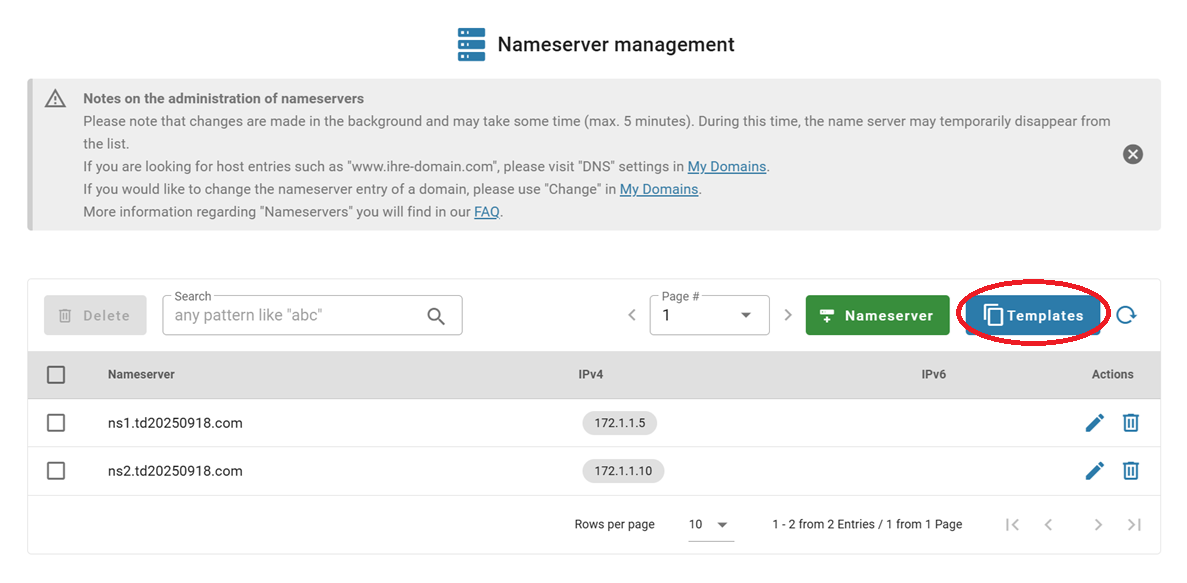
1\. Go to the "Nameservers" section under the "My Joker" menu and click on the "Templates" button:
![](https://joker.com/faq/uploads/images/gallery/FAQ_media/DNS/templ-1.png)

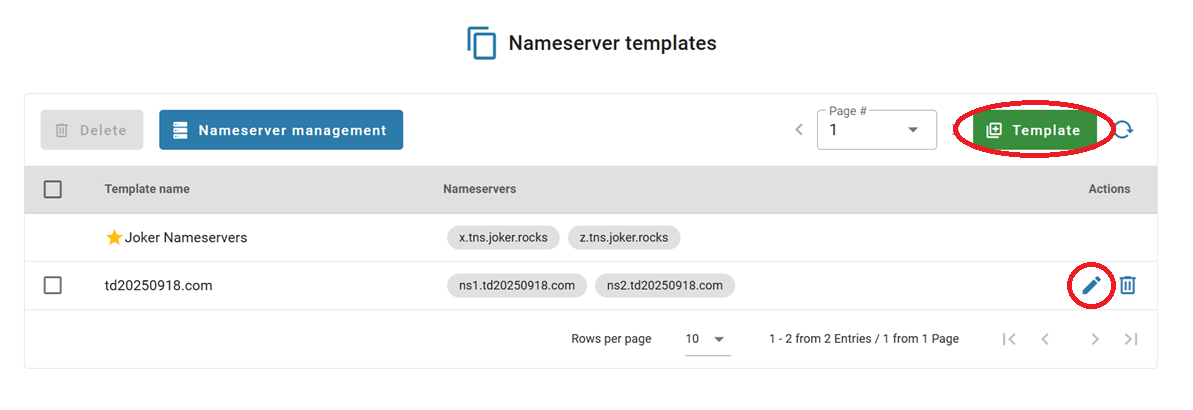
2\. You can edit an existing template by clicking on the "Edit" symbol, or create a new one by clicking on the "Template" button:
![](https://joker.com/faq/uploads/images/gallery/FAQ_media/DNS/templ-2.png)

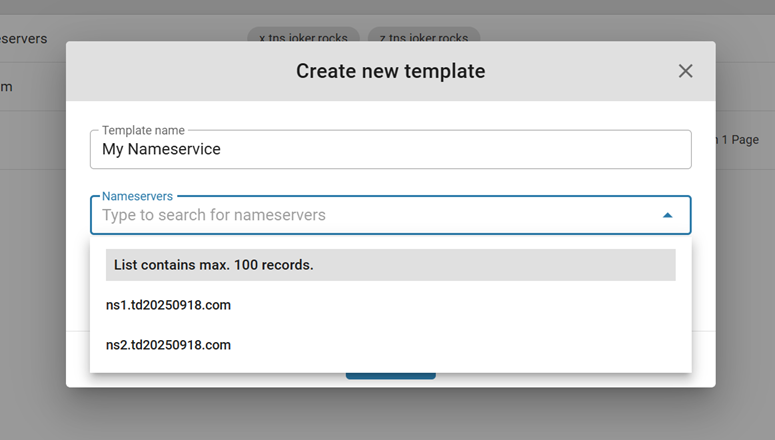
3\. In the pop-up menu, you can create a template using your own, registered at Joker.com, nameservers, by choosing them from the list:
![](https://joker.com/faq/uploads/images/gallery/FAQ_media/DNS/templ-3.png)

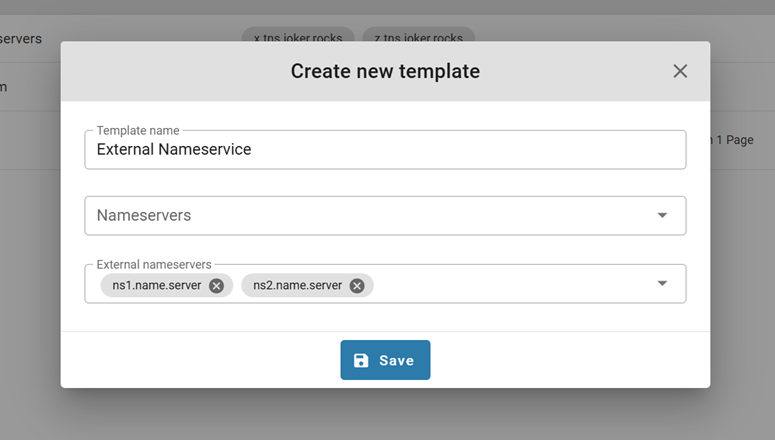
4\. Or add external nameservers for your template manually:
![](https://joker.com/faq/uploads/images/gallery/FAQ_media/DNS/templ-4.png)

5\. Click "Save", and you're done!

# DNS Records Supported by Joker.com Nameservice

Overview of supported records and brief explanations. You can enter these records for your domain by accessing the "DNS" menu item in the domain list on Joker.com.

<table border="1" id="bkmrk-url-forwarding-redir" style="border-collapse: collapse; width: 100%; height: 1343.6px; border-width: 1px; border-style: hidden;"><colgroup><col style="width: 29.6296%;"></col><col style="width: 70.3704%;"></col></colgroup><tbody><tr><td style="border-width: 1px; padding: 15px;">##### **Supported Records**

</td><td style="border-width: 1px; padding: 15px;">  
</td></tr><tr style="height: 64.2667px;"><td style="height: 64.2667px; border-width: 1px; padding: 15px;">**URL Forwarding**</td><td style="height: 64.2667px; border-width: 1px; padding: 15px;">Redirects your domain to an external website (URL). For more information, refer to [this article](https://joker.com/faq/books/jokercom-faq-en/page/url-forwarding-and-e-mail-forwarding) on how to use the web/URL forwarding feature of Joker.com  
</td></tr><tr style="height: 64.2667px;"><td style="height: 64.2667px; border-width: 1px; padding: 15px;">**Email Forwarding**</td><td style="height: 64.2667px; border-width: 1px; padding: 15px;">Creates email addresses for your domain, forwarding emails to your existing external mail account. Learn how to configure email forwarding in the provided [guide](https://joker.com/faq/books/jokercom-faq-en/page/url-forwarding-and-e-mail-forwarding#bkmrk-email-forwarding)  
</td></tr><tr style="height: 64.2667px;"><td style="height: 64.2667px; border-width: 1px; padding: 15px;">**A** </td><td style="height: 64.2667px; border-width: 1px; padding: 15px;">Binds your domain or hosts within the domain to an **IPv4** address. Allows you to create entries like 'www.your-domain.com' that point to an external IP address.  
</td></tr><tr style="height: 97.8667px;"><td style="height: 97.8667px; border-width: 1px; padding: 15px;">**DYNA** </td><td style="height: 97.8667px; border-width: 1px; padding: 15px;">Part of the [Dynamic DNS Service](https://joker.com/faq/books/jokercom-faq-en/page/dynamic-dns-dyndns) - associates your domain or host with your provider's temporary IP address. The IP can be automatically updated using your router device or a client program. Make sure [Dynamic DNS (DynDNS)](https://joker.com/faq/books/jokercom-faq-en/page/dynamic-dns-dyndns) is enabled for your domain.  
</td></tr><tr style="height: 69.8667px;"><td style="height: 69.8667px; border-width: 1px; padding: 15px;">**MX** </td><td style="height: 69.8667px; border-width: 1px; padding: 15px;">Specifies the email server responsible for accepting emails for your domain. Additional details about MX records can be found [here](https://en.wikipedia.org/wiki/MX_Resource_Record).  
</td></tr><tr style="height: 47.4667px;"><td style="height: 47.4667px; border-width: 1px; padding: 15px;">**AAAA** </td><td style="height: 47.4667px; border-width: 1px; padding: 15px;">Associates your domain or host within the domain with an **IPv6** address.</td></tr><tr style="height: 81.0667px;"><td style="height: 81.0667px; border-width: 1px; padding: 15px;">**DYNAAAA** </td><td style="height: 81.0667px; border-width: 1px; padding: 15px;">Part of the [Dynamic DNS Service](https://joker.com/faq/books/jokercom-faq-en/page/dynamic-dns-dyndns) - associates your domain or host with your provider's temporary IPv6 address. The IP can be automatically updated using your router device or a client program. Ensure that [Dynamic DNS (DynDNS)](https://joker.com/faq/books/jokercom-faq-en/page/dynamic-dns-dyndns) is enabled for your domain.  
</td></tr><tr style="height: 97.8667px;"><td style="height: 97.8667px; border-width: 1px; padding: 15px;">**CNAME** </td><td style="height: 97.8667px; border-width: 1px; padding: 15px;">Maps your domain or hostname to another domain or hostname. This is useful for creating aliases such as *'www.your-domain.com'* and *'blog.your-domain.com'*, alongside an A record for *your-domain.com*. More information about CNAME records can be found [here](https://en.wikipedia.org/wiki/CNAME_record).</td></tr><tr style="height: 81.0667px;"><td style="height: 81.0667px; border-width: 1px; padding: 15px;">**ALIAS**</td><td style="height: 81.0667px; border-width: 1px; padding: 15px;">Somehow similar to CNAME, it allows to ALIAS can also be applied to the domain itself. Note that ALIAS records are not compatible with DNSSEC. More information can be found [here](https://en.wikipedia.org/wiki/CNAME_record#ANAME_record).</td></tr><tr style="height: 64.2667px;"><td style="border-width: 1px; padding: 15px; height: 64.2667px;">**DNAME**</td><td style="border-width: 1px; padding: 15px; height: 64.2667px;">Similar to CNAME, but DNAME applies to all subordinate hosts (subdomains) of an entry. Additional details about DNAME records can be found[ here](https://en.wikipedia.org/wiki/CNAME_record#DNAME_record).</td></tr><tr style="height: 64.2667px;"><td style="height: 64.2667px; border-width: 1px; padding: 15px;">**SPF** </td><td style="height: 64.2667px; border-width: 1px; padding: 15px;">[Sender Policy Framework](https://en.wikipedia.org/wiki/Sender_Policy_Framework) - used to detect email spoofing and prevent spam. There are various free online SPF record creators available, such as the one found [here](https://www.spf-record.com/generator). Please see below, how to define an SPF record.  
</td></tr><tr style="height: 64.2667px;"><td style="border-width: 1px; padding: 15px; height: 64.2667px;">**TXT** </td><td style="border-width: 1px; padding: 15px; height: 64.2667px;">Creates a TXT record for handling specific tasks, including requesting [***Let's Encrypt SSL***](https://joker.com/faq/books/jokercom-faq-en/page/lets-encrypt-ssl-certificates) certificates. See [here](https://en.wikipedia.org/wiki/TXT_record) for more information about TXT records.</td></tr><tr style="height: 64.2667px;"><td style="border-width: 1px; padding: 15px; height: 64.2667px;">**SRV** </td><td style="border-width: 1px; padding: 15px; height: 64.2667px;">Specifies the location of server(s) for a specific protocol and domain. More details about SRV records can be found[ here](https://en.wikipedia.org/wiki/SRV_record).</td></tr><tr style="height: 81.0667px;"><td style="border-width: 1px; padding: 15px; height: 81.0667px;">**NAPTR** </td><td style="border-width: 1px; padding: 15px; height: 81.0667px;">Specifies a regular expression-based rewrite rule that generates a new domain label or URI when applied to an existing string. Refer to [this resource](https://en.wikipedia.org/wiki/NAPTR_record) for additional information on NAPTR records.</td></tr><tr style="height: 64.2667px;"><td style="border-width: 1px; padding: 15px; height: 64.2667px;">**NS** </td><td style="border-width: 1px; padding: 15px; height: 64.2667px;">Specifies the responsible nameserver for a subdomain and is not allowed at top-level. More details about NS records can be found [here](https://support.dnsimple.com/articles/ns-record/).</td></tr><tr style="height: 81.0667px;"><td style="border-width: 1px; padding: 15px; height: 81.0667px;">**CAA** </td><td style="border-width: 1px; padding: 15px; height: 81.0667px;">Allows you to specify which Certification Authority (CA) is permitted to issue SSL certificates for your domain or hostname. See [here](https://en.wikipedia.org/wiki/DNS_Certification_Authority_Authorization) for more information about CAA records.  
</td></tr><tr style="height: 64.2667px;"><td style="border-width: 1px; padding: 15px; height: 64.2667px;">**TLSA** </td><td style="border-width: 1px; padding: 15px; height: 64.2667px;">Validates certificates used for DNS-based Authentication of Named Entities (DANE). Additional details about TLSA records can be found [here](https://en.wikipedia.org/wiki/DNS-based_Authentication_of_Named_Entities).  
</td></tr><tr style="height: 64.2667px;"><td style="border-width: 1px; padding: 15px; height: 64.2667px;">**SSHFP** </td><td style="border-width: 1px; padding: 15px; height: 64.2667px;">Specifies SSH fingerprints served by DNS. Refer to [this resource](https://en.wikipedia.org/wiki/SSHFP_record) for more information on SSHFP records.</td></tr><tr style="height: 63.6px;"><td style="border-width: 1px; padding: 15px; height: 63.6px;">**SMIMEA** </td><td style="border-width: 1px; padding: 15px; height: 63.6px;">Secures SMIME (Secure/Multipurpose Internet Mail Extensions) with certificates. More information about SMIMEA records can be found [here](https://www.cloudns.net/wiki/article/386/).</td></tr><tr><td style="border-width: 1px; padding: 15px;">**SVCB**</td><td style="border-width: 1px; padding: 15px;">Create a link to any service. Further details can be found here: [SVCB DNS record](https://www.domaintools.com/resources/blog/the-use-cases-and-benefits-of-svcb-and-https-dns-record-types/ "SVCB Record").</td></tr><tr><td style="border-width: 1px; padding: 15px;">**HTTPS**</td><td style="border-width: 1px; padding: 15px;">Create a link to a HTTP service. Further details can be found here: [HTTPS DNS Record](https://de.wikipedia.org/wiki/HTTPS_Resource_Record "HTTPS Record").</td></tr></tbody></table>


### How to Define a <abbr class="glossary" title="Sender Policy Framework">SPF</abbr> Record

---

<abbr class="glossary" title="Sender Policy Framework">SPF</abbr> means "[Sender Policy Framework](https://en.wikipedia.org/wiki/Sender_Policy_Framework "SPF records")", and can be used to avoid forging of sender's addresses in emails. It is not a record type of its own, but uses **TXT** records for this.

**There should always be only one <abbr class="glossary" title="Sender Policy Framework">SPF</abbr> policy record** for a domain, while the <abbr class="glossary" title="Sender Policy Framework">SPF</abbr> definition may contain several different rules, and can be split over multiple TXT records with different names, if needed.

There are many tools online available to help with creating a <abbr class="glossary" title="Sender Policy Framework">SPF</abbr> record for a specific domain, e.g. [this one](https://www.spf-record.com/generator "SPF generator").

For instance, your Joker.com-domain is "example.com", and you want to allow emails from Gmail, you have to create a <abbr class="glossary" title="Domain Name Server">DNS</abbr> record of type "TXT" for your domain "example.com", and enter this line:

```
v=spf1 include:_spf.google.com ~all
```

In case you want to make use of a <abbr class="glossary" title="Sender Policy Framework">SPF</abbr> record for a Joker.com domain, and want to make sure that emails from Joker.com will reach email addresses using your Joker.com domain, you need to add (include) this additional rule to your <abbr class="glossary" title="Sender Policy Framework">SPF</abbr> policy:

```
include:_spf.joker.com
```

resulting in this <abbr class="glossary" title="Sender Policy Framework">SPF</abbr> policy:

```
v=spf1 include:_spf.google.com include:_spf.joker.com ~all
```

You can create more than one TXT record to split the <abbr class="glossary" title="Sender Policy Framework">SPF</abbr> policy rules, then the records should all start with <span style="color: rgb(0, 0, 0); font-family: monospace, monospace; font-size: 14px; font-style: normal; font-variant-ligatures: normal; font-variant-caps: normal; font-weight: 400; letter-spacing: 0.08px; text-align: left; text-indent: 0px; text-transform: none; white-space: normal; word-spacing: 0px; -webkit-text-stroke-width: 0px; display: inline !important; float: none; background-color: rgb(236, 240, 241);">v=spf1</span> to define one <abbr class="glossary" title="Sender Policy Framework">SPF</abbr> policy and every record must have a different name, or in other words - for every unique name (including domain itself) only one record starting with <span style="background-color: rgb(236, 240, 241);"><span style="color: rgb(0, 0, 0); font-family: monospace, monospace; font-size: 14px; font-style: normal; font-variant-ligatures: normal; font-variant-caps: normal; font-weight: 400; letter-spacing: 0.08px; text-align: left; text-indent: 0px; text-transform: none; white-space: normal; word-spacing: 0px; -webkit-text-stroke-width: 0px; display: inline !important; float: none; background-color: rgb(236, 240, 241);">v=spf1</span></span> is allowed:

##### Correct:

<table border="1" id="bkmrk-example.com%C2%A0-txt-%22v%3D" style="border-collapse: collapse; width: 100%; height: 30.8px;"><colgroup><col style="width: 21.6658%;"></col><col style="width: 78.3342%;"></col></colgroup><tbody><tr style="height: 30.8px;"><td style="height: 30.8px;"><span style="color: rgb(45, 194, 107);"><span style="font-family: monospace, monospace; font-size: 14px; font-style: normal; font-variant-ligatures: normal; font-variant-caps: normal; font-weight: 400; letter-spacing: 0.08px; text-align: left; text-indent: 0px; text-transform: none; white-space: normal; word-spacing: 0px; -webkit-text-stroke-width: 0px; display: inline !important; float: none;">example.com </span></span></td><td style="height: 30.8px;"><span style="color: rgb(45, 194, 107);"><span style="font-family: monospace, monospace; font-size: 14px; font-style: normal; font-variant-ligatures: normal; font-variant-caps: normal; font-weight: 400; letter-spacing: 0.08px; text-align: left; text-indent: 0px; text-transform: none; white-space: normal; word-spacing: 0px; -webkit-text-stroke-width: 0px; display: inline !important; float: none;">TXT "v=spf1 include:\_spf.google.com ~all"</span></span></td></tr><tr><td><span style="color: rgb(45, 194, 107);"><span style="font-family: monospace, monospace; font-size: 14px; font-style: normal; font-variant-ligatures: normal; font-variant-caps: normal; font-weight: 400; letter-spacing: 0.08px; text-align: left; text-indent: 0px; text-transform: none; white-space: normal; word-spacing: 0px; -webkit-text-stroke-width: 0px; display: inline !important; float: none;"><span style="font-family: monospace, monospace; font-size: 14px; font-style: normal; font-variant-ligatures: normal; font-variant-caps: normal; font-weight: 400; letter-spacing: 0.08px; text-align: left; text-indent: 0px; text-transform: none; white-space: normal; word-spacing: 0px; -webkit-text-stroke-width: 0px; display: inline !important; float: none;">spf1.example.com</span></span></span></td><td><span style="color: rgb(45, 194, 107);"><span style="font-family: monospace, monospace; font-size: 14px; font-style: normal; font-variant-ligatures: normal; font-variant-caps: normal; font-weight: 400; letter-spacing: 0.08px; text-align: left; text-indent: 0px; text-transform: none; white-space: normal; word-spacing: 0px; -webkit-text-stroke-width: 0px; display: inline !important; float: none;"><span style="font-family: monospace, monospace; font-size: 14px; font-style: normal; font-variant-ligatures: normal; font-variant-caps: normal; font-weight: 400; letter-spacing: 0.08px; text-align: left; text-indent: 0px; text-transform: none; white-space: normal; word-spacing: 0px; -webkit-text-stroke-width: 0px; display: inline !important; float: none;">TXT "v=spf1 include:\_spf.joker.com ~all"</span></span></span></td></tr></tbody></table>

##### Incorrect:

<table border="1" id="bkmrk-example.com-txt-%22v%3Ds" style="border-collapse: collapse; width: 100%;"><colgroup><col style="width: 21.7902%;"></col><col style="width: 78.3334%;"></col></colgroup><tbody><tr><td><span style="color: rgb(224, 62, 45);"><span style="font-family: monospace, monospace; font-size: 14px; font-style: normal; font-variant-ligatures: normal; font-variant-caps: normal; font-weight: 400; letter-spacing: 0.08px; text-align: left; text-indent: 0px; text-transform: none; white-space: normal; word-spacing: 0px; -webkit-text-stroke-width: 0px; display: inline !important; float: none;">example.com</span></span></td><td><span style="color: rgb(224, 62, 45);"><span style="font-family: monospace, monospace; font-size: 14px; font-style: normal; font-variant-ligatures: normal; font-variant-caps: normal; font-weight: 400; letter-spacing: 0.08px; text-align: left; text-indent: 0px; text-transform: none; white-space: normal; word-spacing: 0px; -webkit-text-stroke-width: 0px; display: inline !important; float: none;">TXT "v=spf1 include:\_spf.google.com ~all"</span></span></td></tr><tr><td><span style="color: rgb(224, 62, 45);"><span style="font-family: monospace, monospace; font-size: 14px; font-style: normal; font-variant-ligatures: normal; font-variant-caps: normal; font-weight: 400; letter-spacing: 0.08px; text-align: left; text-indent: 0px; text-transform: none; white-space: normal; word-spacing: 0px; -webkit-text-stroke-width: 0px; display: inline !important; float: none;">example.com</span></span></td><td><span style="color: rgb(224, 62, 45);"><span style="font-family: monospace, monospace; font-size: 14px; font-style: normal; font-variant-ligatures: normal; font-variant-caps: normal; font-weight: 400; letter-spacing: 0.08px; text-align: left; text-indent: 0px; text-transform: none; white-space: normal; word-spacing: 0px; -webkit-text-stroke-width: 0px; display: inline !important; float: none;">TXT "v=spf1 include:\_spf.joker.com ~all"</span></span></td></tr></tbody></table>


### <abbr class="glossary" title="Domain Name Server">DNS</abbr> PTR Records

---

A <abbr class="glossary" title="Domain Name Server">DNS</abbr> pointer record (PTR for short) provides the domain name associated with an IP address.

A <abbr class="glossary" title="Domain Name Server">DNS</abbr> PTR record is **exactly the opposite** of the A-record, which provides the IP address associated with a domain name.

<abbr class="glossary" title="Domain Name Server">DNS</abbr> PTR records are used in [reverse <abbr class="glossary" title="Domain Name Server">DNS</abbr> lookups](https://simple.wikipedia.org/wiki/Reverse_DNS_lookup). When a user attempts to reach a domain name in their browser, a <abbr class="glossary" title="Domain Name Server">DNS</abbr> lookup occurs, matching the domain name to the IP address.

A reverse <abbr class="glossary" title="Domain Name Server">DNS</abbr> lookup is the opposite of this - **it searches for a domain name with the given IP address**.

This also means that **PTR records can not be defined using the name servers of the domain, but have to be requested at the provider of the IP address**, in case the provider supports this.

# Joker.com Name Service: Adding DNS Records

If you're using the free joker.com nameservice, you have the freedom to configure your DNS zone as you like by adding various records. All supported types of records are listed [here](https://joker.com/faq/books/jokercom-faq-en/page/dns-records-supported-by-jokercom-nameservice).


###  

### How to add a new DNS record

We took the A record as an example, but any other record type can be added in the same way.

##### 1. Switch to our Nameservers

Check [this article](https://joker.com/faq/books/jokercom-faq-en/page/adding-name-servers-to-your-domain) on how to do this.


#####  

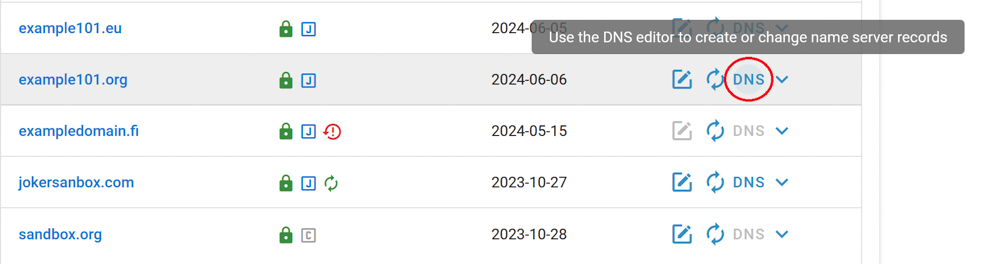
##### 2. Once you've switched, the DNS button will become active (blue) on your [dashboard](https://joker.com/faq/books/jokercom-faq-en/page/understanding-your-dashboard) next to the domain name. Click it:
![](https://joker.com/faq/uploads/images/gallery/FAQ_media/DNS/add_dns_record-1.png)

#####  

##### 3. In the DNS configuration section, choose a record type you want to add, let's take an A-record as example:

![](https://joker.com/faq/uploads/images/gallery/FAQ_media/DNS/add_dns_record-2.png)

#####  

##### 4. Add a subdomain (optionally) and target IP address, click "Add":  


![](https://joker.com/faq/uploads/images/gallery/FAQ_media/DNS/add_dns_record-3.png)


#####  

##### 5. Scroll down to view the newly added record, check its correctness, and click the "Save changes" button:

![](https://joker.com/faq/uploads/images/gallery/FAQ_media/DNS/add_dns_record-4.png)

#####  

##### 6. If you want to apply the same records to your other domains, you can click "Copy records to another domain":

![](https://joker.com/faq/uploads/images/gallery/FAQ_media/DNS/add_dns_record-5.png)


#####  

##### 7. Choose the type of record you want to propagate or select all of them. Let's use our newly added A-record for example:

![](https://joker.com/faq/uploads/images/gallery/FAQ_media/DNS/add_dns_record-6.png)


#####  

##### 8. Type the domains to which you want to add the record, separated by commas, and click "Proceed":

![](https://joker.com/faq/uploads/images/gallery/FAQ_media/DNS/add_dns_record-7.png)

<div class="input-group" id="bkmrk-now%2C-all-the-domains">Now, **all the domains listed will point to the same IP address** we specified in our A record.  
</div>Once the changes have been applied, you'll receive a confirmation email.

###  

### Adding SPF And DKIM Records

Adding **SPF** (Sender Policy Framework) and **DKIM** (DomainKeys Identified Mail) records to your domain's DNS settings helps improve email deliverability and prevents your emails from being marked as spam or forged by malicious parties.

Here's a guide on how to add SPF and DKIM records:

#### SPF Record

SPF allows you to specify which servers are authorized to send emails on behalf of your domain. To create an SPF record, follow these steps:


##### 1. In the DNS configuration section, create a new TXT record.

##### ![](https://joker.com/faq/uploads/images/gallery/FAQ_media/DNS/add_spf_dkim-1.png)  


#####  

##### 2. In the "Content" field, enter your SPF policy.

If you are using a third-party email service like Google Workspace, **they will provide you with the appropriate include value**. The SPF policy typically looks like this:

##### ![](https://joker.com/faq/uploads/images/gallery/FAQ_media/DNS/add_spf_dkim-2.png)

#####  

##### 3. Save the changes.

#### DKIM Record

**DKIM** allows the receiver to check that an email that claimed to have come from a specific domain was indeed authorized by the owner of that domain.


##### 1. In DNS management section, create a new TXT record:

##### ![](https://joker.com/faq/uploads/images/gallery/FAQ_media/DNS/add_spf_dkim-1.png)


#####  

##### 2. In the "Content" field, you'll need to add your DKIM public key

The DKIM key is usually **provided by your email service provider** (e.g., Google Workspace, Microsoft 365, etc.). The DKIM record should look something like this:

##### ![](https://joker.com/faq/uploads/images/gallery/FAQ_media/DNS/add_spf_dkim-3.png)


#####  

##### 3. Save the changes.

<p class="callout info">**Important:** wait for DNS Propagation. After adding the SPF and DKIM records, **it may take up to 48 hours** for the changes to propagate across the internet. Once the records have propagated, the SPF and DKIM authentication should be active for your domain's email.</p>

# URL Forwarding and E-mail Forwarding

Joker.com offers a service that allows you to direct all web requests **(HTTP)** for a domain or subdomain registered with Joker.com to a different externally hosted domain. For example, you can point the web traffic of your domain to the webspace provided by your Internet service provider.

<p class="callout success">This feature lets you access your domain: ***http://www.your-domain.com*** while the actual content is hosted at: ***http://www.your-internet-service-provider.com/your Account***</p>

By default, the redirection is of the type '**HTTP/1.1 301 Moved Permanently**'. This can be changed in the options of the DNS editor ("Type of redirection").

'**TLS**' can also be activated in the options - this enables **encrypted access via https** to your forwarding. A suitable SSL certificate is then automatically generated the first time it is called up, which takes a few seconds.

You have the option to use a standard redirection or a **"frame-based"** redirection that keeps the **original domain name visible** in your browser's location bar.

Moreover, you can customize your URL forwards with your own special title, meta, or HTTP header tags.

<p class="callout info">**Please note:** only HTTP(S) requests can be forwarded using URL Forwarding</p>

### To configure your URL forwarding, follow these steps:

##### 1. Switch to our Nameservers

Check [this article](https://joker.com/faq/books/jokercom-faq-en/page/adding-name-servers-to-your-domain) on how to do this.


##### 2. Once you've switched, the DNS button will become active (blue) on your [dashboard](https://joker.com/faq/books/jokercom-faq-en/page/understanding-your-dashboard) next to the domain name. Click it:

![](https://joker.com/faq/uploads/images/gallery/FAQ_media/DNS/add_dns_record-1.png)


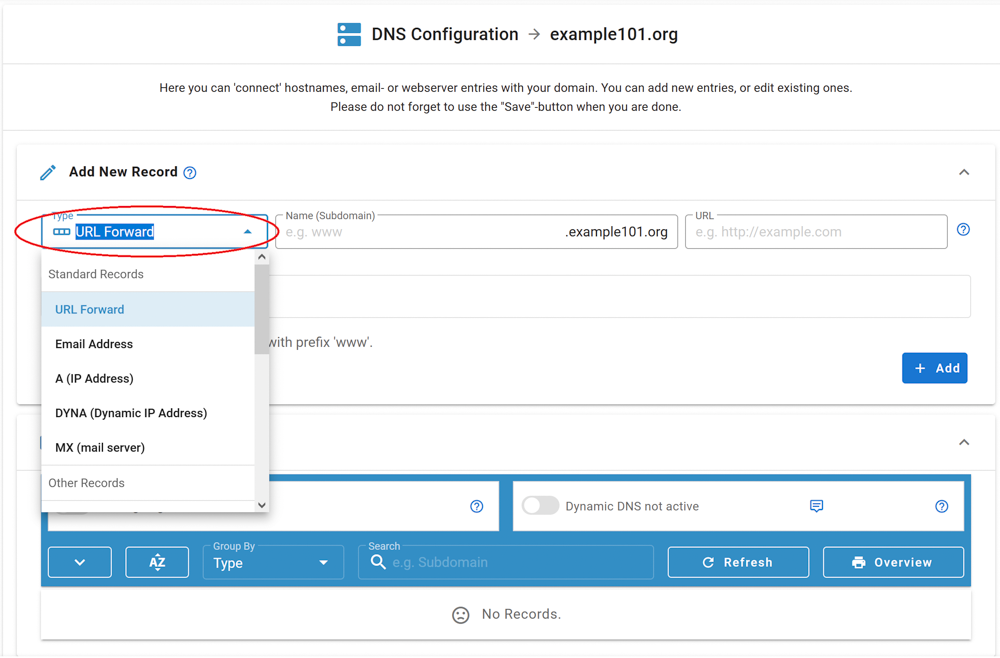
##### 3. In the DNS configuration section, choose URL Forward as record type:
![](https://joker.com/faq/uploads/images/gallery/FAQ_media/DNS/add_url-1.png)


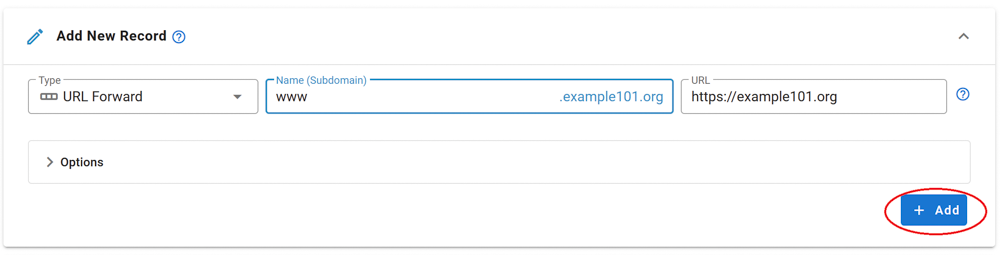
##### 4. Let's create a URL forwarding for a subdomain "www..." for our domain. Click "add":![](https://joker.com/faq/uploads/images/gallery/FAQ_media/DNS/add_url-2.png)


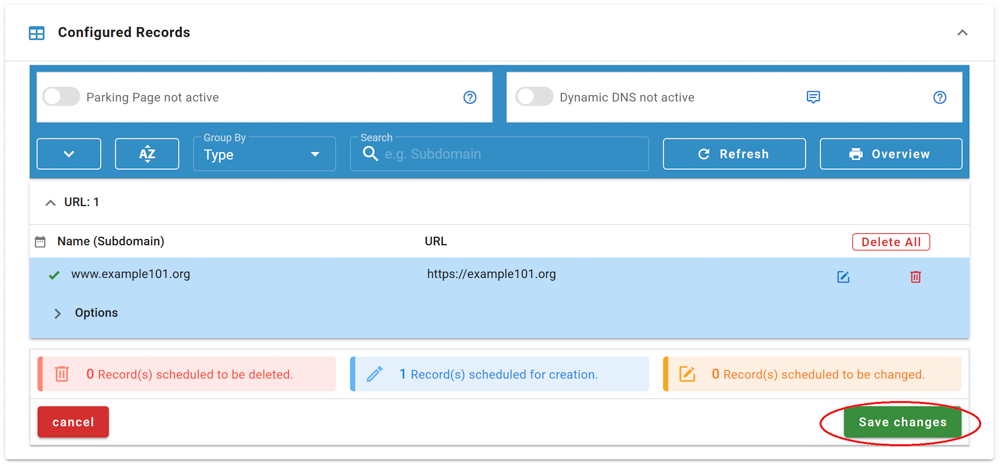
##### 5. Scroll down to view the newly added record, check its correctness, and click the "Save changes" button:


![](https://joker.com/faq/uploads/images/gallery/FAQ_media/DNS/add_url-3.png)


You are done!

## Email Forwarding

---

Email Forwarding is a service provided by Joker.com that enables you to create email addresses for a domain and forward incoming emails for those addresses to an external mail account.

This means you can have email addresses such as:

- info@yourdomain.com
- john@yourdomain.com
- \*@yourdomain.com

These addresses can be forwarded to your email account at your ISP or email provider, such as Gmail, Yahoo, or others.

<p class="callout info">If you create an **Email Forwarding** at Joker.com, an SPF record is **not** created automatically. It is strongly recommended to [**create**](https://joker.com/faq/books/jokercom-faq-en/page/dns-records-supported-by-jokercom-nameservice#bkmrk-how-to-define-spf-re) and [**set up an SPF record**](https://joker.com/faq/books/jokercom-faq-en/page/jokercom-name-service-adding-dns-records#bkmrk-spf-record) for forwards - especially if you forward emails to providers such as Gmail - to ensure proper email delivery.</p>

**Please note the following:**

- Email forwarding, similar to URL forwarding, requires that the domain uses the free Joker.com nameservice (which is the default). If you have a domain with a third-party nameservice, you cannot use Joker.com email forwarding. You can easily switch to Joker nameservice, [here you will find the instructions](https://joker.com/faq/books/jokercom-faq-en/page/adding-name-servers-to-your-domain).
- To add or modify email addresses for your domains, visit the DNS configuration section by clicking the "DNS" button next to your domain on your [dashboard](https://joker.com/faq/books/jokercom-faq-en/page/understanding-your-dashboard).
- Enabling **Email Forwarding will automatically delete current MX records**. This is unavoidable for technical reasons, so you can either let Joker.com handle your email or use a third-party mail server.
- <span style="font-family: Arial,Helvetica;">**The reverse is also true** - creating an <abbr class="glossary" title="Mail eXchange">MX</abbr> record for a (sub-)domain for which an e-mail forwarding already exists **will deactivate it** (a corresponding warning will be displayed beforehand).</span>
- <span style="font-family: Arial,Helvetica;"><span style="font-family: Arial,Helvetica;">For security reasons, we advise against using email forwarding as the "main" email address for your Joker.com account. If this is inadvertently deactivated, you will no longer receive account-related notices.</span></span>

It is also possible to create catch-all addresses. By entering '**\***' instead of *'your\_name'* as the *Email Address:*

*![](https://joker.com/faq/uploads/images/gallery/FAQ_media/DNS/email_forward-1.png)*
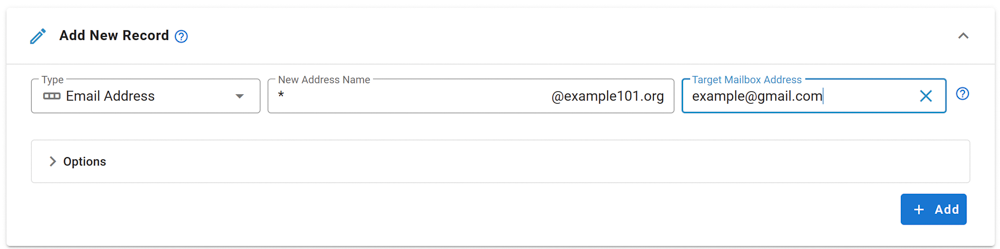
Any emails that **do not match any other address you created** will be directed to the '**\***' entry.

**Additionally:**

- There is a special account called **'postmaster'** that can be modified but **not deleted.**
- You have the option to "**block" specific addresses.** When activated, all incoming emails to the blocked address will be **deleted.**

Regarding the number of email addresses per domain, we do not impose strict limits. Instead, we follow a **fair-use policy**. As long as there are no significant *system impacts* caused by an *excessive* number of emails sent or addresses created, there will be no restrictions.

*Excessive* in this context refers to significantly above average, and *system impact* refers to significant interference with the general system and/or other users.

The current limits are as follows:

- Maximum size of a single email: **25MB**
- Maximum number of emails per day per address: **400**

<p class="callout info">**Important:** When creating a new email address or changing the target address, you need to activate it by responding to the activation email sent to the **Target Email Address**. Simply click on the link provided within the email.</p>

##### What about SPAM?  


<div align="justify" id="bkmrk-all-email-forwards-a"><span style="font-family: Arial,Helvetica;">All email forwards are **automatically scanned for SPAM.** </span>Emails classified as spam or malware will be **blocked**.</div><div align="justify" id="bkmrk--50"></div><div align="justify" id="bkmrk--51"></div><div align="justify" id="bkmrk--52"></div><div align="justify" id="bkmrk--53"></div>

# Dynamic DNS (DynDNS)

[**Dynamic DNS (DynDNS)**](https://en.wikipedia.org/wiki/Dynamic_DNS "Wikipedia: DynDNS") is a system that allows the domain name data held in a nameserver to be updated in real-time. The most common use for this is in allowing an Internet domain name to be assigned to a computer with a varying (dynamic) IP address.  
This makes it possible for other sites on the Internet to establish connections to the computer without needing to track the IP address themselves. A common use for it is running server software on a computer that has a dynamic IP address, as usually happens with many consumer Internet service providers.  
  
To use Dynamic DNS records with Joker.com, you have to create at least one **Dynamic DNS record**.  
Additionally, the Dynamic DNS feature has to be **activated**.

This can be done by visiting DNS configuration section by clicking the **"DNS" button** next to your domain on your [dashboard](https://joker.com/faq/books/jokercom-faq-en/page/understanding-your-dashboard).

After this, you have to configure your (DSL-) router or your Dynamic DNS software on your computer. You should select "**dyndns2**" as protocol in your router or dyndns-client.

Currently, there is a limit of 20 records per domain. The nameserver records have a TTL (time to live - defines the latency before changes become visible) of **60 seconds**.

<p class="callout info">**Please note: The "username" and "password" referred to in this section are not identical to your standard Joker.com credentials.** Instead, when you create your DynDNS entry, you will be provided with special credentials which are only valid for those entries with the specific domain.</p>

## Examples

---

### Hardware Devices / Routers

A hardware device like a DSL router often is able to handle Dynamic DNS itself. As an example, this is the corresponding section of a Fritz!Box DSL router:

- In the menu (web ui), you have to chose "Preferences" =&gt; "Internet" =&gt; "Dynamic DNS".
- You have to enable "Dynamic DNS" with the checkbox.
- Then please choose **"Custom" as the Dynamic DNS Provider**.
- The input fields then have to be filled like this:

```
Update-URL: https://svc.joker.com/nic/update?username=<username>&password=<pass>&myip=<ipaddr>&hostname=<domain><br></br>Domain name: <enter your Joker.com Dynamic DNS record (Domain name) here><br></br>Username: <enter the username you got at Joker.com's DNS management for this domain><br></br>Password: <enter the password you got at Joker.com's DNS management for this domain><br></br>Note: SSL is not supported by all devices, especially olders ones need to use: <strong>http</strong>://svc.joker.com/nic/update?...
```

**Please note:** The parameter '*myip*' is optional; if not provided, the originating IP address is used automatically.

**Sample:**

```
Update-URL: <strong>https://svc.joker.com/nic/update?username=<username>&password=<pass>&myip=<ipaddr>&</strong><strong>hostname=<domain></strong><br></br>Domain name: <strong>www.yourdomain.com</strong><br></br>Username: <strong>156ba6fa7f93bfd7</strong><br></br>Password: <strong>5bc123a7100ef6a2</strong>
```

Or using as direct URL:

```
Update-URL: <strong>https://svc.joker.com/nic/update?username=156ba6fa7f93bfd7&password=5bc123a7100ef6a2&</strong><strong>hostname=www.yourdomain.com</strong>
```

<div align="justify" id="bkmrk-to-check-your-curren">To check your current IP address, please use this URL: </div>`<strong>https://svc.joker.com/nic</strong>/checkip`

<div align="justify" id="bkmrk-%C2%A0-3"> </div><div align="justify" id="bkmrk-some-dynamic-dns-sof">Some Dynamic DNS software clients do need this without additional text: </div>`<strong>https://svc.joker.com/nic</strong>/myip`

`<strong>https://ipv4.svc.joker.com/nic/myip</strong> `Does always return an **IPv4** address if available - empty otherwise

`<strong>https://ipv6.svc.joker.com/nic/myip</strong> `Does always return an **IPv6** address if available - empty otherwise


### Software Clients

<div align="justify" id="bkmrk-%C2%A0-7"> </div>#### Windows

A simple and popular free DynDNS updater for Windows is **[ddclient](http://www.randomnoun.com/wp/2013/08/19/a-dynamic-dns-client-for-windows/ "DDClient")**. The installation creates a section "ddclient" in the Windows start menu.

After the installation - during which you **might enter any data** - please copy the following text as "*ddclient.conf*" into the directory where "ddclient" was installed. In the windows start menu you can also use the entry "Open ddclient.conf in notepad" by right-clicking on "Run as administrator".

Please replace the placeholders with your entries beforehand:

```
# ddclient.conf<br></br>#<br></br>daemon=5m<br></br>use=web<br></br>web=svc.joker.com/nic/checkip<br></br>server=svc.joker.com/nic/update?<br></br>protocol=dyndns2<br></br>login=USERNAME<br></br>password=PASSWORD<br></br>host=WWW.YOURDOMAIN.COM<br></br>ssl=yes
```

USERNAME = the **DynDNS**-"**Username**" in the DynDNS-section at Joker.com

PASSWORD = the **DynDNS**-"**Password**"

YOUR.DOMAIN.COM = Your desired hostname - which you should have previously created under "**DynA**" in the DynDNS section on Joker.com. When creating, there you may enter **any** IP like "192.168.0.1". You will later know whether your DynDNS client is working or not by checking if this IP changes to your dynamic one.

In this example above you would create the entry "**www**" under "**DynA**" for your domain "**yourdomain.com**".

After you have created the file *ddclient.conf* or copied it into the program directory, call the entry "***start ddclient console***" in the Windows start menu. A window will open and after a short time, you should see messages indicating a successful IP change. Otherwise, please check whether your details (username, password, host or domain name) are correct, and also whether the URL for determining your own IP works for you in the browser (".../checkip/").  
  
If this test was successful, you can close the window and then call "***start ddclient service***" in the start menu with **administrator rights** (right mouse button, "run as administrator").  
This will run *ddclient* in the background.

Another common Windows client is the "**DynDNS Updater**" from [Kana Solution](http://www.kanasolution.com/). A suitable profile can be downloaded here: [kana\_joker.profile](https://joker.com/faq/attachments/41)

#### Linux

<div align="justify" id="bkmrk-%C2%A0-9"> </div>**Free DynDNS-client für Linux:** ddclient - [ddclient.sf.net](http://ddclient.sf.net/)

**Hints for *ddclient:***

<div align="justify" id="bkmrk-please-use-the-confi"><div align="justify">- please use the config file *ddclient.conf* for the windows version provided above, it works the same
- protocol is also "dyndns2"
- please check on the Linux commandline, that you have access to the DynDNS service:
- *wget https://svc.joker.com/nic/checkip*


</div></div>#### Apple MacOS

**Free DynDNS-Client for MacOS:** ddclient (s. Windows &amp; Linux) Installation preferably via [HomeBrew](https://brew.sh/):

<div align="justify" id="bkmrk-ddclient-%28s.-windows"><div align="justify">- open Mac Terminal App

</div></div>```
ruby -e "$(curl -fsSL https://raw.githubusercontent.com/Homebrew/install/master/install)" < /dev/null 2> /dev/null
```

- If you are asked for a password, enter the password of your user account

```
brew install ddclient
```

A paid dynamic DNS client for MacOS with **native Joker.com** support is "**IP Monitor**" from [Appquarter.com](https://appquarter.com/)

It is also available from the Mac Appstore.

# DNSSEC

<span style="font-family: arial,helvetica,sans-serif; font-size: small;">DNSSEC is the abbreviation for '</span><span style="font-size: small;">Domain Name System Security Extensions'. It is a set of extensions to the domain name system (<abbr class="glossary" title="Domain Name Server">DNS</abbr>), basically to allow clients to **verify the authenticity and integrity of <abbr class="glossary" title="Domain Name Server">DNS</abbr> records**.</span>

<span style="font-size: small;">For a domain to make use of DNSSEC, the following is needed:</span><span style="font-size: small;"> </span>

- <span style="font-size: small;">the domain type (<abbr class="glossary" title="Top Level Domain">TLD</abbr>) needs to support DNSSEC (i.e. the registry)</span>
- <span style="font-size: small;">the registrar of the domain needs to allow to activate and configure DNSSEC for a domain</span>
- <span style="font-size: small;">the configured nameservers need to support DNSSEC</span>
- <span style="font-size: small;">the clients (e.g. browsers) need to make use of DNSSEC </span>

<span style="font-family: arial,helvetica,sans-serif; font-size: small;"> </span><span style="font-family: arial,helvetica,sans-serif; font-size: small;">You may have a look at [Wikipedia](http://en.wikipedia.org/wiki/Domain_Name_System_Security_Extensions) or this short [tutorial](https://www.internetsociety.org/deploy360/dnssec/basics/ "DNSSEC Internet Society") as starters for reading more about these topics.</span>

<p class="callout warning"><span style="font-family: arial,helvetica,sans-serif; font-size: small;">**Important:**</span><span style="font-family: arial,helvetica,sans-serif; font-size: small;"> DNSSEC cannot be fully activated for **.dk domains** directly through the Joker.com interface. To enable DNSSEC for your **.dk domain**, please follow the instructions provided [**HERE**](https://joker.com/faq/books/jokercom-faq-en/page/specific-cctlds-nameservers#bkmrk-adding-dnssec)</span></p>

## DNSSEC Support at Joker.com

Joker.com enables you to activate and configure DNSSEC for nearly all of your domains - most domain types (TLDs) do support DNSSEC. The only exceptions at Joker.com currently are .ws and .cn.

<span style="font-family: arial,helvetica,sans-serif; font-size: small;">**Please note:** Joker.com supports DNSSEC with standard Joker.com name servers as well as with domains that use external name servers</span>

- <span style="font-size: small;"><span style="font-family: arial,helvetica,sans-serif;">**for Joker.com nameservers:** To enable DNSSEC, please go to click on "<abbr class="glossary" title="Domain Name Server">DNS</abbr>" next to your domain on your [dashboard](https://joker.com/faq/books/jokercom-faq-en/page/understanding-your-dashboard). There you will find the "**Enable DNSSEC**" button. If you then click on "**Save changes**", you are done!  
    </span></span>
- <span style="font-size: small;"><span style="font-family: arial,helvetica,sans-serif;">**for DNSSEC with own or external name servers:** Please use our instructions below.  
    </span></span>

<span style="font-size: small;"><span style="font-family: arial,helvetica,sans-serif;">To find out if your domain is working properly with DNSSEC, you may use the [DNSSEC Analyzer](http://dnssec-debugger.verisignlabs.com/ "DNSSEC Analyzer").  
</span></span>

<span style="font-size: small;"><span style="font-family: arial,helvetica,sans-serif;"> </span></span><span style="font-size: small;"><span style="font-family: arial,helvetica,sans-serif;">Resellers will find similar commands to operate DNSSEC using **DMAPI** and [**RPanel**](https://rpanel.io).</span></span>


## How To use DNSSEC with a Joker.com Domain and a <abbr class="glossary" title="Domain Name Server">DNS</abbr> Hosting Provider

This is about:

- you want to use DNSSEC with domains from Joker.com
- you are using an **external name service**, like from a service provider, or your own

To make this work, the domain has to be "linked" to the external name service:

##### 1. Set up the <abbr class="glossary" title="Domain Name Server">DNS</abbr> zone and records at the <abbr class="glossary" title="Domain Name Server">DNS</abbr> hosting provider

Each <abbr class="glossary" title="Domain Name Server">DNS</abbr> hosting provider has its own web interface and system for adding records. Here you have to create the zone records you need, like A records to add IPv4 addresses to a hostname.


##### 2. Still at the <abbr class="glossary" title="Domain Name Server">DNS</abbr> hosting provider

**sign the domain with DNSSEC**. This of course requires, that your <abbr class="glossary" title="Domain Name Server">DNS</abbr> provider support DNSSEC.

The end result is that you have a **signed domain with a DS record**. You will need this information (DS record) later at **Joker.com**.


##### 3. At Joker.com

[**Change the name servers**](https://joker.com/faq/books/jokercom-faq-en/page/adding-name-servers-to-your-domain#bkmrk-1.-on-your-dashboard) for the domain to point to the name servers of the <abbr class="glossary" title="Domain Name Server">DNS</abbr> hosting provider.

It should look like this now:
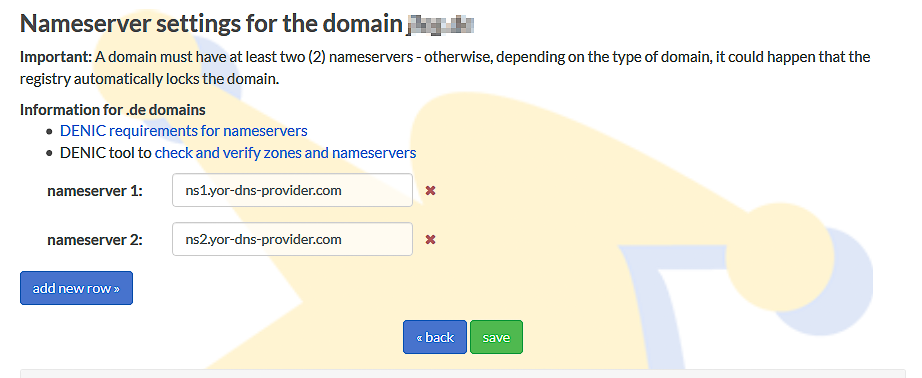
![change name servers](https://joker.com/faq/uploads/images/gallery/FAQ_media/DNS/dnssec-1.png "change name servers")

This change may take some time to propagate through the larger <abbr class="glossary" title="Domain Name Server">DNS</abbr> infrastructure. Until the name server change has fully propagated, people may still see <abbr class="glossary" title="Domain Name Server">DNS</abbr> records coming from the previous name servers.

**At this point, you have a domain signed with DNSSEC at the <abbr class="glossary" title="Domain Name Server">DNS</abbr> hosting provider, and you have changed the records at Joker.com to point to the name servers of the <abbr class="glossary" title="Domain Name Server">DNS</abbr> hosting provider.**

Almost done!

If you now run your domain through the [**DNSSEC analyzer tool**](https://dnssec-analyzer.verisignlabs.com/ "https://dnssec-analyzer.verisignlabs.com/"), you will still see a problem: "***No DS records found***"

This means, you still have to create a so-called ***Delegation Signer (DS)*** record at **Joker.com**.

##### 4. Create DS record at Joker.com

- again, visit Joker.com, click "Modify" next to your domain name
- You will now find your name servers listed and a DNSSEC section:
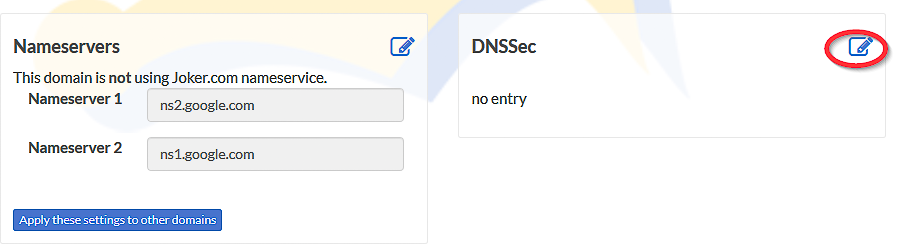
![change name servers](https://joker.com/faq/uploads/images/gallery/FAQ_media/DNS/dnssec-2.png "change name servers")

- click on '![](https://joker.com/faq/uploads/images/gallery/2023-09/2023-09-29-16-40-46-window.png "Edit name servers")' at section **DNSSEC**
- it will then look like this - please check if the information corresponds with what you got in step 2 above:
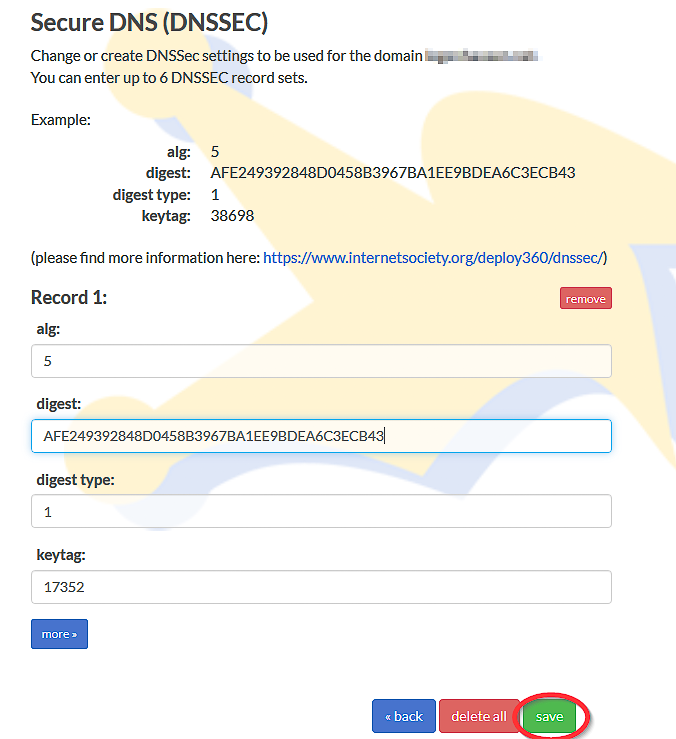
![change name servers](https://joker.com/faq/uploads/images/gallery/FAQ_media/DNS/dnssec-3.png "change name servers")

- <div class="li">tag is derived from the key (provided by <abbr data-original-title="Domain Name System" title="">DNS</abbr> operator)</div>
- <div class="li">digest type is 1 (SHA-1, deprecated) or 2 (SHA-256)</div>
- digest itself: up to 40 hex digits for SHA-1 and up to 64 hex digits for SHA-256
- Press "save", and you are done - DNSSEC is enabled on your domain.

##### 5. Finally, **verify that DNSSEC works**

using a tool such as Verisign Labs’ [DNSSEC Analyzer](http://dnssec-debugger.verisignlabs.com/). It should show nice green check marks now - but please keep in mind, that your changes will take some time until they become active.

**Having followed these steps, you have DNSSEC working on a domain registered with Joker.com, using name servers from an external name service provider.**

Meanwhile, there is good news: **You now also are able to use DNSSEC with the regular Joker.com name servers** as well, free of charge! This of course is probably much simpler for you, since you do not have to maintain external name server records, and you can make use of DNSSEC fully integrated into Joker.com's web portal.

# Let's Encrypt SSL Certificates

## Support for Automating Let's Encrypt SSL Certificates

Joker.com offers a simple tool to automate the process of using **[*Let's Encrypt* certificates](https://letsencrypt.org "Let's Encrypt").**

With this tool, you can easily request Let's Encrypt certificates without the need to expose your domain through an HTTP web server or make any special configurations to existing web services.

The method used to obtain the certificates is **'dns-01'**, where a special TXT record must be added to your domain. To use this method, your domain **must be using the free Joker.com nameservice,** which is the default option.

Setting a TXT record is a straightforward process:

- On your Joker.com dashboard, click "DNS" button next to the domain you want to add a Let's Encrypt certificate for.
- If '[Dynamic DNS](https://joker.com/faq/books/jokercom-faq-en/page/dynamic-dns-dyndns "Dynamic DNS (DynDNS)")' is not already active, activate it. This will not affect any other existing DNS records for the domain.
- Take note of the 'Dynamic DNS Authentication' credentials shown (username and password) - only once per domain.

The following explains the technical details - you may skip this and **simply use the attached files which you find below.** They do work with the commonly used tool [**dehydrated**](https://github.com/lukas2511/dehydrated "dehydrated - make Let's Encrypt easy"). Where to place these files, and **how to configure your domains** or host names, is documented in the file [config.sh](https://joker.com/faq/attachments/42)

For the use of the [**certbot**](https://certbot.eff.org/ "https://certbot.eff.org/"), github-user **dhull** kindly provides another solution:

- GitHub: [https://github.com/dhull/certbot-dns-joker ](https://github.com/dhull/certbot-dns-joker "https://github.com/dhull/certbot-dns-joker")
- PyPI: [https://pypi.org/project/certbot-dns-joker/ ](https://pypi.org/project/certbot-dns-joker/ "https://pypi.org/project/certbot-dns-joker/")

This can easily be installed by "*pip install certbot-dns-joker"* - see the Github page above for details.

---

**To set a TXT record, you may now do this using a single cURL request:**

```
curl -X POST https://svc.joker.com/nic/replace -d \<br></br>'username=<em>your-username</em>&password=<em>your-password</em>&zone=<em>your-domain.com</em>&label=_acme-challenge&type=TXT&value=<em>the-TXT-content-to-insert</em>'
```

This will create a TXT record for "\_acme-challenge" in zone "your-domain.com".  
It responds with 200 and "OK: n# inserted, n# deleted" if everything went OK, and appropriate status and text if not.

**Some additional notes regarding this:**

- only POST method is supported
- only *type=TXT* is supported (and must be provided) for now
- "label" could be anything within the zone (including "@" and "\*")
- this request will replace all TXT records for the **specified label** with the provided content
- "value" must be printable ASCII only, without double quotes
- if "value" is empty ("value="), all existing records for specified label are deleted
- multiple TXT records with the same label can be added by using multiple "value" parameters in the URL

<p class="callout info">Attached files: [hook.sh](https://joker.com/faq/attachments/43) [config.sh](https://joker.com/faq/attachments/42)</p>

# Specific ccTLDs: Nameservers

### .DE-Domains

<span style="font-family: Arial,Helvetica;">In case you want to **use your own/external name servers** for your .**DE-domains** instead of the standard name servers from Joker.com, you have to make sure that these name servers are compliant with the [requirements set by the DENIC](https://www.denic.de/fileadmin/public/documentation/DENIC-23p.pdf "DENIC DNS requirements").</span><span style="font-family: Arial,Helvetica;"> </span>

<span style="font-family: Arial,Helvetica;">Requests to register or update **.de domains** are handled by a robot doing the following **checks on the registry side**:</span>

- are all name servers given in the request reachable?
- are they authoritative?
- do their answers contain the "authoritative answer" (AA) bit and do they know about the other authoritative name servers?
- are all authoritative nameservers given in the request?
- are values in the SOA record*s* in the ranges required by the DENIC?
- are the SOA values identical for all name servers?
- do at least two of the three name servers differ in the first three bytes of the IP (v4) address?

Name Server: SOA Records

<span style="font-family: Arial,Helvetica;"> </span>

<span style="font-family: Arial,Helvetica;">SOA stands for "**Start of Authority**". </span>

<span style="font-family: Arial,Helvetica;">An [SOA record](https://en.wikipedia.org/wiki/SOA_Resource_Record "Wikipedia: SOA") is the part of a <abbr class="glossary" title="Domain Name Server">DNS</abbr> zone containing the email of the responsible person of the zone, and various synchronization parameters used by the different name servers of the zone. </span>

<span style="font-family: Arial,Helvetica;">Requests to register or update **.DE domains** must contain SOA values in the following ranges:</span>

<div align="left" id="bkmrk-soa-record-value-ser-1"><table border="1" class="align-center" style="border-collapse: collapse; width: 424px; height: 96px; border-width: 1px;"><tbody><tr><td style="border-width: 1px;">**<span style="font-family: arial,helvetica,sans-serif; font-size: small;">SOA-Record</span>**</td><td style="border-width: 1px;">**<span style="font-family: arial,helvetica,sans-serif; font-size: small;">Value</span>**</td></tr><tr><td class="align-left" style="border-width: 1px;"><span style="font-family: arial,helvetica,sans-serif; font-size: small;">serial recommended format</span></td><td class="align-left" style="border-width: 1px;"><span style="font-family: arial,helvetica,sans-serif; font-size: small;">YYYYMMDDnn</span></td></tr><tr><td class="align-left" style="border-width: 1px;"><span style="font-family: arial,helvetica,sans-serif; font-size: small;">refresh</span></td><td class="align-left" style="border-width: 1px;"><span style="font-family: arial,helvetica,sans-serif; font-size: small;">\[10000 ... 86400\]</span></td></tr><tr><td class="align-left" style="border-width: 1px;"><span style="font-family: arial,helvetica,sans-serif; font-size: small;">retry</span></td><td class="align-left" style="border-width: 1px;"><span style="font-family: arial,helvetica,sans-serif; font-size: small;">\[1800 ... 28800\]</span></td></tr><tr><td class="align-left" style="border-width: 1px;"><span style="font-family: arial,helvetica,sans-serif; font-size: small;">expire</span></td><td class="align-left" style="border-width: 1px;"><span style="font-family: arial,helvetica,sans-serif; font-size: small;">\[604800 ... 3600000\]</span></td></tr><tr><td class="align-left" style="border-width: 1px;"><span style="font-family: arial,helvetica,sans-serif; font-size: small;">ttl</span><span style="font-family: arial,helvetica,sans-serif; font-size: small;"> </span>

</td><td class="align-left" style="border-width: 1px;"><span style="font-family: arial,helvetica,sans-serif; font-size: small;">\[180 ... 345600\]</span></td></tr></tbody></table>

</div>If you are not sure, if your nameservers are compliant with DENIC requirements, or get an error related to nameservice, please check your nameservers at [https://nast.denic.de/](https://nast.denic.de/)


### .DK-Domains

##### Nameserver change

The process of changing the nameserver for .dk domains is specifically regulated by DK Hostmaster. To modify the nameserver associated with a .dk domain, it is mandatory to go through DK Hostmaster's designated platform at:

[https://self-service.dk-hostmaster.dk/domain/change\_name\_server](https://self-service.dk-hostmaster.dk/domain/change_name_server)

When you navigate to the aforementioned website, you will find a user-friendly interface designed to assist domain owners in updating their nameserver information. This process ensures that only authorized individuals with the appropriate access can make modifications to the nameservers associated with .dk domains. By centralizing this function through DK Hostmaster, they maintain control and oversight over the nameserver settings for all .dk domains, helping to ensure the security, stability, and integrity of the Danish domain space.

<p class="callout warning">**Important:** If your .dk domain has **never used Joker.com nameservers -** for example, if you just transferred it to us while still using old external/foreign nameservers—you must **create a DNS zone** *before* switching to Joker.com nameservers at **DK Hostmaster (Punktum)**. To activate a zone, simply **create a [virtual zone](https://joker.com/faq/books/jokercom-faq-en/page/new-feature-virtual-zones)** or add **any [DNS record](https://joker.com/faq/books/jokercom-faq-en/page/jokercom-name-service-adding-dns-records)** in the DNS editor (even a placeholder TXT record is sufficient). Once a zone exists, you can successfully update your nameservers at Punktum.</p>

##### Adding DNSSEC

**If you use Joker.com nameservers**

Activating DNSSEC for your .dk domain is a **two-step process**:

1. **Activate DNSSEC in the Joker.com [DNS Editor](https://joker.com/faq/books/jokercom-faq-en/page/jokercom-name-service-adding-dns-records#bkmrk-2.-once-you%27ve-switc)**
    
    
    - Go to the [**DNS Editor**](https://joker.com/faq/books/jokercom-faq-en/page/jokercom-name-service-adding-dns-records#bkmrk-2.-once-you%27ve-switc) (not the *Modify* section as you would normally do).
    - Enable the **DNSSEC** switch.
    - This generates the necessary DNSSEC keys.
2. **Import DS records at DK Hostmaster (Punktum)**
    
    
    - Log in to your account at Punktum.
    - Open the **DNSSEC** section and choose **“Import DNSSEC keys.”**
    - Select **all keys**, or at least those using **SHA-256** or **SHA-384**.
    - Save your changes.

Afterwards, verify that everything is functioning correctly using the [DNSSEC Analyzer](https://dnssec-debugger.verisignlabs.com/)

**If you use foreign nameservers**

The process is similar:

1. **Activate/enable DNSSEC** at your external DNS provider (they will provide the DS records).
2. Go directly to Punktum and **import the DS records** in the DNSSEC management section.
3. **No changes are needed at Joker.com** in this case.

<p class="callout warning">**Important:** The **“Import DNSSEC Keys”** page at Punktum does **not work reliably in all browsers**. If the page freezes or shows no error but doesn't proceed, try a different browser. **Microsoft Edge** and **Google Chrome** work consistently.</p>


### .IT-Domains  


Similar to .de domains, .it domain registry has specific requirements for nameservers.

It is crucial to verify the compliance of your custom nameservers before registering an .it domain. If your nameservers do not meet the registry requirements, the domain will be **deleted within 30 days**. To check the compliance of your nameservers, you can use the following link:

 [https://www.nic.it/en/manage-your-it/dns-check](https://www.nic.it/en/manage-your-it/dns-check).